> ## Documentation Index
> Fetch the complete documentation index at: https://www.studyfetch.com/docs/llms.txt
> Use this file to discover all available pages before exploring further.

# Imagine Explainers Tutorial 

> What you need to know about Imagine Explainers

Create an animated video explainer in just a few minutes.&#x20;

### How to create a video explainer&#x20;

To get started with Imagine Explainers:

1. Visit [imagineexplainers.com](https://imagineexplainers.com)

2. Create a free account or log in to your existing account

3. Once logged in, you'll be taken to the main dashboard where you can start creating video explainers

4. On your homepage, you will immediately see a text prompt where you can type in what you want to learn about. You can also tick the Real Time Web Search button to allow the AI to use real time data and get the latest information about your topic from the internet
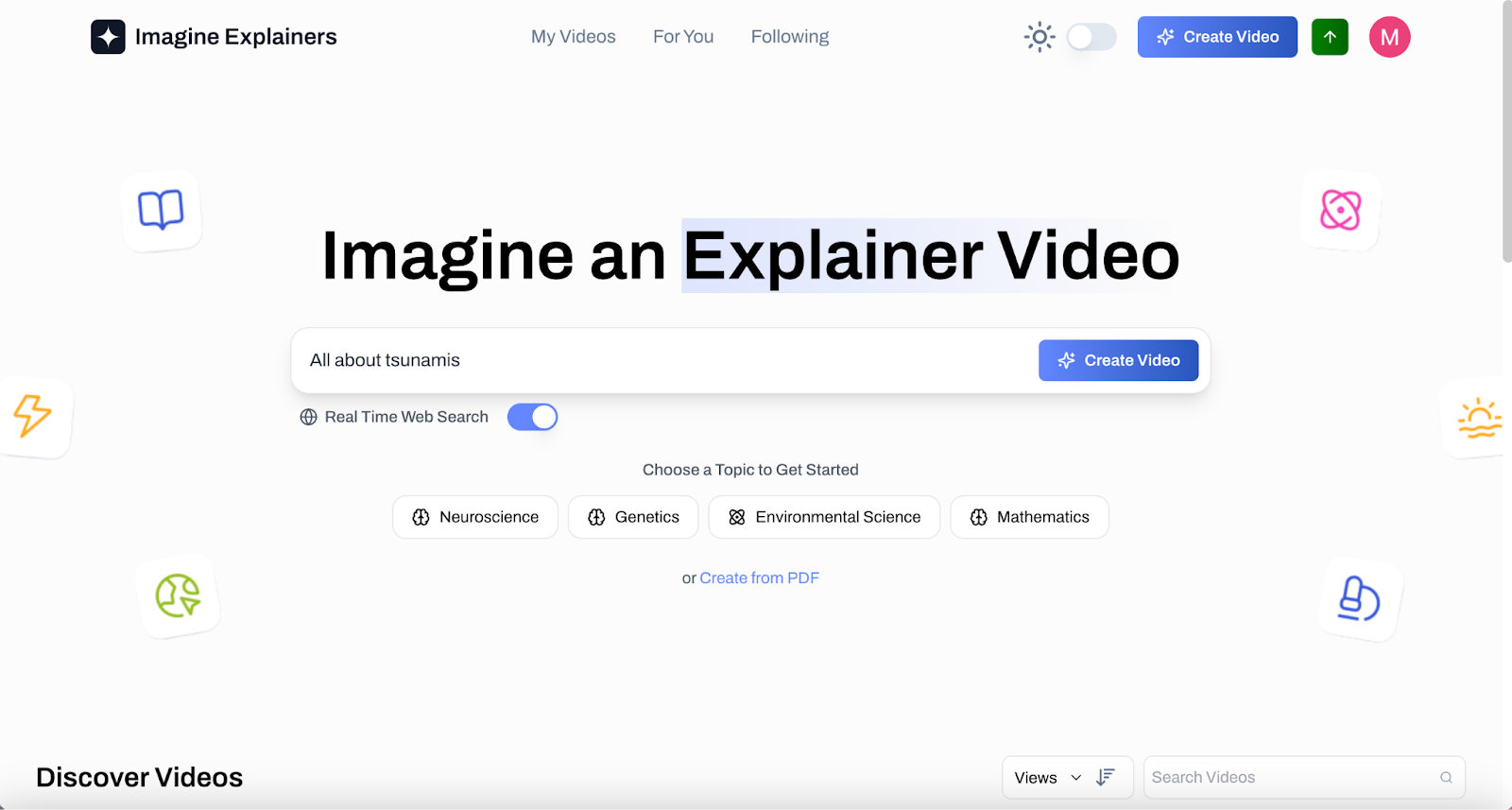
   <img height="335" width="624" alt="Image showing the Imagine Explainer landing page, &#x22;All about tsunamis&#x22; placed on the text " title="On your homepage, you will immediately see a text box prompt where you can type in what you want to learn about. You can also tick the Real Time Web Search button to allow the AI to use real time data and get the latest information about your topic from the internet" src="https://mintcdn.com/studyfetch/2Ik4wNBCiOZu9tdG/images/sf_1742513867642_image_1742513867642_206.png?fit=max&auto=format&n=2Ik4wNBCiOZu9tdG&q=85&s=86c4096bdffc17b249b43eceba71324f" data-path="images/sf_1742513867642_image_1742513867642_206.png" />

5. Click on **Create Video** > Choose the video length you want to generate. Note that longer videos will include more detail and take more time to create > Click on **Generate**

   <img height="273" width="624" alt="Image showing the Choose Video Length prompt, Free 5 Minutes option highlighted " title="Click on Create Video > Choose the video length you want to generate. Note that longer videos will include more detail and take more time to create > Click on Generate" src="https://lh7-rt.googleusercontent.com/docsz/AD_4nXfGKd8R6krbNvKBTNxWvoVJZu-JO941kAVRrUzO2B9lG01EtxogClbeQxjT3dpdrdsubpV1zzdggzM7tETjkXCxigG9dfFtUCc5yksSkd7ShPtn00x0cJQoxDXDS9K8SAQ7XyEmUw?key=0nDRryddKeGm0t56-qQo90EA" />

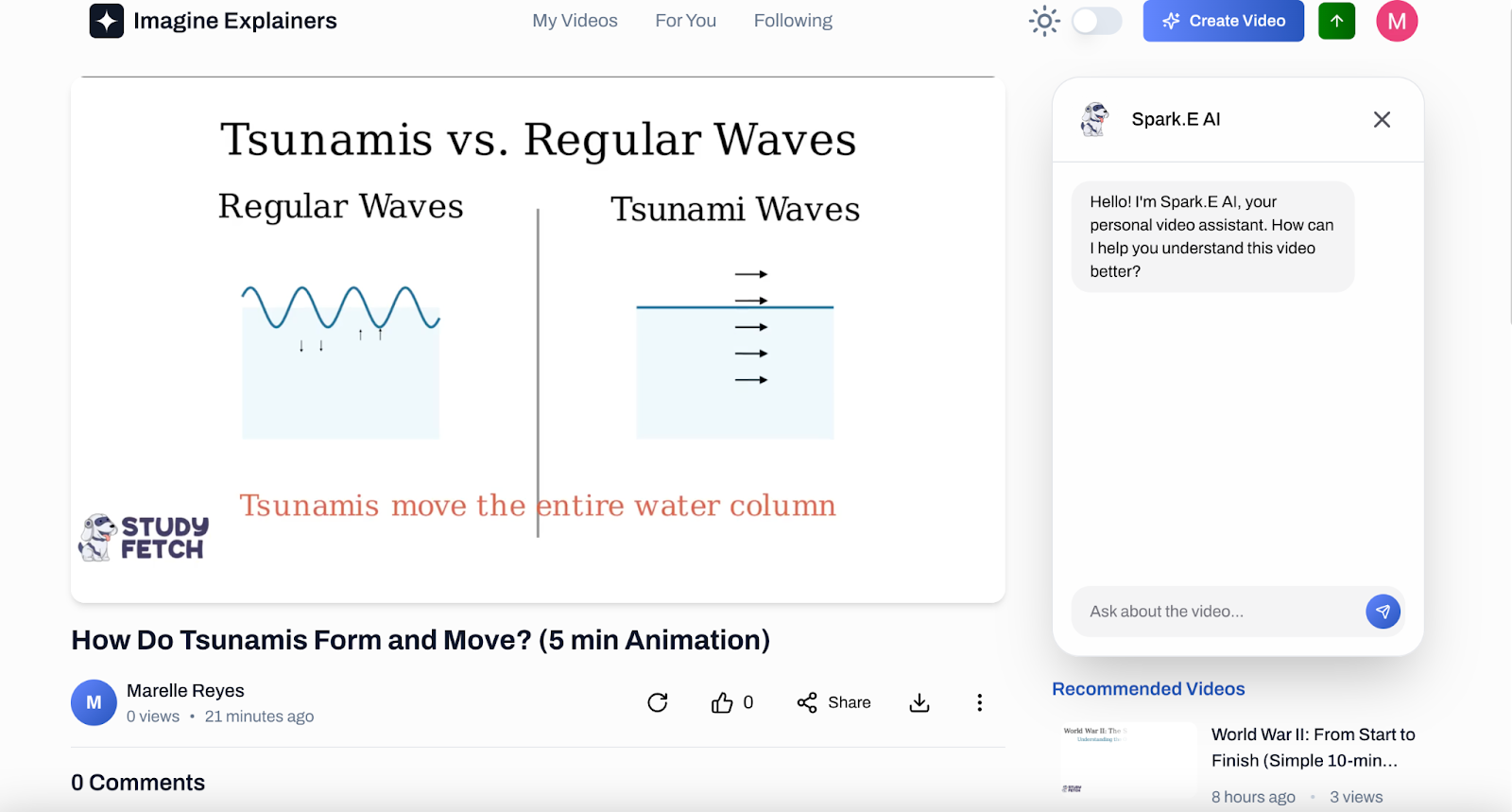
6. After 5 minutes, your Explainer video will be generated.&#x20;

   <img height="335" width="624" alt="Image of the explainer video view page, video titled How Do Tsunamis Form and Move?" title="After 5 minutes, your Explainer video will be generated." src="https://mintcdn.com/studyfetch/2Ik4wNBCiOZu9tdG/images/sf_1742513867642_image_1742513867642_706.png?fit=max&auto=format&n=2Ik4wNBCiOZu9tdG&q=85&s=50be474b3f5ac94c856a5f8a53e201ec" data-path="images/sf_1742513867642_image_1742513867642_706.png" />

7. While watching, feel free to ask Spark.E, your AI assistant, any questions to deepen your understanding of the topic you're learning. Spark.E is here to help clarify concepts and provide additional insights!
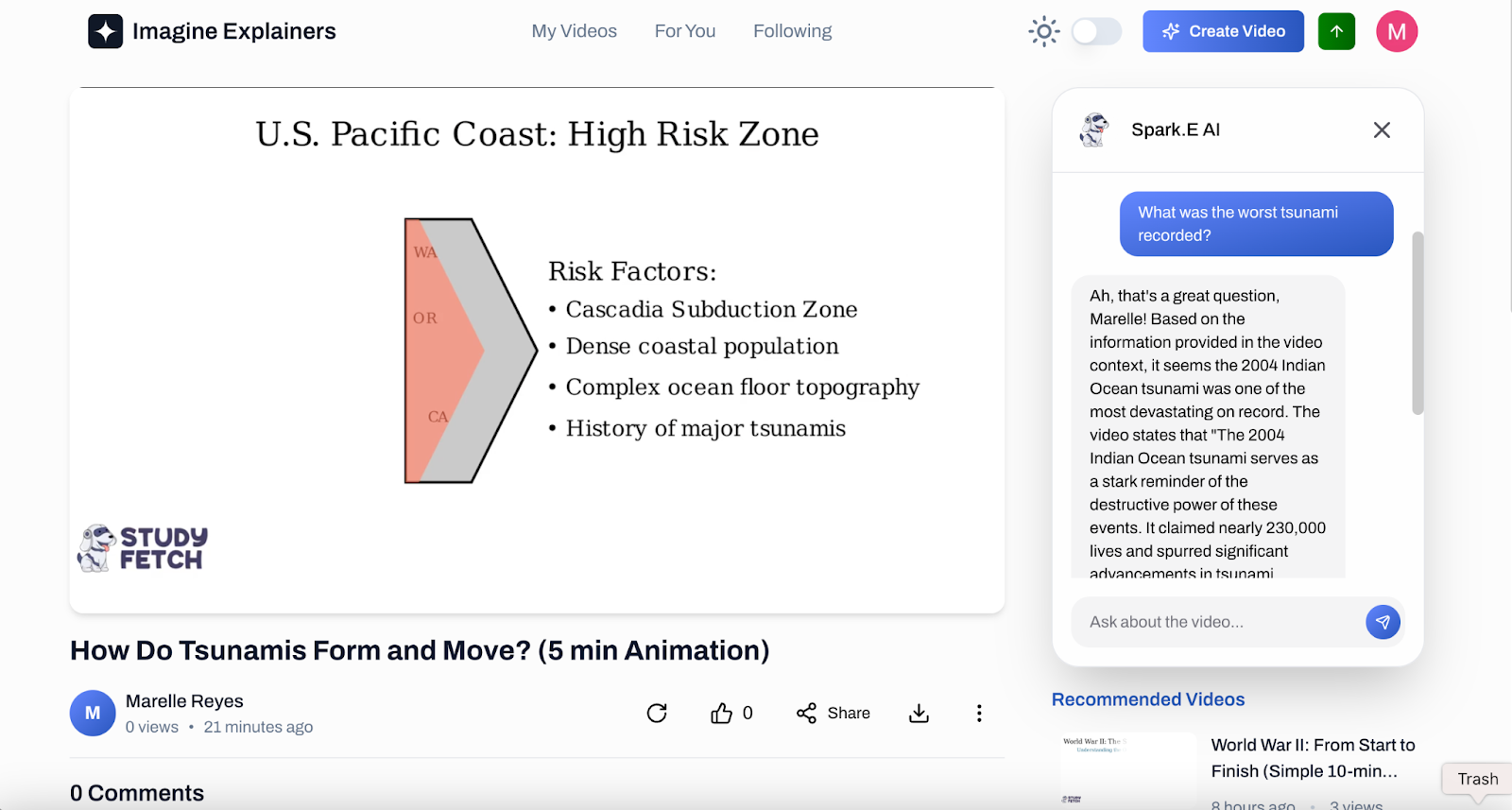
   <img height="335" width="624" alt="Image showing the explainer video view page, the chat box on the right side initiated by the question &#x22;What was the worst tsunami recorded?&#x22;" title="While watching, feel free to ask Spark.E, your AI assistant, any questions to deepen your understanding of the topic you're learning. Spark.E is here to help clarify concepts and provide additional insights!" src="https://mintcdn.com/studyfetch/2Ik4wNBCiOZu9tdG/images/sf_1742513867642_image_1742513867642_107.png?fit=max&auto=format&n=2Ik4wNBCiOZu9tdG&q=85&s=b8a4e02d022370718e7d19b7576e20cb" data-path="images/sf_1742513867642_image_1742513867642_107.png" />

8. Scrolling down, you will see a comment section. On the right side, a list of recommended videos		&#x20;
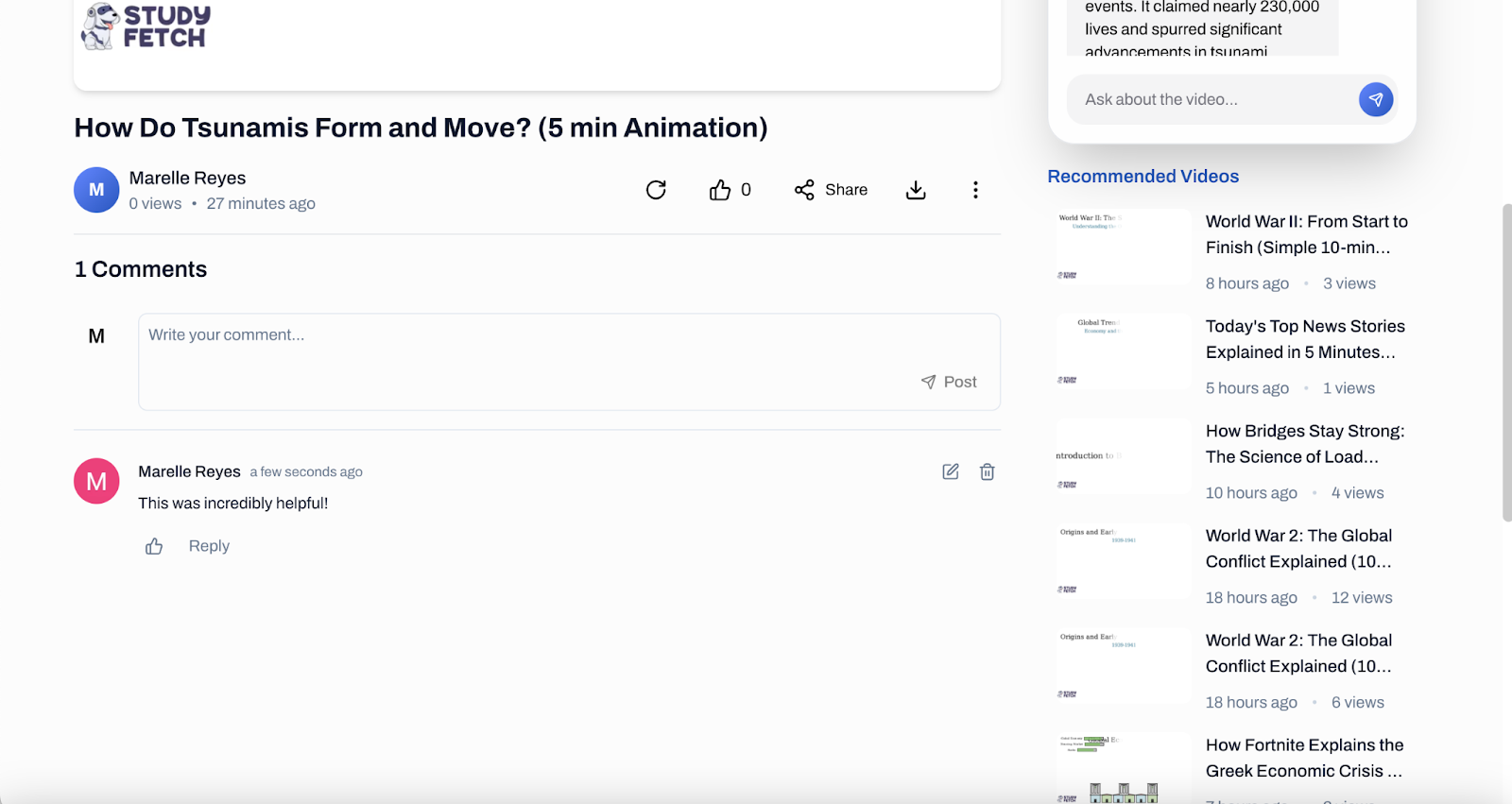
   <img height="332" width="624" alt="Image of the comment section of the explainer video, Recommended Videos section also visible" title="Scrolling down, you will see a comment section. On the right side, a list of recommended videos" src="https://mintcdn.com/studyfetch/2Ik4wNBCiOZu9tdG/images/sf_1742513867642_image_1742513867642_607.png?fit=max&auto=format&n=2Ik4wNBCiOZu9tdG&q=85&s=cf8d6baff04992e37ea66febb1abb4bb" data-path="images/sf_1742513867642_image_1742513867642_607.png" />

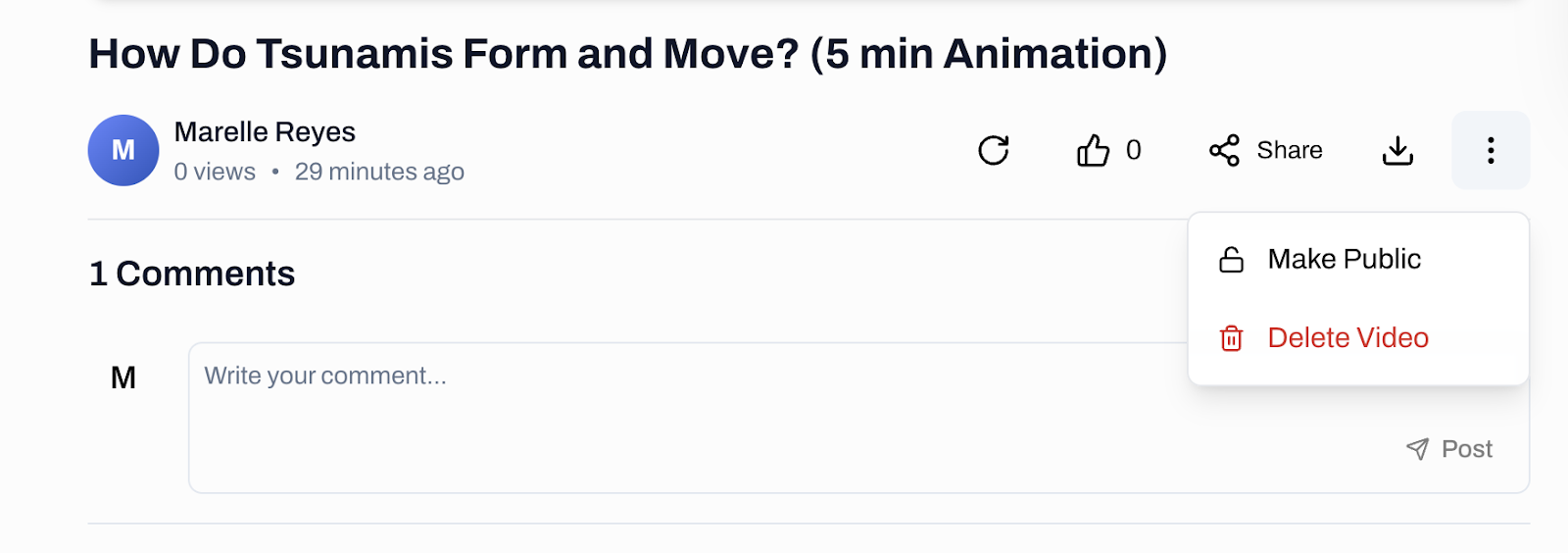
9. The comment section is there as your videos can be viewed publicly by simply clicking the more options icon and clicking **Make Public**. You may also use this option to erase your video by clicking **Delete Video**&#x20;

   <img height="220" width="624" alt="Image of the explainer video title and on the right side, highlighted on the vertical ellipsis icon showing the dropdown options" title="The comment section is there as your videos can be viewed publicly by simply clicking the more options icon and clicking Make Public. You may also use this option to erase your video by clicking Delete Video" src="https://mintcdn.com/studyfetch/2Ik4wNBCiOZu9tdG/images/sf_1742513867642_image_1742513867642_869.png?fit=max&auto=format&n=2Ik4wNBCiOZu9tdG&q=85&s=2daf25a4d8fb436a29657b08353a42b8" data-path="images/sf_1742513867642_image_1742513867642_869.png" />

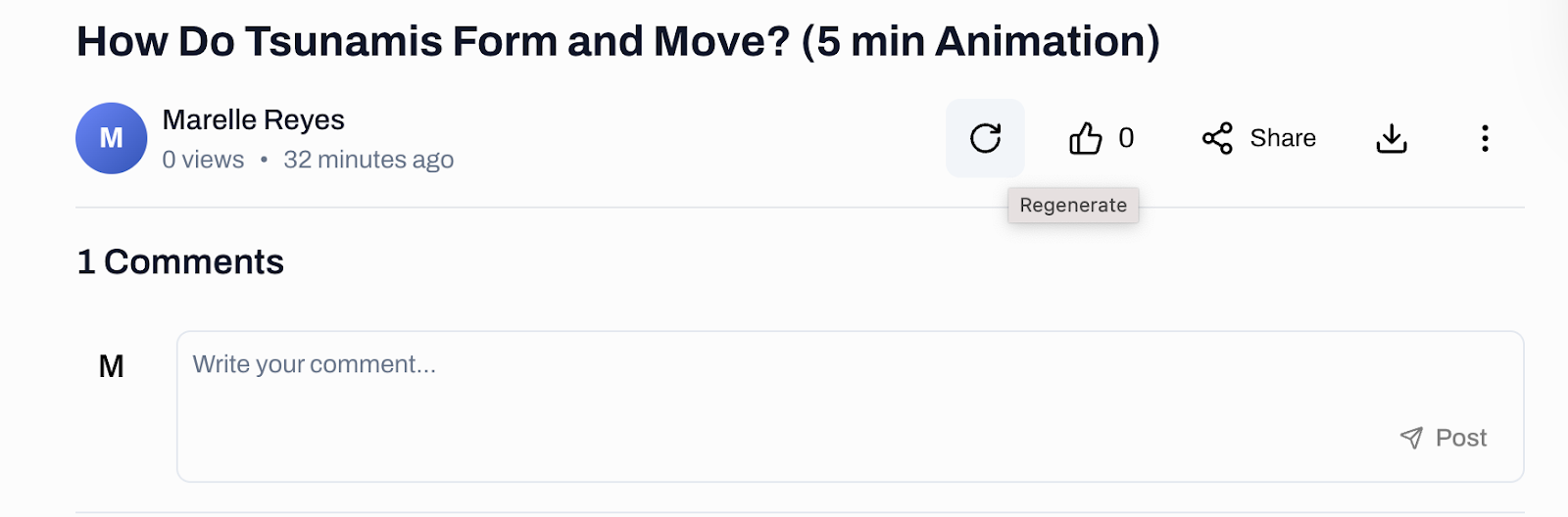
10. If you are not satisfied with the video that has been generated, you may click on the **Regenerate** button so it can create a new one. The icons next to that is the **Like** button, the **Share** button, and the **Download** button &#x20;
    <img height="207" width="624" alt="Image of the explainer video title and on the right side, highlighted on the Regenerate button" title="If you are not satisfied with the video that has been generated, you may click on the Regenerate button so it can create a new one. The icons next to that is the Like button, the Share button, and the Download button" src="https://mintcdn.com/studyfetch/2Ik4wNBCiOZu9tdG/images/sf_1742513867642_image_1742513867642_677.png?fit=max&auto=format&n=2Ik4wNBCiOZu9tdG&q=85&s=45dfa2f9dbc5d6cbf40d820f4c3a9360" data-path="images/sf_1742513867642_image_1742513867642_677.png" />

### Exploring Imagine Explainers  

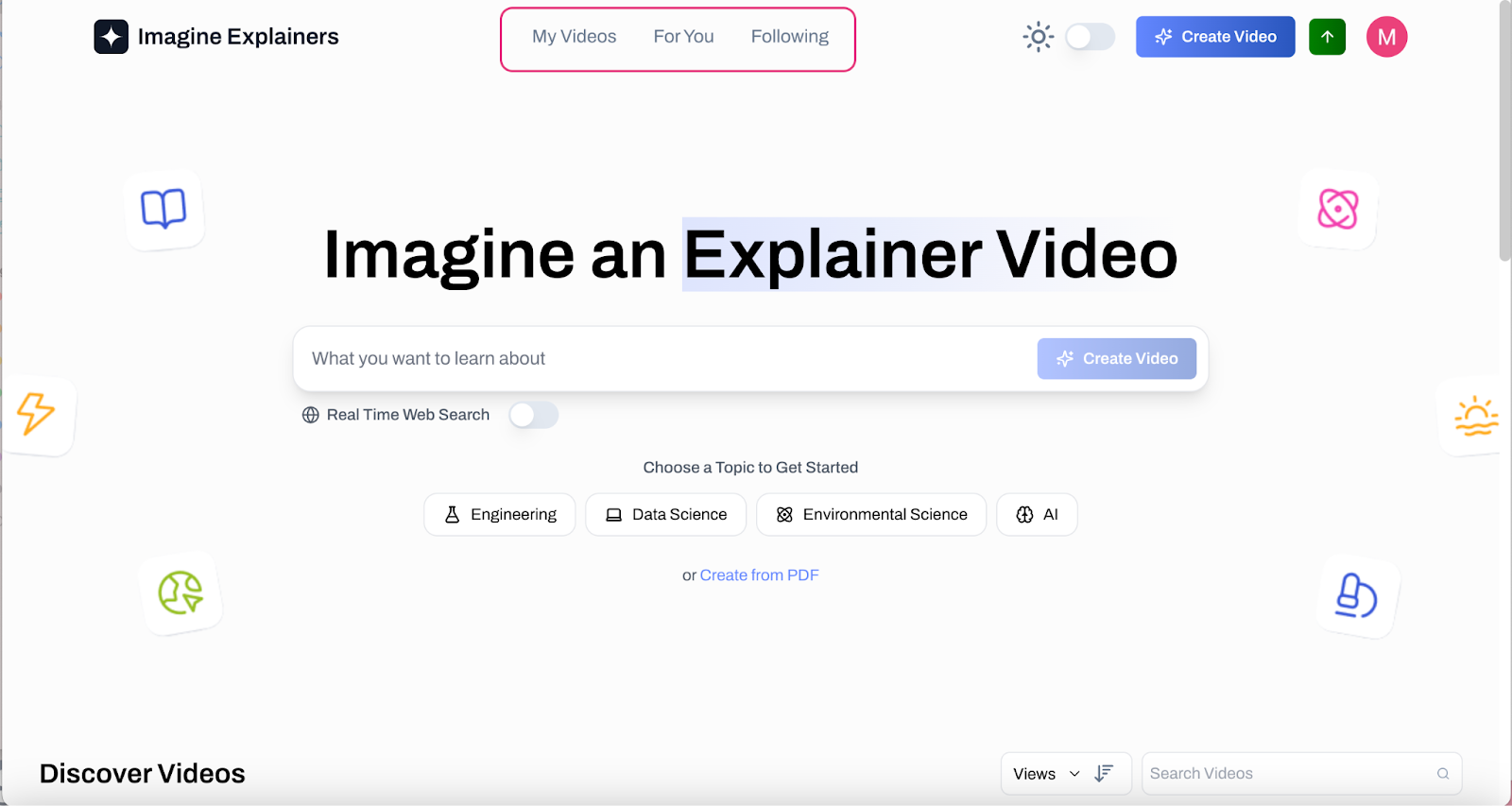
1. On the upper side of your screen, you will see different pages you can explore
   <img height="333" width="624" alt="Image of the Imagine Explainer landing page with a red box highlighting the different view pages" title="On the upper side of your screen, you will see different pages you can explore" src="https://mintcdn.com/studyfetch/2Ik4wNBCiOZu9tdG/images/sf_1742513867642_image_1742513867642_658.png?fit=max&auto=format&n=2Ik4wNBCiOZu9tdG&q=85&s=aa9ea7740511f7370fcc4f7de71324e6" data-path="images/sf_1742513867642_image_1742513867642_658.png" />

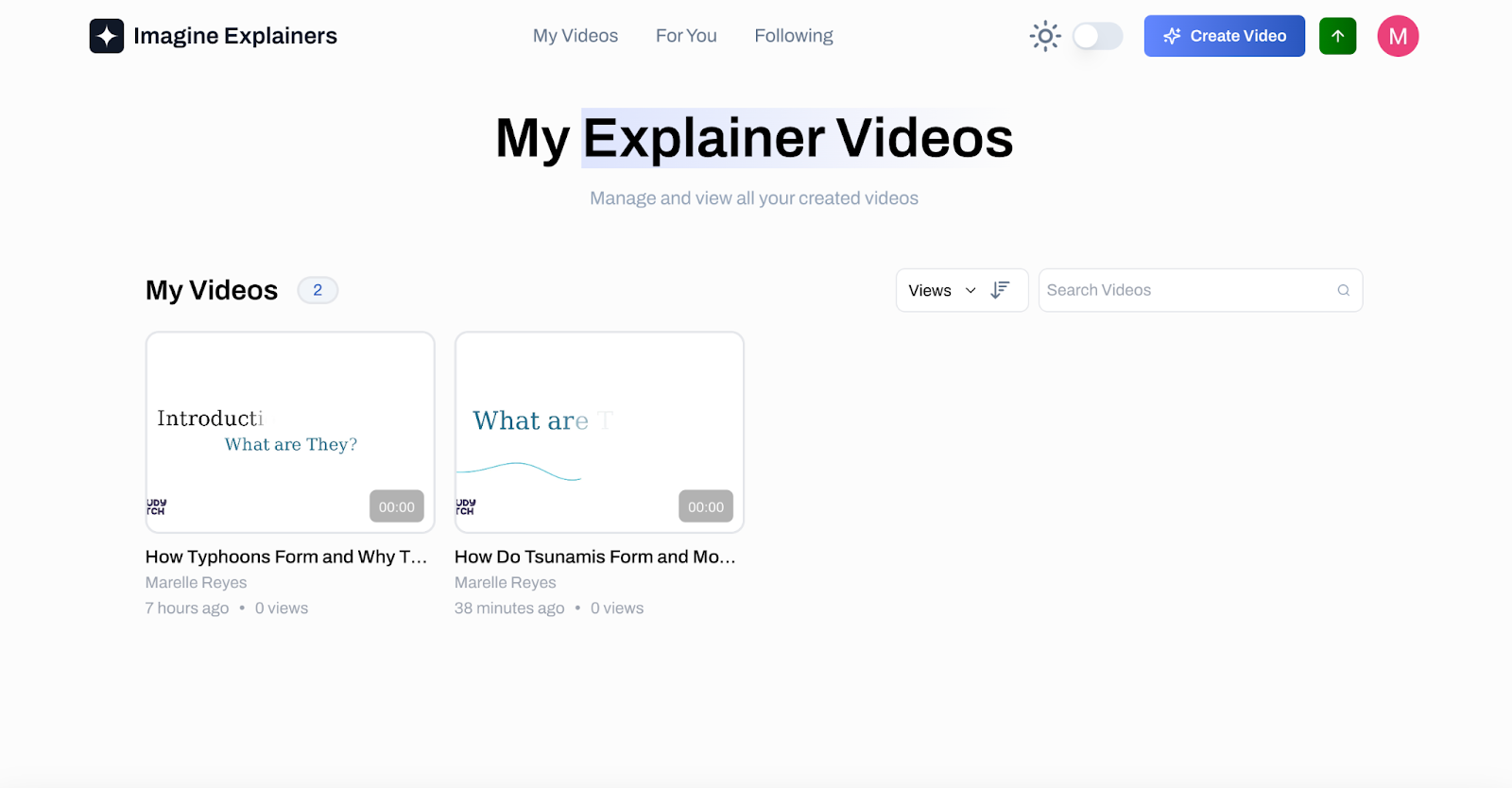
2. The **My Videos** page stores all of the videos you have created using Imagine Explainers &#x20;
   <img height="325" width="624" alt="Image of the Imagine Explainers My Videos page" title="The My Videos page stores all of the videos you have created using Imagine Explainers" src="https://mintcdn.com/studyfetch/2Ik4wNBCiOZu9tdG/images/sf_1742513867642_image_1742513867642_551.png?fit=max&auto=format&n=2Ik4wNBCiOZu9tdG&q=85&s=f3f330f70c11acdec96154318c7efd4a" data-path="images/sf_1742513867642_image_1742513867642_551.png" />

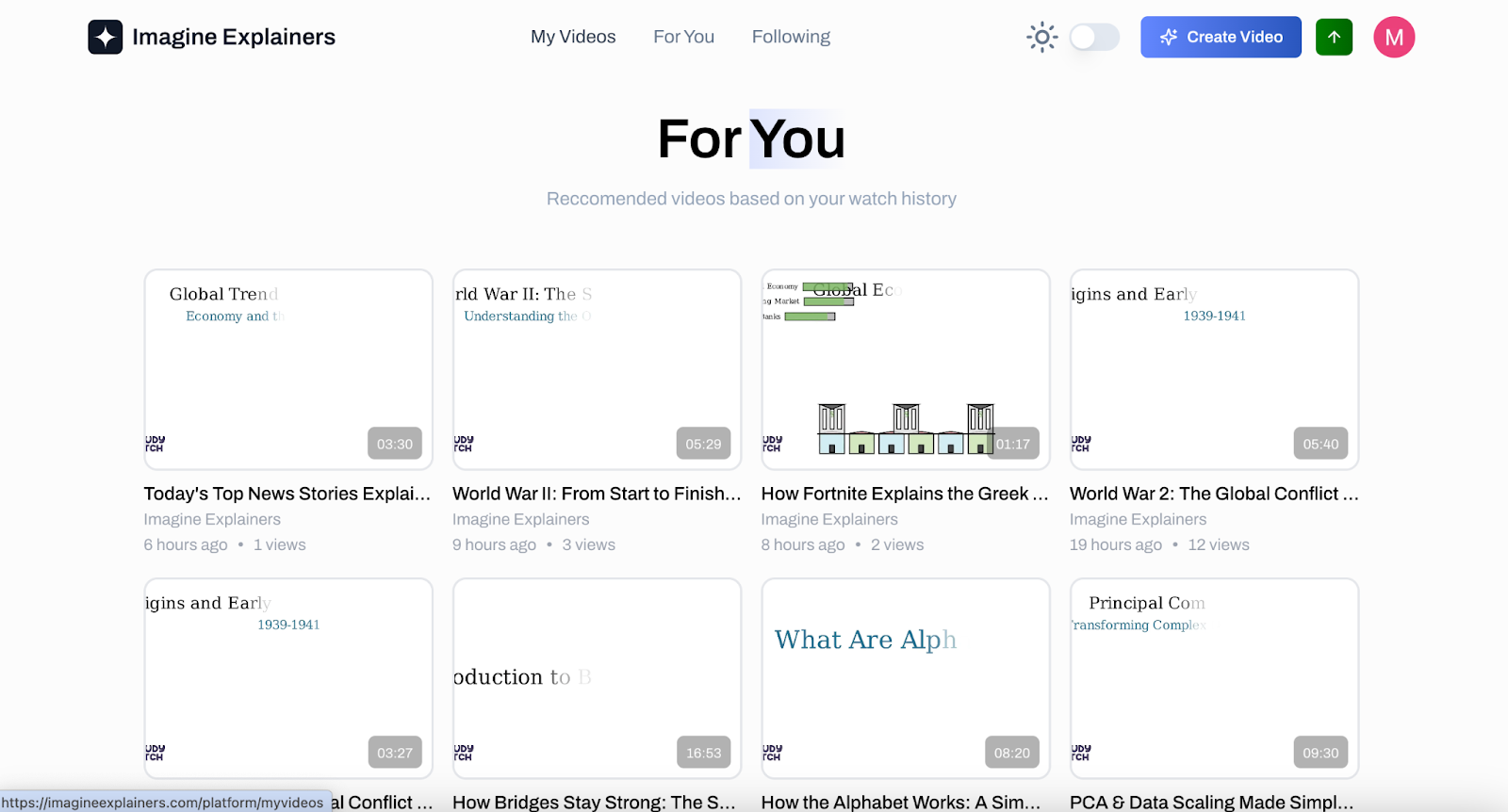
3. The **For You** Page will show you recommended videos based on your watch history&#x20;

   <img height="336" width="624" alt="Image of the Imagine Explainers For You page" title="The For You Page will show you recommended videos based on your watch history" src="https://mintcdn.com/studyfetch/2Ik4wNBCiOZu9tdG/images/sf_1742513867642_image_1742513867642_850.png?fit=max&auto=format&n=2Ik4wNBCiOZu9tdG&q=85&s=7e7410d59886a81168f22923ae2742d5" data-path="images/sf_1742513867642_image_1742513867642_850.png" />

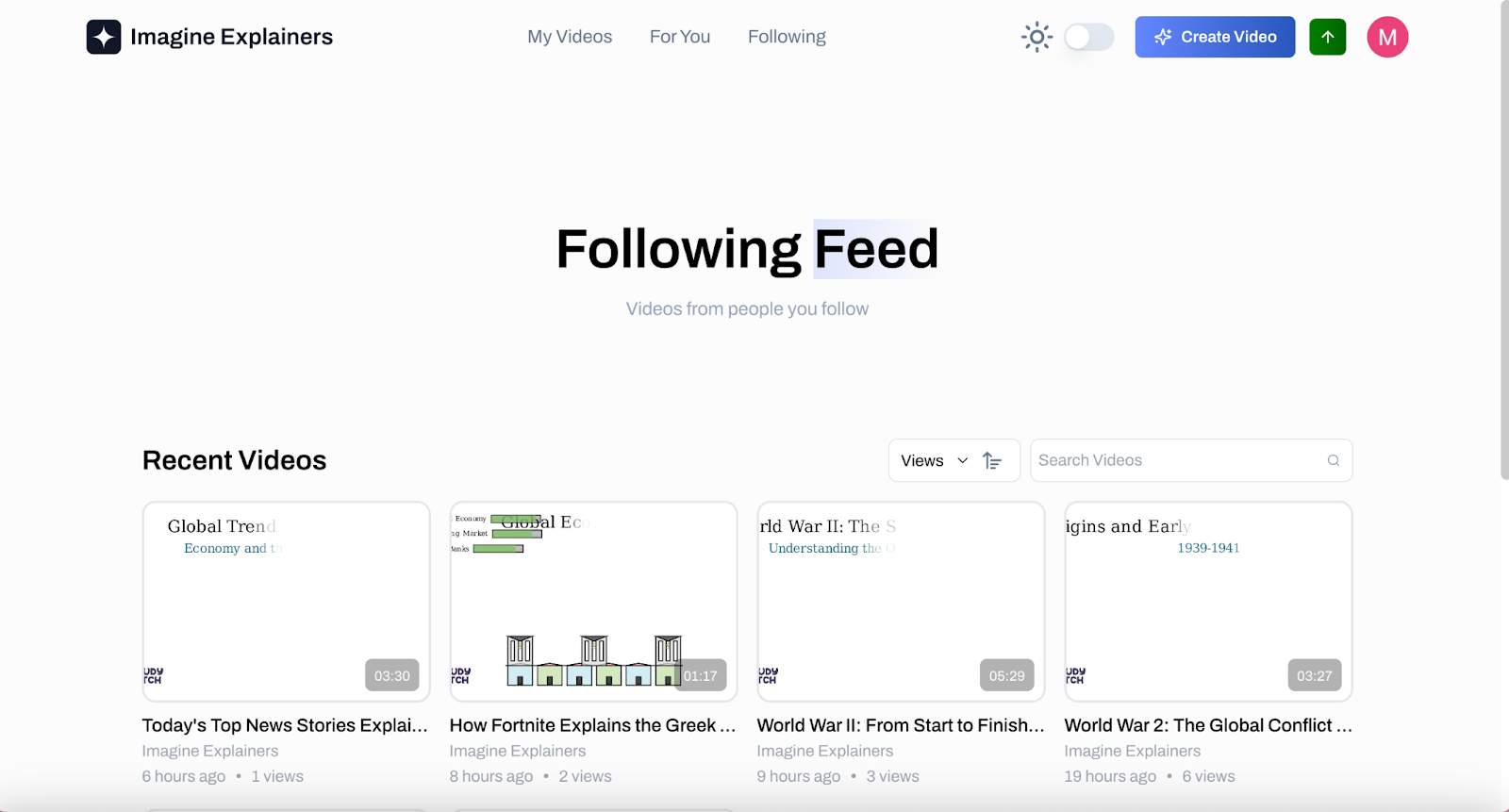
4. The **Following** page will show you videos created from the people you follow&#x20;

   <img height="336" width="624" alt="Image of the Imagine Explainers Following page" title="The Following page will show you videos created from the people you follow" src="https://mintcdn.com/studyfetch/2Ik4wNBCiOZu9tdG/images/sf_1742513867642_image_1742513867642_685.png?fit=max&auto=format&n=2Ik4wNBCiOZu9tdG&q=85&s=1f7d6880b532a2dc70373c4ec122a86b" data-path="images/sf_1742513867642_image_1742513867642_685.png" />

### How to Follow someone on Imagine Explainers 

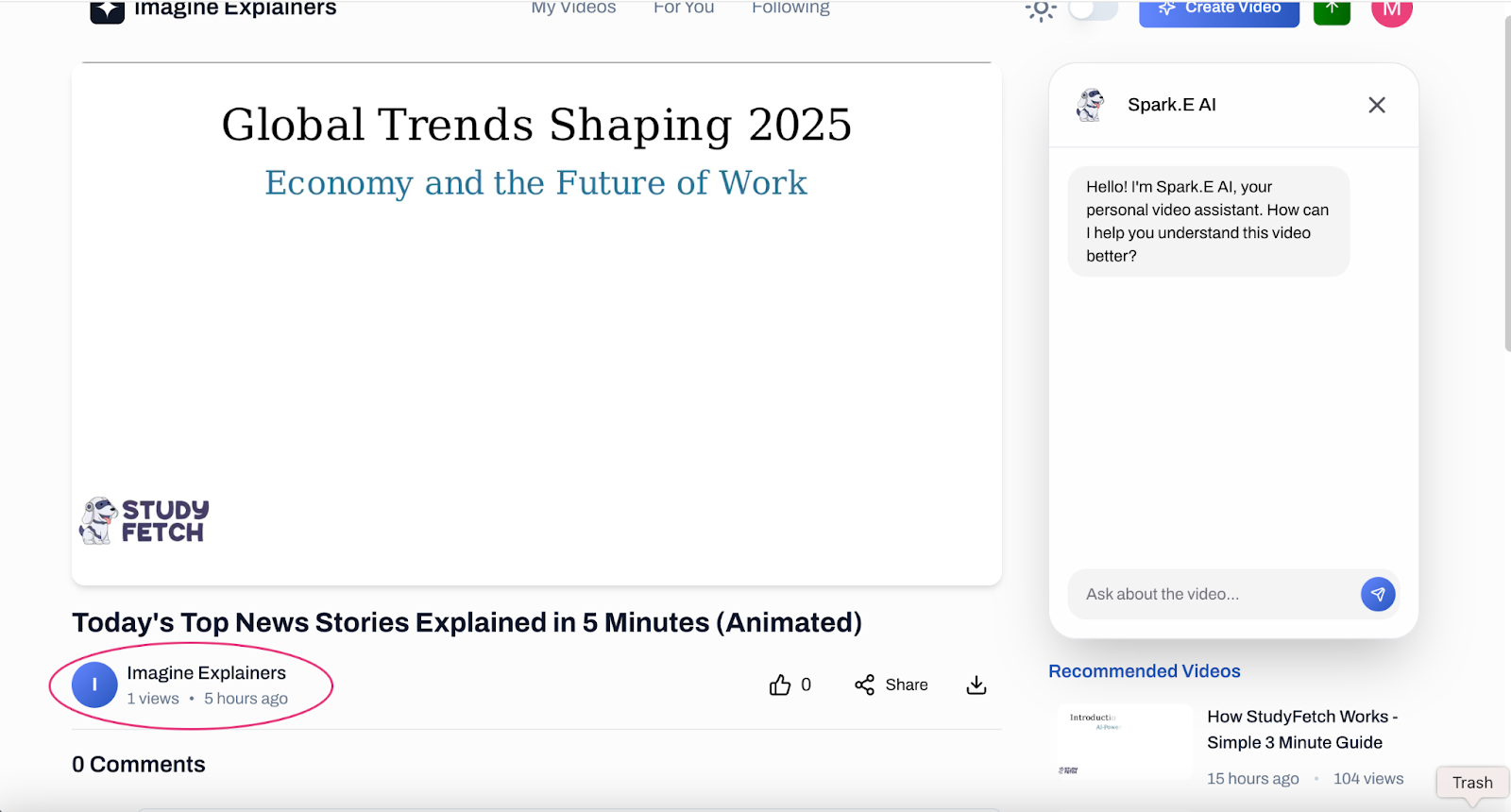
1. If you're watching a great video and you'd like to see more from this user, simply click on their name to view their profile	&#x9;
   <img height="336" width="624" alt="Image of the explainer video page, a red circle over the Image Explainers user" title="If you're watching a great video and you'd like to see more from this user, simply click on their name to view their profile" src="https://mintcdn.com/studyfetch/2Ik4wNBCiOZu9tdG/images/sf_1742513867642_image_1742513867642_208.png?fit=max&auto=format&n=2Ik4wNBCiOZu9tdG&q=85&s=10d737919a207596861d070cf35ad792" data-path="images/sf_1742513867642_image_1742513867642_208.png" />

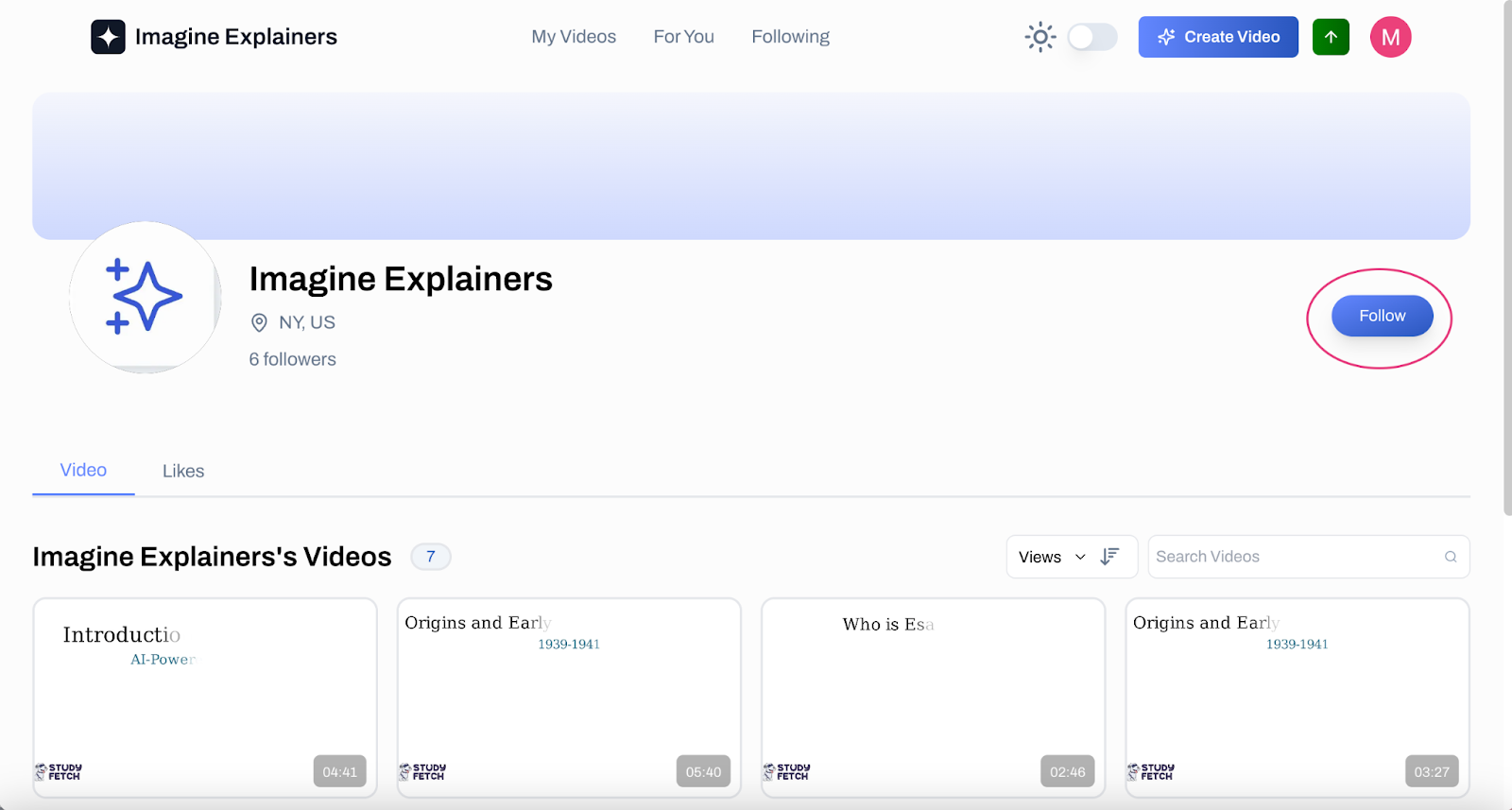
2. On their profile page, click on the **Follow** button on the right side&#x20;

   <img height="335" width="624" alt="Image of the Imagine Explainers profile, a red circle over the Follow button" title="On their profile page, click on the Follow button on the right side" src="https://mintcdn.com/studyfetch/2Ik4wNBCiOZu9tdG/images/sf_1742513867642_image_1742513867642_840.png?fit=max&auto=format&n=2Ik4wNBCiOZu9tdG&q=85&s=5e7038b8f3aaa0b524936dc5d1c4a38c" data-path="images/sf_1742513867642_image_1742513867642_840.png" />