> ## Documentation Index
> Fetch the complete documentation index at: https://www.studyfetch.com/docs/llms.txt
> Use this file to discover all available pages before exploring further.
# Calendar Tutorial
> How to use the Calendar function and all it's integrations.
### How to use the Calendar function and all it's integrations
Go to the lefthand side > choose **Calendar**
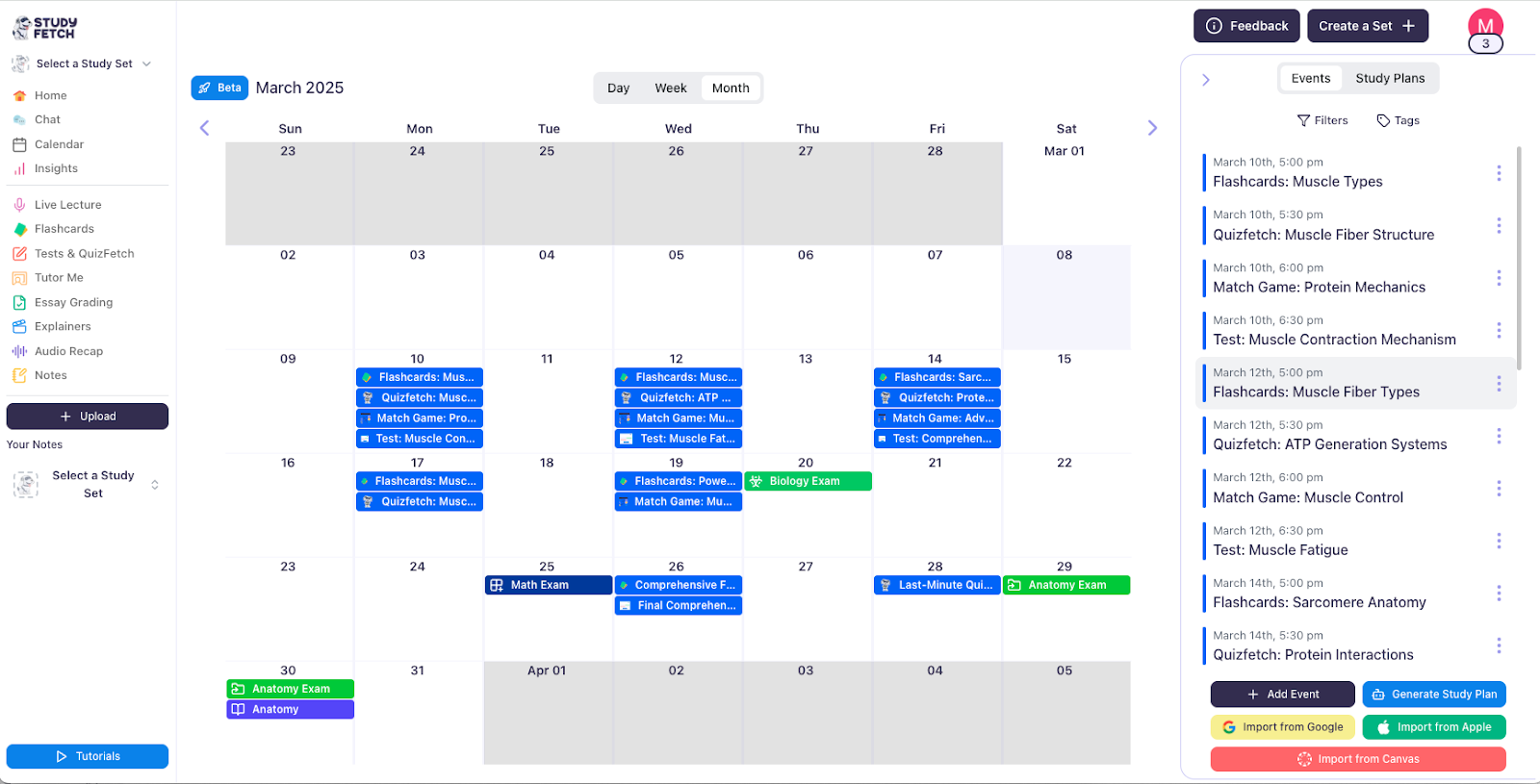
Upon opening the Calendar for the first time, you will be presented with a regular calendar and an opened sidebar on the right side of your screen.
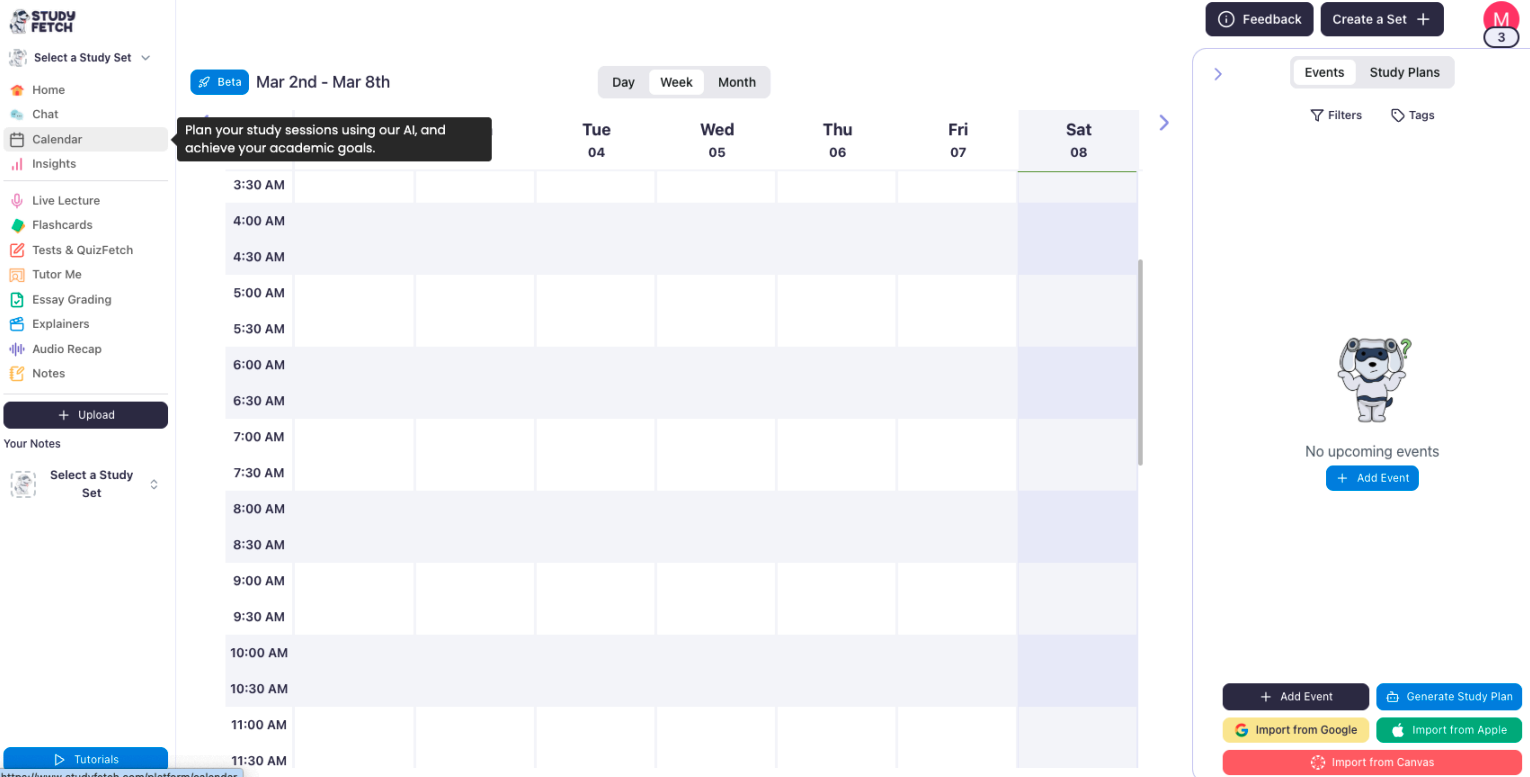 You can utilize the calendar feature both automatically using study plans and manually by adding events.
### Adding Events to Calendar:
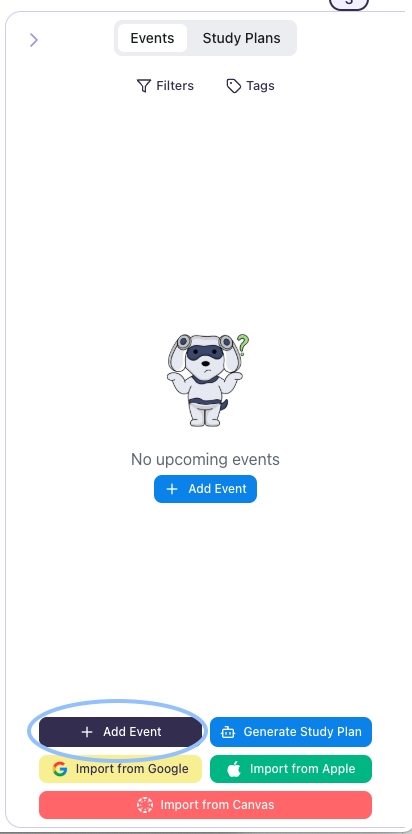
Click anywhere on your calendar or the bottom of your Events page and click on **+ Add Event** to add an event manually.
You can utilize the calendar feature both automatically using study plans and manually by adding events.
### Adding Events to Calendar:
Click anywhere on your calendar or the bottom of your Events page and click on **+ Add Event** to add an event manually.
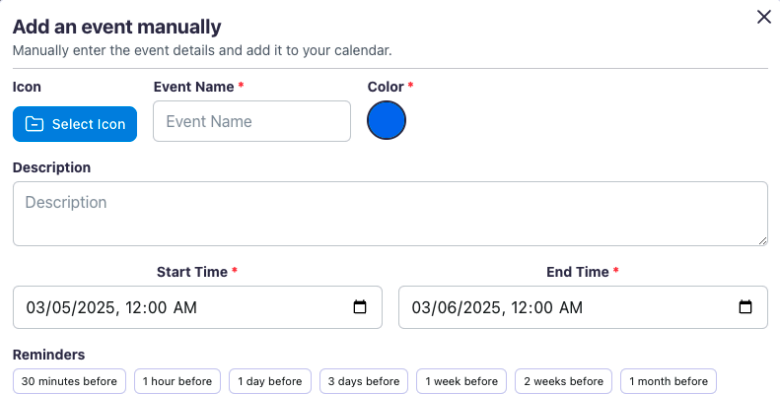
 Fill out the information according to your preference > Click **+ Add**
 1. Once it has been added, you should be able to see the event on your Calendar and Events page
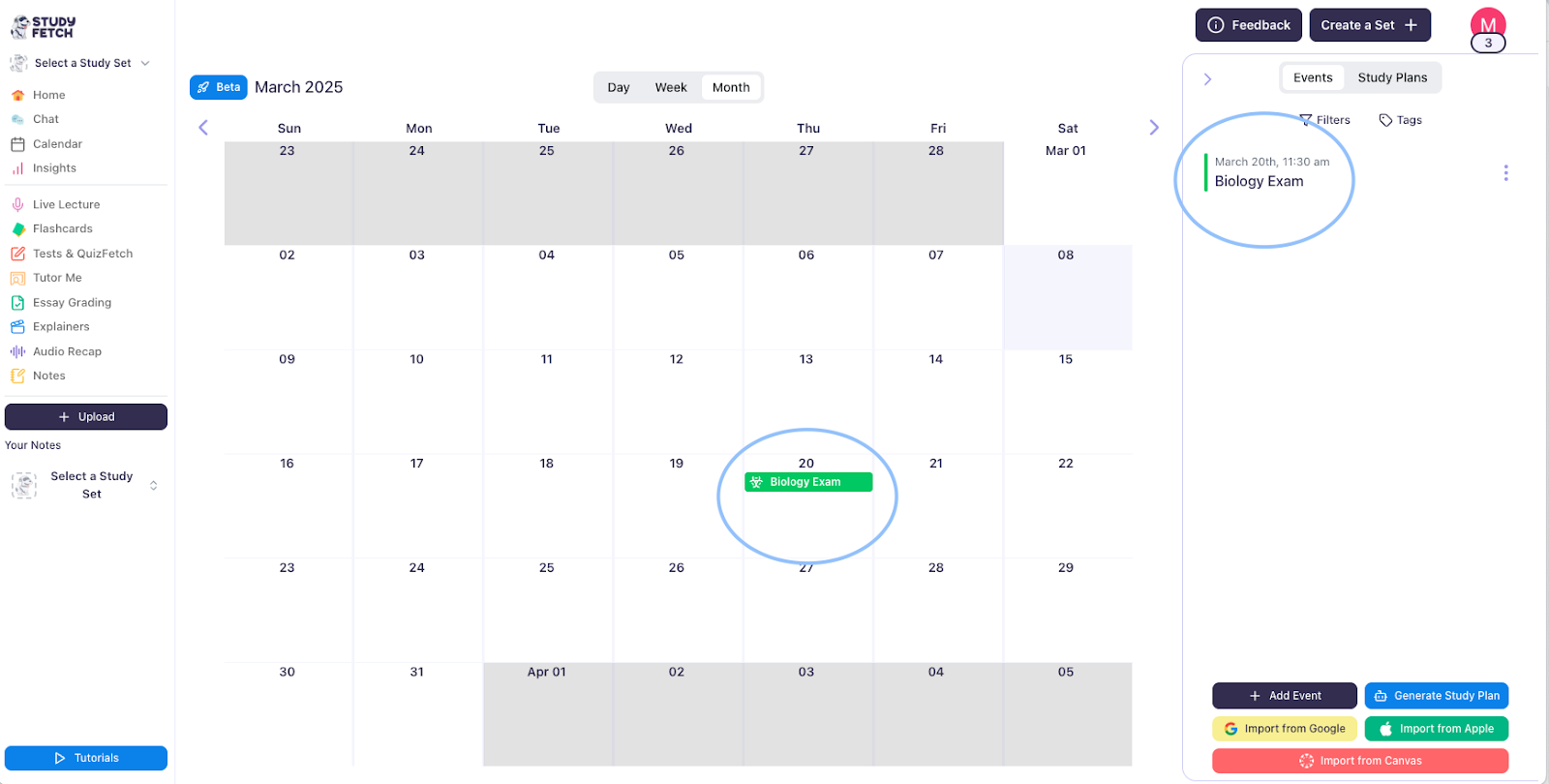 2. If you are looking for a specific event, you may use the **Filter** button near the top of your calendar
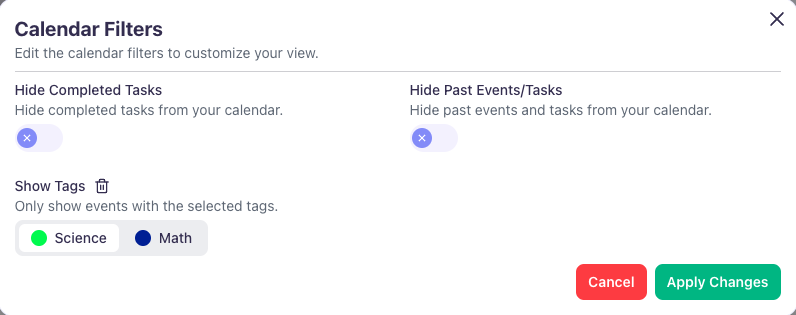
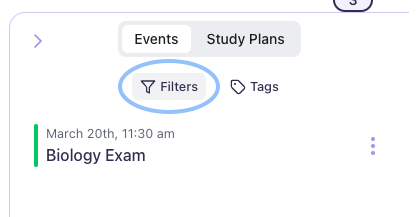 3. You may use the filter to show only active events by choosing to **Hide Completed** **Tasks** and **Hide Past Events/Tasks** option, or you may filter by choosing only specific tags you've used
 ### Generating a Study Plan:
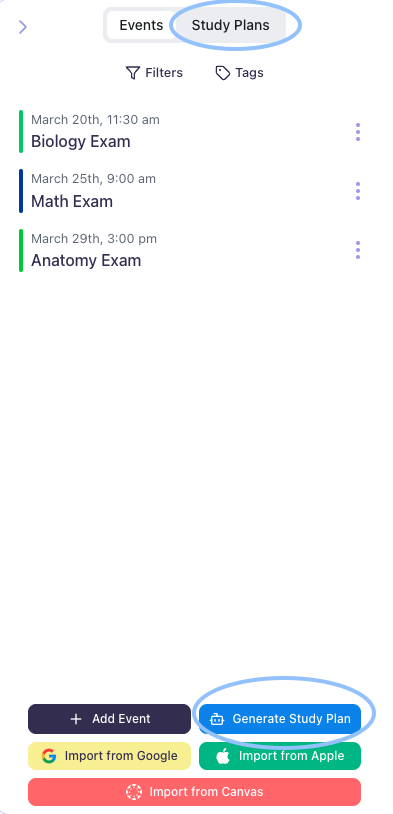
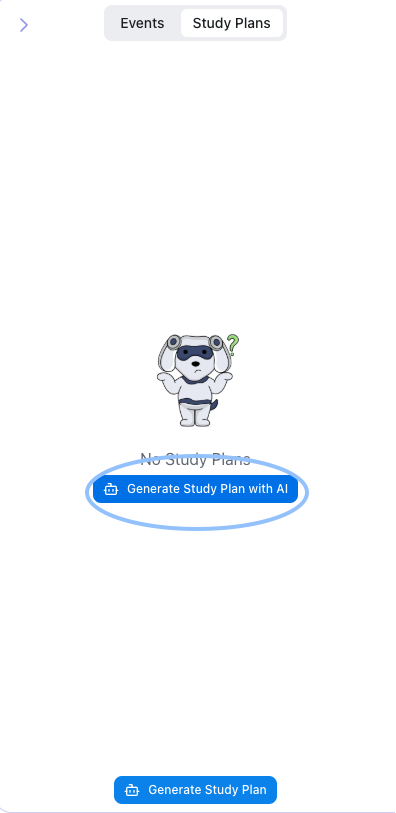
If you need to schedule your study sessions for a certain exam, try out Study Plan\\\\\\! To generate a Study Plan, simply click on **Generate Study Plan**. You may also go to the **Study Plans** tab and choose **Generate Study Plan with AI**
### Generating a Study Plan:
If you need to schedule your study sessions for a certain exam, try out Study Plan\\\\\\! To generate a Study Plan, simply click on **Generate Study Plan**. You may also go to the **Study Plans** tab and choose **Generate Study Plan with AI**
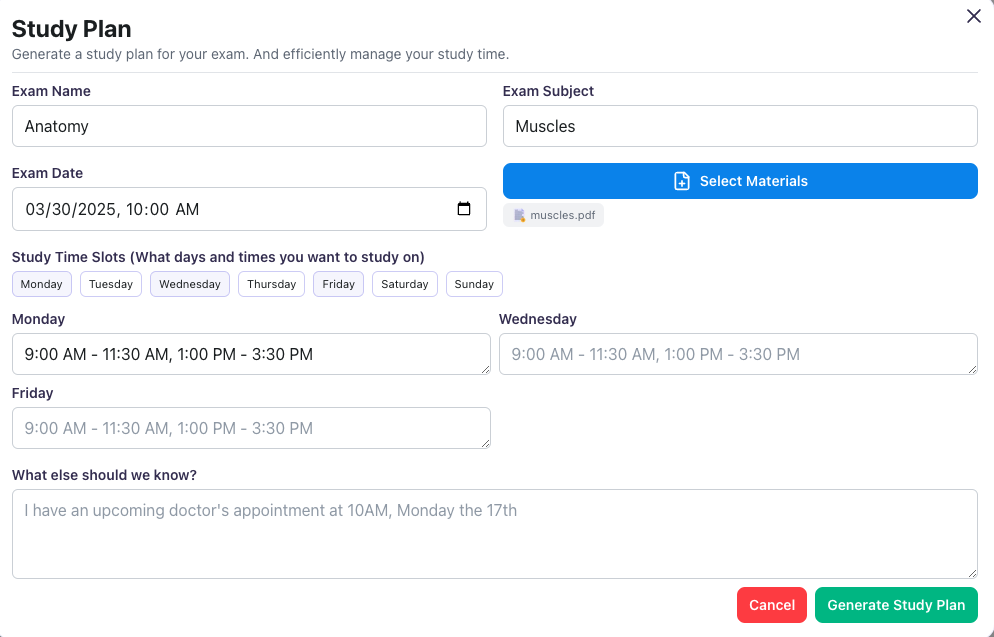
 1. Fill out the information based on your preference, you may also select the materials that you want to review for this study plan. You may also let the AI know about plans you have that can affect your study plan times
 2. A Study Plan will then be generated for you based on your answers. You may choose to **Decline** if this does not work for you, **Regenerate** if you'd like to see other options, or **Accept** to place them on your Calendar
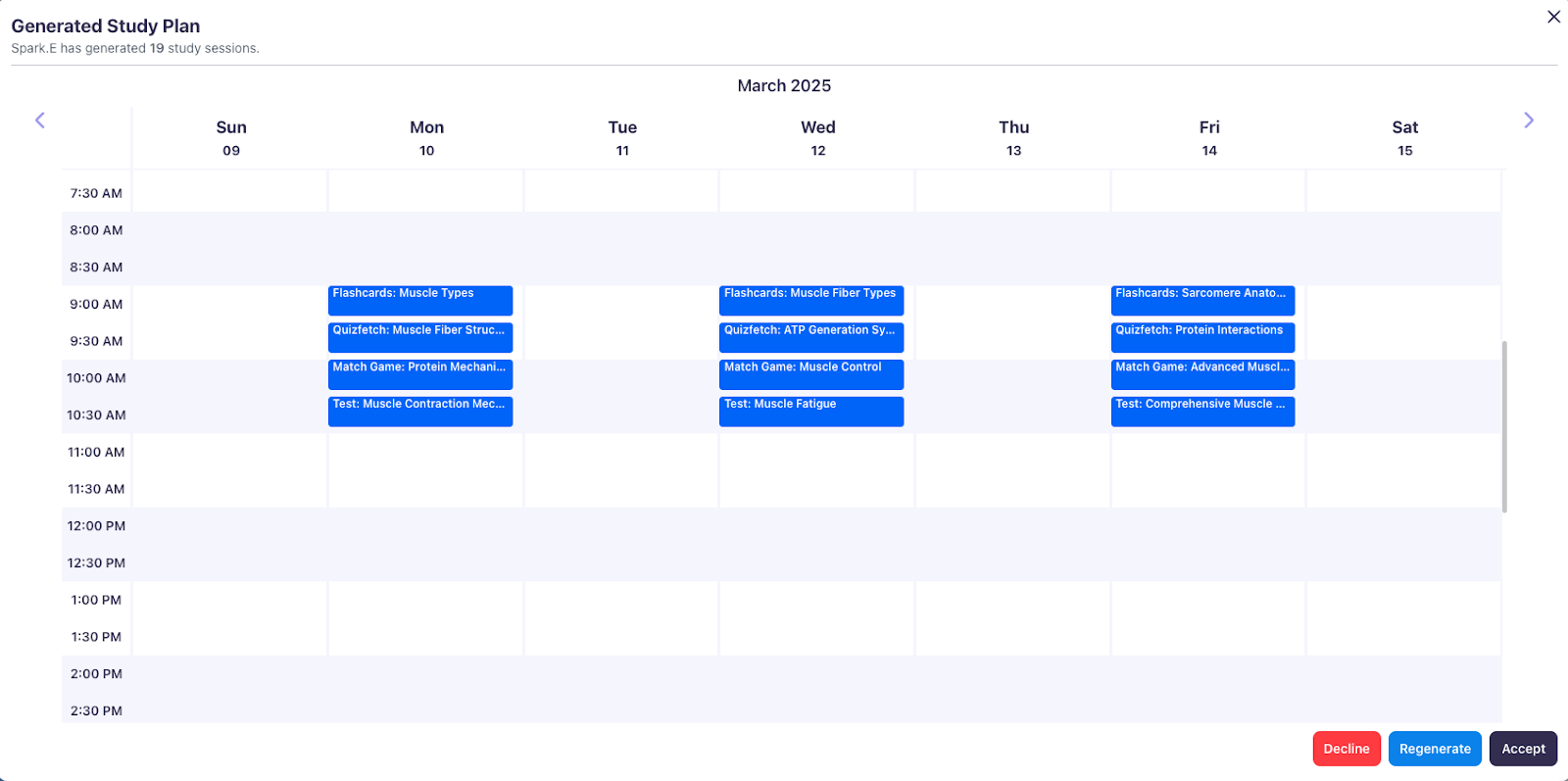 3. Once you've accepted the study plans, it should now reflect on your Calendar with specific study tools to help you review for your upcoming test\\\\\\!