> ## Documentation Index
> Fetch the complete documentation index at: https://www.studyfetch.com/docs/llms.txt
> Use this file to discover all available pages before exploring further.
# Creating Folders Tutorial
> Have a lot of files? Can't find the right one you need? Did you know you can organize your Study Sets into folders?
## How to Organize Study Sets Into Folders
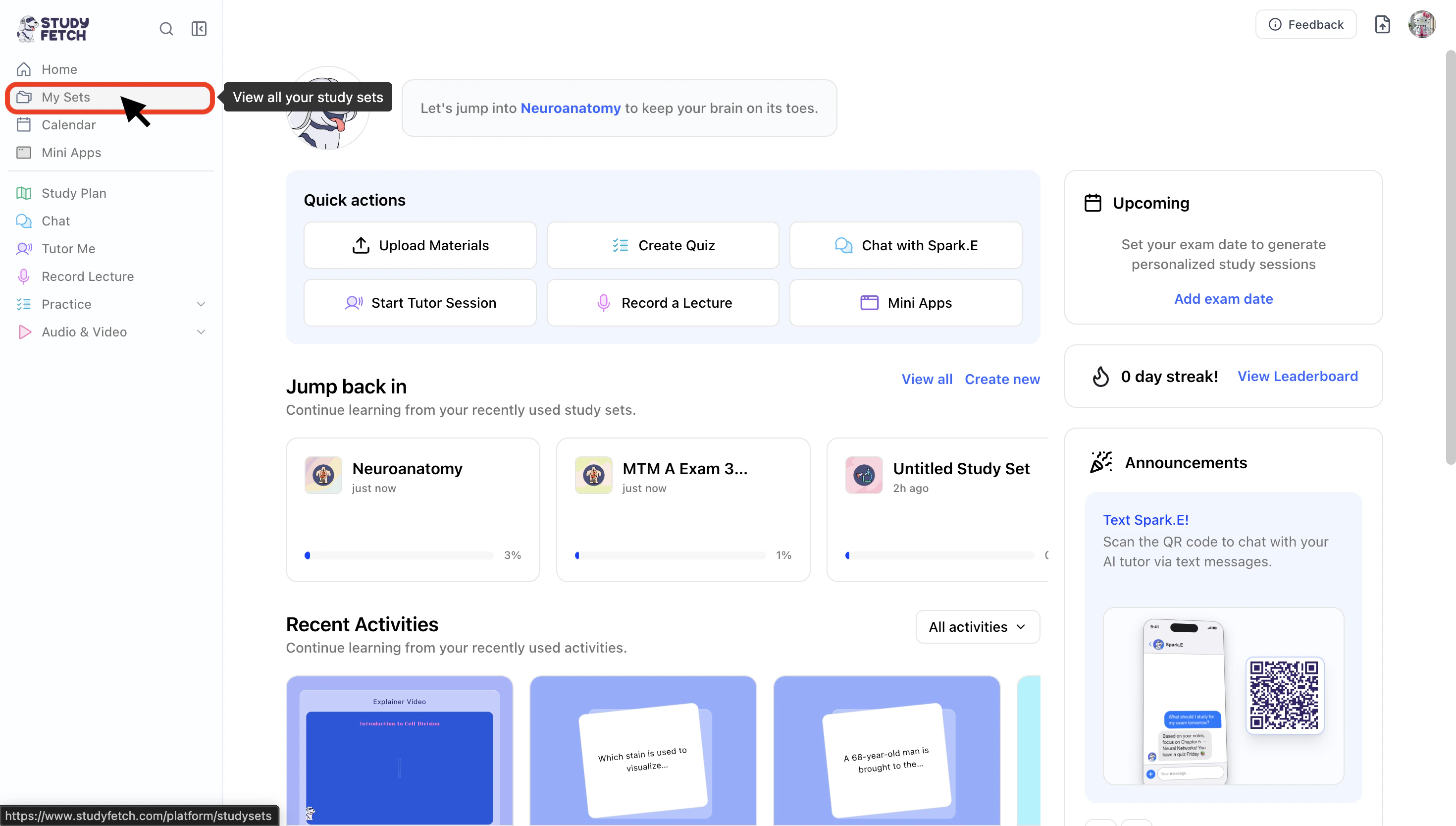
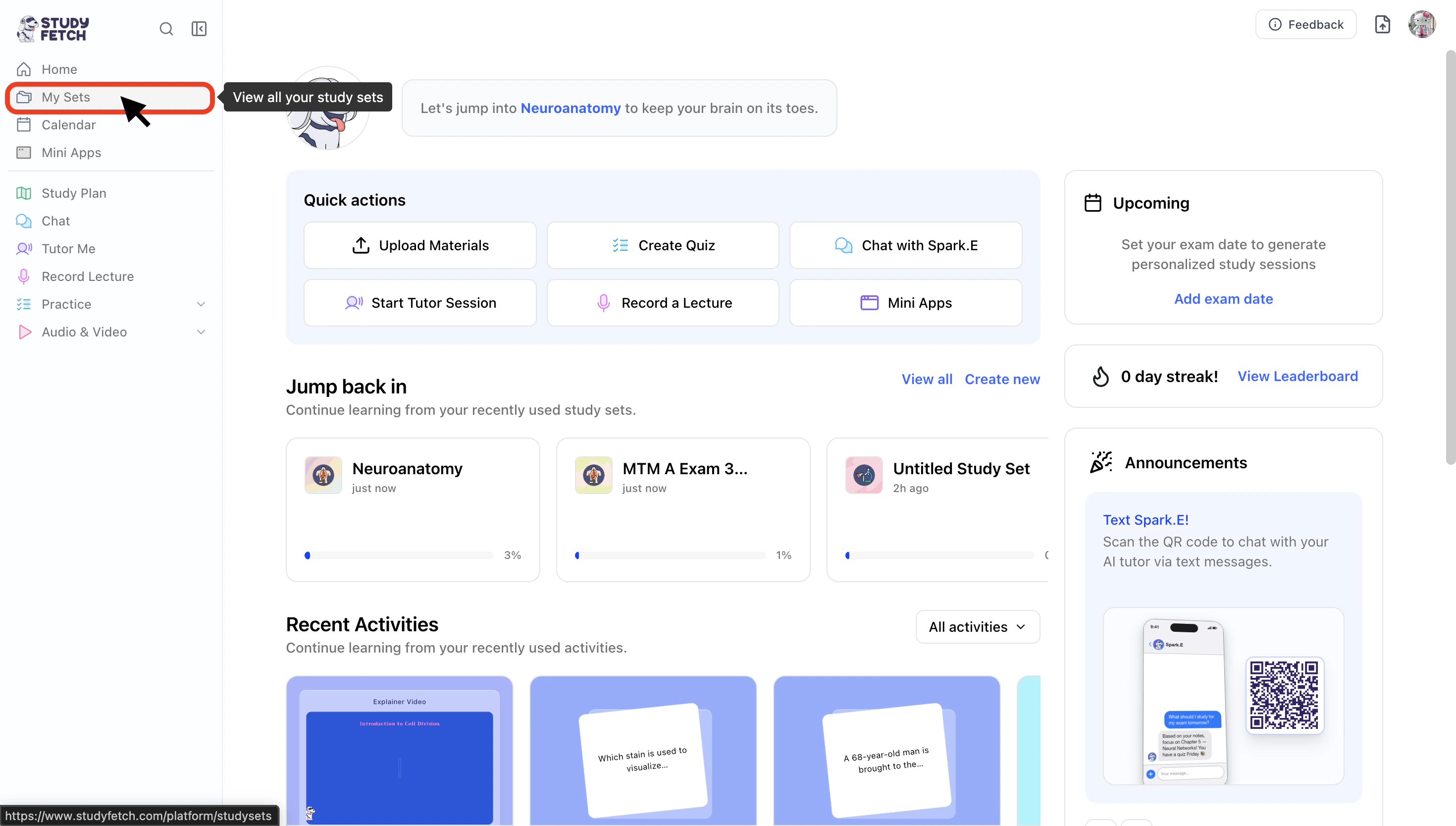
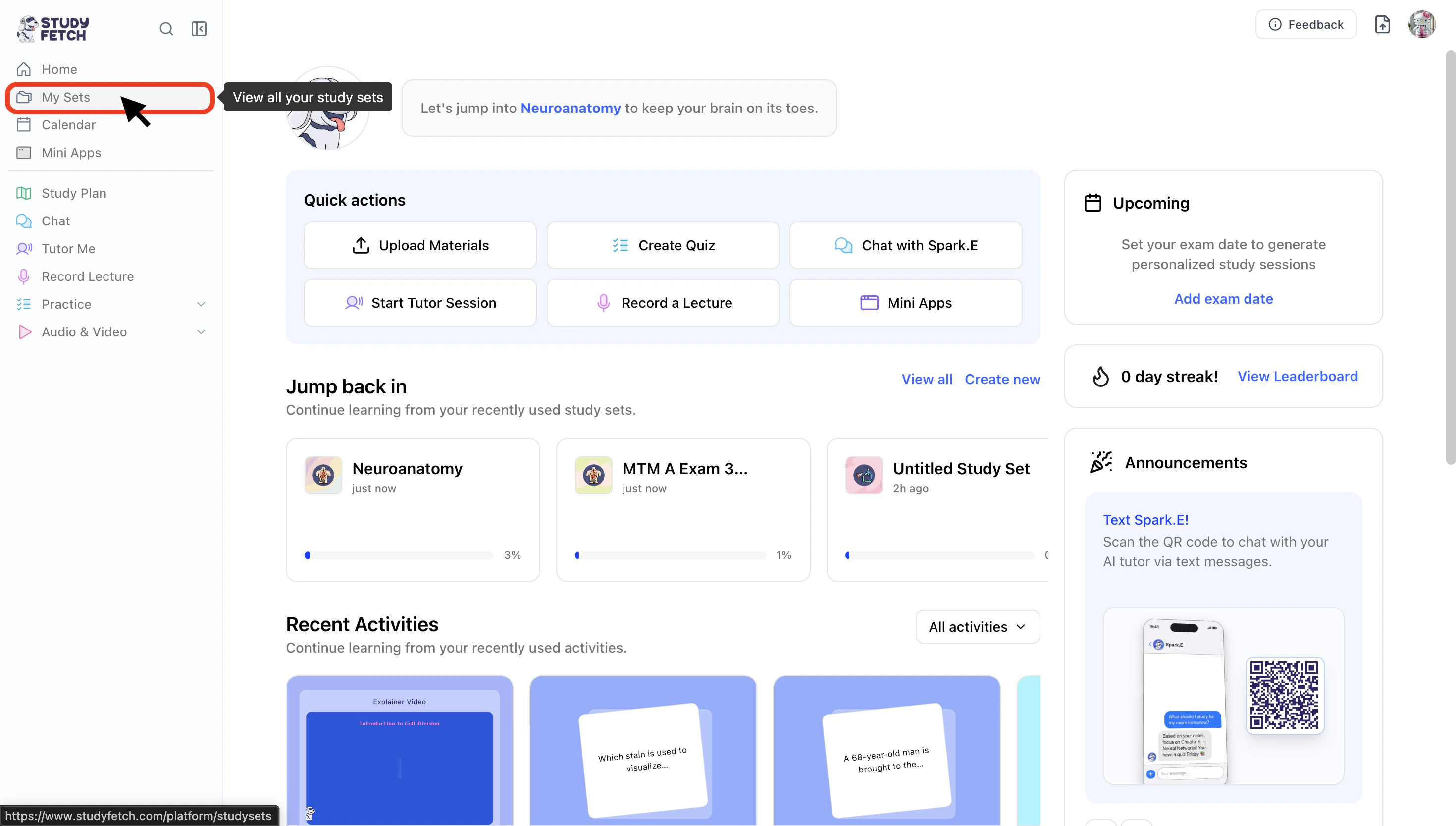
1. On the left-hand side of your Dashboard click **My Sets**.
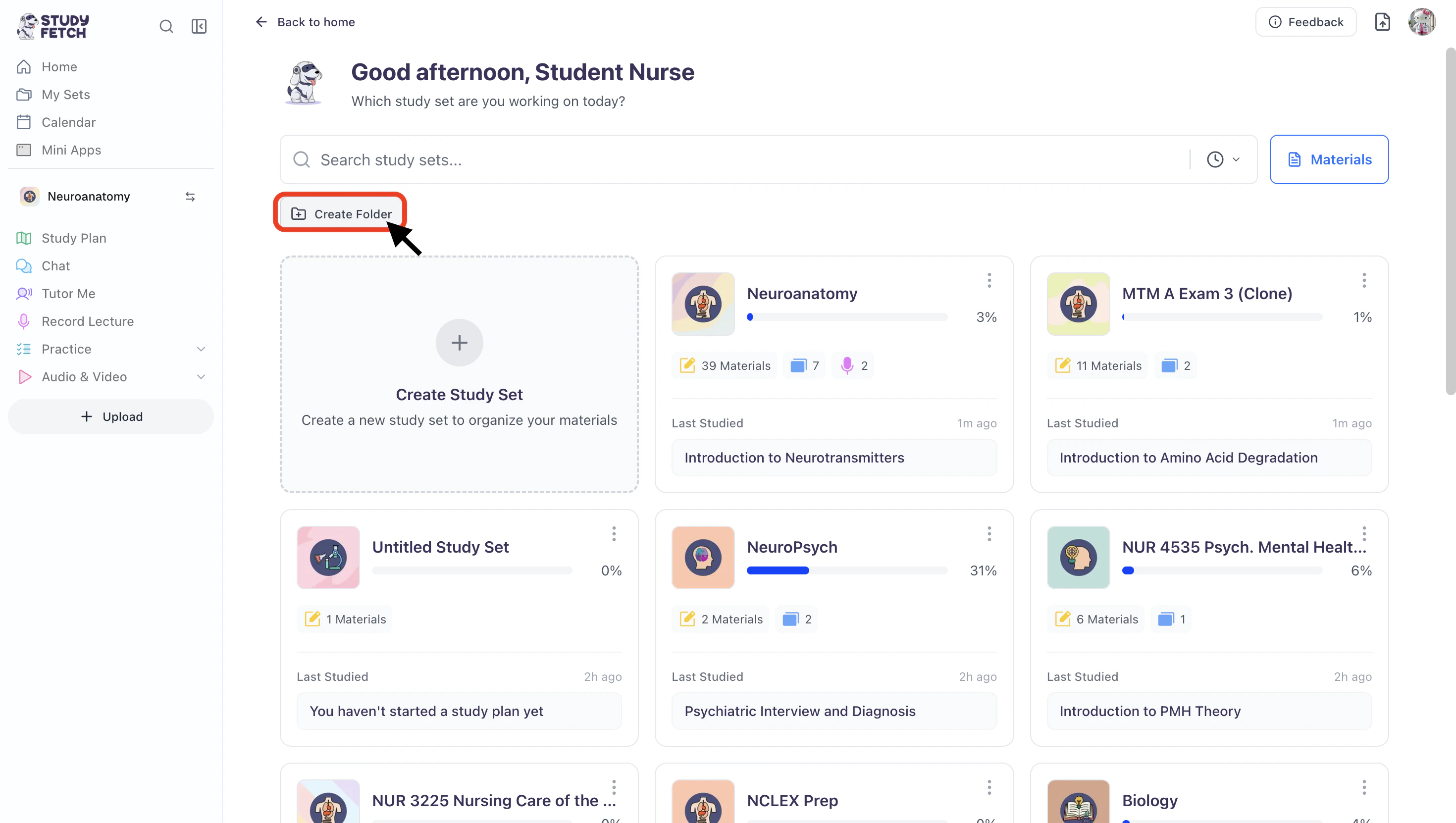
 2. To create a folder, select **Create Folder** from the top left.
 3. Start by entering a name for the folder in the **Name** field.
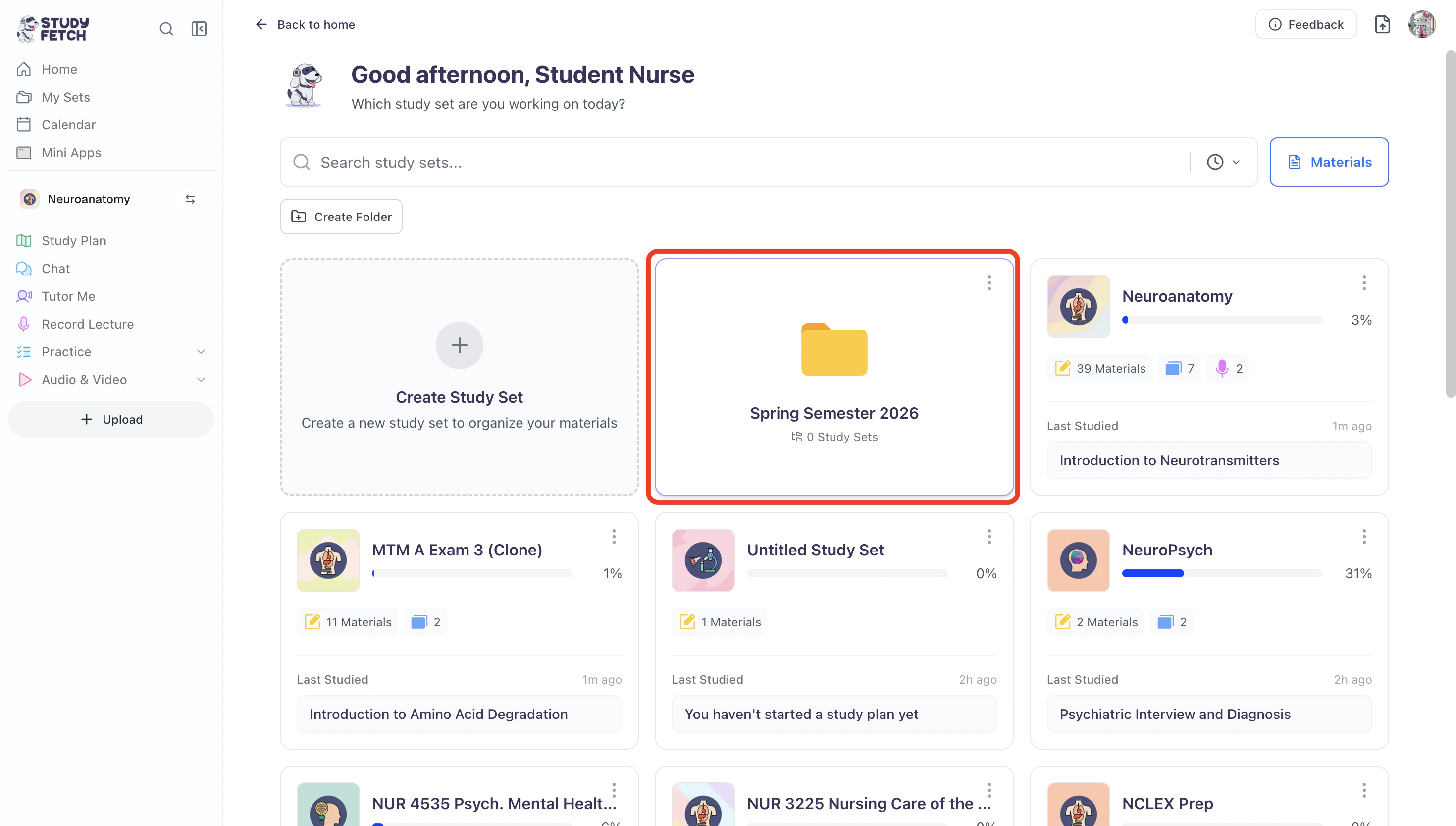
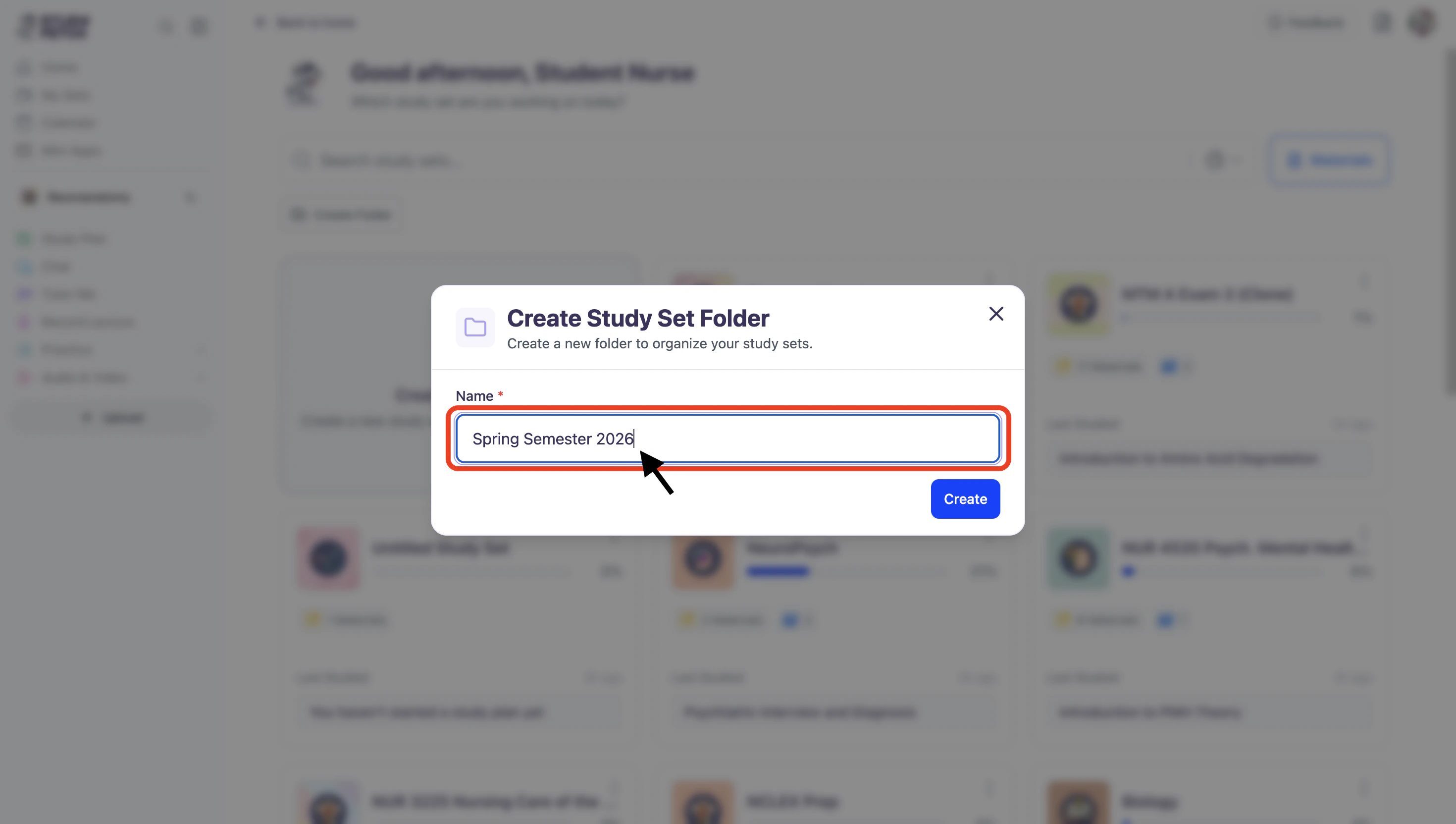 4. Then click **Create** and your newly created folder will now be visible on your Study Set page.
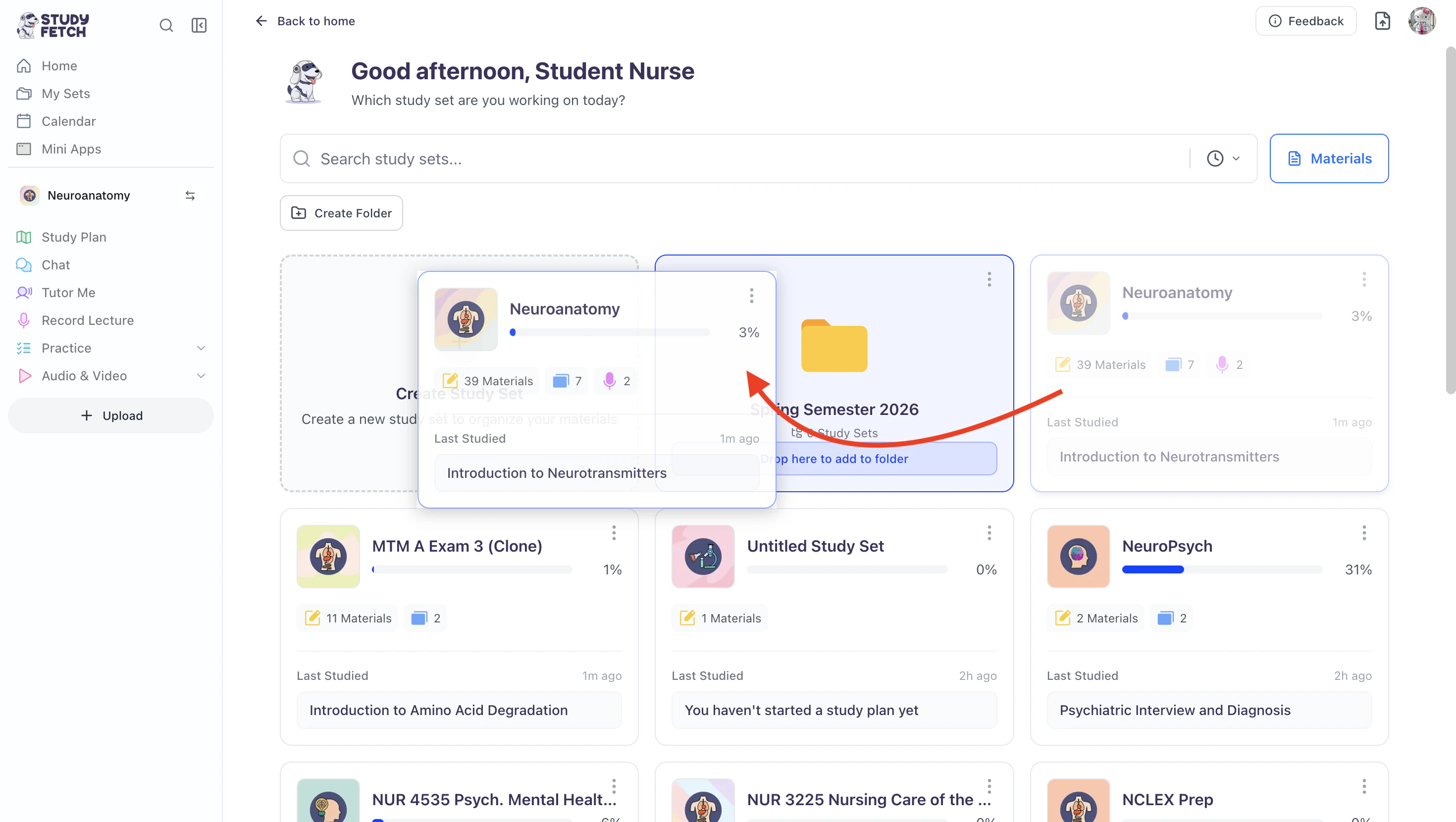
 5. To organize your Study Sets into specific folders, simply **drag and drop** the desired Study Set to its corresponding folder.
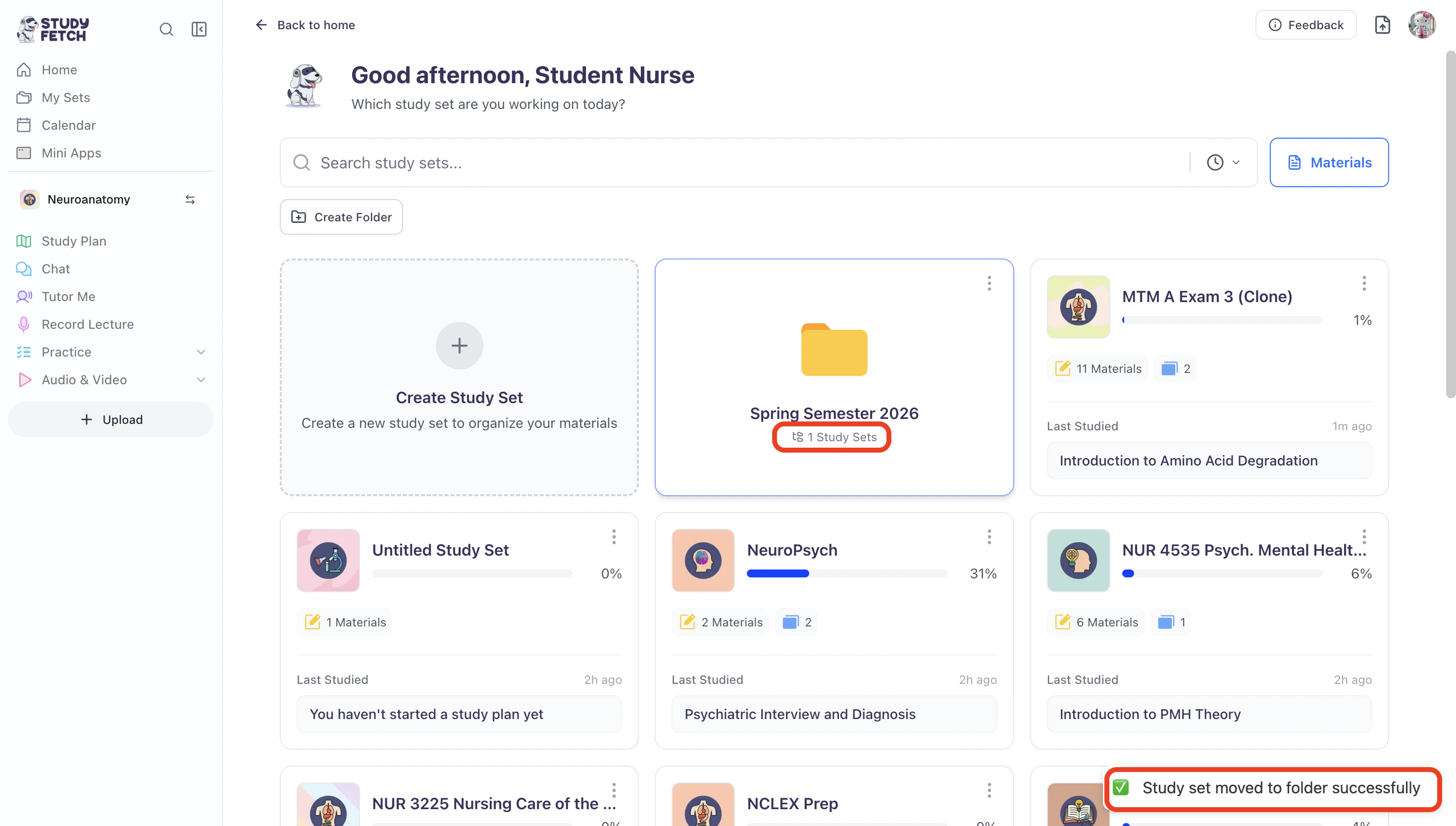
 6. After you move desired Study Sets into their corresponding folders, a pop-up will appear in the bottom right confirming that the Study Set has been successfully moved. The number of Study Sets in the folder description will also be updated accordingly.
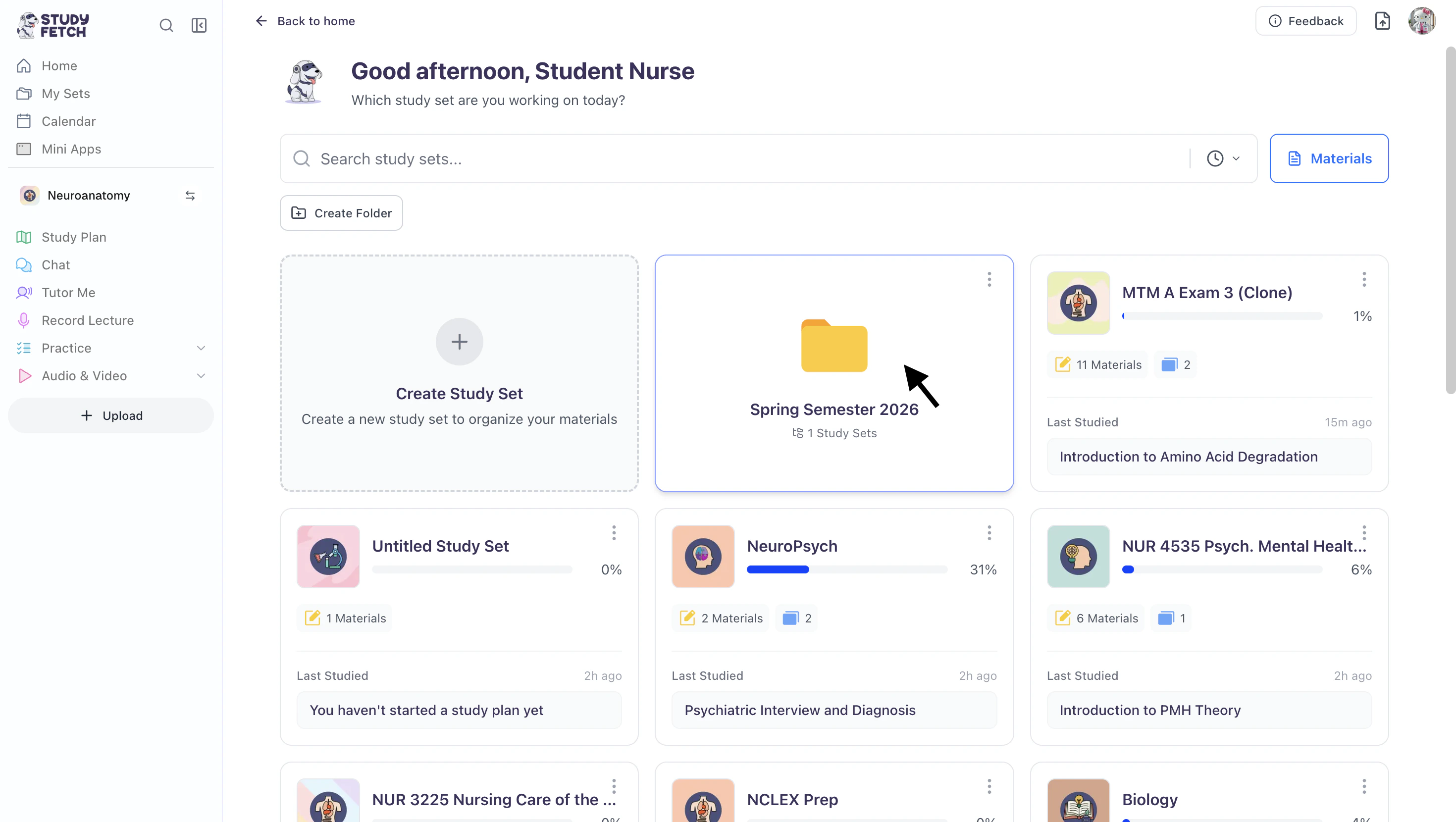
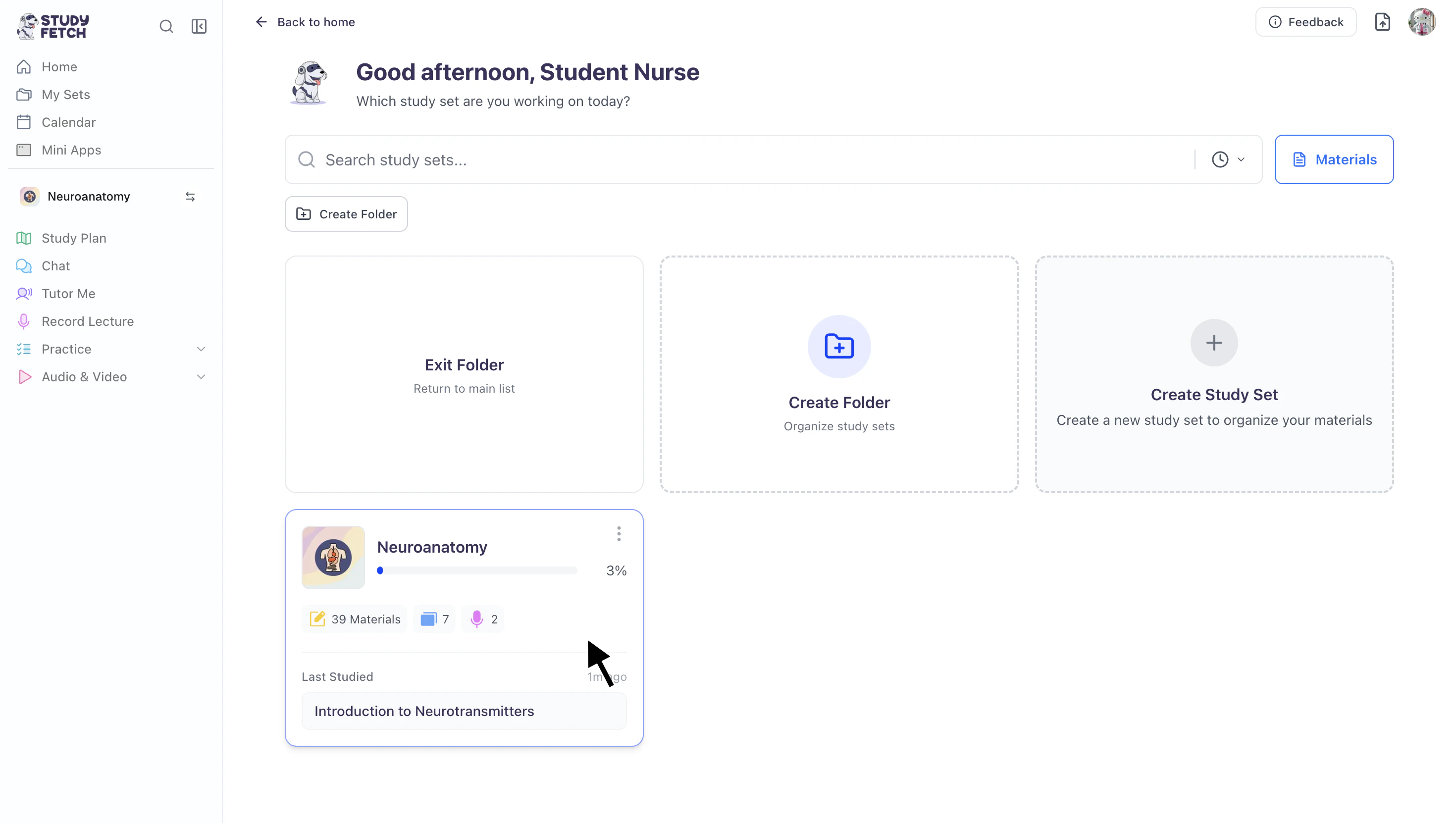
 7. To view all Study Sets within a folder, simply click on the desired folder.
 8. Once you enter the folder, all Study Sets will appear.
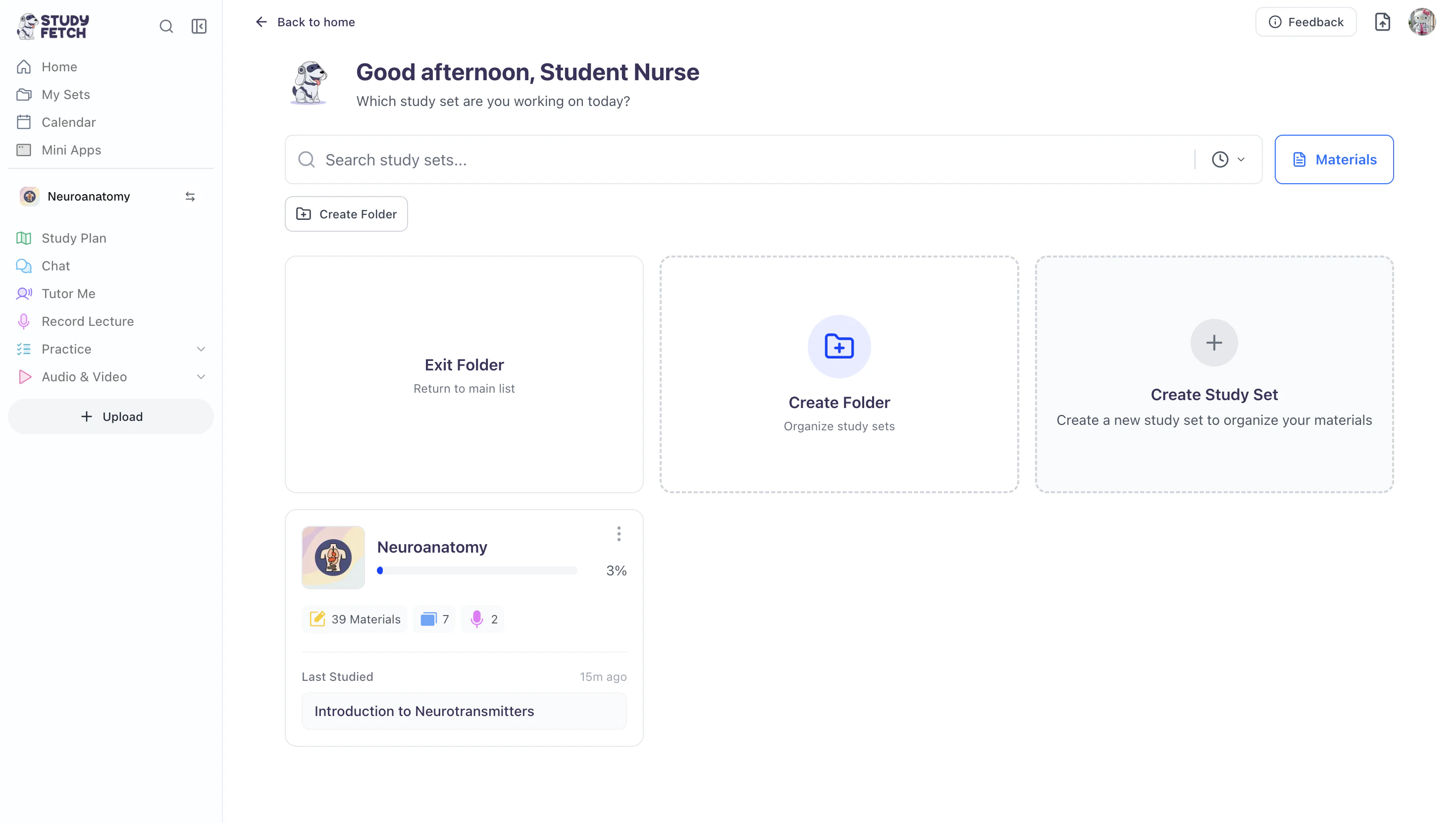 9. You can return to the previous screen main list by selecting **Exit Folder**, or...
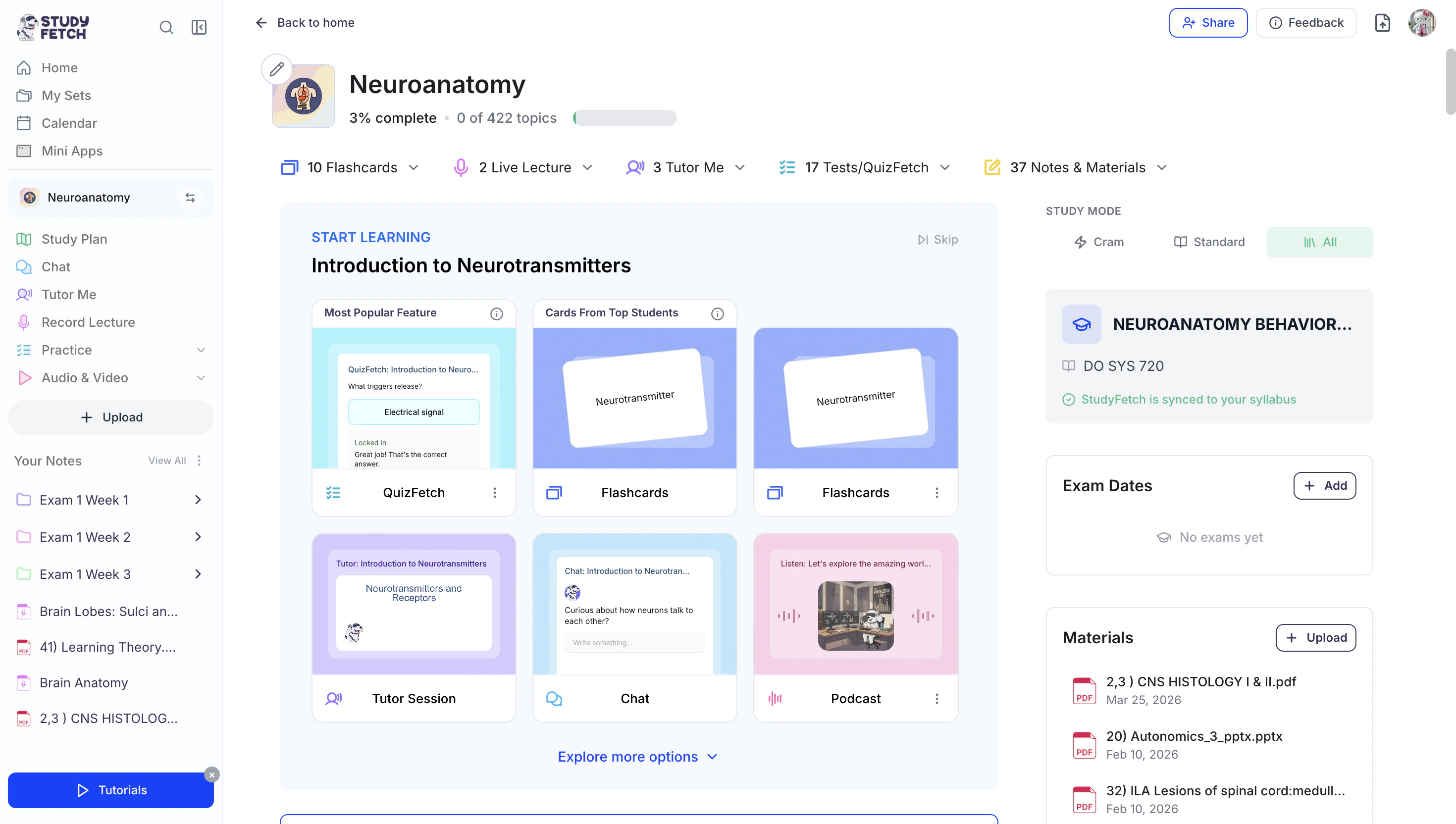
10. To open a Study Set, simply click on it
9. You can return to the previous screen main list by selecting **Exit Folder**, or...
10. To open a Study Set, simply click on it
 and you'll be taken to the selected Study Set’s home dashboard.
 ## Managing Your Folders
### Rename Your Folder
1. On the left-hand side of your Dashboard click **My Sets**.
## Managing Your Folders
### Rename Your Folder
1. On the left-hand side of your Dashboard click **My Sets**.
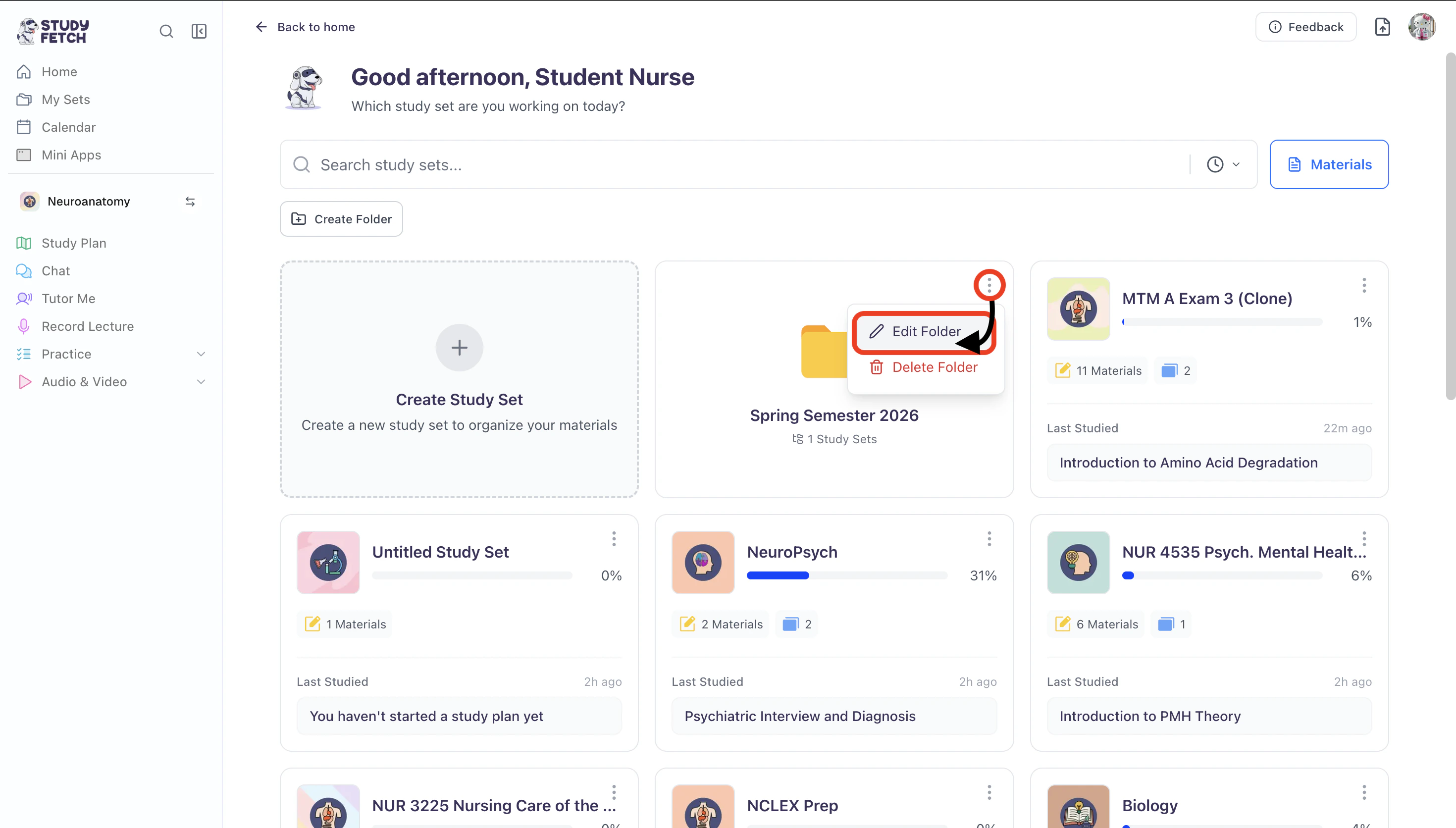
 2. Next, click the **⋮** icon in the top right corner of the folder you want to rename, then select **Edit Folder**.
 3. You can edit the existing name or enter a new name in the **Name** field.
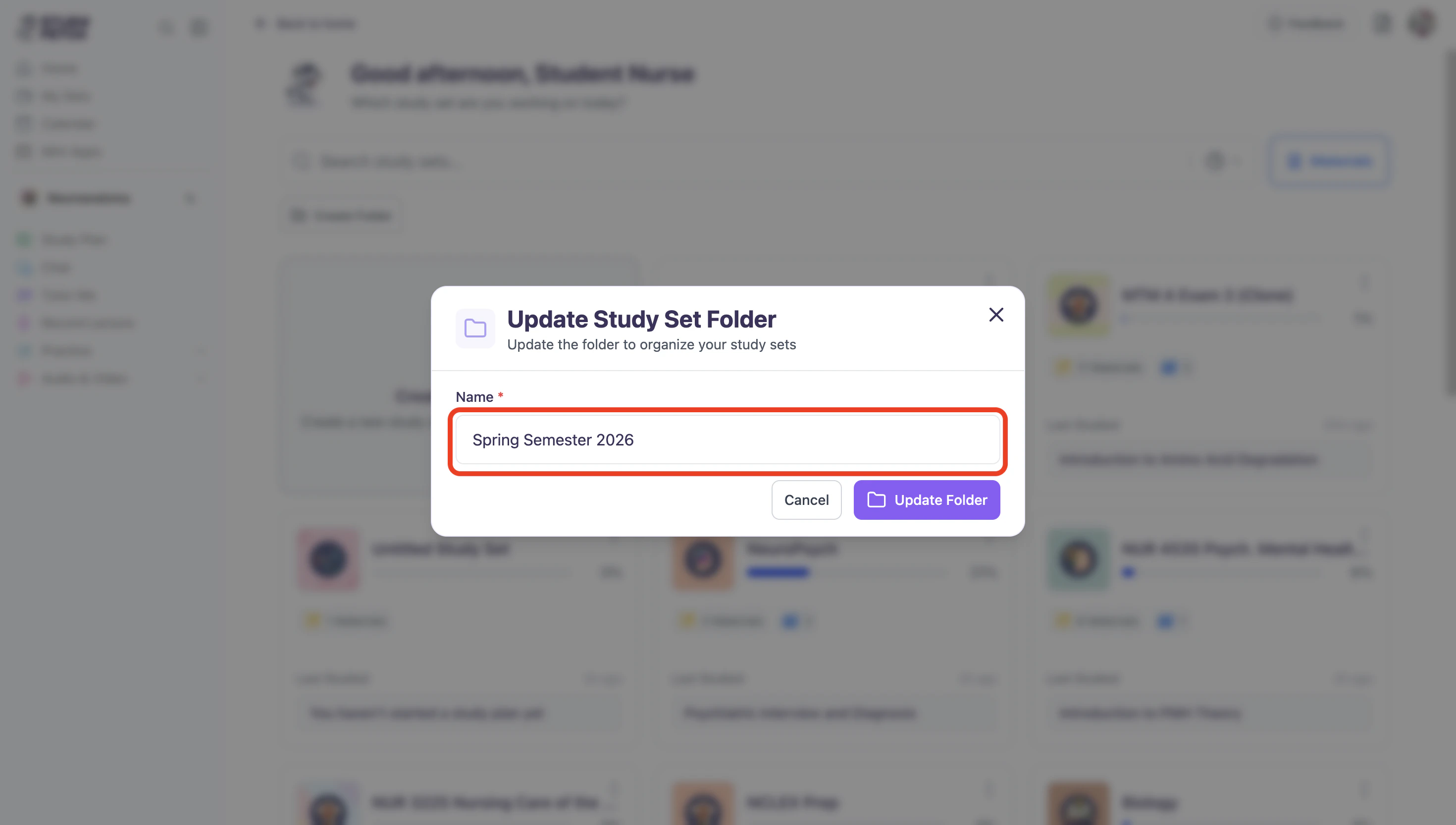 4. When done click **Update Folder**.
### Delete Your Folder
1. On the left-hand side of your Dashboard click **My Sets**.
4. When done click **Update Folder**.
### Delete Your Folder
1. On the left-hand side of your Dashboard click **My Sets**.
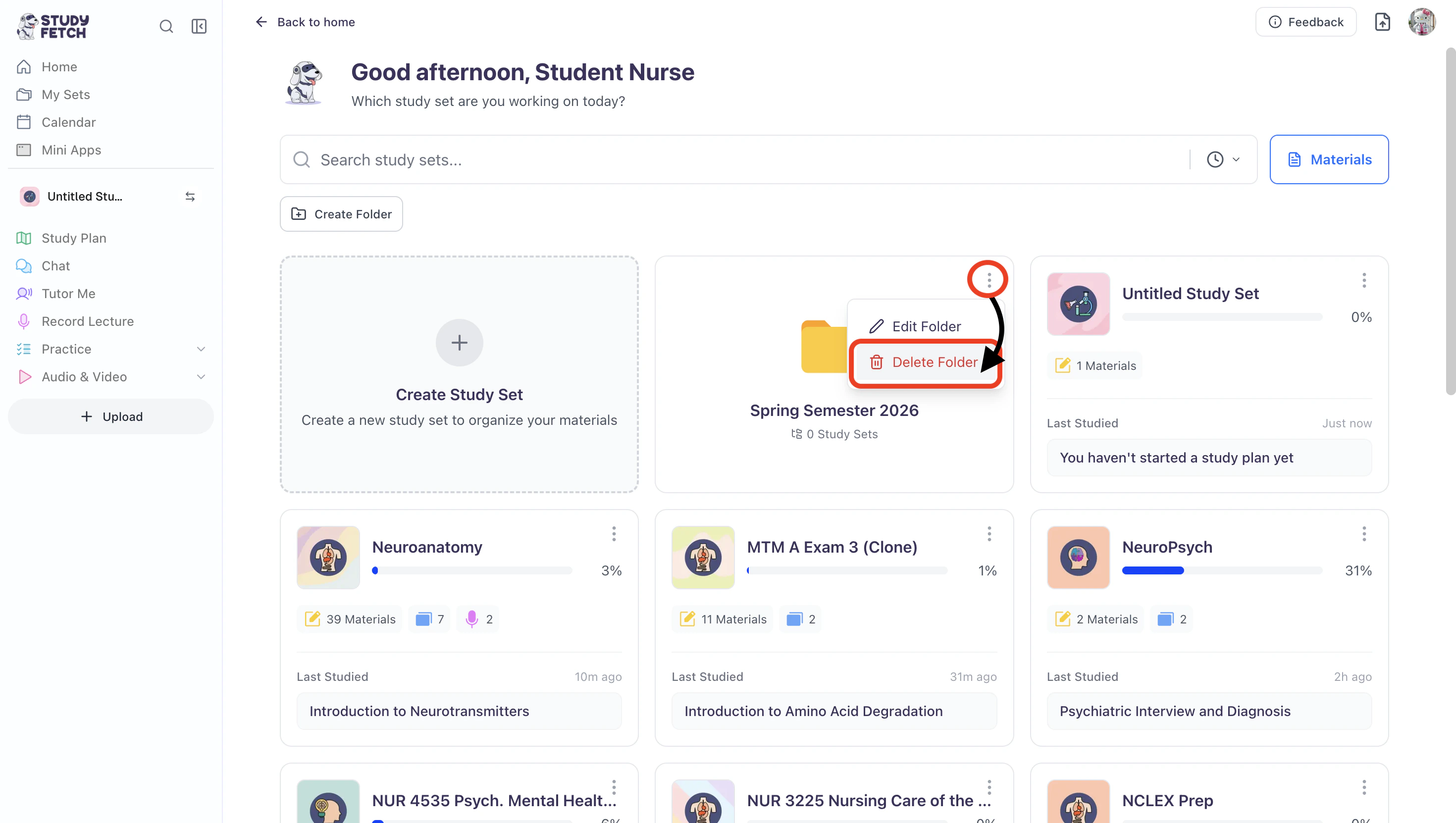
 2. Next, click the **⋮** icon in the top right corner of the folder you want to rename, then select **Delete Folder**.
 3. If you are sure you want to delete this folder, select **OK**.
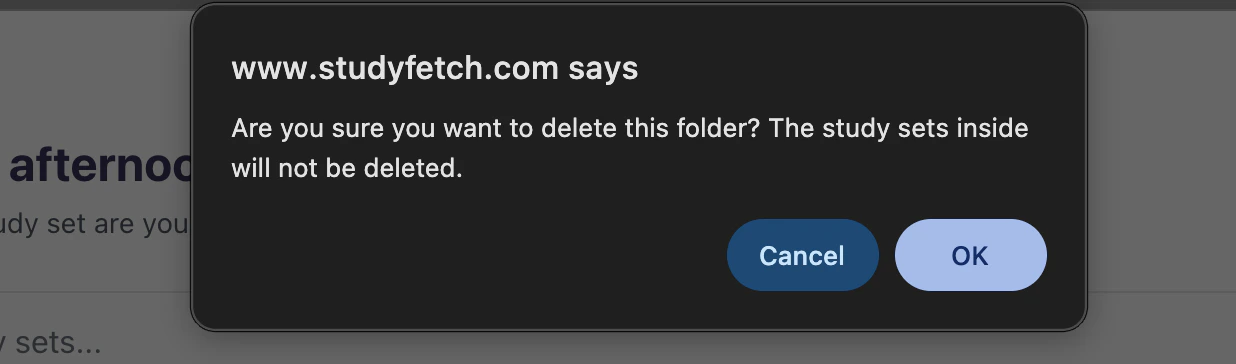 Be cautious as this cannot be undone!
## Next Steps
After creating a folder you may want to:
* Upload your materials and [Create Study Sets.](https://www.studyfetch.com/docs/tutorial-doc-format/creatingstudysets)
* Create [**notes**](https://www.studyfetch.com/docs/tutorial-doc-format/notes) for more comprehensive study materials.
* Try [**QuizFetch**](https://www.studyfetch.com/docs/tutorial-doc-format/quizfetch) for a fun, interactive way to test your knowledge.
Be cautious as this cannot be undone!
## Next Steps
After creating a folder you may want to:
* Upload your materials and [Create Study Sets.](https://www.studyfetch.com/docs/tutorial-doc-format/creatingstudysets)
* Create [**notes**](https://www.studyfetch.com/docs/tutorial-doc-format/notes) for more comprehensive study materials.
* Try [**QuizFetch**](https://www.studyfetch.com/docs/tutorial-doc-format/quizfetch) for a fun, interactive way to test your knowledge.