> ## Documentation Index
> Fetch the complete documentation index at: https://www.studyfetch.com/docs/llms.txt
> Use this file to discover all available pages before exploring further.
# Flashcards Tutorial
How to create your own flashcards.
## **Introduction**
Whether you’re preparing for an exam, memorizing key concepts, or reinforcing important information, StudyFetch flashcards help make studying smarter and more efficient. Flashcards are one of the most effective tools for active recall and knowledge retention. With StudyFetch, you can automatically generate flashcards from your study materials or create them manually using an intuitive interface — streamlining your workflow and enhancing long-term retention.
## [****](https://www.studyfetch.com/docs/tutorial-doc-format/flashcards#method-1-generate-flashcards-from-materials)**Accessing Flashcards**
1. On the left-hand side of your Dashboard click **Practice** and then select **Flashcards**
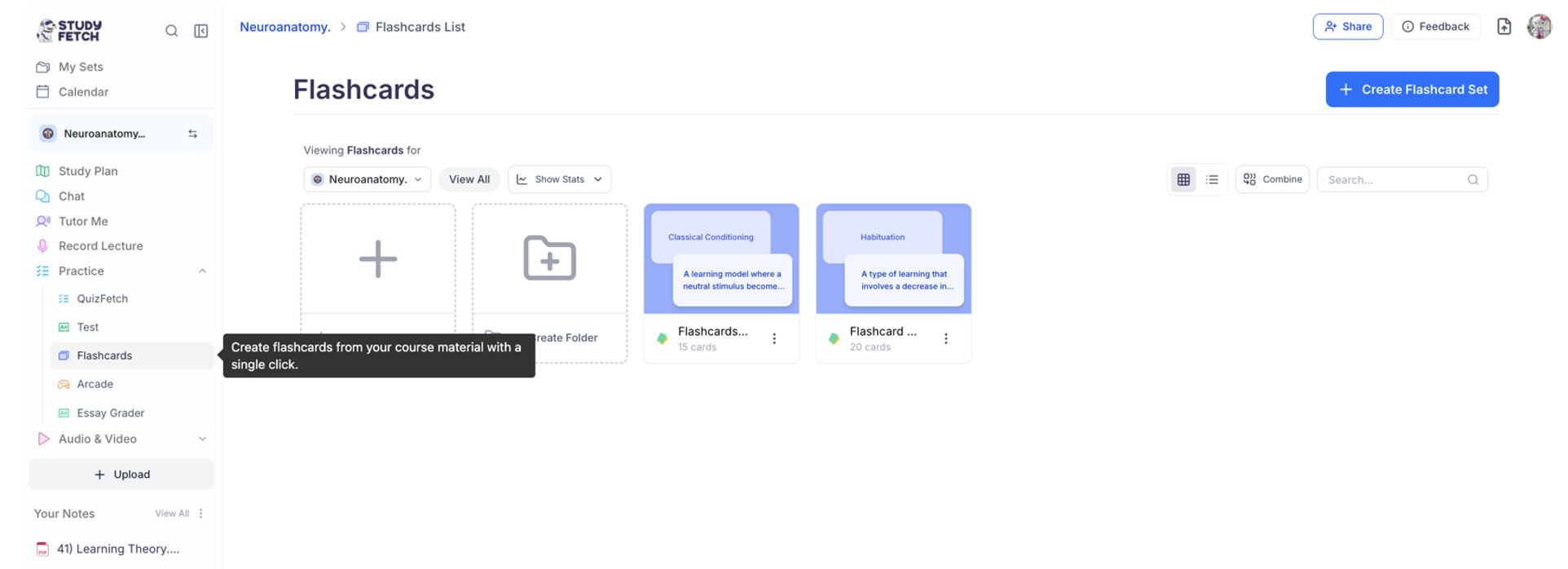 You can view any of your desired flashcard sets by selecting the desired flashcard set or create new flashcards by following the steps below
## **Generate Flashcards**
First select **+ Create Flashcard Set** and proceed via your preferred method
You can view any of your desired flashcard sets by selecting the desired flashcard set or create new flashcards by following the steps below
## **Generate Flashcards**
First select **+ Create Flashcard Set** and proceed via your preferred method
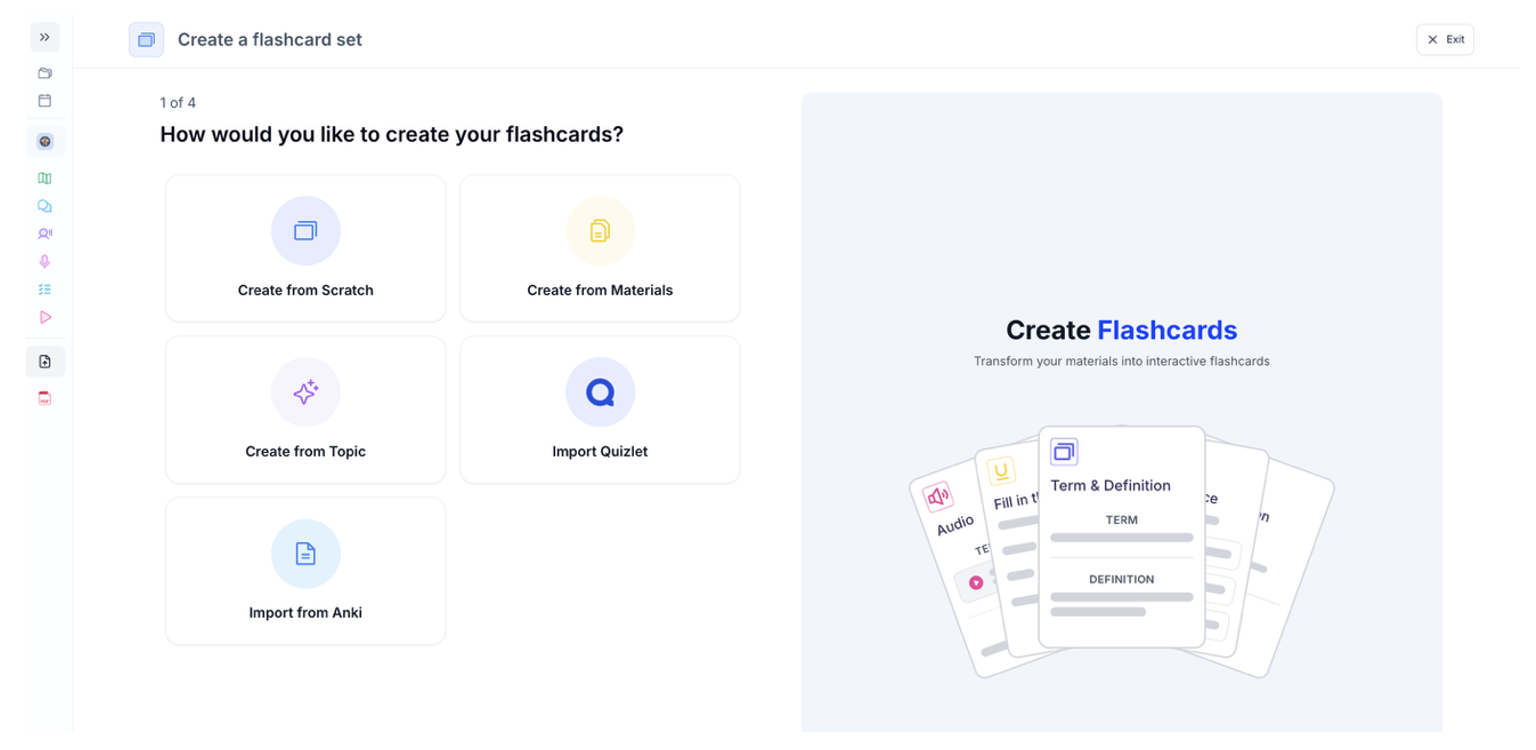 ### **Method 1: From Materials**
1. Select **Create from Materials** if you want to create flashcards from your materials
2. Choose which previously uploaded materials you would like to create flashcards from or select **Upload New Material** to import material you haven’t uploaded, and click **Next**
### **Method 1: From Materials**
1. Select **Create from Materials** if you want to create flashcards from your materials
2. Choose which previously uploaded materials you would like to create flashcards from or select **Upload New Material** to import material you haven’t uploaded, and click **Next**
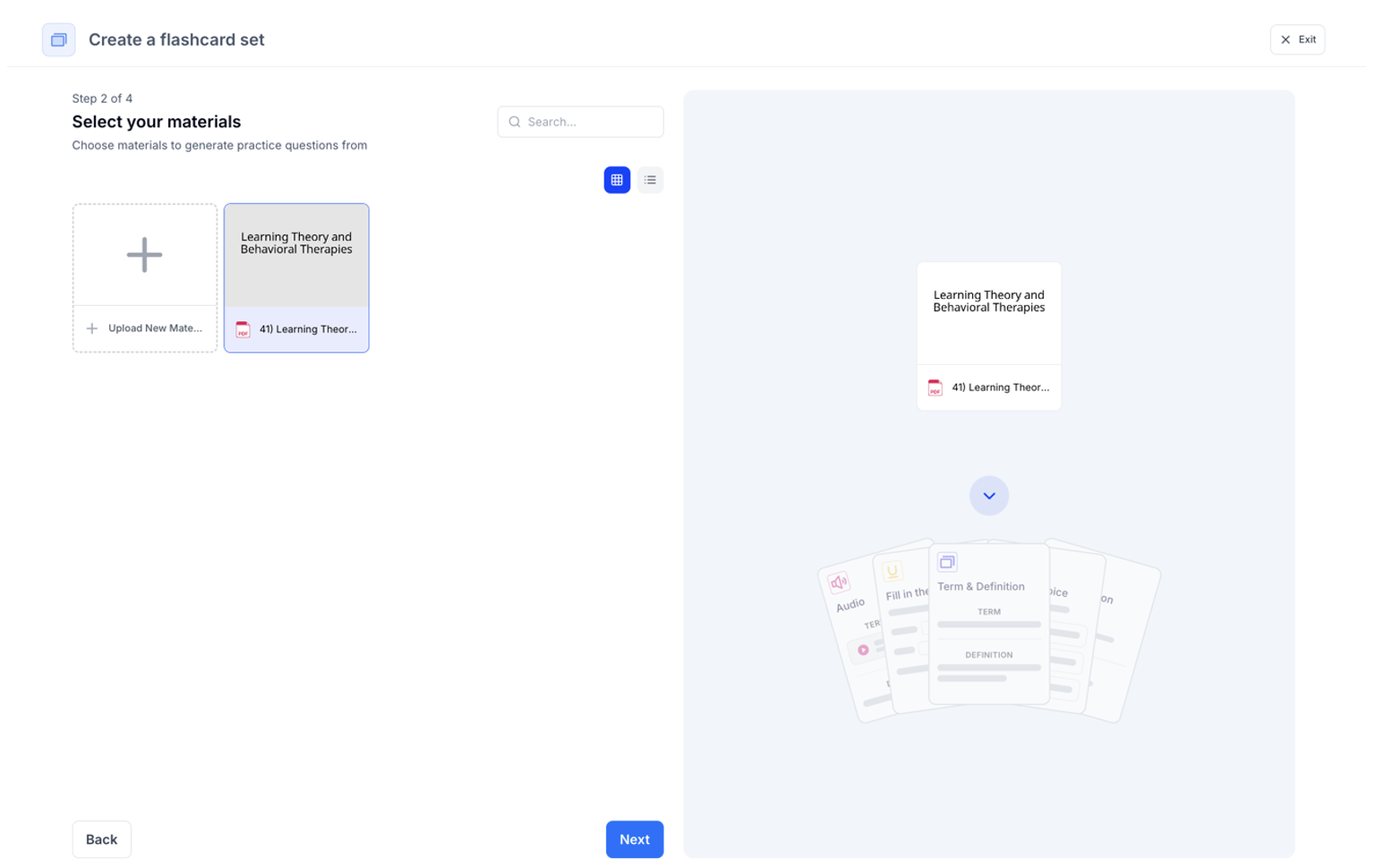 3. Next, customize your generation settings by **selecting the type** of flashcards and **amount of each type** of flashcard that you want generated. When you’re done click **Next**
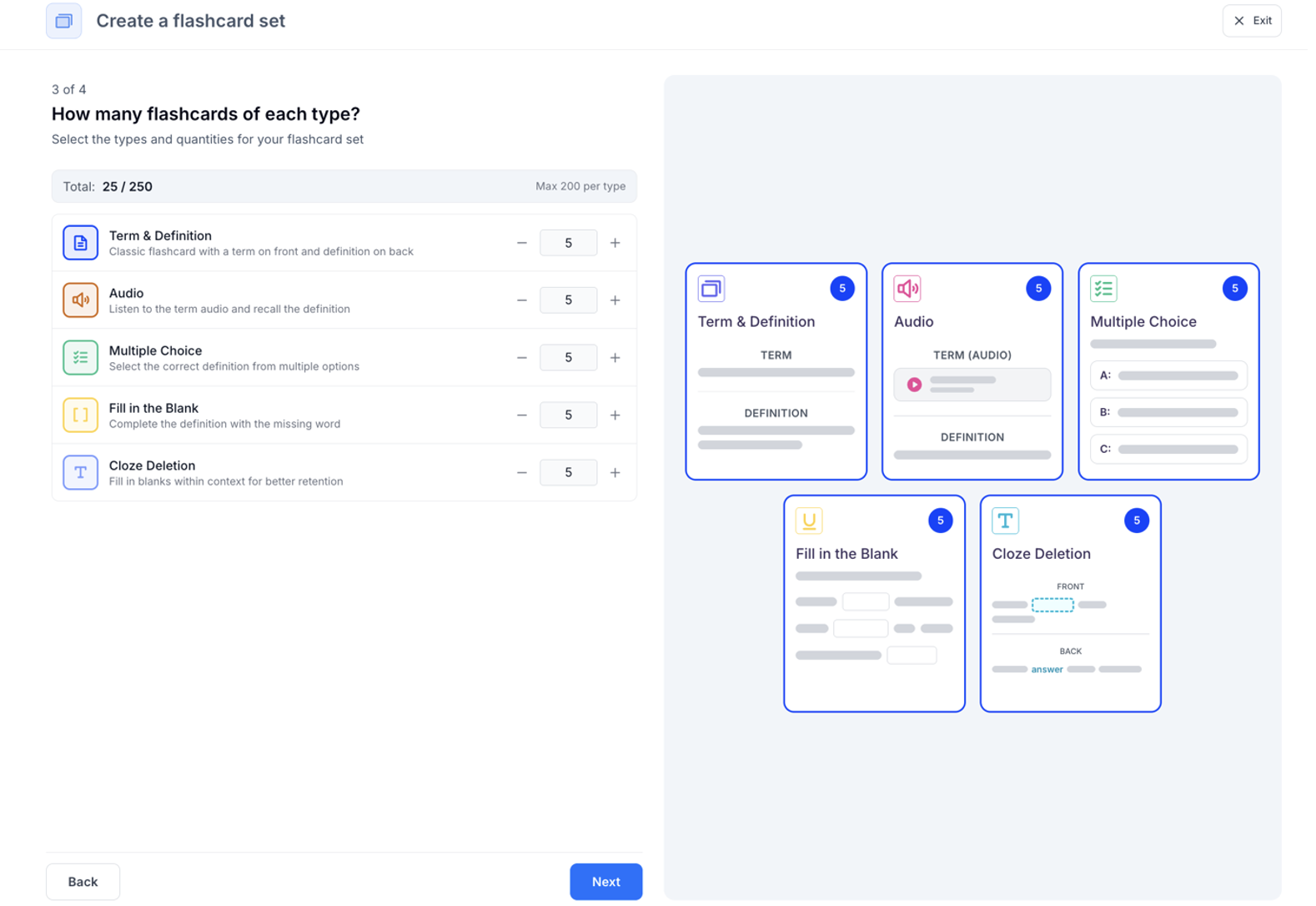 4. Now you can add additional optional settings:
a. **Name your flashcard set** by typing in the box under **What would you like to name your flashcards?** If you leave this blank, don’t worry, we will name your flashcard set for you
b. **Choose the language** you want your flashcards to be in by clicking the box under **What language would you like your flashcards to be in?** and selecting your preferred language from the list.
c. **Select a customization plugin** by selecting one from the list under **Customize your flashcards with a Plugin** or click **Explore Plugins** to use a plugin not listed or create your own
d. To ensure your flashcards are tailored to your learning goals, specify a focus topic in the box under **Focus Topic (optional)**
4. Now you can add additional optional settings:
a. **Name your flashcard set** by typing in the box under **What would you like to name your flashcards?** If you leave this blank, don’t worry, we will name your flashcard set for you
b. **Choose the language** you want your flashcards to be in by clicking the box under **What language would you like your flashcards to be in?** and selecting your preferred language from the list.
c. **Select a customization plugin** by selecting one from the list under **Customize your flashcards with a Plugin** or click **Explore Plugins** to use a plugin not listed or create your own
d. To ensure your flashcards are tailored to your learning goals, specify a focus topic in the box under **Focus Topic (optional)**
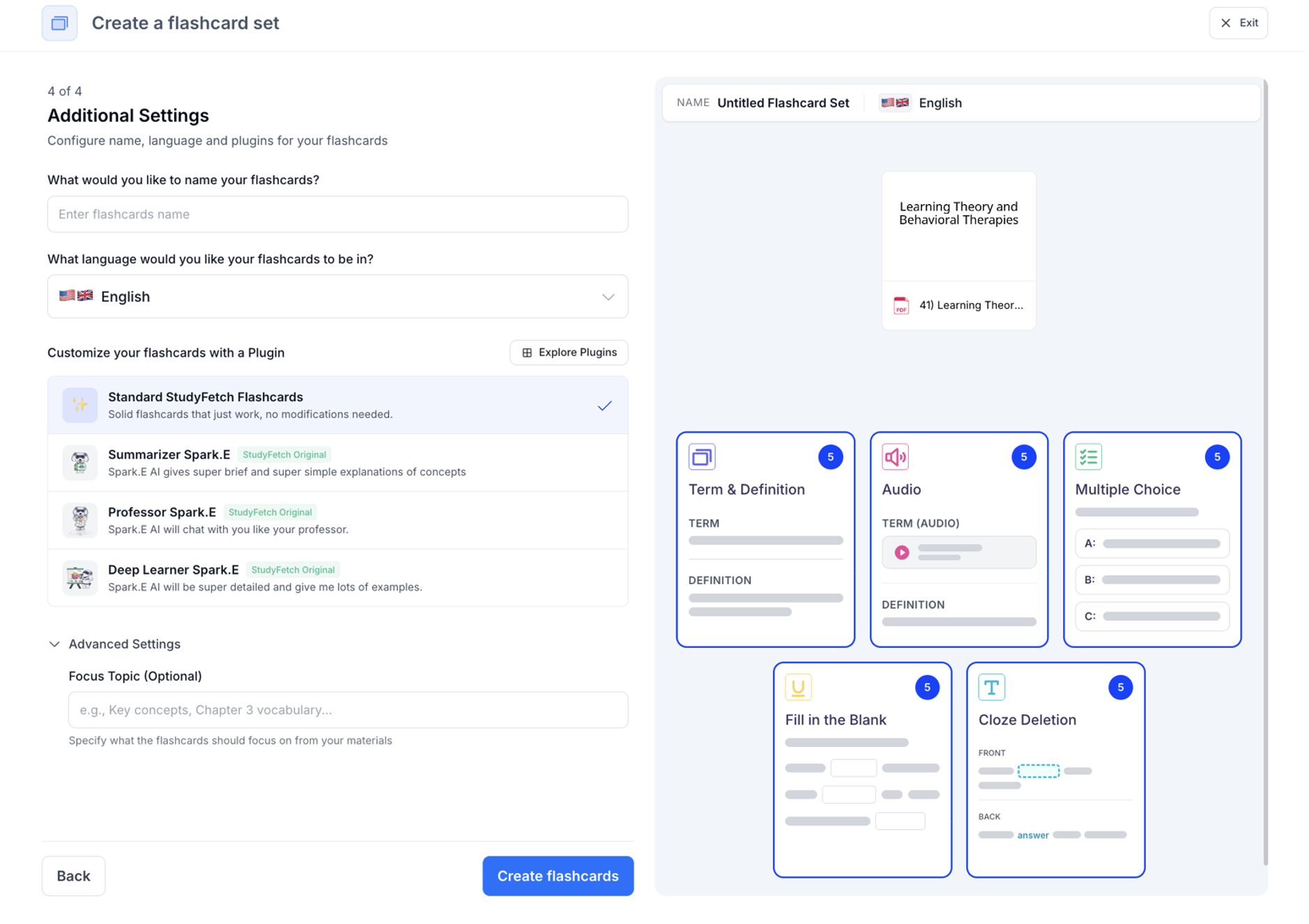 5. Lastly, select **Create flashcards** and StudyFetch will automatically generate your customized flashcards
### **Method 2: From Topic**
1. Select **Create** **from Topic** if you want to create flashcards from any topic you want to learn about
2. Type the topic you want to create flashcards about in the box under **Topic**, then click **Next**
5. Lastly, select **Create flashcards** and StudyFetch will automatically generate your customized flashcards
### **Method 2: From Topic**
1. Select **Create** **from Topic** if you want to create flashcards from any topic you want to learn about
2. Type the topic you want to create flashcards about in the box under **Topic**, then click **Next**
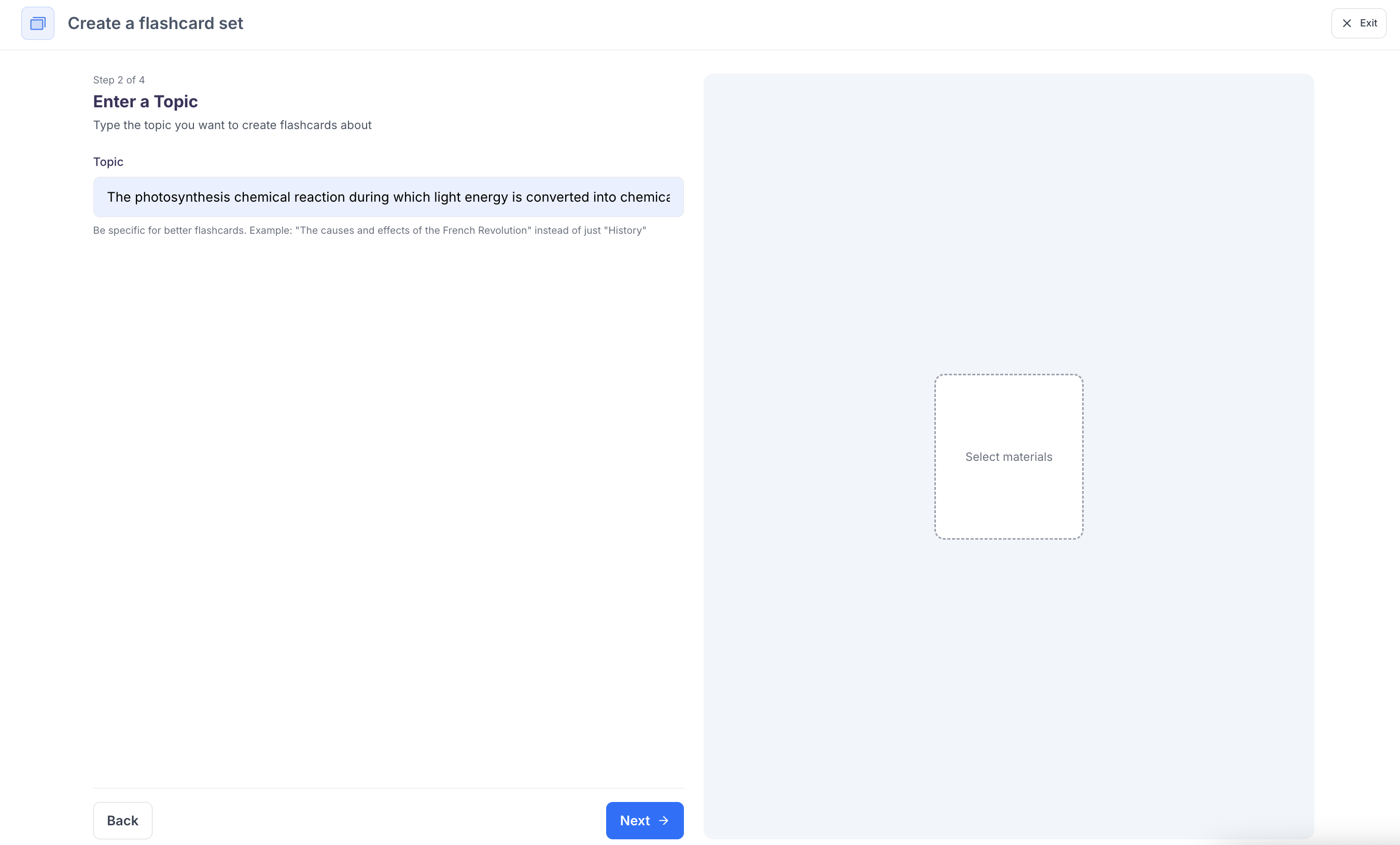 Be as specific as possible to generate better flashcards for your learning goals.
3. Next, Follow steps 3-5 from [Method 1](https://www.studyfetch.com/docs/tutorial-doc-format/flashcards#method-1-from-materials) above
### **Method 3: From Quizlet**
1. Select **Import Quizlet** to turn your quizlet into flashcards
2. Go to quizlet and copy the URL for the Quizlet set you want to import, then paste it into the box under **Quizlet Set URL**
Be as specific as possible to generate better flashcards for your learning goals.
3. Next, Follow steps 3-5 from [Method 1](https://www.studyfetch.com/docs/tutorial-doc-format/flashcards#method-1-from-materials) above
### **Method 3: From Quizlet**
1. Select **Import Quizlet** to turn your quizlet into flashcards
2. Go to quizlet and copy the URL for the Quizlet set you want to import, then paste it into the box under **Quizlet Set URL**
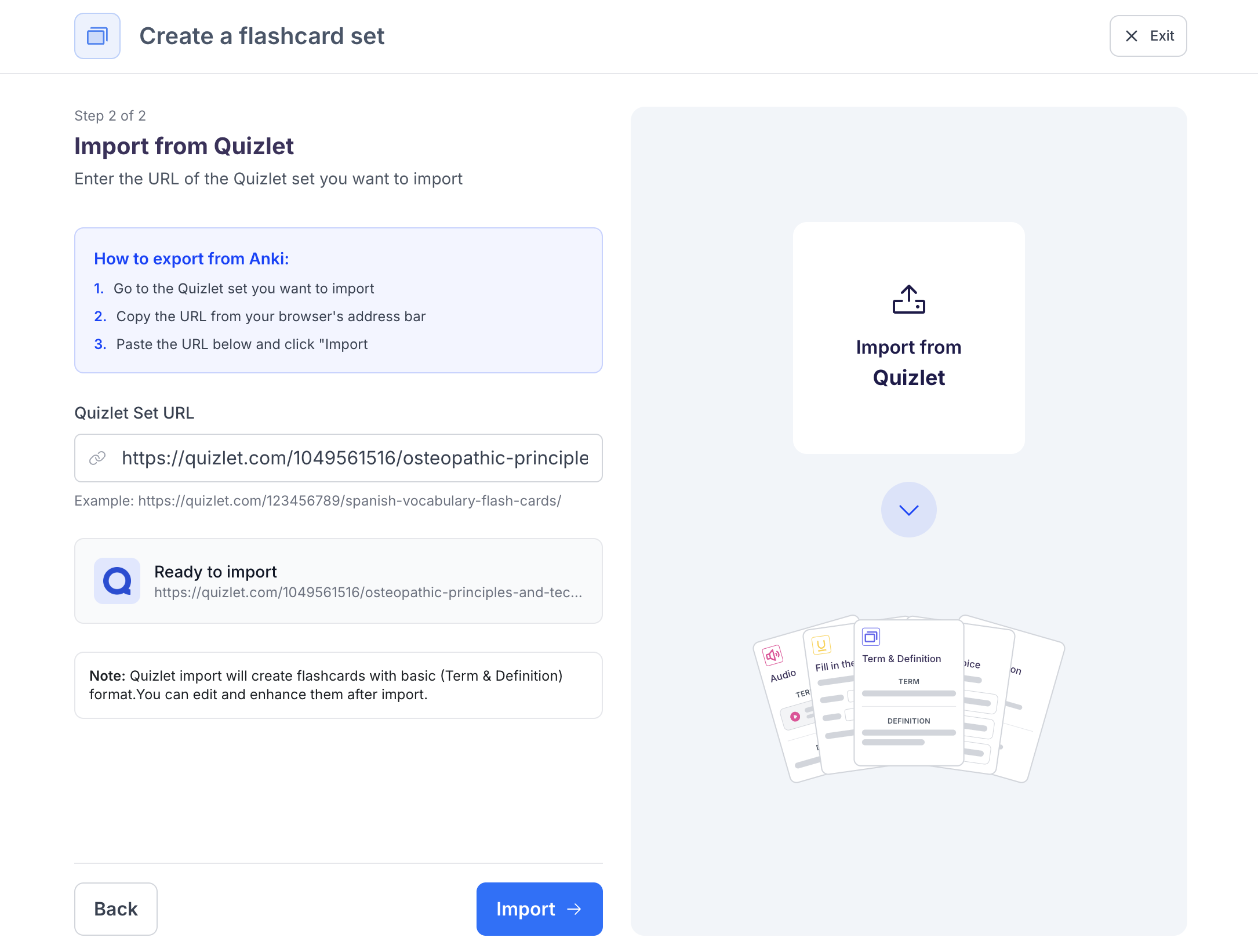 3. When you are ready to import, click **Import**, and StudyFetch will turn your Quizlet set into AI powered flashcards
Quizlet import will create flashcards with basic (Term & Definition) format. You can edit and enhance them after import.
### Method 4: From Anki
1. Select **Import from Anki** to turn your Anki deck into flashcards.
How To Export your Anki Deck to upload to StudyFetch:
1. Open **Anki Desktop** and select the deck you want to export
2. Go to **File>Notes** and then select **Export Notes...**
3. When you are ready to import, click **Import**, and StudyFetch will turn your Quizlet set into AI powered flashcards
Quizlet import will create flashcards with basic (Term & Definition) format. You can edit and enhance them after import.
### Method 4: From Anki
1. Select **Import from Anki** to turn your Anki deck into flashcards.
How To Export your Anki Deck to upload to StudyFetch:
1. Open **Anki Desktop** and select the deck you want to export
2. Go to **File>Notes** and then select **Export Notes...**
 3. Choose **Anki Deck Package (\*.apkg)** as the export format, and then select **Export**
 4. Your file is now saved to your device and ready to be imported to StudyFetch.
2. Next click the box where it says **Click to upload or drag and drop** to open your devices file finder and select the Anki file you want to import, or simply drag and drop the file into the box
4. Your file is now saved to your device and ready to be imported to StudyFetch.
2. Next click the box where it says **Click to upload or drag and drop** to open your devices file finder and select the Anki file you want to import, or simply drag and drop the file into the box
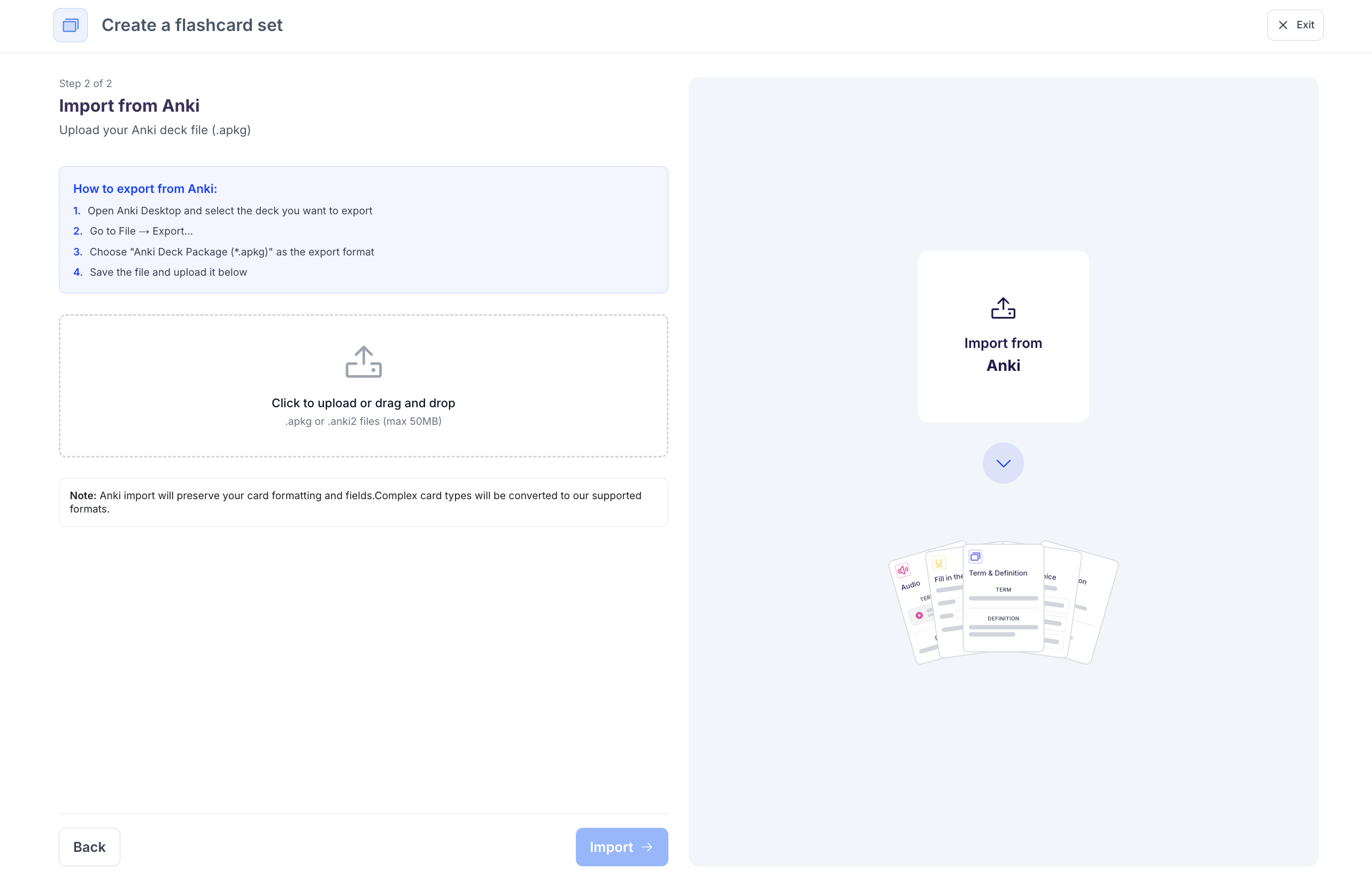 3. After selecting your Anki file, click **Import** and StudyFetch will automatically turn your Anki deck into AI powered flashcards
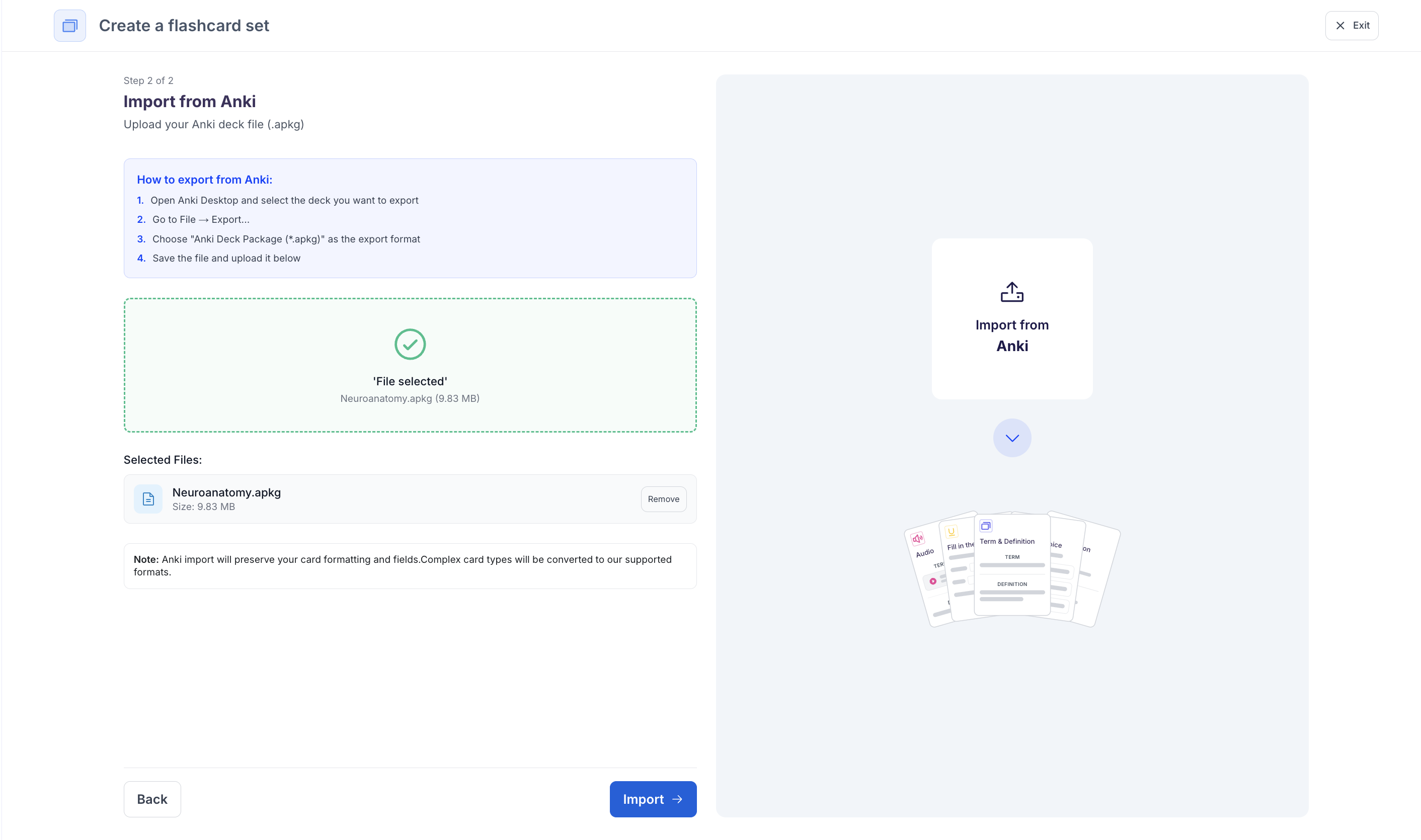 Anki import will preserve your card formatting and fields. Complex card types will be converted to our supported formats.
### **Method 5: From Scratch**
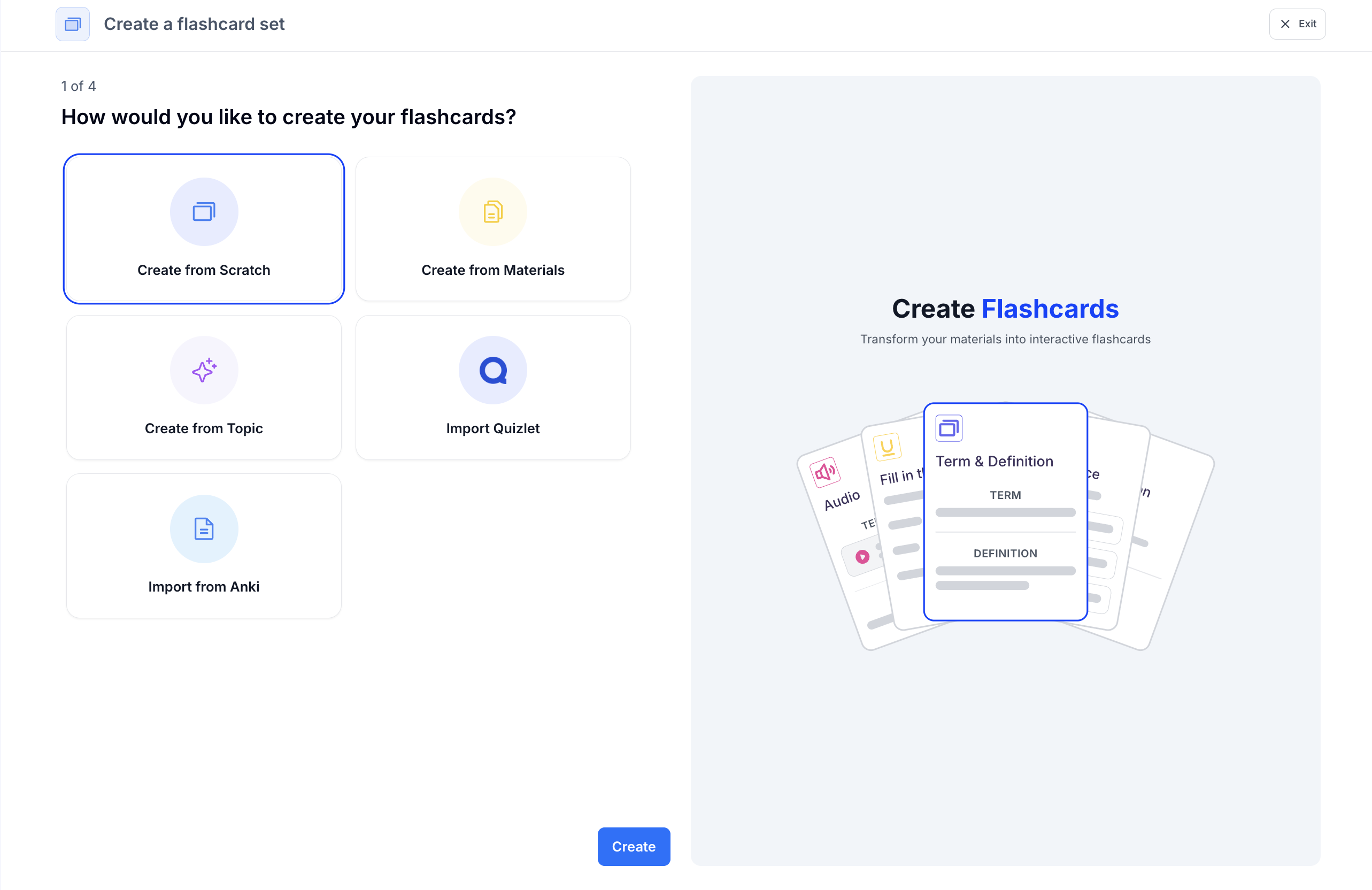
1. If you want to manually create your own flashcards, choose **Start from Scratch**, and click **Create**
Anki import will preserve your card formatting and fields. Complex card types will be converted to our supported formats.
### **Method 5: From Scratch**
1. If you want to manually create your own flashcards, choose **Start from Scratch**, and click **Create**
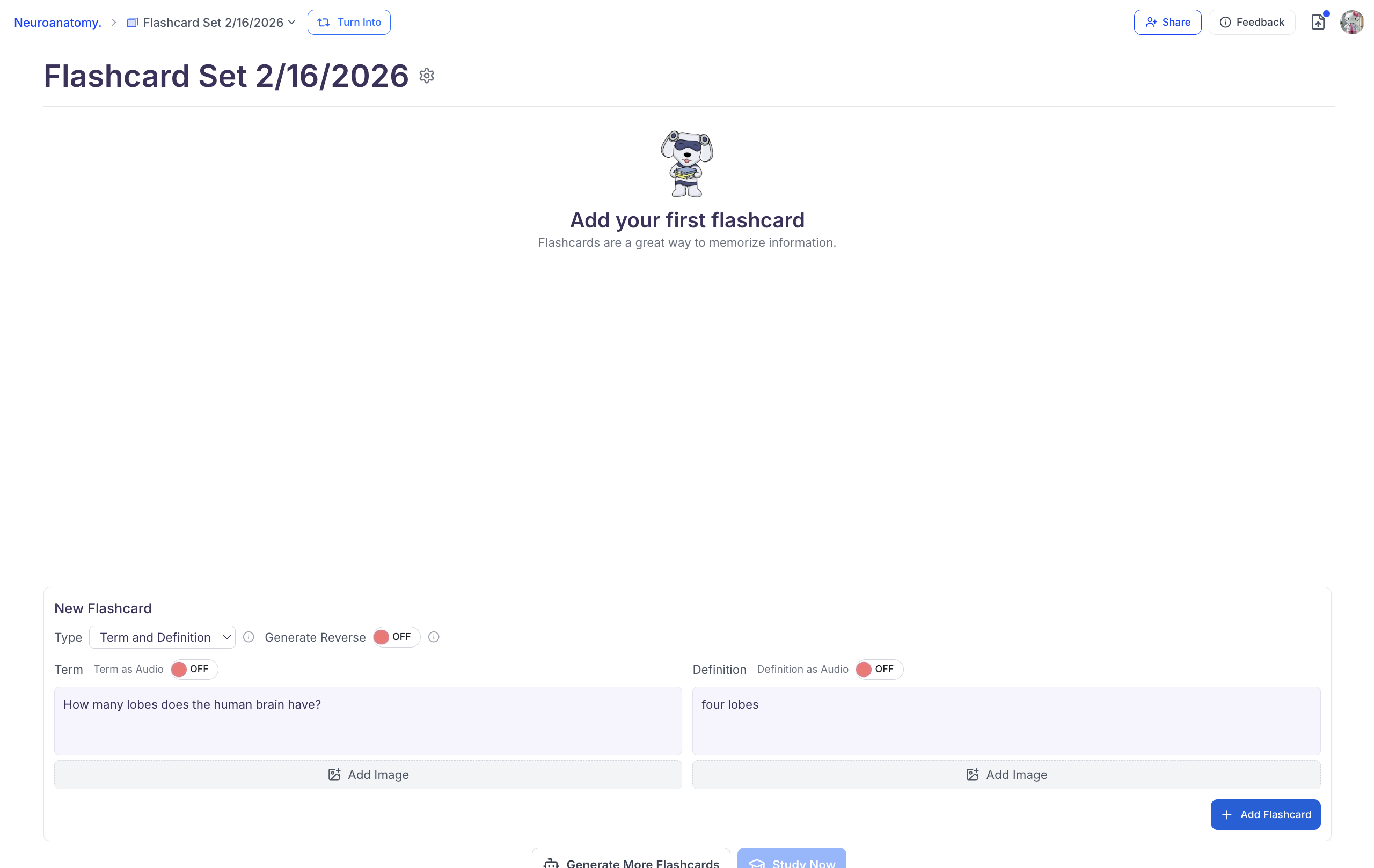
 2. Now you can create as many flashcards as you'd like. The default setting will populate a blank **Term and Definition** card. You may proceed to add the term and definitions on the text boxes provided, optionally, you may also add images to each text box. For step by step instructions on creating each type of flashcard, see [Creating Specific Types of Flashcards](https://www.studyfetch.com/docs/tutorial-doc-format/flashcards#creating-specific-types-of-flashcards)
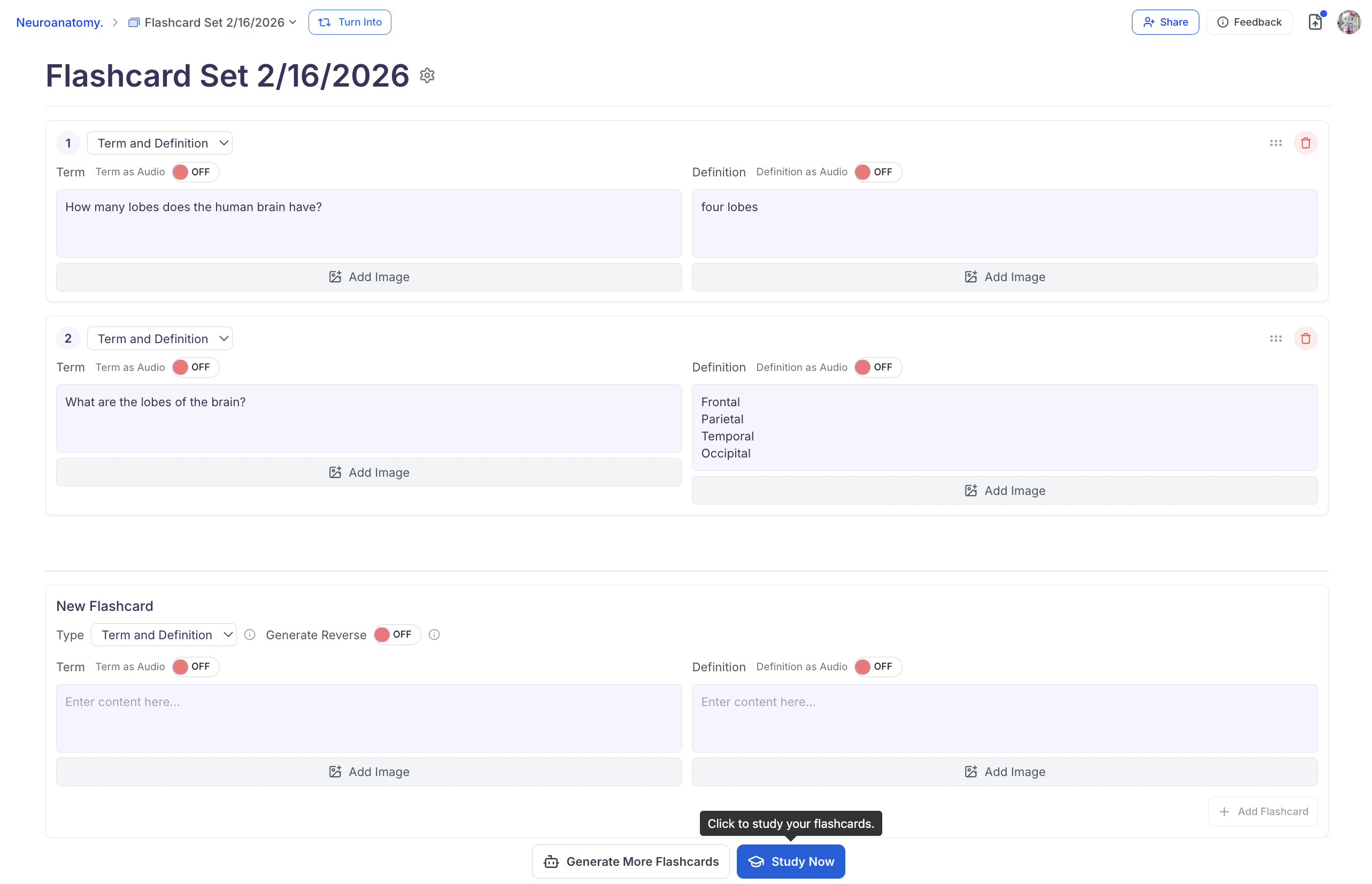
 3. When you are done making each flashcard, click **+ Add Flashcard**
4. After making all of your flashcards from scratch, click **Study Now** to start studying[****](https://www.studyfetch.com/docs/tutorial-doc-format/flashcards#step-3-customize-generation-settings)
3. When you are done making each flashcard, click **+ Add Flashcard**
4. After making all of your flashcards from scratch, click **Study Now** to start studying[****](https://www.studyfetch.com/docs/tutorial-doc-format/flashcards#step-3-customize-generation-settings)
 ## Managing your Flashcards
### Combining Flashcard Sets
Combining flashcard sets allows you to merge multiple sets into one, making it easier to review related topics together.
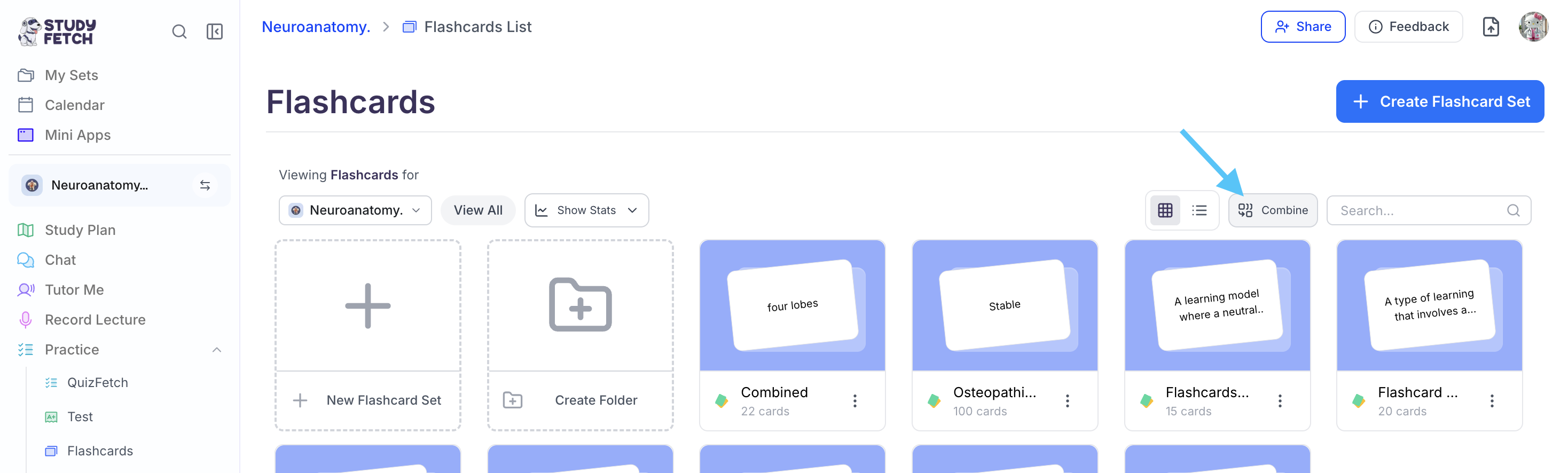
1. After accesing your flashcards, click **Combine**.
## Managing your Flashcards
### Combining Flashcard Sets
Combining flashcard sets allows you to merge multiple sets into one, making it easier to review related topics together.
1. After accesing your flashcards, click **Combine**.
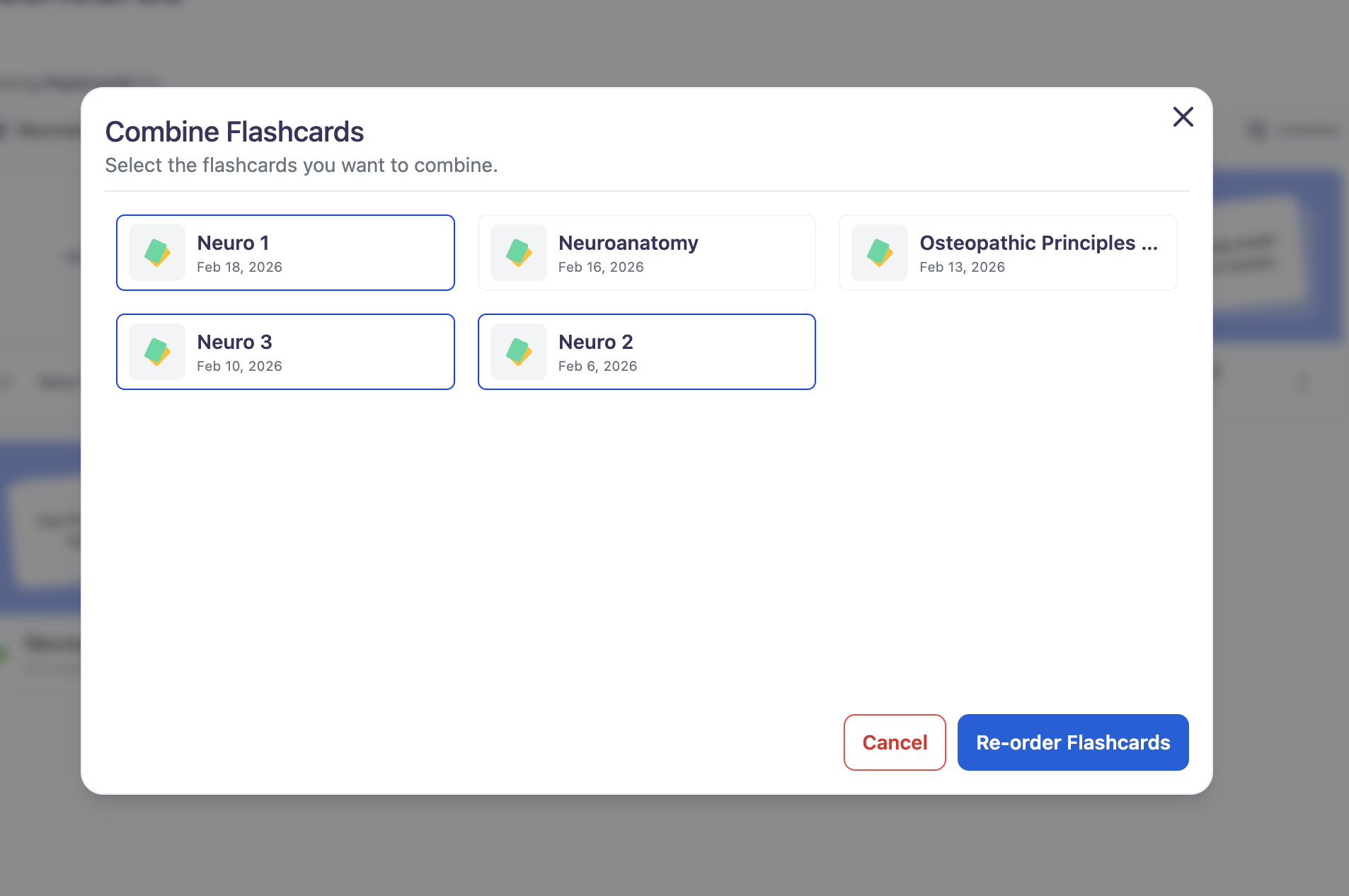
 2. Select the flashcard sets you want to combine, then choose **Re-order Flashcards** to continue.
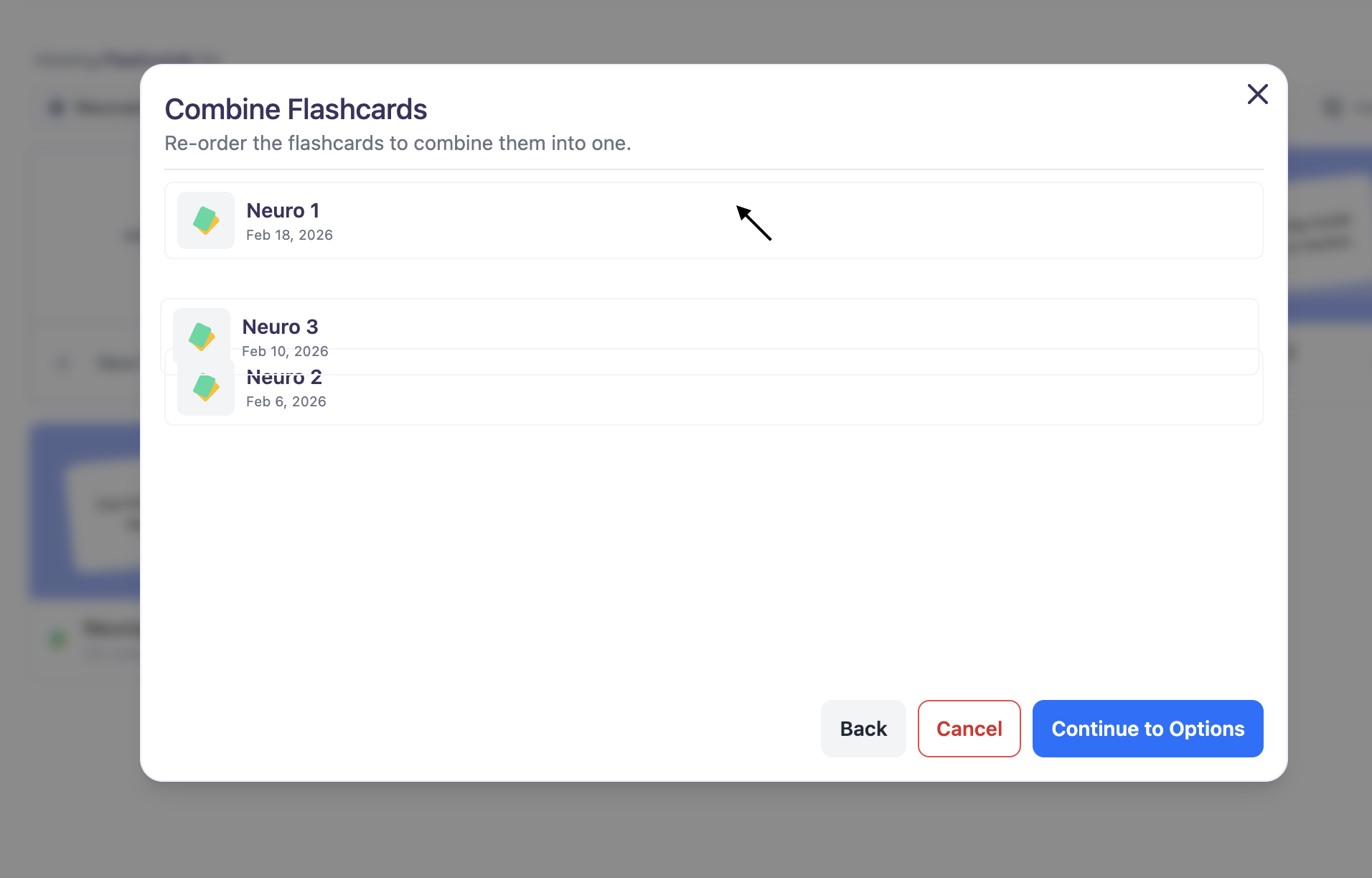
 3. Reorder the selected sets by clicking and dragging each one into your preferred order.
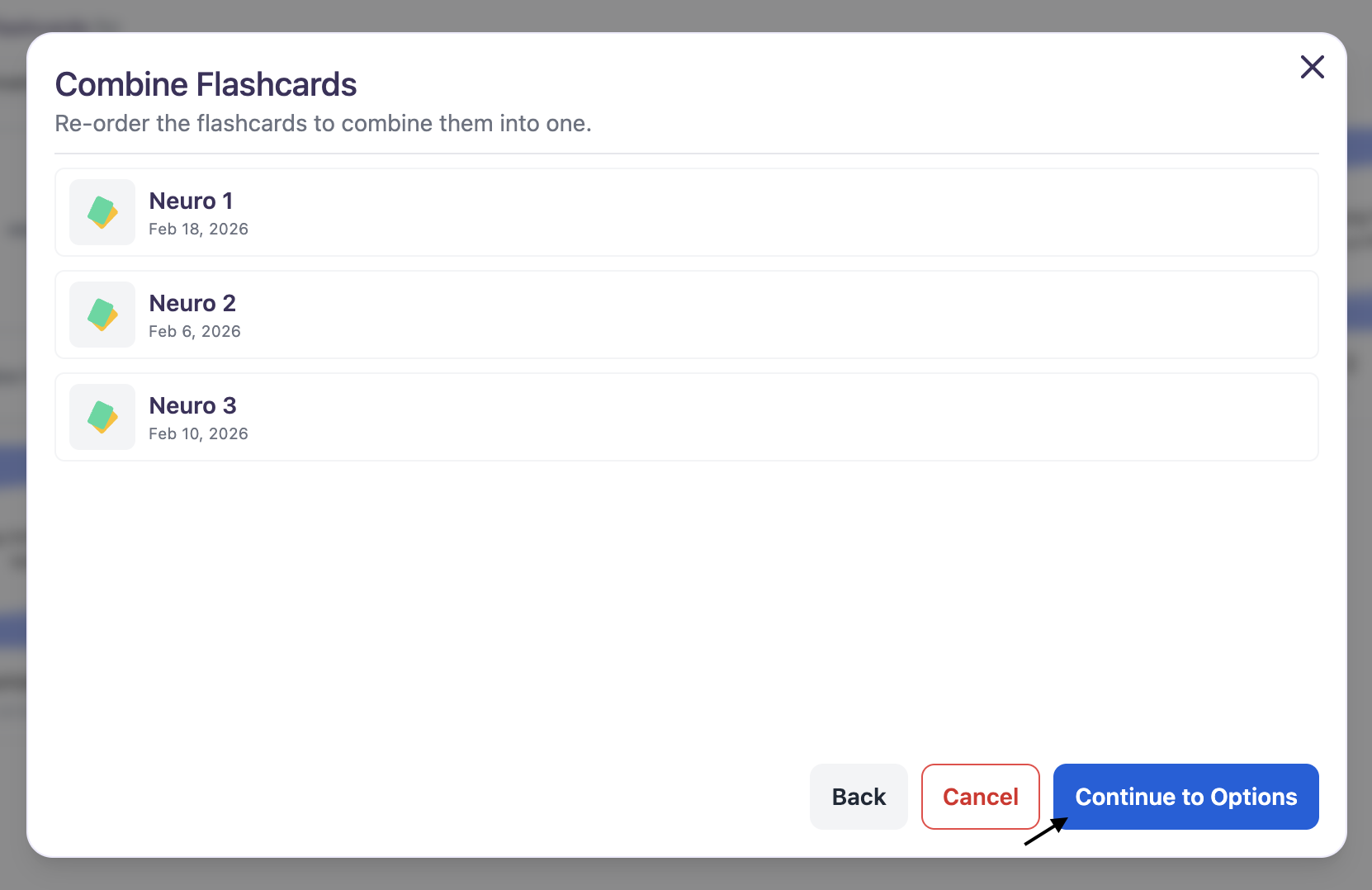
 When finished, select **Continue to Options** — the sets will be combined in the order you arranged.
 4. By default, the system combines your original flashcard set names into one. To customize the name, enter a new title in the **New Flashcard Set Name** field.
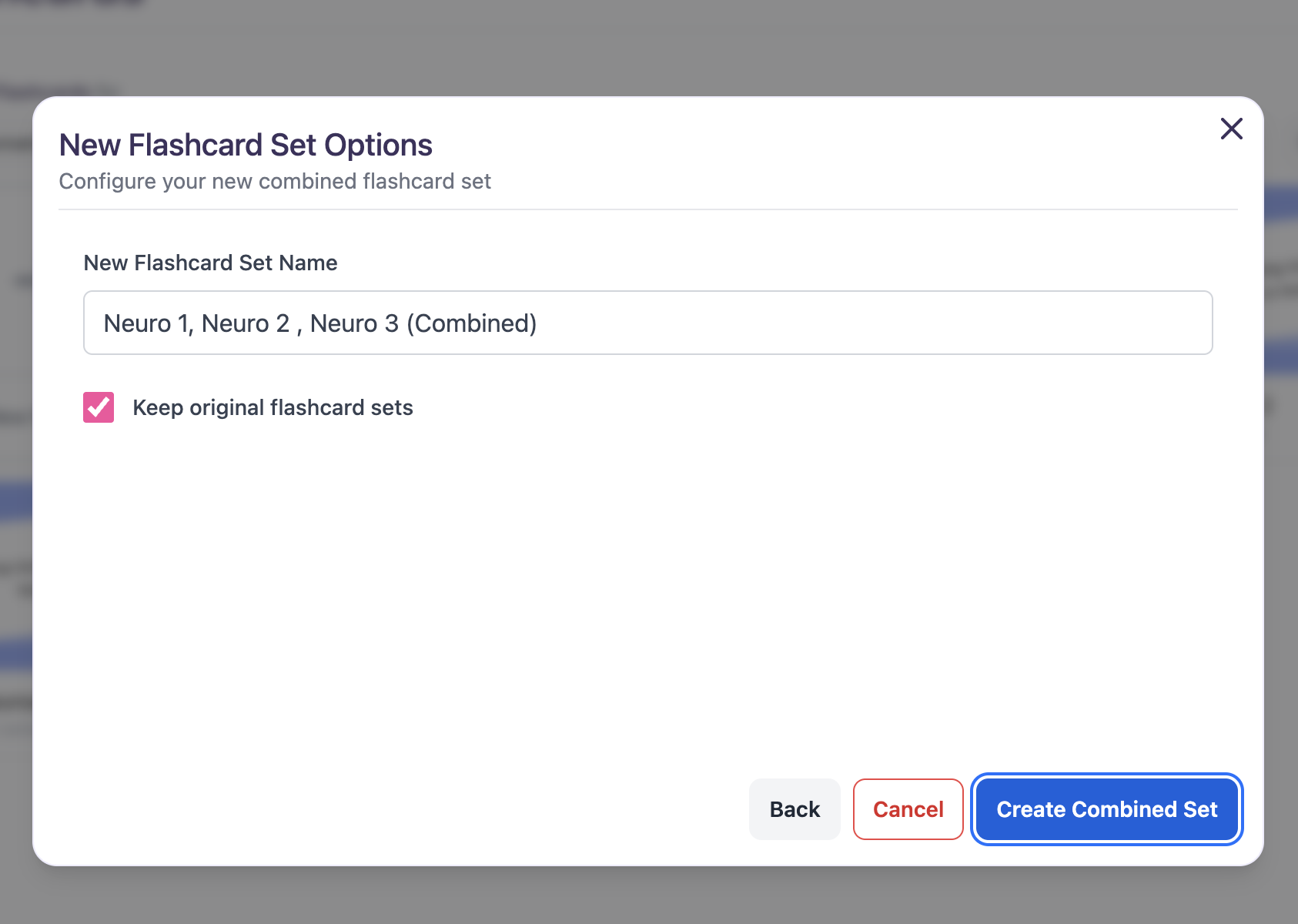 5. The **Keep original flashcard sets** option is selected by default. If you do not want to keep the individual original sets, click the checkbox to remove the checkmark.
6. Finally, select **Create Combined Set** to combine your selected flashcards.
5. The **Keep original flashcard sets** option is selected by default. If you do not want to keep the individual original sets, click the checkbox to remove the checkmark.
6. Finally, select **Create Combined Set** to combine your selected flashcards.
 ### Opening the Editing View
There are several ways to access the editing page for your flashcard set, just follow the steps that best fit your needs:
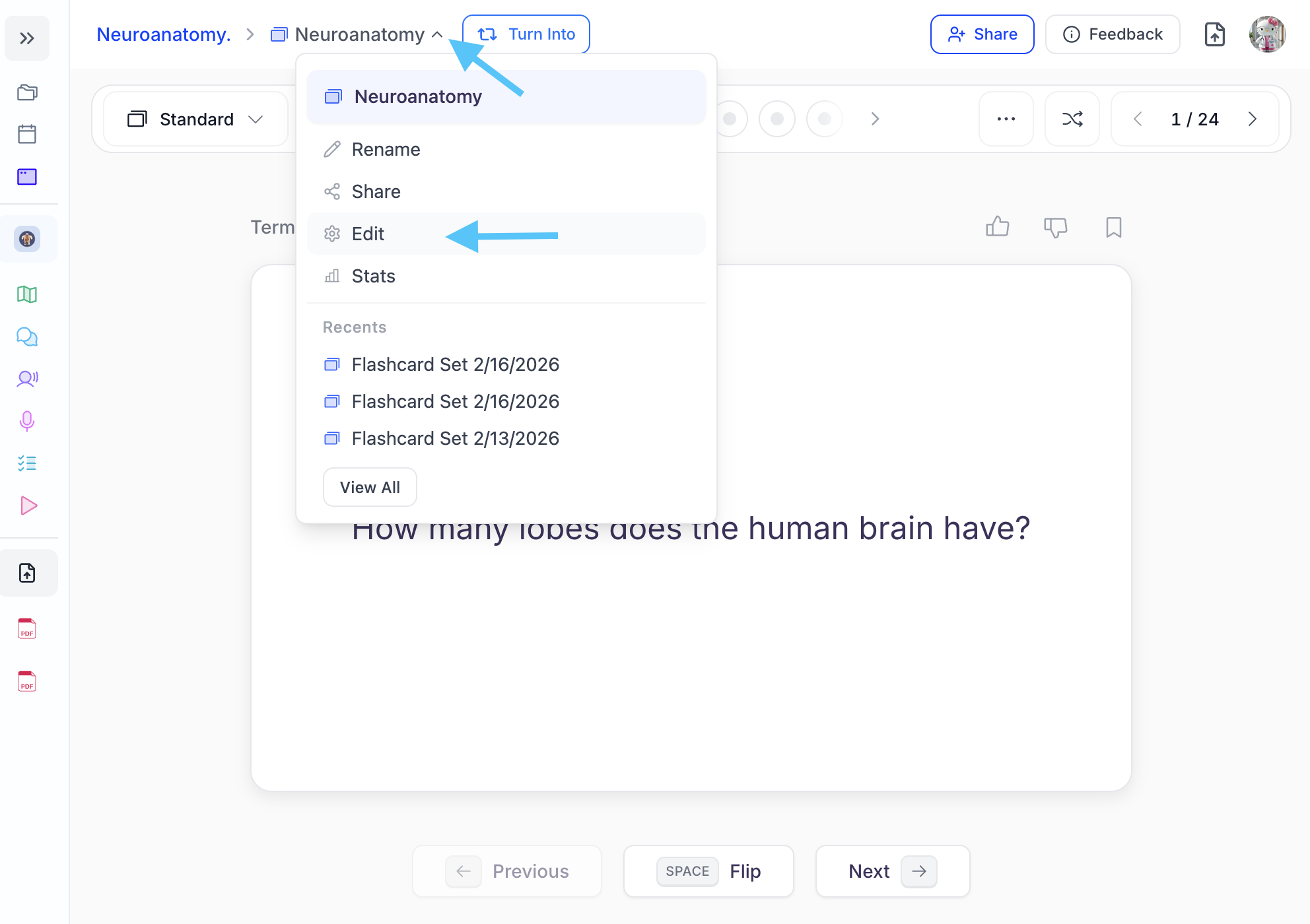
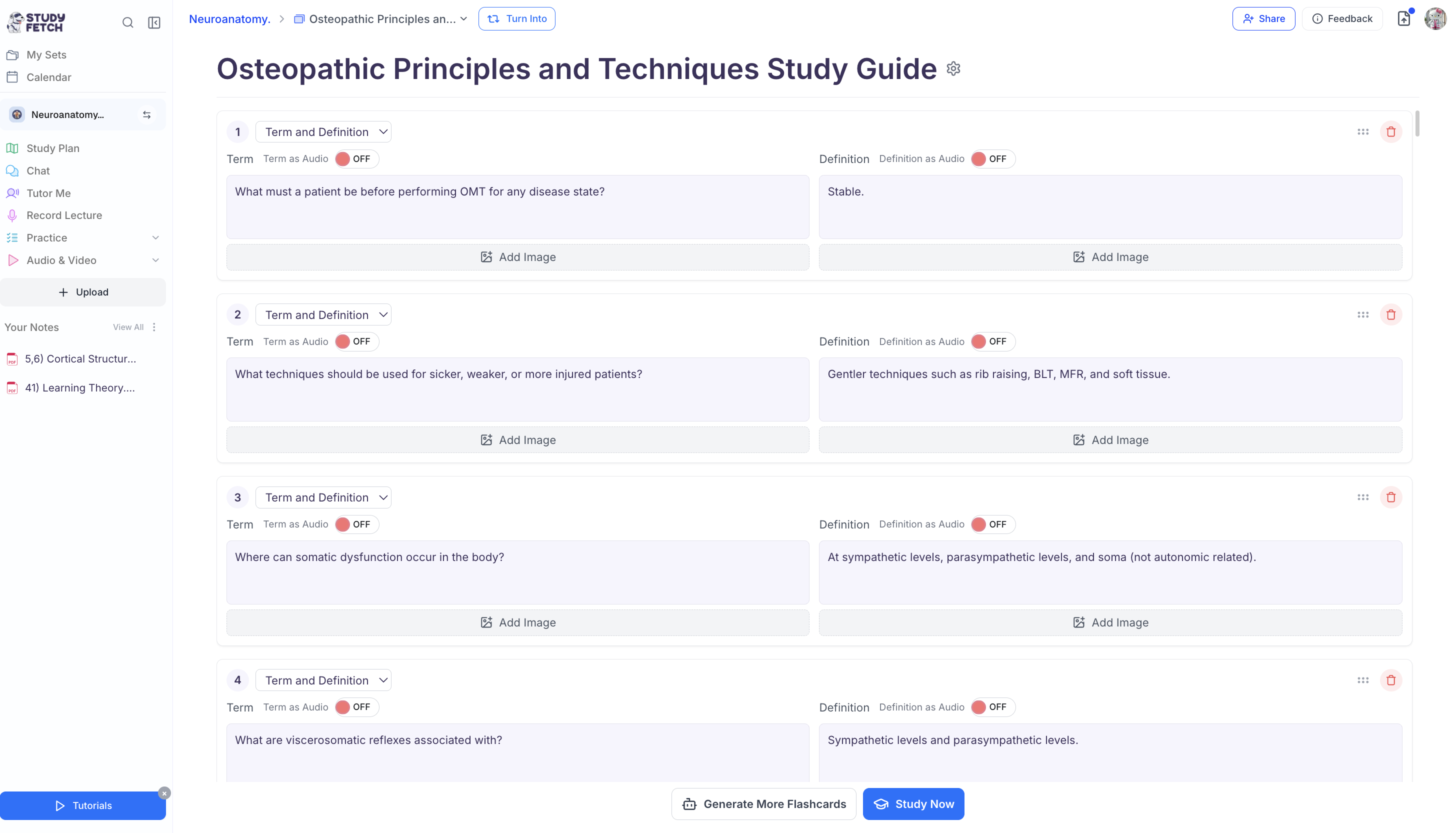
* To review or edit a **flashcard set that you are actively studying**, click the **downward arrow** head to the right of your flashcard name and then click **Edit**
### Opening the Editing View
There are several ways to access the editing page for your flashcard set, just follow the steps that best fit your needs:
* To review or edit a **flashcard set that you are actively studying**, click the **downward arrow** head to the right of your flashcard name and then click **Edit**
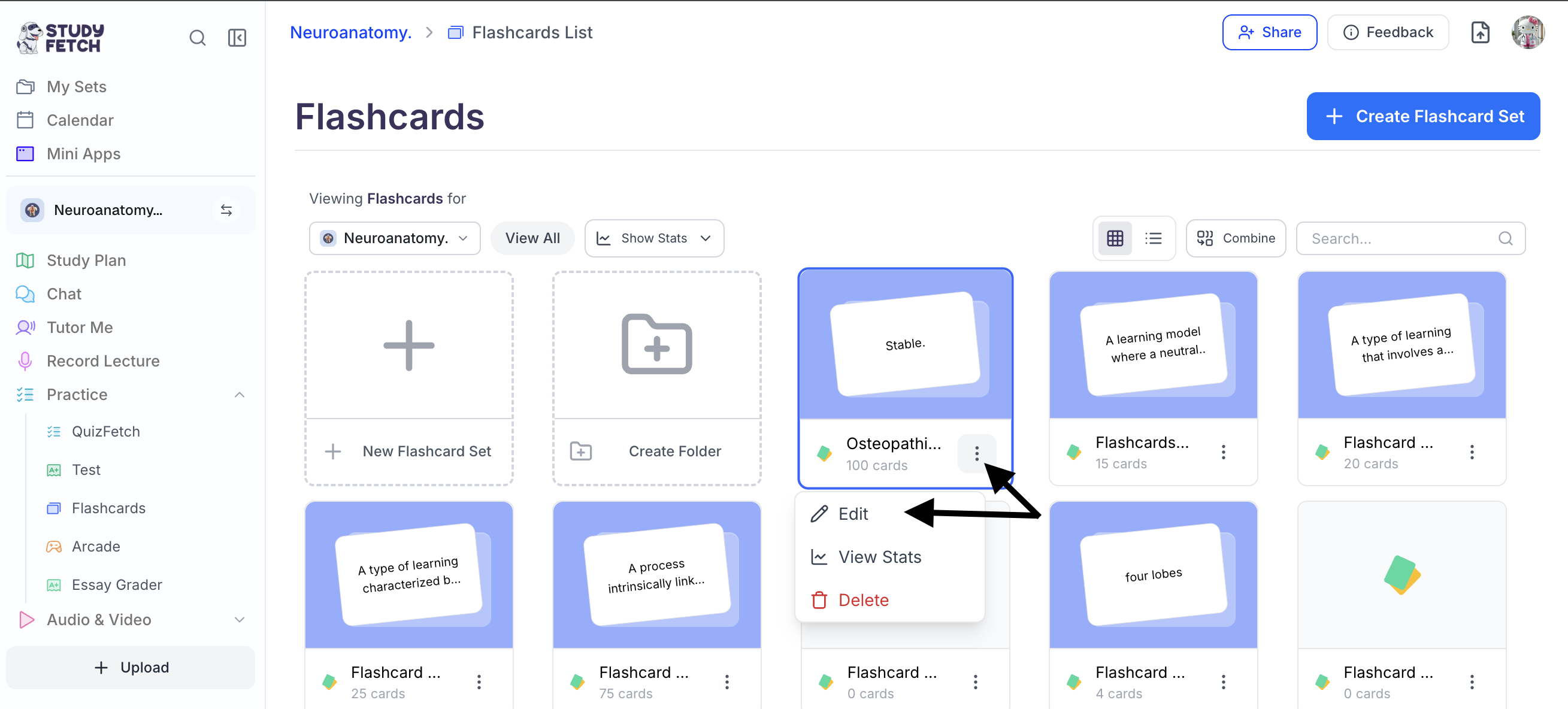
 * To review or edit any flashcard set that you are **not actively studying** , first select **Practice** from the left side bar and then choose **Flashcards**, here you can view all your existing flashcard sets. Next select the **button with the 3 dots** next to the flashcard deck that you want to review or edit, and click **Edit**
 * Now you can review your existing flashcards, edit current cards, or create new flashcards.
 ### Changing the Name of your Flashcard Set
Flashcard set names can be updated from either Study mode or Editing mode. Choose the method that works best for you:
**In Study Mode:**
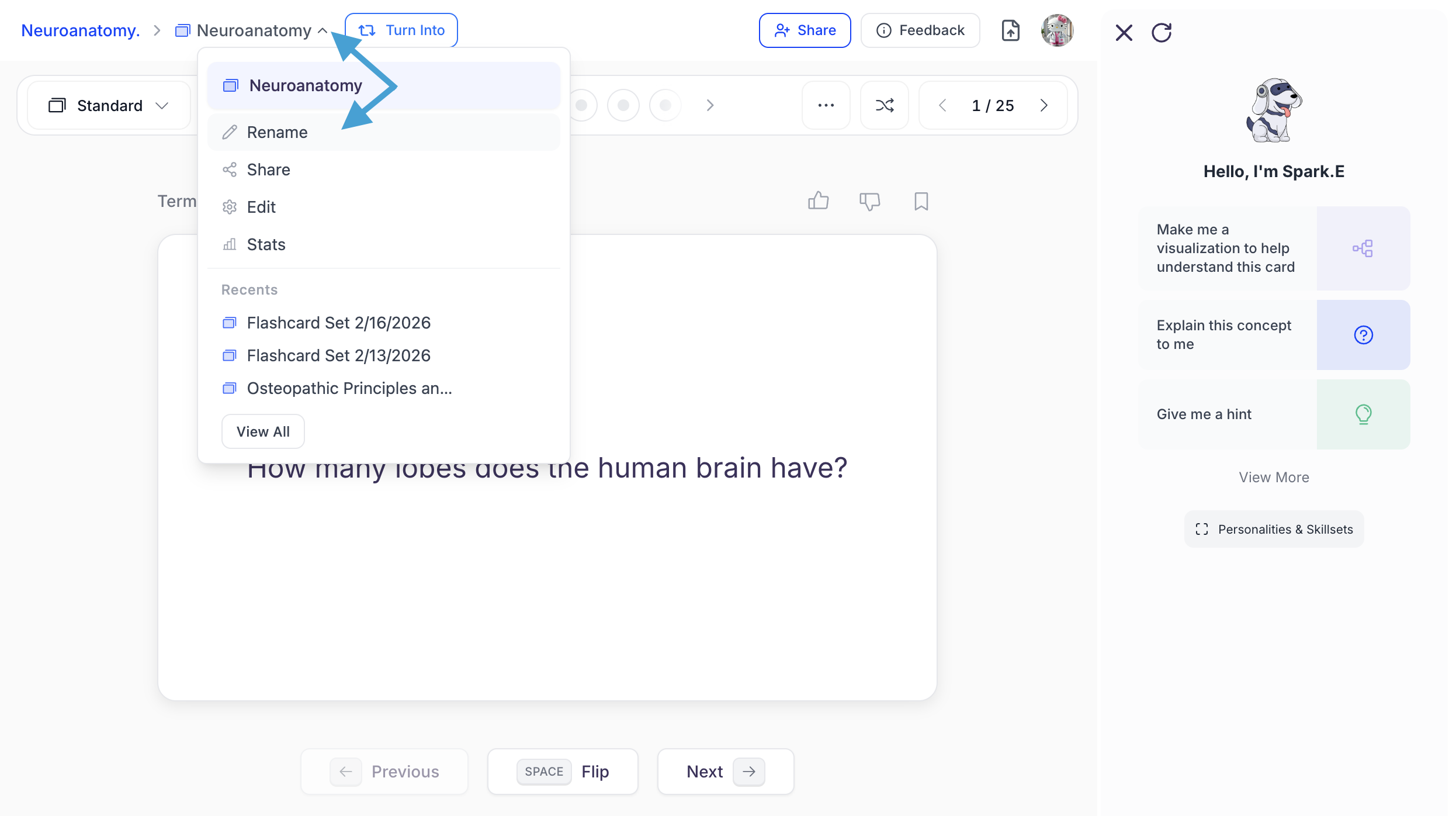
1. Click the **downward arrow** head to the right of your flashcard name and then click **Rename**.
### Changing the Name of your Flashcard Set
Flashcard set names can be updated from either Study mode or Editing mode. Choose the method that works best for you:
**In Study Mode:**
1. Click the **downward arrow** head to the right of your flashcard name and then click **Rename**.
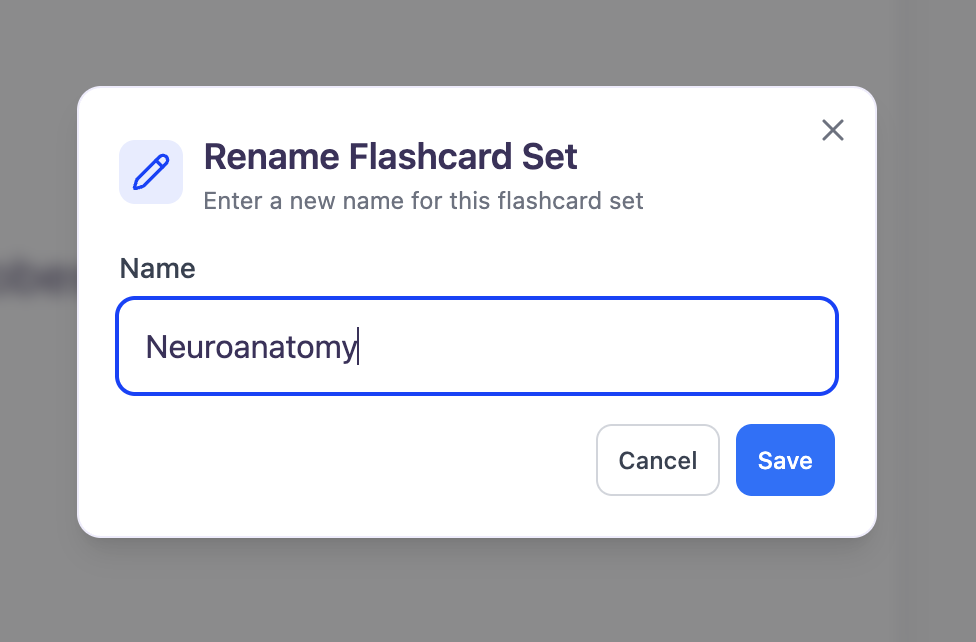
 2. You can edit the existing name or enter a new name for your flashcard set in the **Name** field. When done click **Save**.
 **In Editing Mode:**
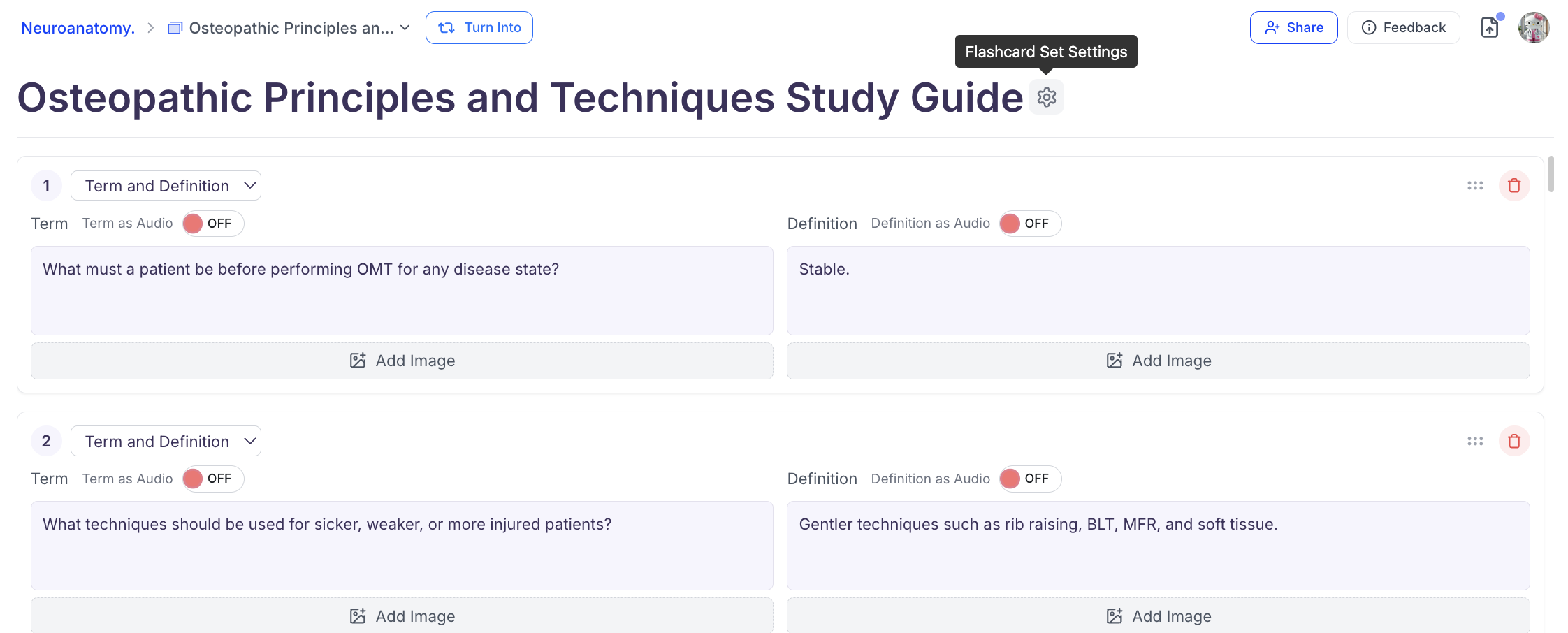
1. Click the **Flashcard Set Settings** button to the right of your Flashcard set current name
**In Editing Mode:**
1. Click the **Flashcard Set Settings** button to the right of your Flashcard set current name
 2. You can now change the name of your flashcard set to your liking by typing and editing the text in the box under **Title**
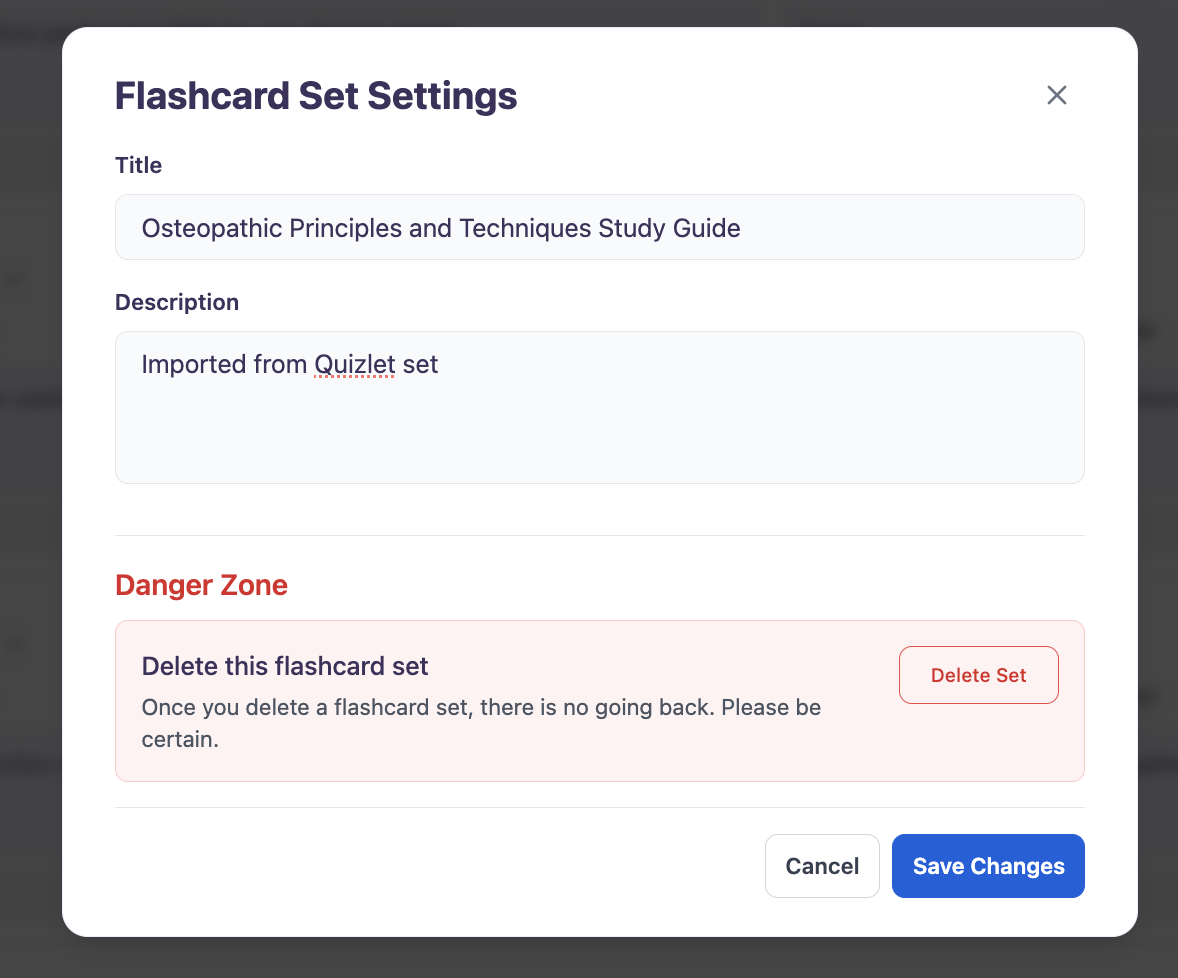 3. You can also modify the description of your flashcard set by typing and editing the text in the box under **Description**
4. After you are done making changes, click **Save Changes**
### Saving Changes after Editing Flashcards
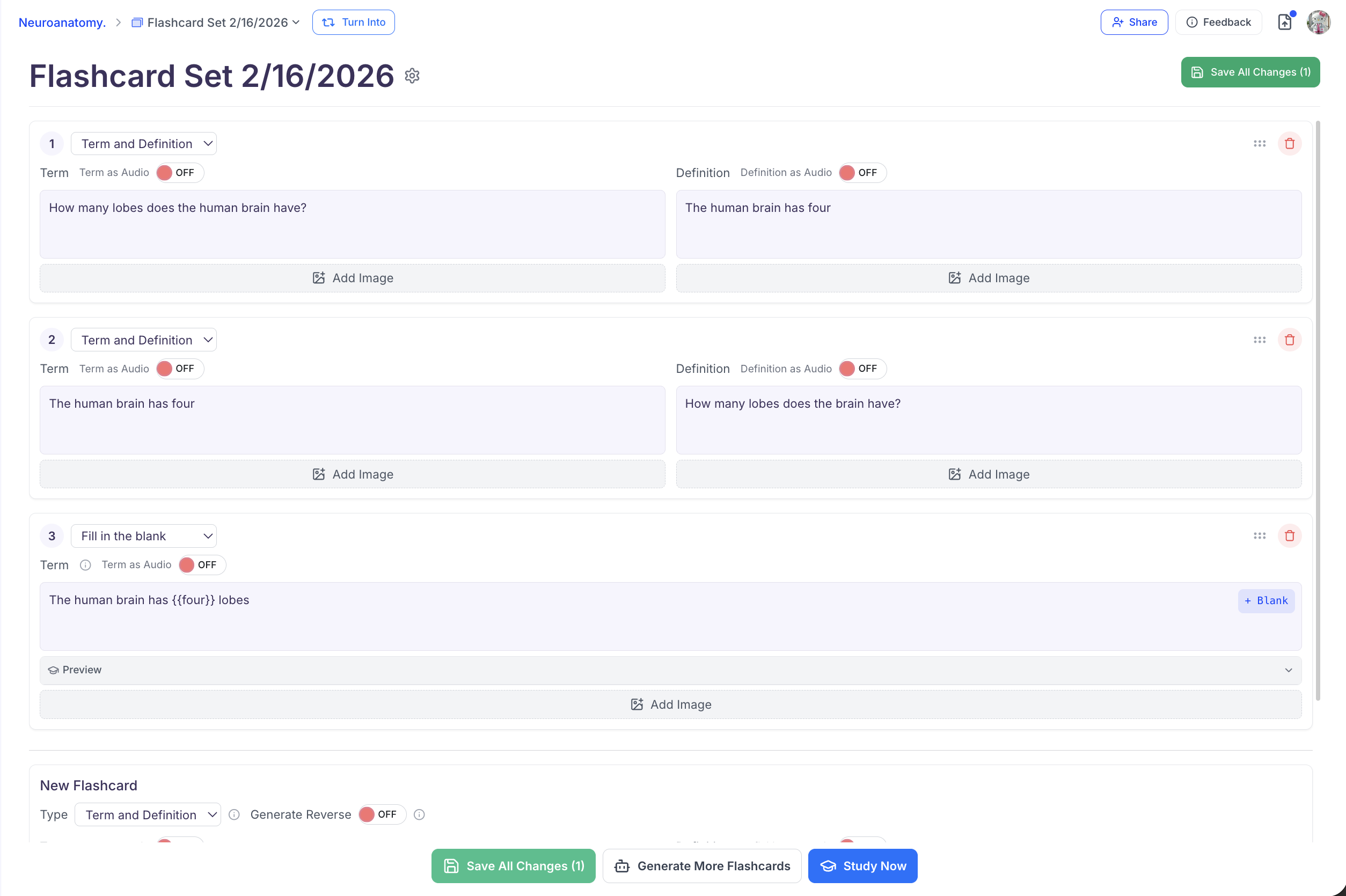
After making any desired changes to your flashcards, ensure to click **Save All Changes** from the top or the bottom toolbar
3. You can also modify the description of your flashcard set by typing and editing the text in the box under **Description**
4. After you are done making changes, click **Save Changes**
### Saving Changes after Editing Flashcards
After making any desired changes to your flashcards, ensure to click **Save All Changes** from the top or the bottom toolbar
 ### Generating more Flashcards
Need more flashcards? You can create them manually or follow the steps below to have AI generate more automatically
1. In the Editing view of your flashcard set, select **Generate More Flashcards** from the bottom toolbar
### Generating more Flashcards
Need more flashcards? You can create them manually or follow the steps below to have AI generate more automatically
1. In the Editing view of your flashcard set, select **Generate More Flashcards** from the bottom toolbar
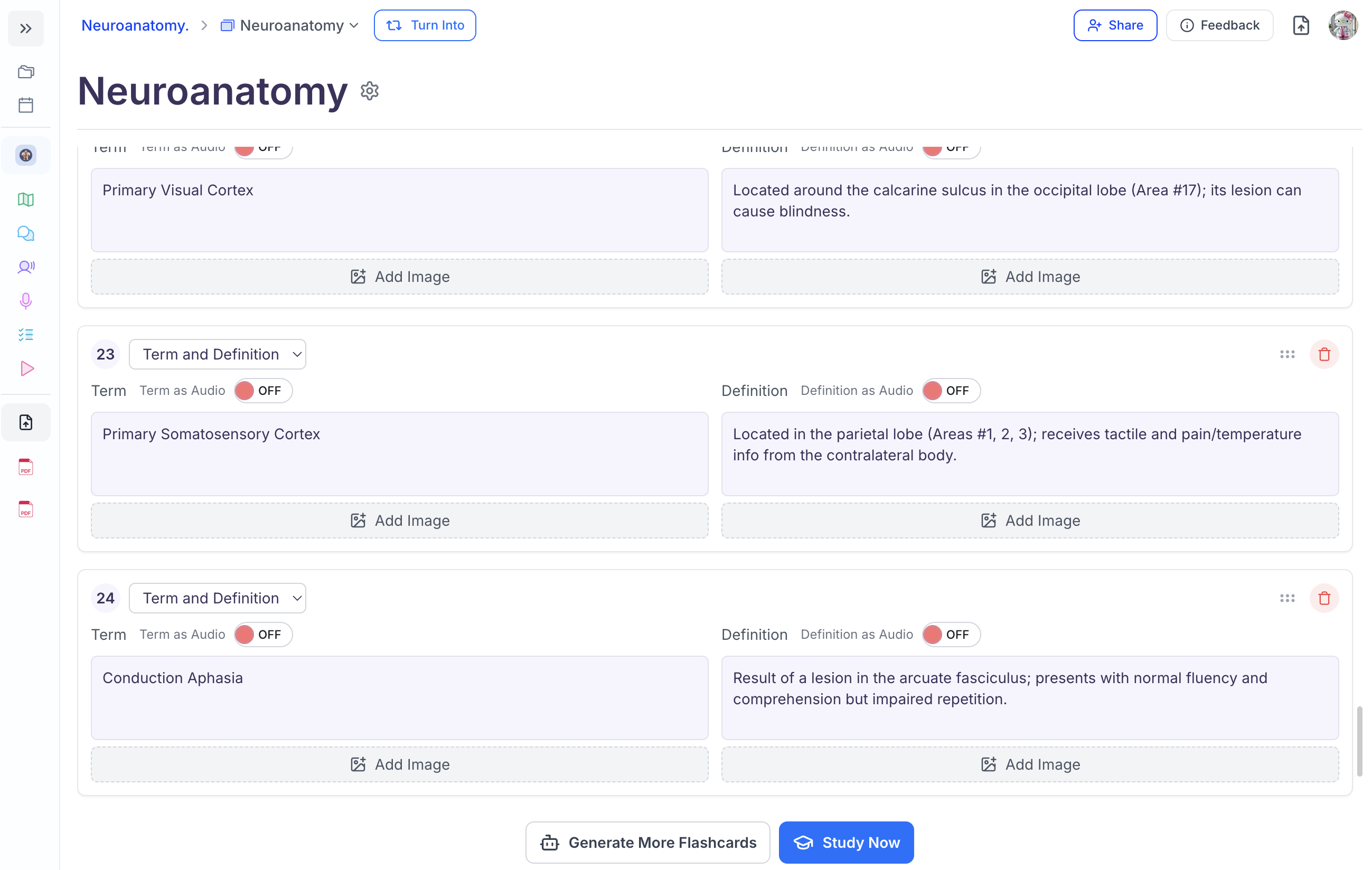 2. Now select how you would like to make your flashcards from the options below.
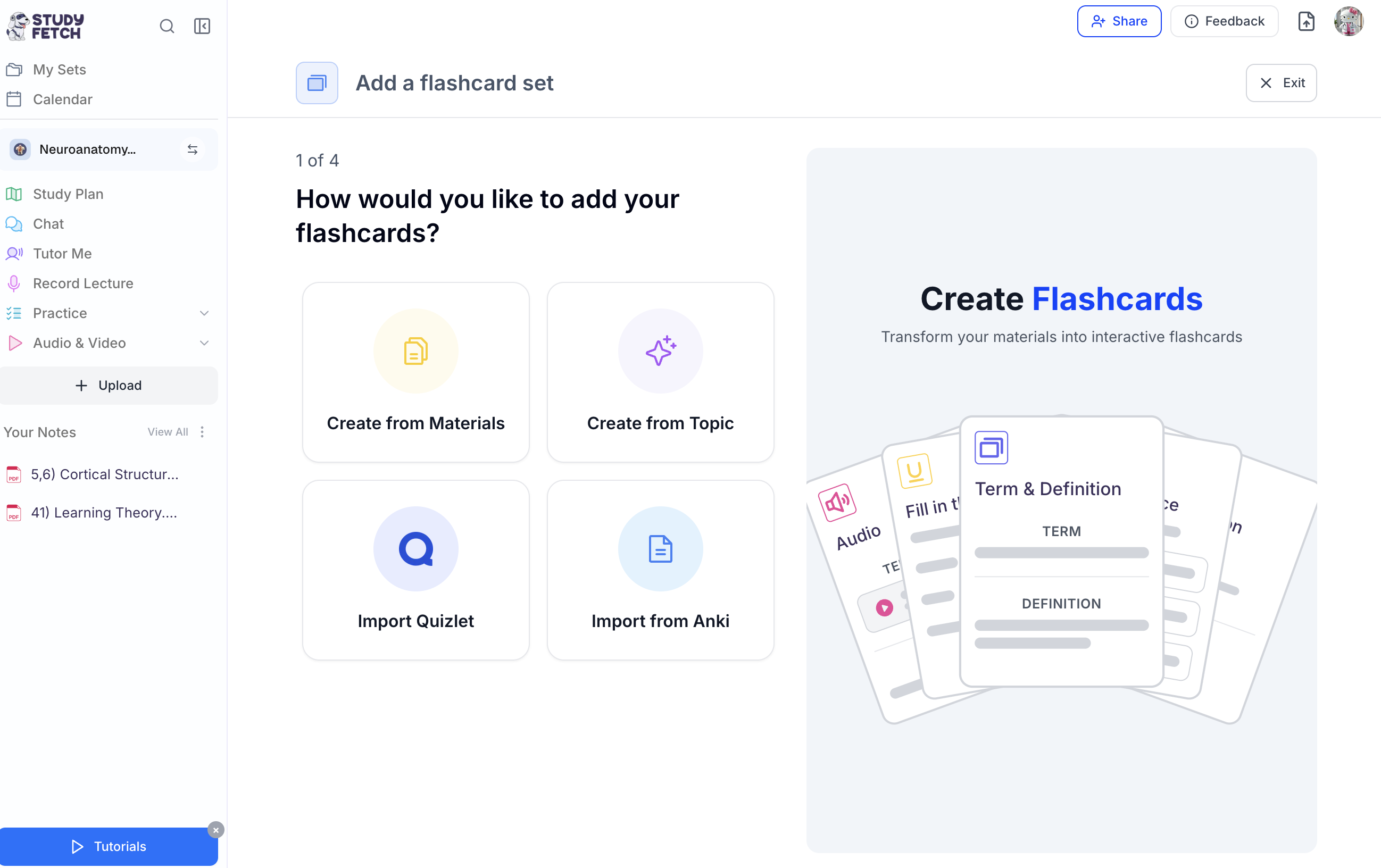 3. Next, follow the steps for the method you selected. *Click the link below to be taken to the step by step instructions for your selected method*
a. [Create from Materials](https://www.studyfetch.com/docs/tutorial-doc-format/flashcards#method-1-from-materials)
b. [Create from Topic](https://www.studyfetch.com/docs/tutorial-doc-format/flashcards#method-2-from-topic)
c. [Import Quizlet](https://www.studyfetch.com/docs/tutorial-doc-format/flashcards#method-3-from-quizlet)
d. [Import Anki](https://www.studyfetch.com/docs/tutorial-doc-format/flashcards#method-4-from-anki)
4. Your new flashcards will then be automatically added to the set.
## Creating Specific Types of Flashcards
*Whether building flashcards from scratch or enhancing existing sets, StudyFetch gives users full control to customize card types — helping learners match their study strategy to their unique learning preferences.*
*Ensure you are on the Editing page of your flashcard set before proceeding, for steps on how to do this refer to the* [Opening the Editing View ](https://www.studyfetch.com/docs/tutorial-doc-format/flashcards#opening-the-editing-view)*above*
### Term and Definition
*Term and Definition flashcards are the most common type of flashcard. They consist of a term on one side and a definition on the other.*
3. Next, follow the steps for the method you selected. *Click the link below to be taken to the step by step instructions for your selected method*
a. [Create from Materials](https://www.studyfetch.com/docs/tutorial-doc-format/flashcards#method-1-from-materials)
b. [Create from Topic](https://www.studyfetch.com/docs/tutorial-doc-format/flashcards#method-2-from-topic)
c. [Import Quizlet](https://www.studyfetch.com/docs/tutorial-doc-format/flashcards#method-3-from-quizlet)
d. [Import Anki](https://www.studyfetch.com/docs/tutorial-doc-format/flashcards#method-4-from-anki)
4. Your new flashcards will then be automatically added to the set.
## Creating Specific Types of Flashcards
*Whether building flashcards from scratch or enhancing existing sets, StudyFetch gives users full control to customize card types — helping learners match their study strategy to their unique learning preferences.*
*Ensure you are on the Editing page of your flashcard set before proceeding, for steps on how to do this refer to the* [Opening the Editing View ](https://www.studyfetch.com/docs/tutorial-doc-format/flashcards#opening-the-editing-view)*above*
### Term and Definition
*Term and Definition flashcards are the most common type of flashcard. They consist of a term on one side and a definition on the other.*
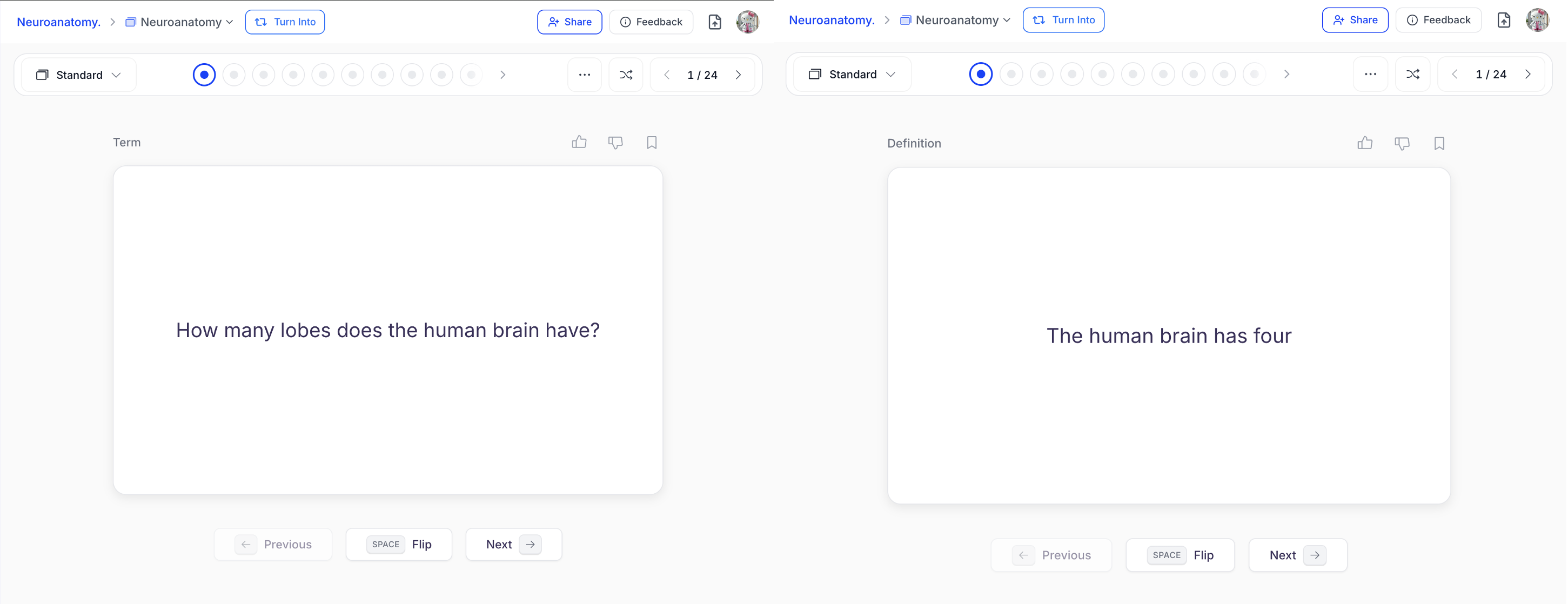 *Great for foundational learning, fast recall and memorizing terminology or vocabulary!*
1. In the box next to **Type**, select **Term and Definition**
*Great for foundational learning, fast recall and memorizing terminology or vocabulary!*
1. In the box next to **Type**, select **Term and Definition**
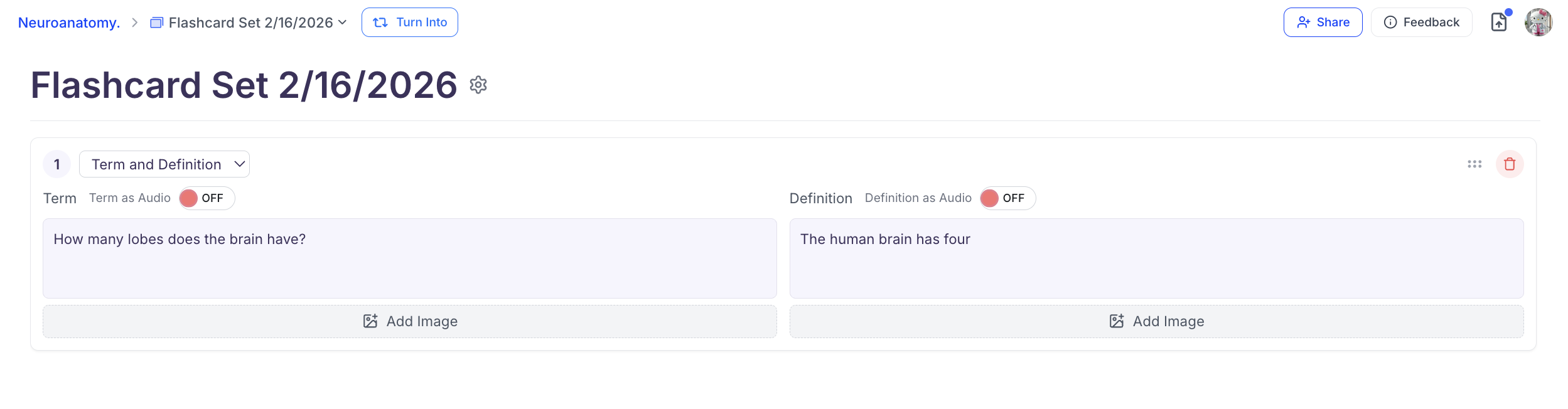 2. Type the Term in the **Term** box on the left and then type the Definition(answer) in the **Definition** box on the right
3. You can also add images to either or both sides of the flashcard by selecting **Add Image** in the desired card field
4. To have either side of your flashcard automatically read aloud, toggle **Term as Audio** and/or **Definition as Audio**
5. Lastly, if you want to automatically generate the reverse version of your current flashcard, toggle **Generate Reverse** then click **+ Add Flashcard**,
2. Type the Term in the **Term** box on the left and then type the Definition(answer) in the **Definition** box on the right
3. You can also add images to either or both sides of the flashcard by selecting **Add Image** in the desired card field
4. To have either side of your flashcard automatically read aloud, toggle **Term as Audio** and/or **Definition as Audio**
5. Lastly, if you want to automatically generate the reverse version of your current flashcard, toggle **Generate Reverse** then click **+ Add Flashcard**,
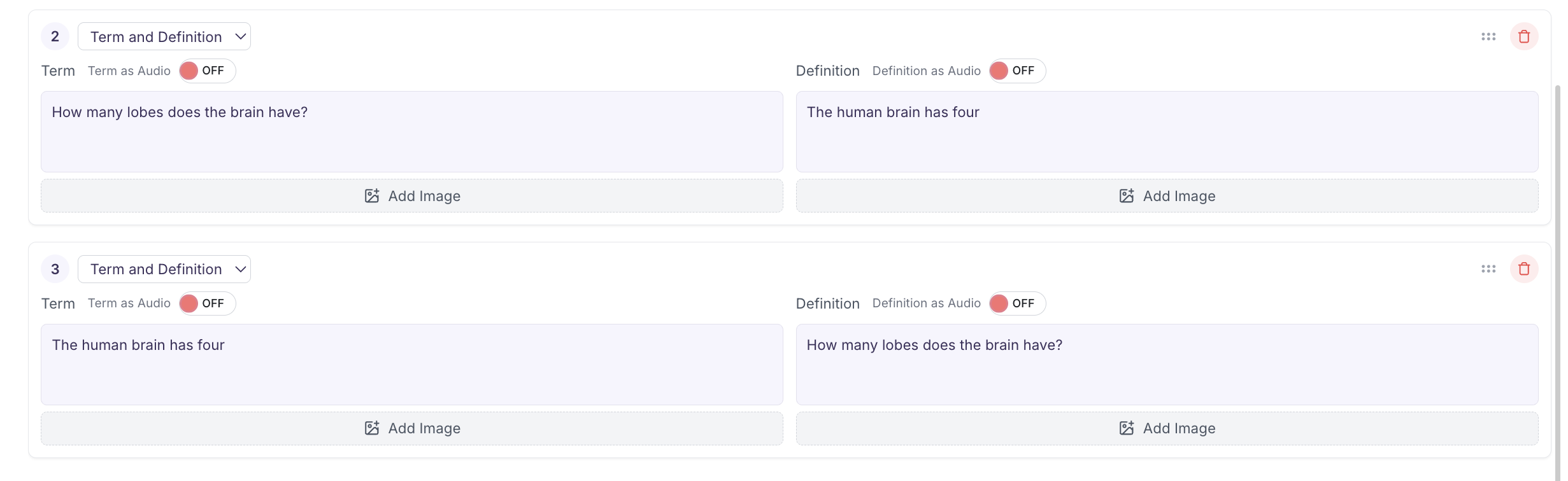
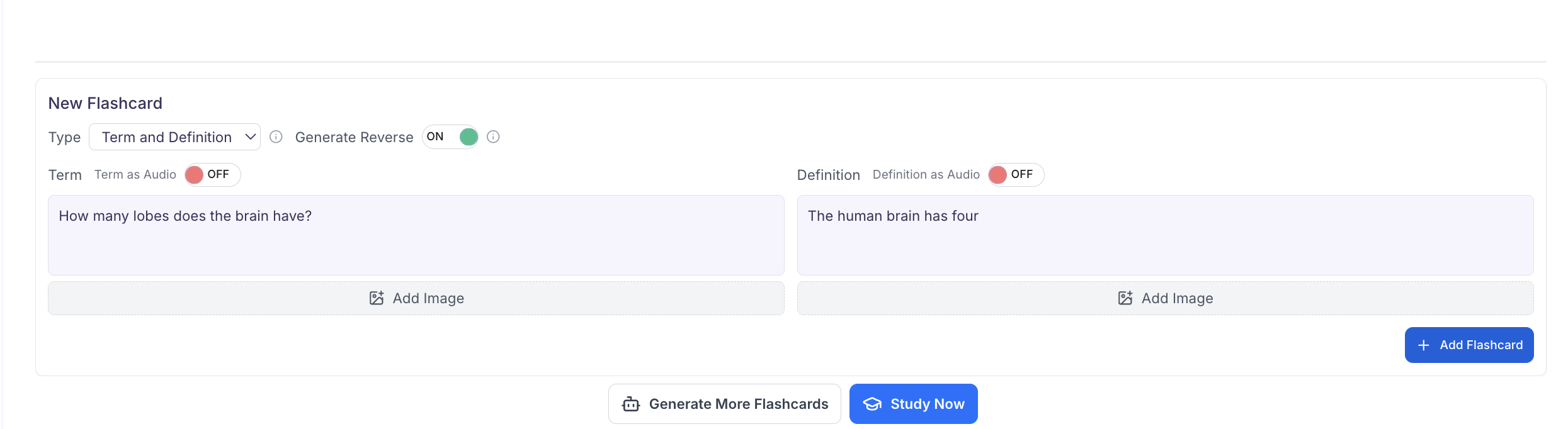 and AI will generate a reverse flashcard for you where the definition is on the front, and the term is on the back
 ### Cloze
*Cloze Flashcards allow learners to hide specific words or phrases within a sentence or term. When reviewing the card, the hidden portions are concealed on the front, and flipping the flashcard reveals the complete text with the previously hidden words shown.*
### Cloze
*Cloze Flashcards allow learners to hide specific words or phrases within a sentence or term. When reviewing the card, the hidden portions are concealed on the front, and flipping the flashcard reveals the complete text with the previously hidden words shown.*
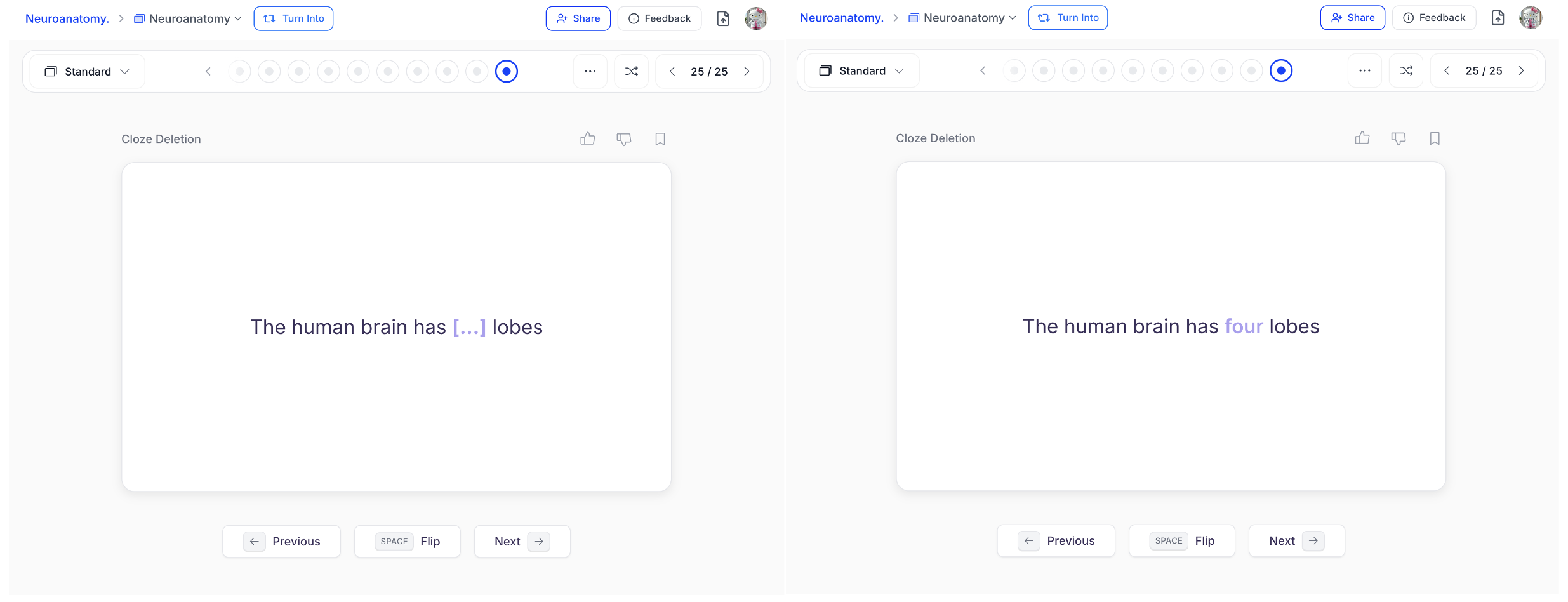 *Best for reinforcing key details within context, such as when learning stepwise processes and memorizing pathways or mechanisms.*
1. In the box next to **Type**, select **Cloze**
2. Enter the text for your flashcard in the box under **Term**
3. Next, you can select the **+ Hidden Word** button to add a blank space where you can type the text you want to hide,
*Best for reinforcing key details within context, such as when learning stepwise processes and memorizing pathways or mechanisms.*
1. In the box next to **Type**, select **Cloze**
2. Enter the text for your flashcard in the box under **Term**
3. Next, you can select the **+ Hidden Word** button to add a blank space where you can type the text you want to hide,
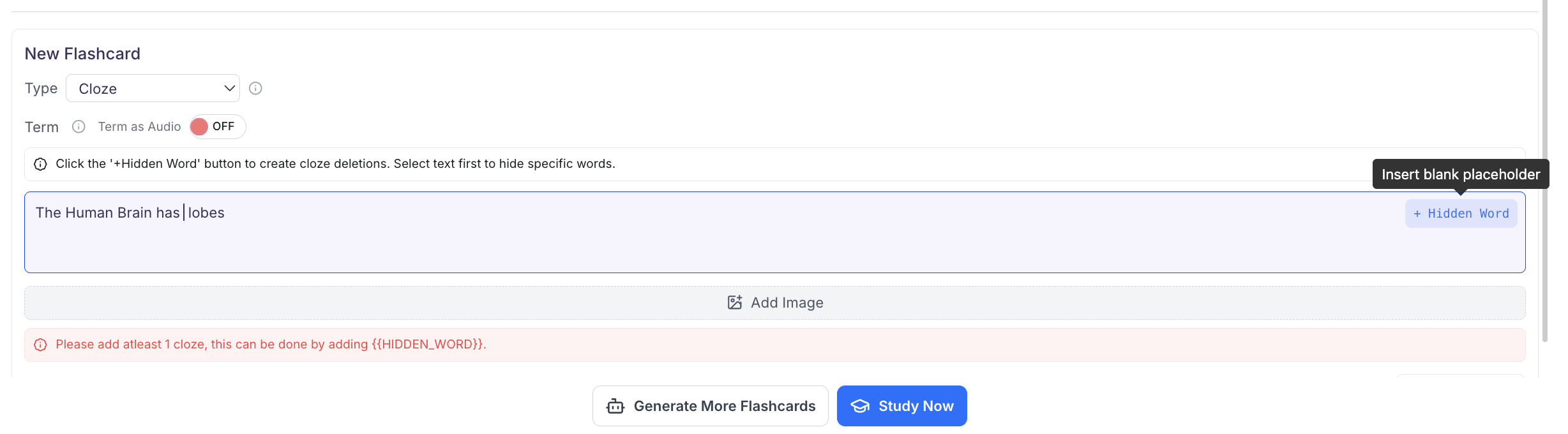
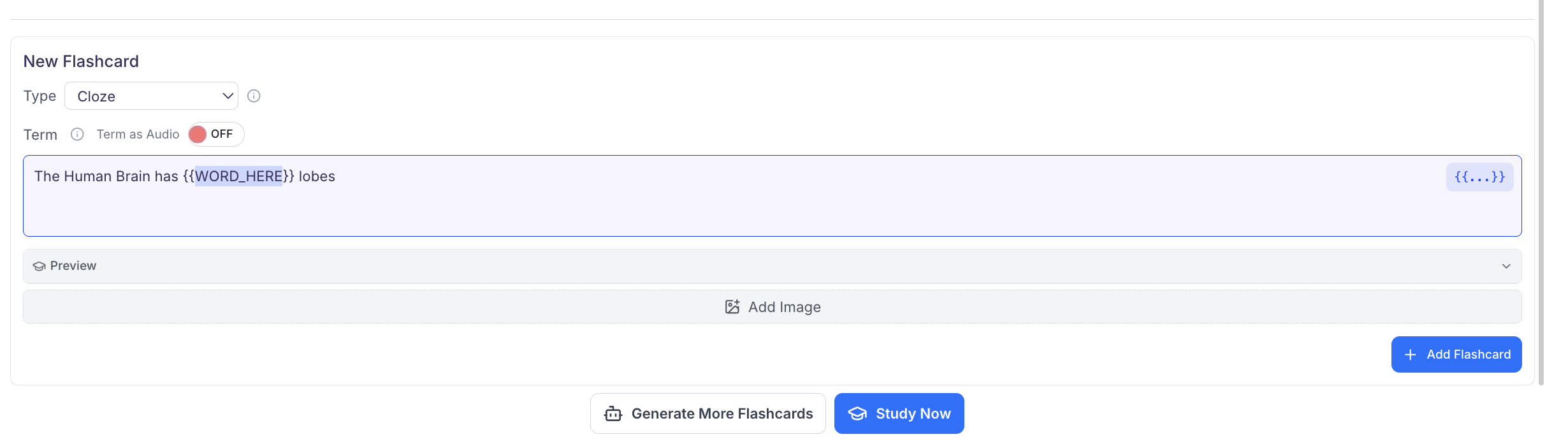 or simply **highlight the text** you want to hide, click the **blue button** on the top right of the term box,
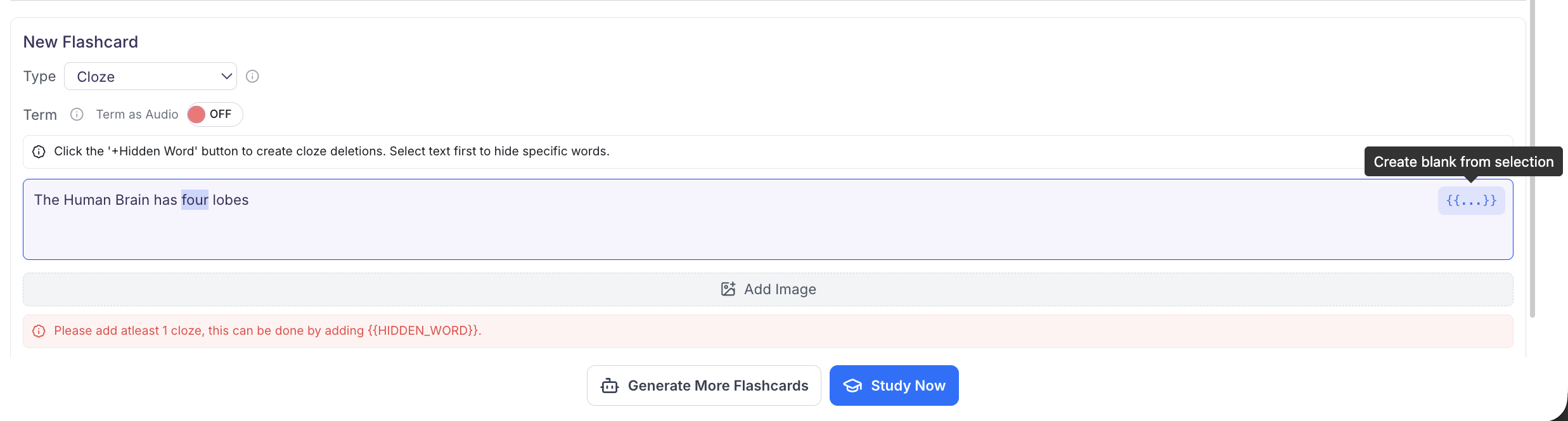 and the highlighted portion will now be hidden from the term view
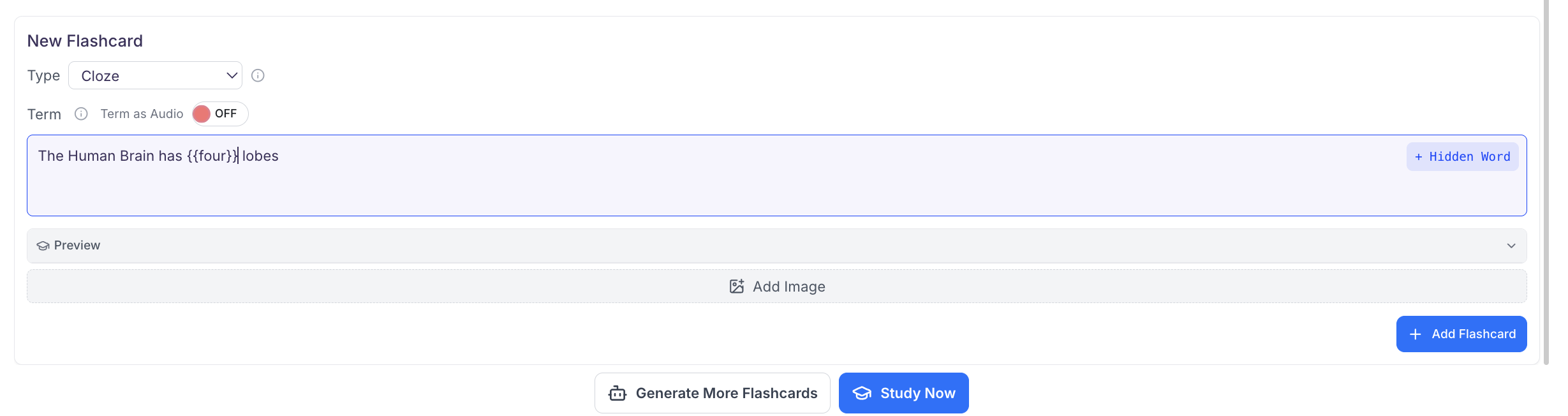 4. You can also add an image to appear on the term side of your cloze flashcard by clicking **Add** **Image**
5. When you are done making each flashcard, click **+ Add Flashcard**
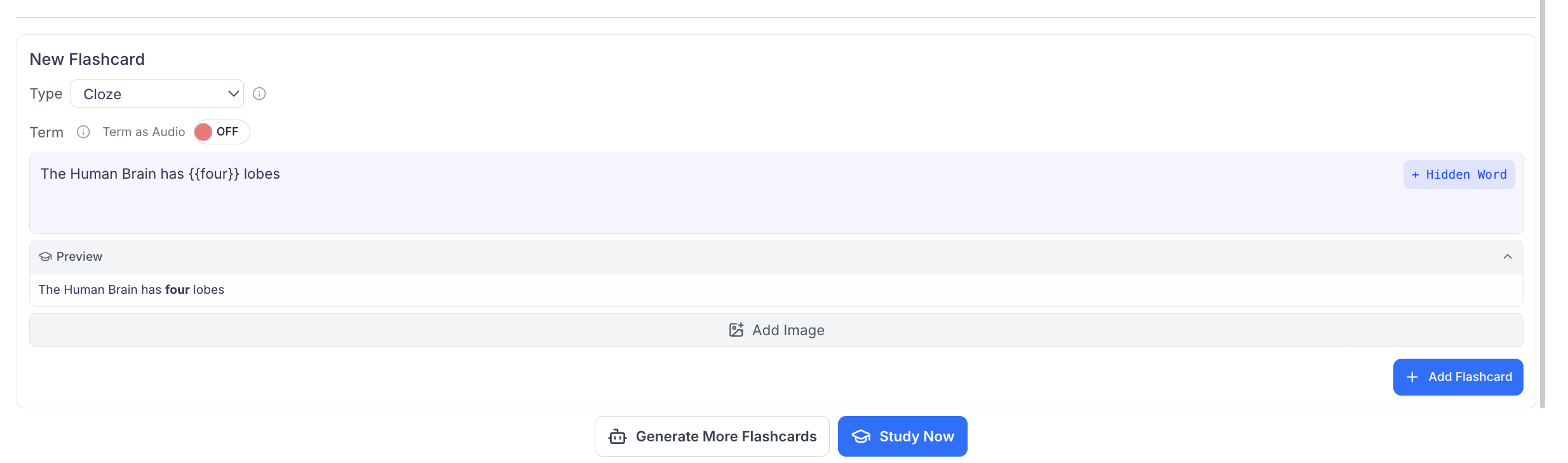
6. To view a preview of your Cloze Flashcard, click **Preview**. The hidden Cloze portion of your flashcard will appear **bolded**
4. You can also add an image to appear on the term side of your cloze flashcard by clicking **Add** **Image**
5. When you are done making each flashcard, click **+ Add Flashcard**
6. To view a preview of your Cloze Flashcard, click **Preview**. The hidden Cloze portion of your flashcard will appear **bolded**
 ### Fill in the blank
*Fill-in-the-blank flashcards hide specific word(s) within a term, sentence, or concept. Learners must actively type the missing word(s) to reveal the correct answer.*
### Fill in the blank
*Fill-in-the-blank flashcards hide specific word(s) within a term, sentence, or concept. Learners must actively type the missing word(s) to reveal the correct answer.*
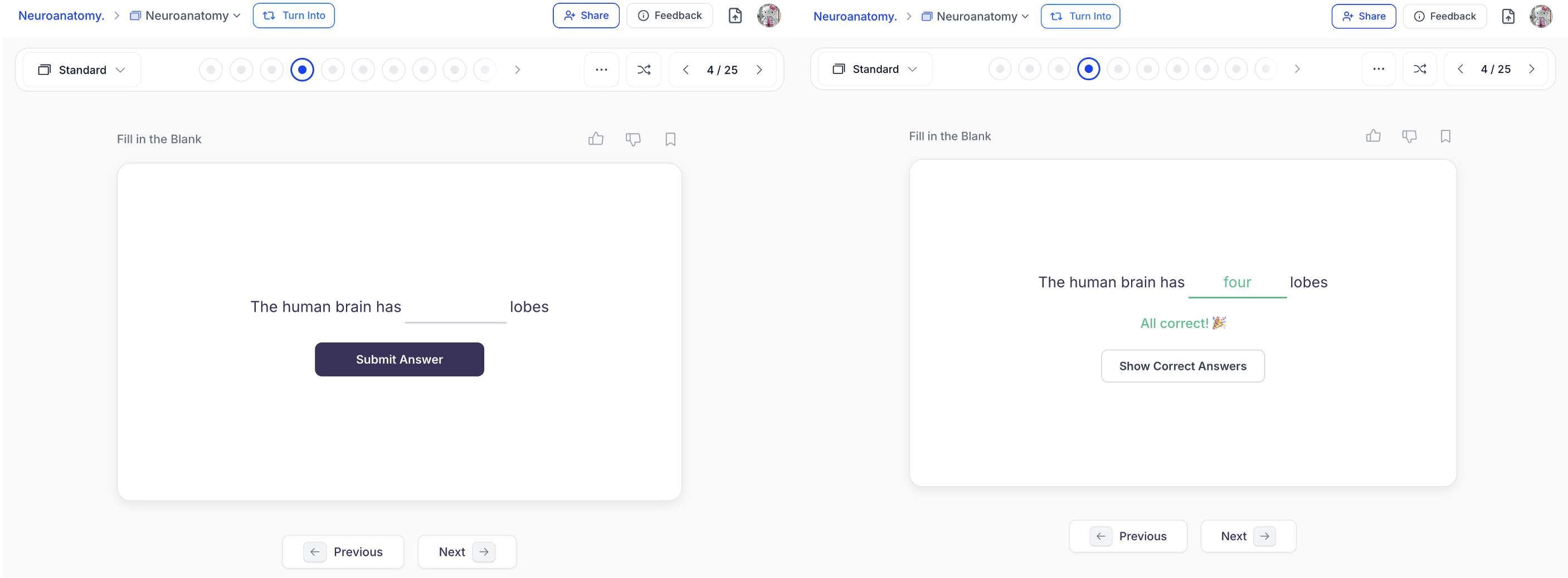 These flashcards encourage active recall, deeper cognitive processing, and accuracy. By moving beyond recognition-based cues, fill-in-the-blank cards strengthen precise memory retrieval and long-term retention!
1. In the box next to **Type**, select **Fill in the Blank**
2. Enter the text for your flashcard in the box under **Term**
These flashcards encourage active recall, deeper cognitive processing, and accuracy. By moving beyond recognition-based cues, fill-in-the-blank cards strengthen precise memory retrieval and long-term retention!
1. In the box next to **Type**, select **Fill in the Blank**
2. Enter the text for your flashcard in the box under **Term**
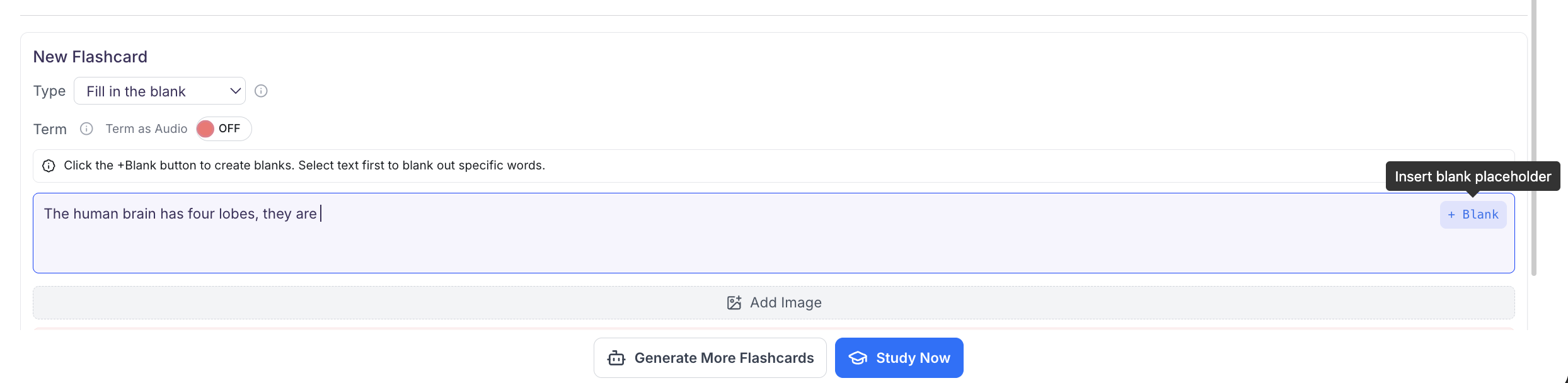 3. Next, you can select the **+ Blank** button to add a blank space where you can type the text you want to hide,
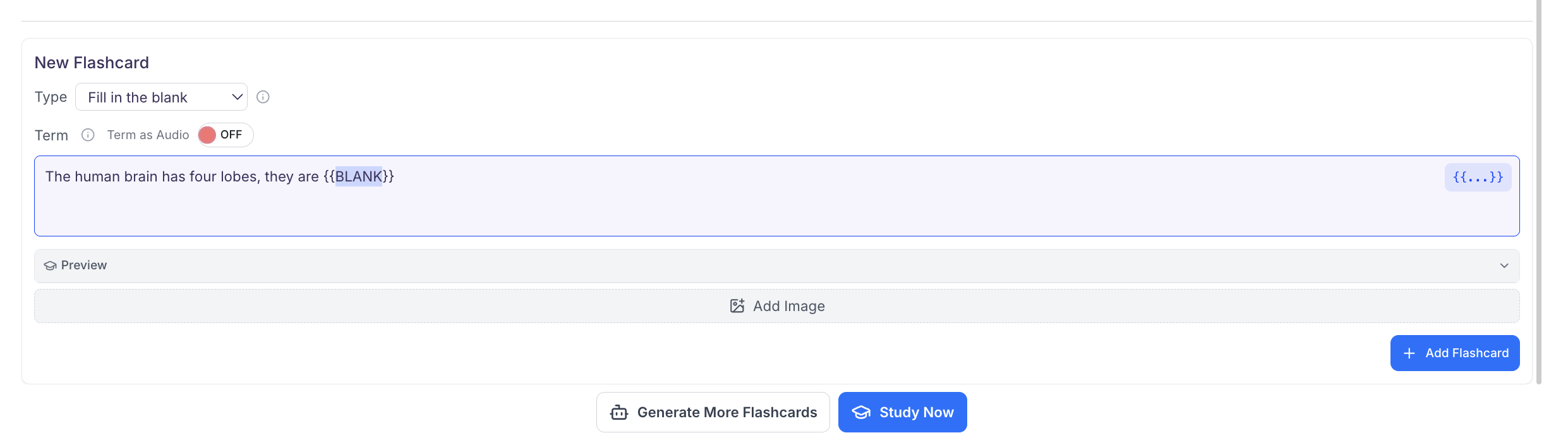 or simply **highlight the text** you want to hide, click the **blue button** on the top right corner of the term box,
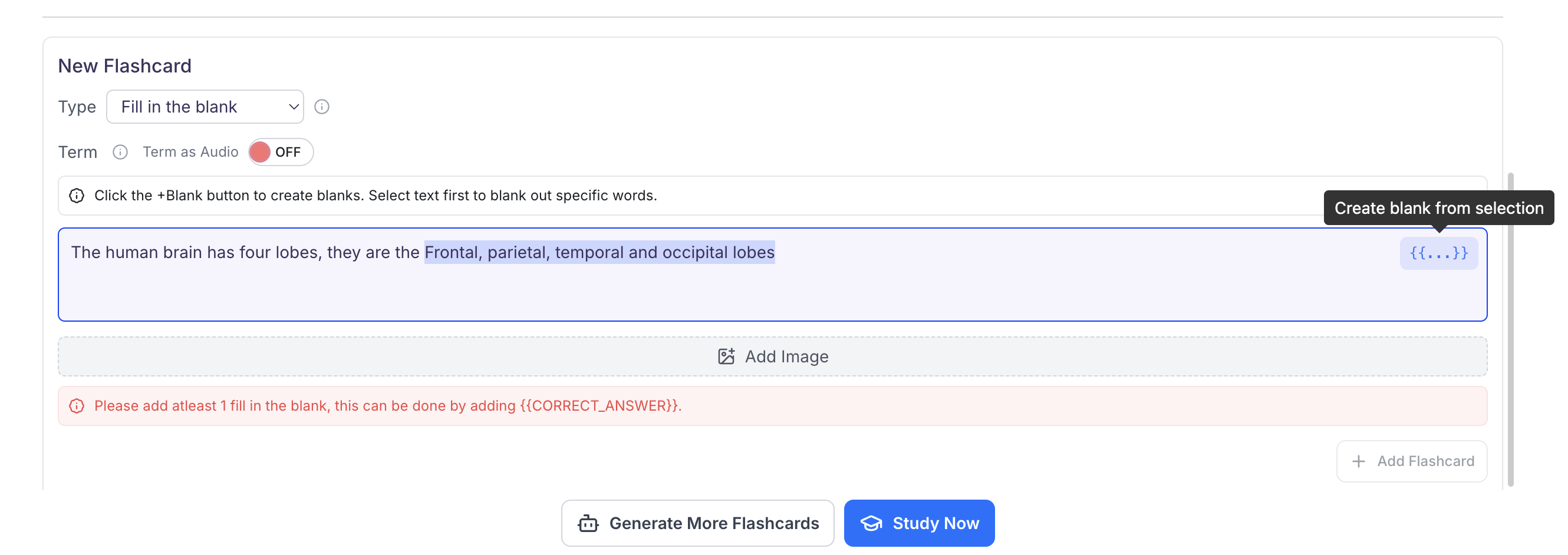 and the highlighted portion will now be hidden from the term view
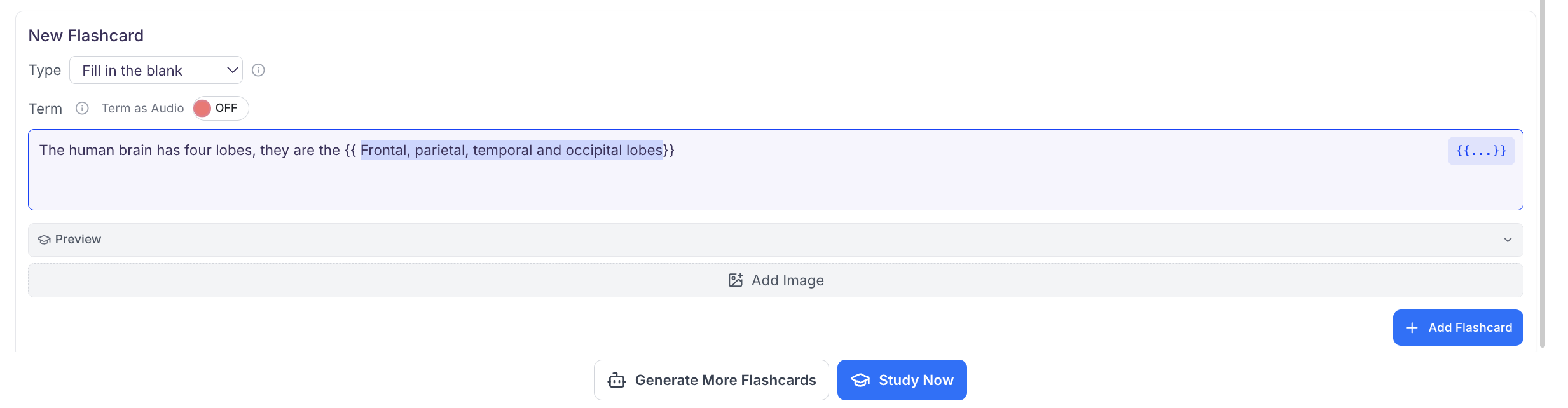 4. You can also add an image to appear on the term view of your fill in the blank flashcard by clicking **Add** **Image**
5. When you are done making each flashcard, click **+ Add Flashcard**
6. To view a preview of your Fill in the blank Flashcard, click Preview. The hidden portion of your flashcard will appear **as a blank space**
4. You can also add an image to appear on the term view of your fill in the blank flashcard by clicking **Add** **Image**
5. When you are done making each flashcard, click **+ Add Flashcard**
6. To view a preview of your Fill in the blank Flashcard, click Preview. The hidden portion of your flashcard will appear **as a blank space**
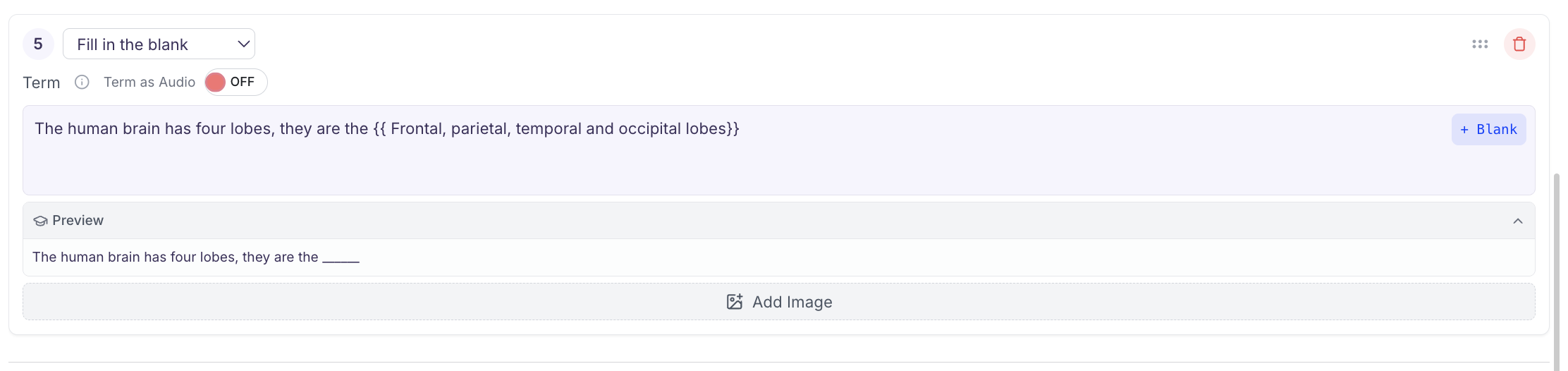 7. When studying the learner will then have to **type the exact response** and click **Check Answers** to see if they are correct
### Multiple Choice
*Multiple Choice Flashcards present learners with a question followed by two to four answer options. Learners select the option they believe is correct and immediately receive feedback showing whether their answer was correct, along with the correct response.*
7. When studying the learner will then have to **type the exact response** and click **Check Answers** to see if they are correct
### Multiple Choice
*Multiple Choice Flashcards present learners with a question followed by two to four answer options. Learners select the option they believe is correct and immediately receive feedback showing whether their answer was correct, along with the correct response.*
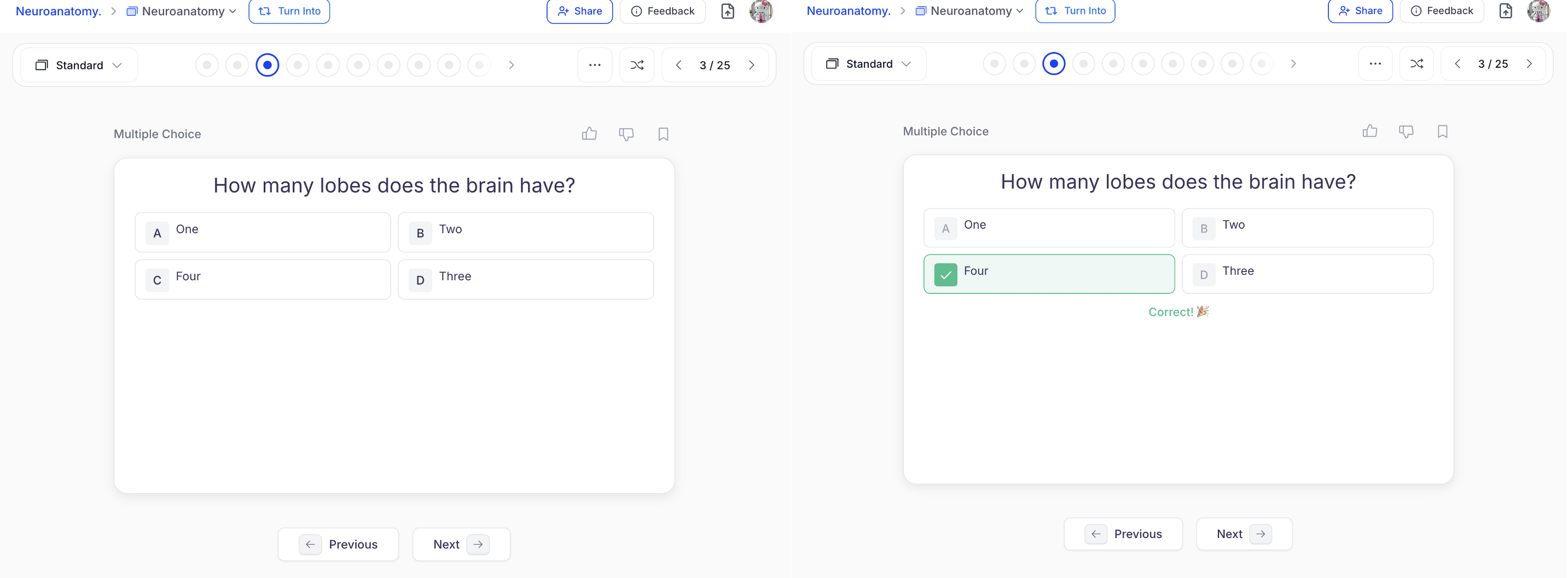 These are best for testing knowledge recognition, reinforcing understanding by comparing similar options, and simulating exam-style practice to help learners build confidence and assess their readiness.
1. In the box next to **Type**, select **Multiple choice**
These are best for testing knowledge recognition, reinforcing understanding by comparing similar options, and simulating exam-style practice to help learners build confidence and assess their readiness.
1. In the box next to **Type**, select **Multiple choice**
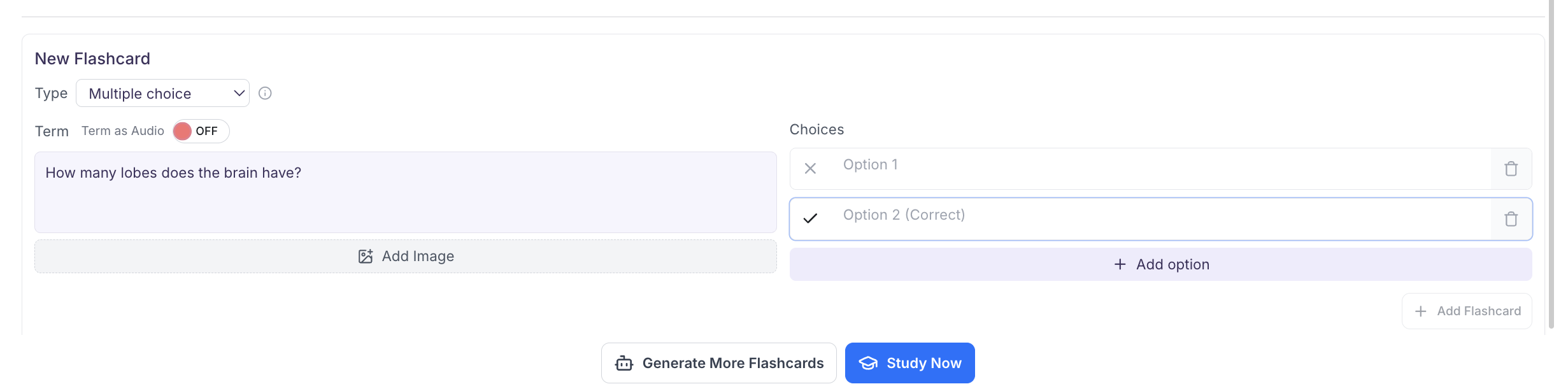 2. Type the question for your multiple choice flashcard in the box under **Term**, you can optionally also add an image to the term side by selecting **Add Image**
3. On the right side under **Choices**, you will see two blank boxes labeled **Option 1** and **Option 2 (correct)**. If you want more than two answer choices simply click **+ Add Option** to add up to two more answer choices.
2. Type the question for your multiple choice flashcard in the box under **Term**, you can optionally also add an image to the term side by selecting **Add Image**
3. On the right side under **Choices**, you will see two blank boxes labeled **Option 1** and **Option 2 (correct)**. If you want more than two answer choices simply click **+ Add Option** to add up to two more answer choices.
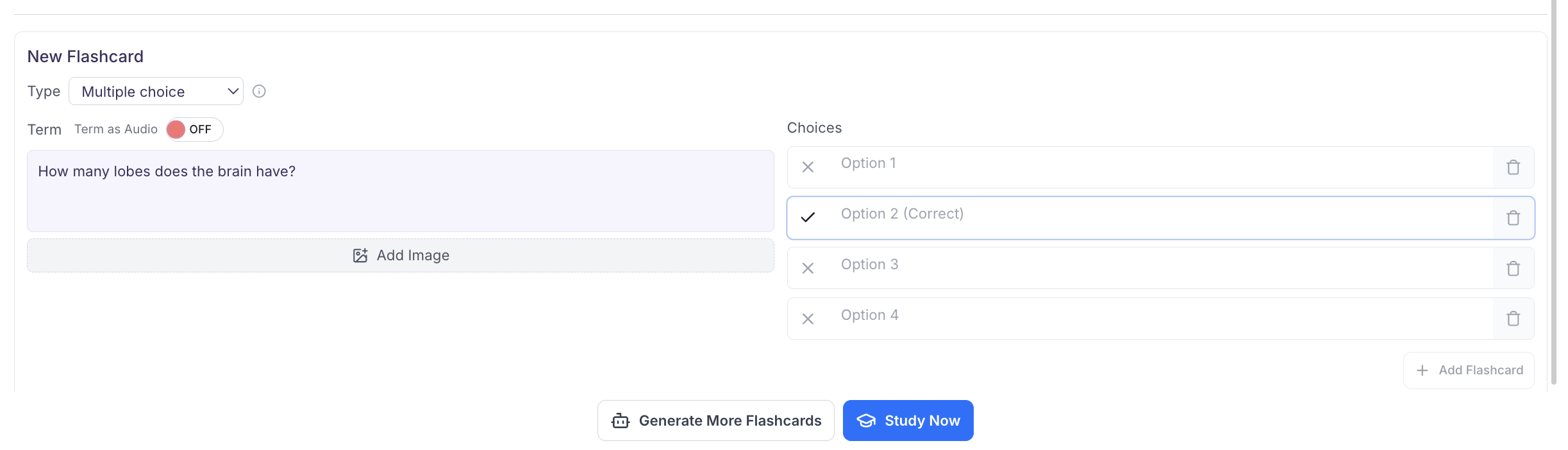 To **delete an answer option** simply click the **trash can** button to the right of the choice you no longer want to include
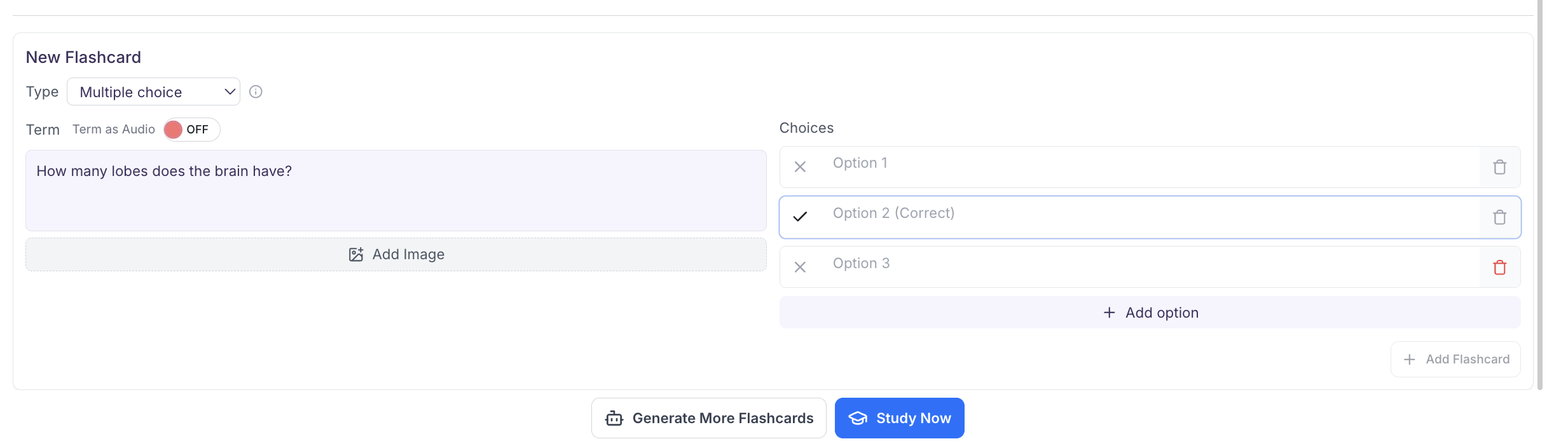 4. Next **click each option box** to type the text for that answer choice; do this for each answer option.
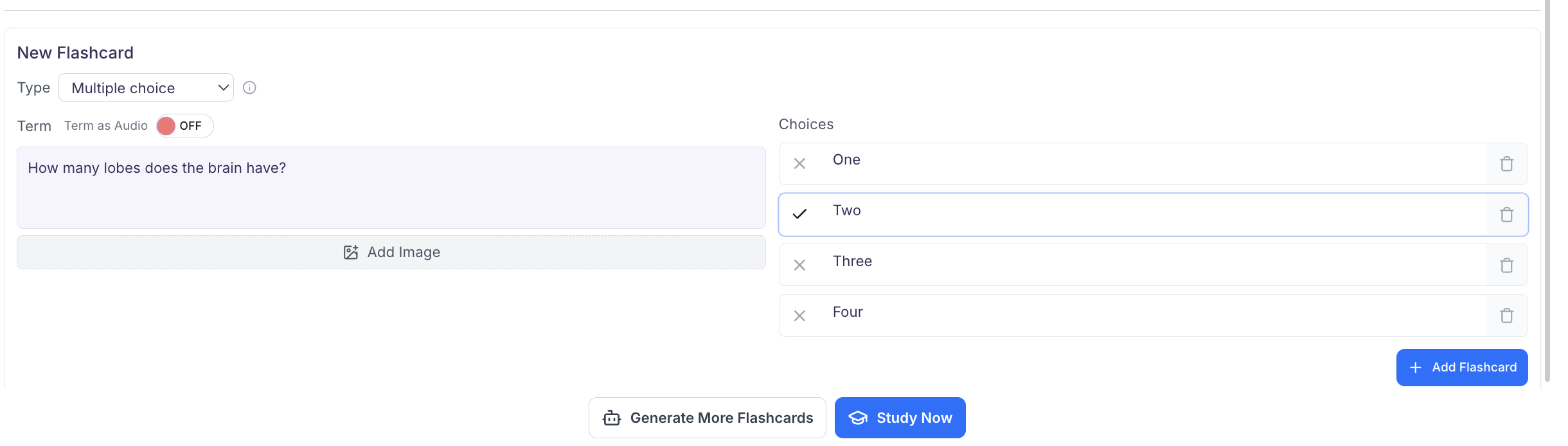 5. Option 2 will automatically display a **checkmark icon** and be marked **as the correct answer** by default. The remaining options will have a **X icon** indicating they are the **incorrect option(s)**, however this can be modified; Once you have added all answer options, click the **X** to the left of the answer choice you want to mark as correct.
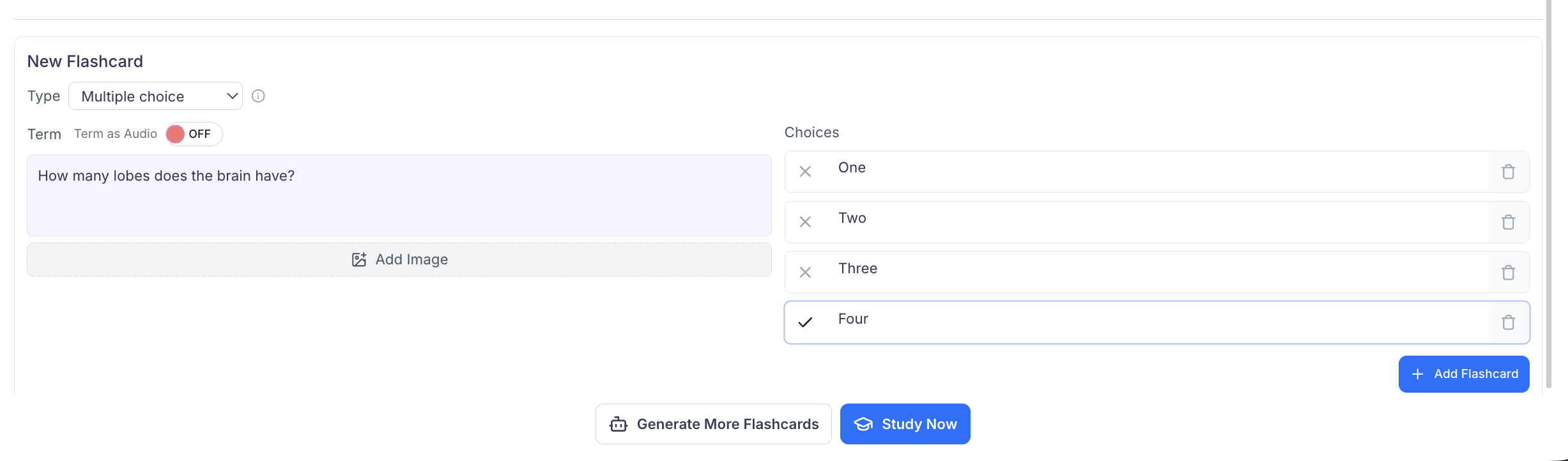 The **X** will change to a **checkmark**, indicating that this option is now set as the correct answer.
6. When you are done making each flashcard, click **+ Add Flashcard**
### Image Occlusion
*Image Occlusion Flashcards allow learners to upload an image and cover specific areas with adjustable masks. Each masked area creates a covered zone that can be clicked to reveal what is hidden underneath, encouraging active recall through visual interaction.*
The **X** will change to a **checkmark**, indicating that this option is now set as the correct answer.
6. When you are done making each flashcard, click **+ Add Flashcard**
### Image Occlusion
*Image Occlusion Flashcards allow learners to upload an image and cover specific areas with adjustable masks. Each masked area creates a covered zone that can be clicked to reveal what is hidden underneath, encouraging active recall through visual interaction.*
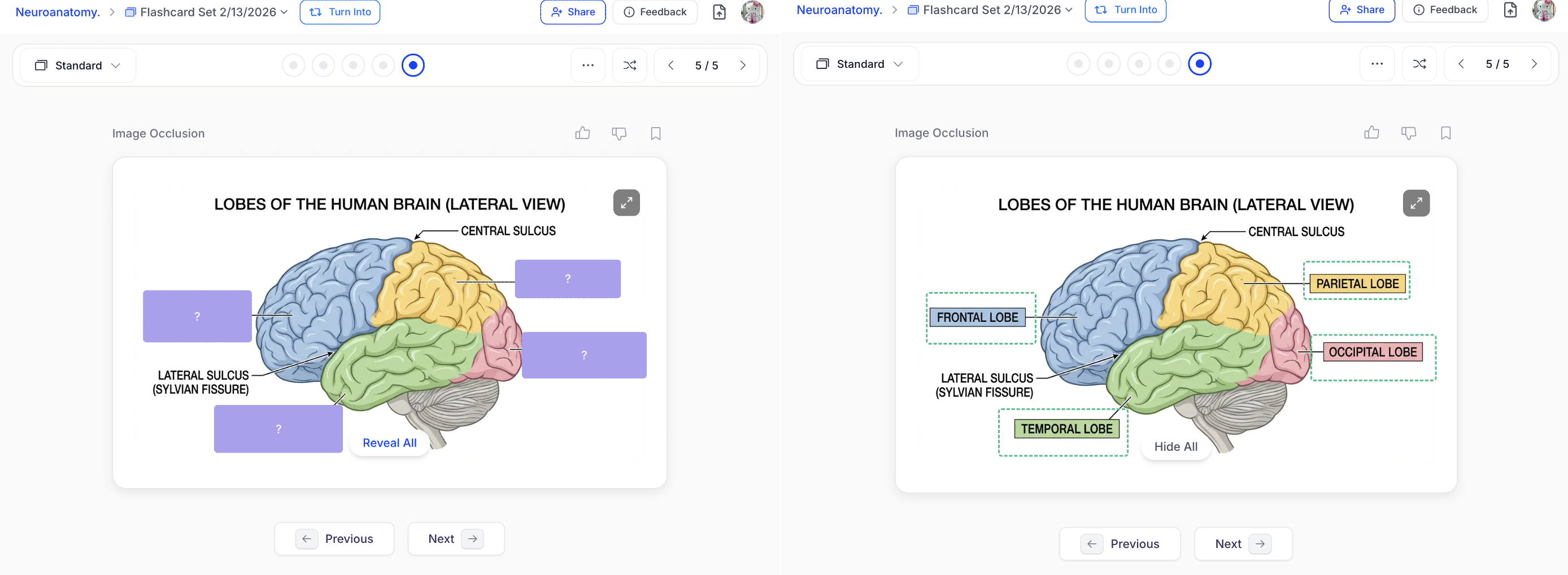 Best used for visual learning — ideal for memorizing labeled diagrams, anatomical structures, pathways, or any image-based content.
1. In the box next to **Type**, select **Image Occlusion**
2. Click the box where it says **No image uploaded**
Best used for visual learning — ideal for memorizing labeled diagrams, anatomical structures, pathways, or any image-based content.
1. In the box next to **Type**, select **Image Occlusion**
2. Click the box where it says **No image uploaded**
 3. To open your devices file finder click **Upload an Image** and select the image you want to use for this flashcard or simply drag and drop the image into the box.
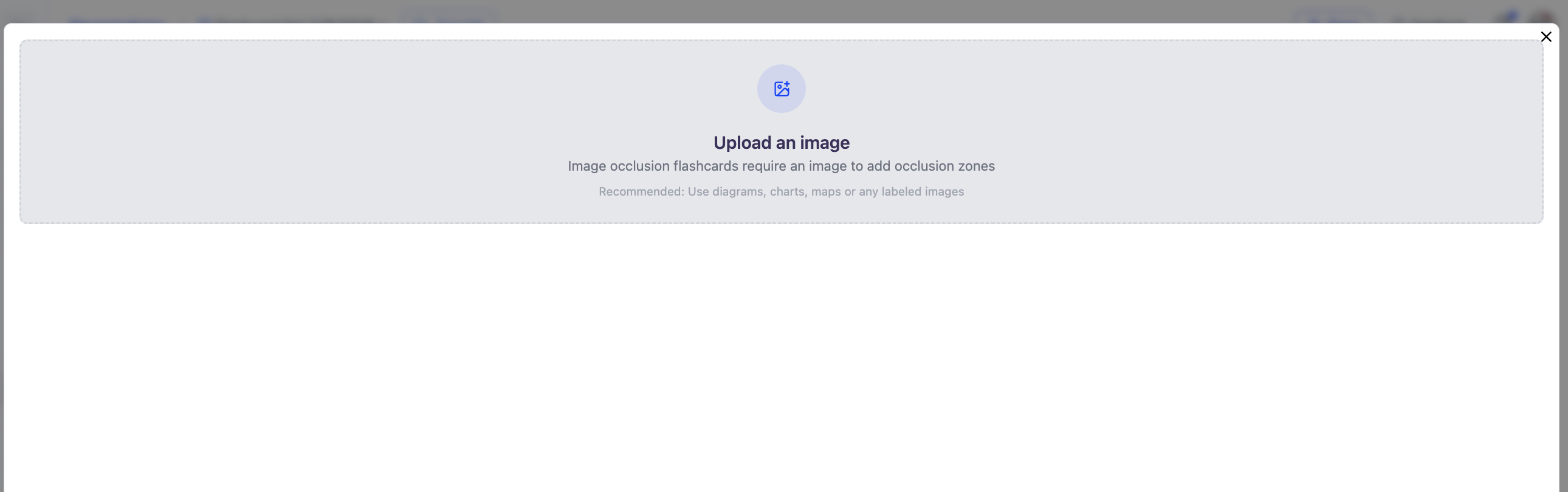 4. If you accidentally selected the wrong image, you can change it by selecting **Change Image** from the top right corner
5. Once you have uploaded the desired image, you can begin **creating occlusion zones** by **clicking and dragging on the image** to place masks over specific areas.
4. If you accidentally selected the wrong image, you can change it by selecting **Change Image** from the top right corner
5. Once you have uploaded the desired image, you can begin **creating occlusion zones** by **clicking and dragging on the image** to place masks over specific areas.
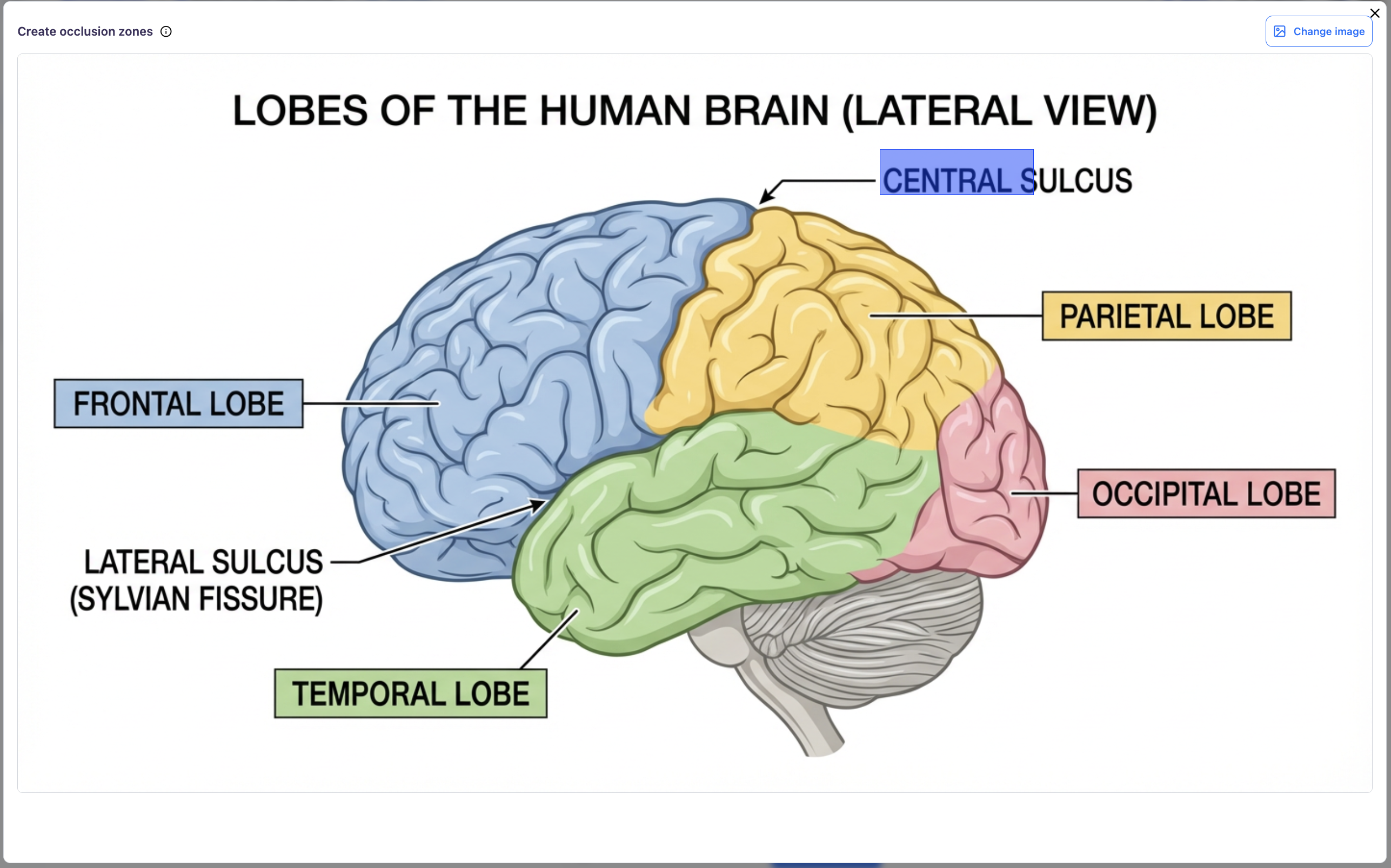 6. A zone will then appear as a semi transparent box.
7. **Click on a zone** to select it, when selected the zone will turn a blue semi transparent color with a yellow border
6. A zone will then appear as a semi transparent box.
7. **Click on a zone** to select it, when selected the zone will turn a blue semi transparent color with a yellow border
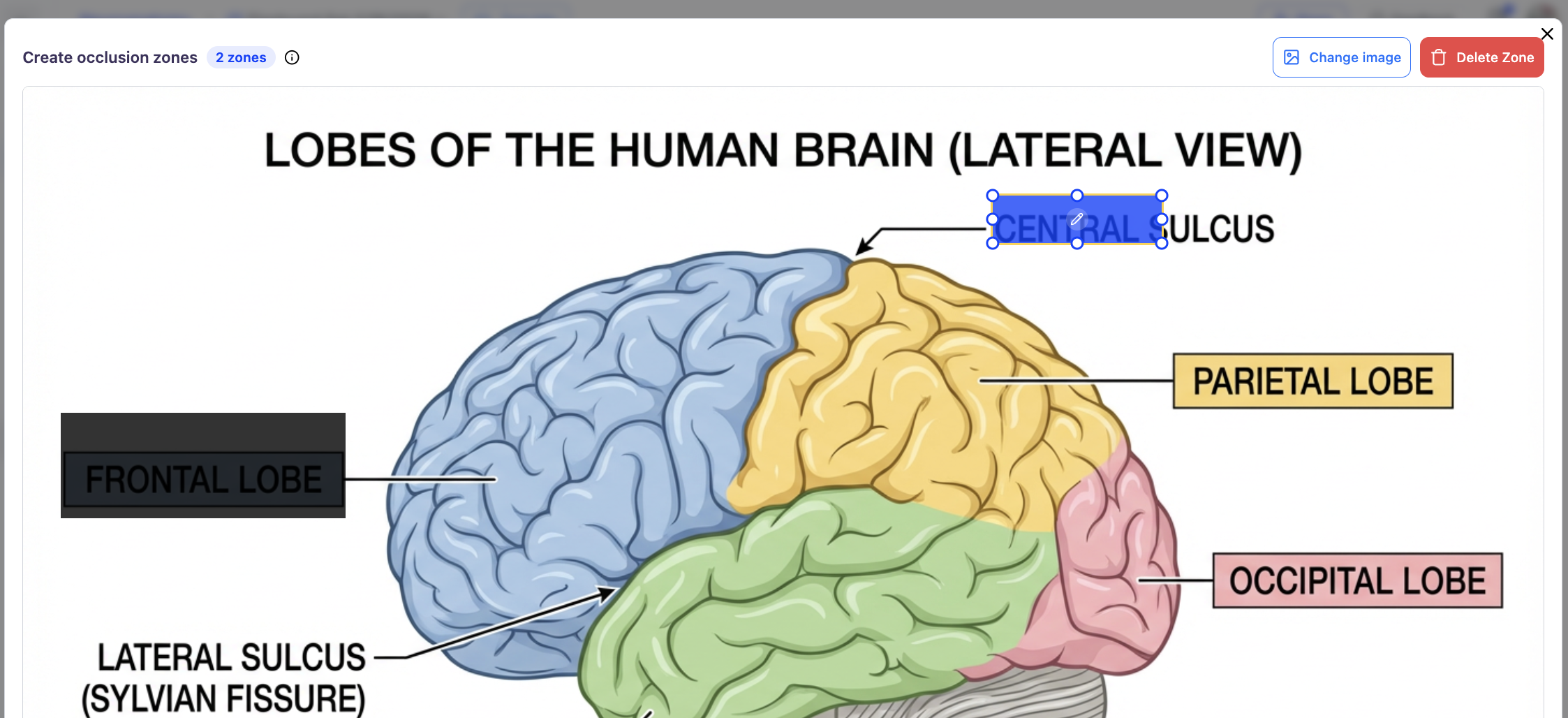 8. To **resize a zone**, use the corner handles to adjust its dimensions.
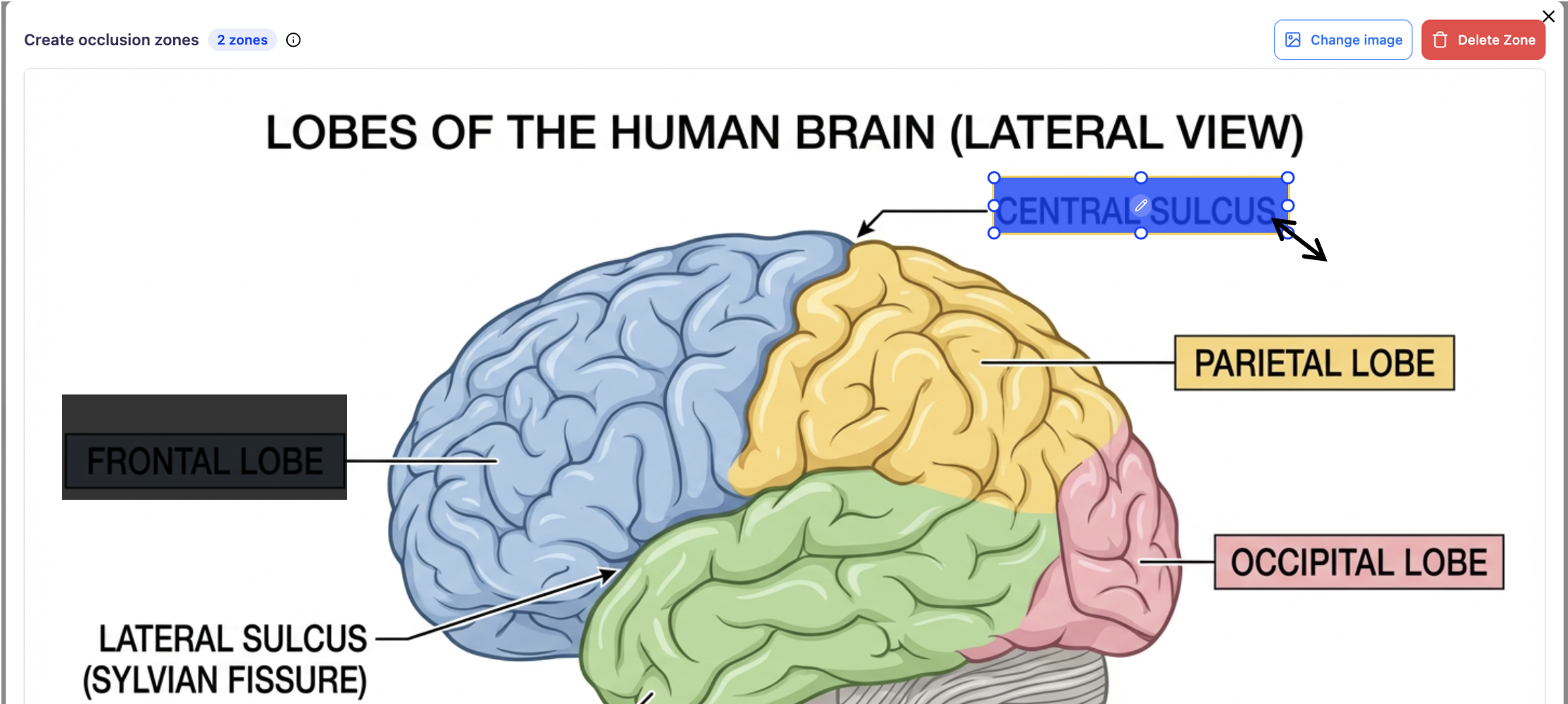 9. To **reposition a zone** , click and drag it to the desired location on the image.
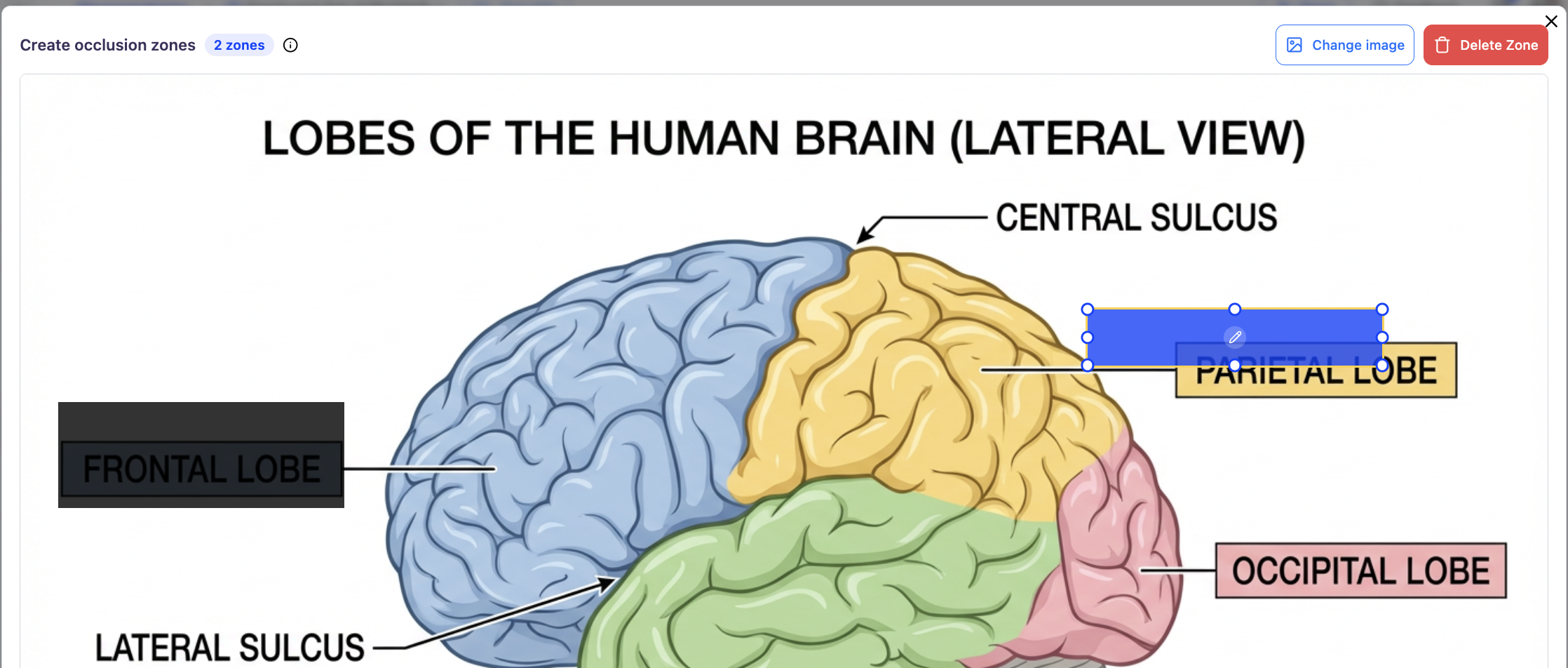
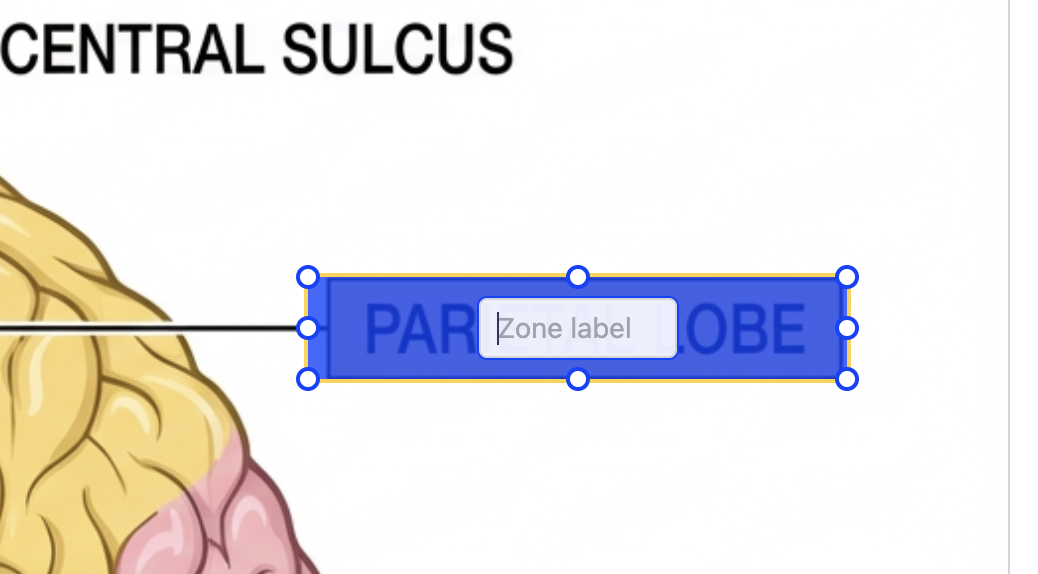
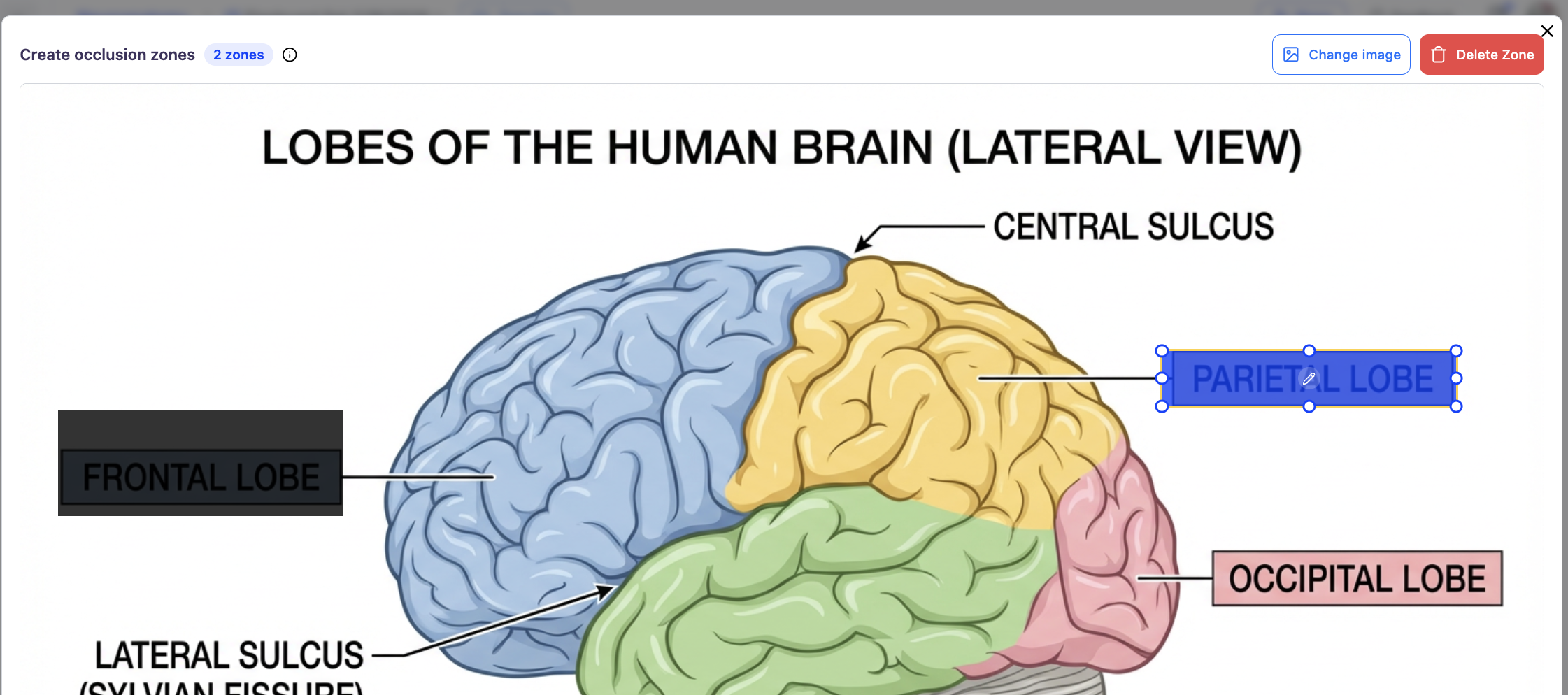 10.Once you are satisfied with the placement and size, click the **pencil** icon in the center of the zone to add or edit the zone label.
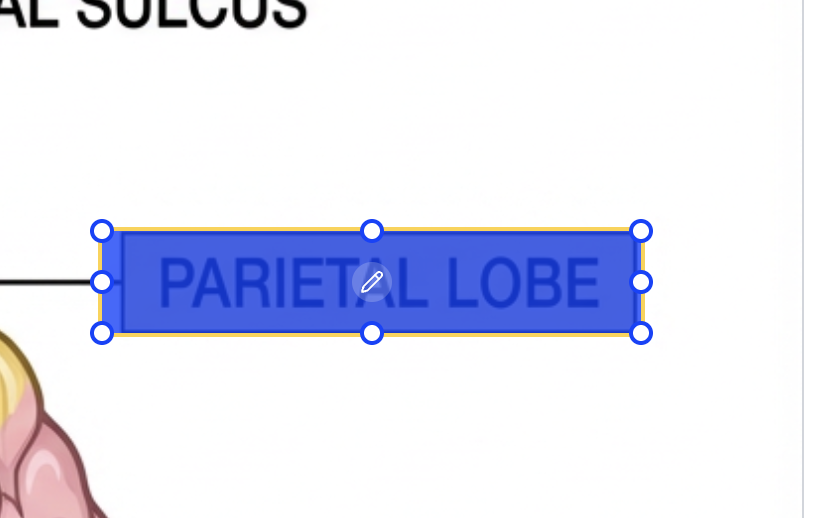
 11. To delete a zone, first select the zone and then click **Delete Zone** in the top-right corner.
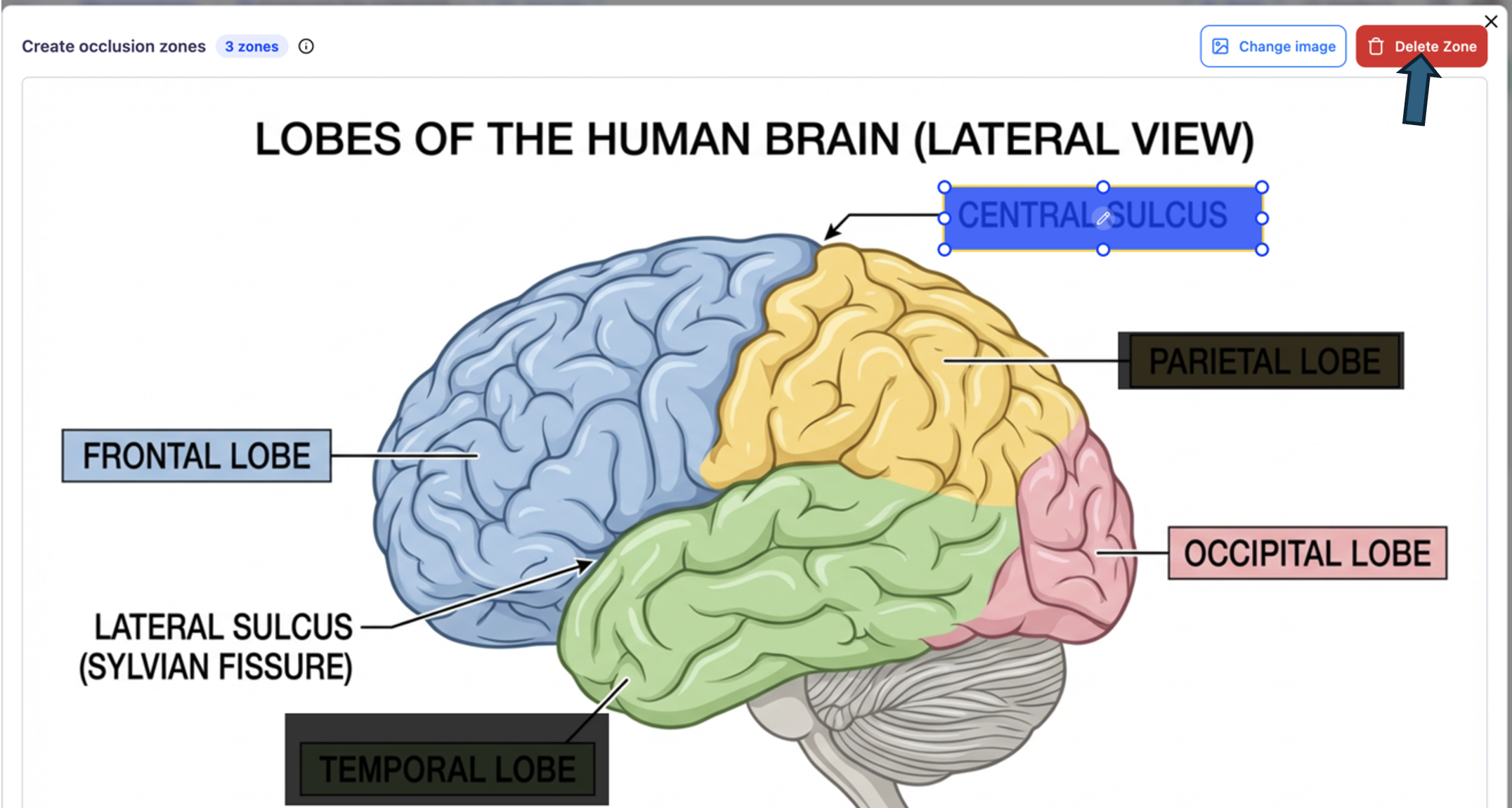 Once a zone is deleted, the zone numbering will update accordingly in the top left corner, and the corresponding zone mask will disappear.
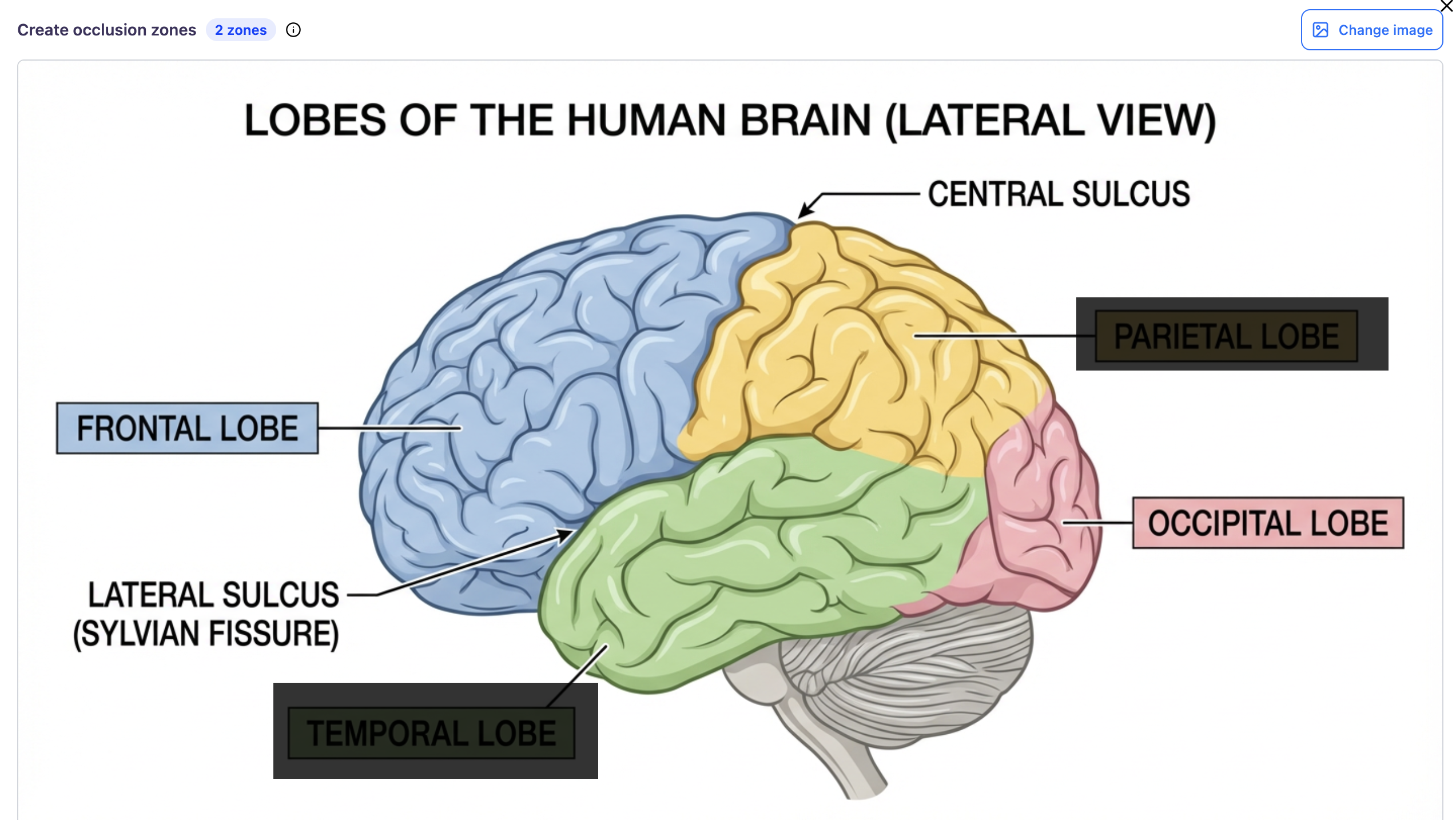 12. Continue clicking and dragging on the image to create additional occlusion zones as needed. Once you have finished adding all occlusion zones, click the **X** in the top-right corner to close the editor.
The Image Occlusion flashcard preview may display staggered zones — this is normal and expected.
12. Continue clicking and dragging on the image to create additional occlusion zones as needed. Once you have finished adding all occlusion zones, click the **X** in the top-right corner to close the editor.
The Image Occlusion flashcard preview may display staggered zones — this is normal and expected.
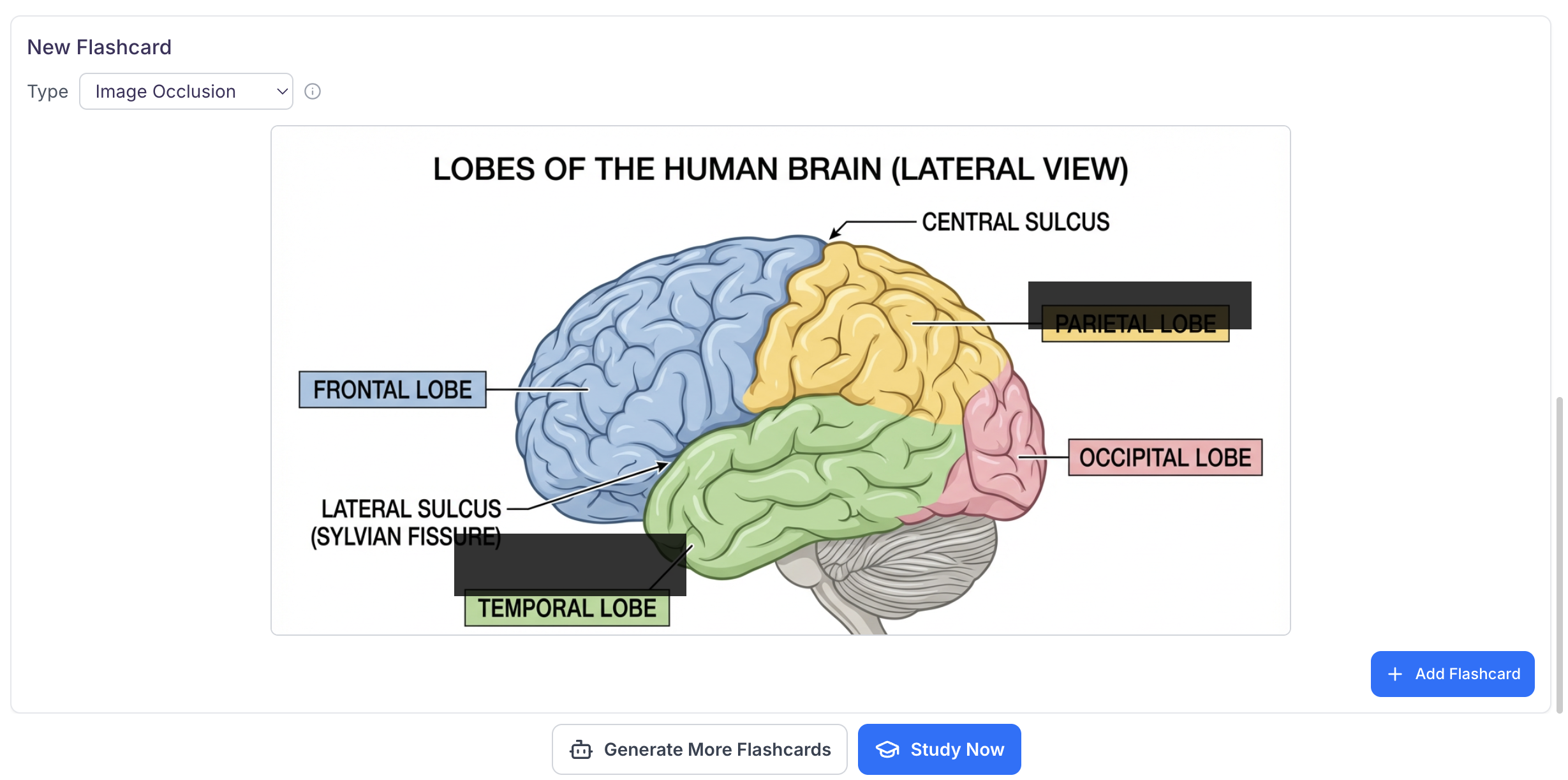 13. When you are done, click **+ Add Flashcard** to save to your flashcard set.
## Using your Flashcards
13. When you are done, click **+ Add Flashcard** to save to your flashcard set.
## Using your Flashcards
 ### Navigation Keys
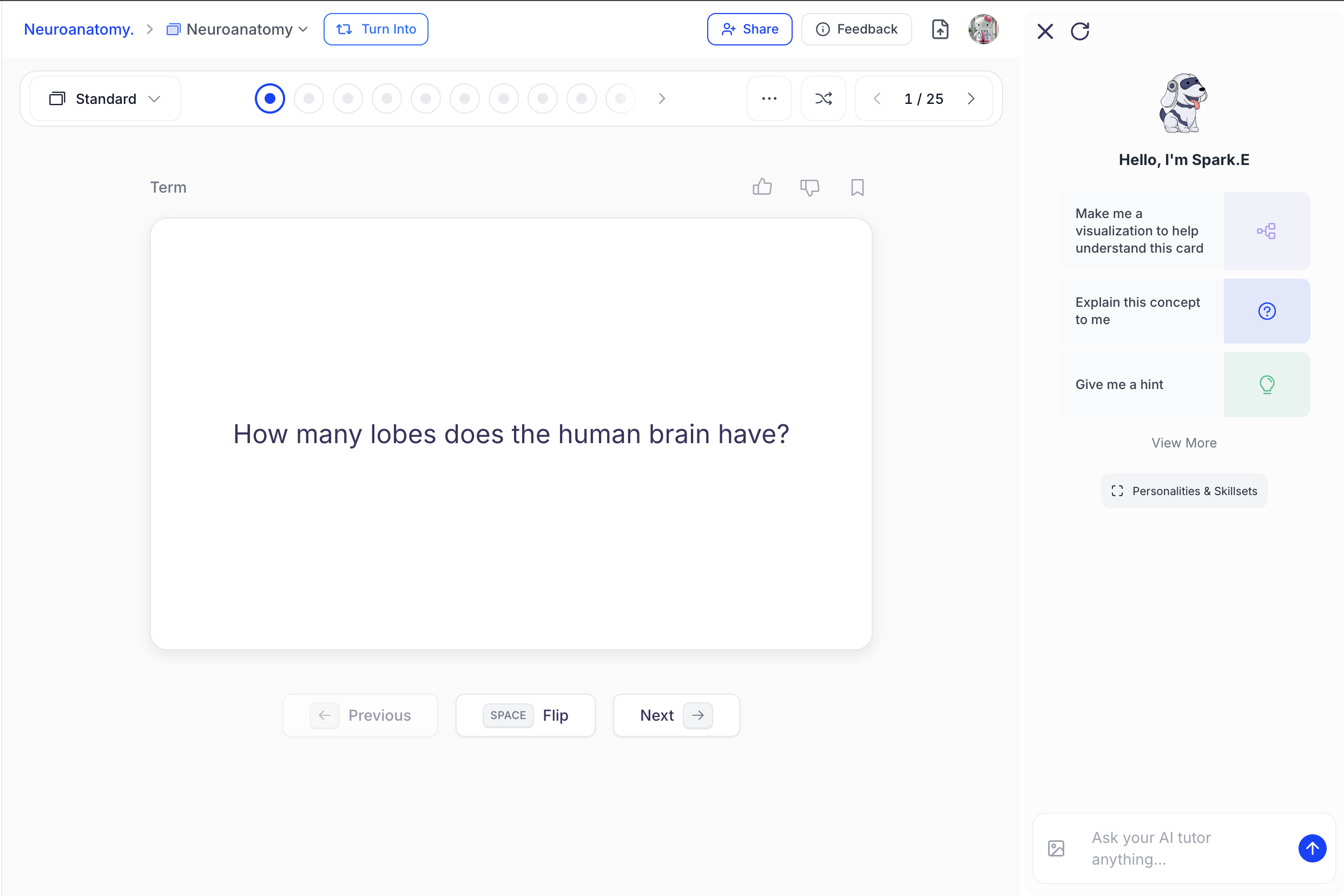
* To navigate between flashcards click the **← Previous** or **Next →** buttons below the flashcard, or use the ********left andright arrow******** **keys on your keyboard**.
* To flip a flashcard and reveal the back, **click anywhere on the card**, select the **Flip** button below the flashcard, or **press the space bar on your keyboard**. Use any of these methods again to return to the front of the card.
* Above your flashcards, you’ll see a **progress bar** made up of dots. Each dot represents an individual flashcard and fills in as you move through the set. You can also click any dot to jump directly to that flashcard. The appearance of the dots may vary depending on the selected study mode — see the study modes section below for more details.
### Navigation Keys
* To navigate between flashcards click the **← Previous** or **Next →** buttons below the flashcard, or use the ********left andright arrow******** **keys on your keyboard**.
* To flip a flashcard and reveal the back, **click anywhere on the card**, select the **Flip** button below the flashcard, or **press the space bar on your keyboard**. Use any of these methods again to return to the front of the card.
* Above your flashcards, you’ll see a **progress bar** made up of dots. Each dot represents an individual flashcard and fills in as you move through the set. You can also click any dot to jump directly to that flashcard. The appearance of the dots may vary depending on the selected study mode — see the study modes section below for more details.
 * Select the **Shuffle** button in the top right toolbar to randomize the order of your flashcards.
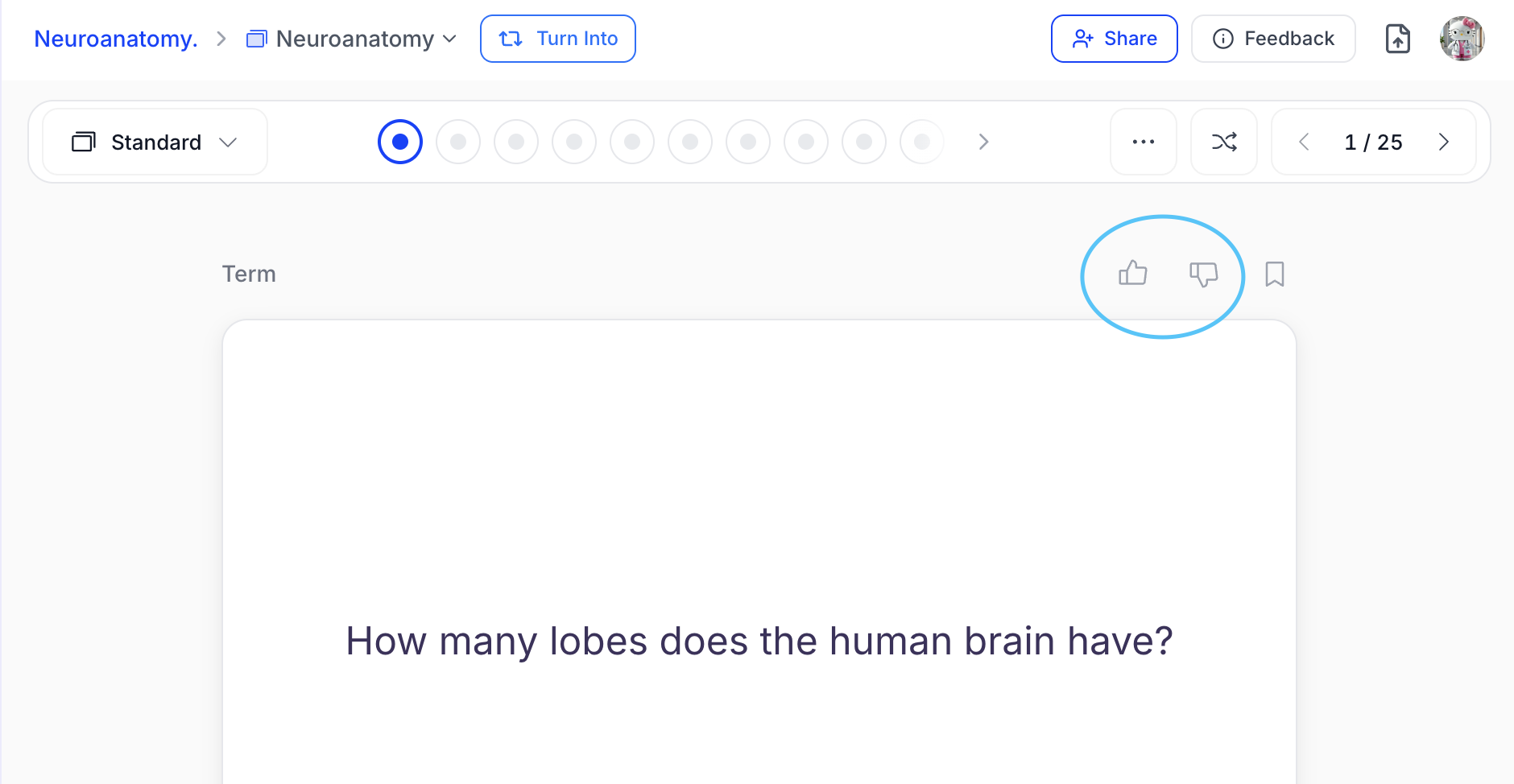
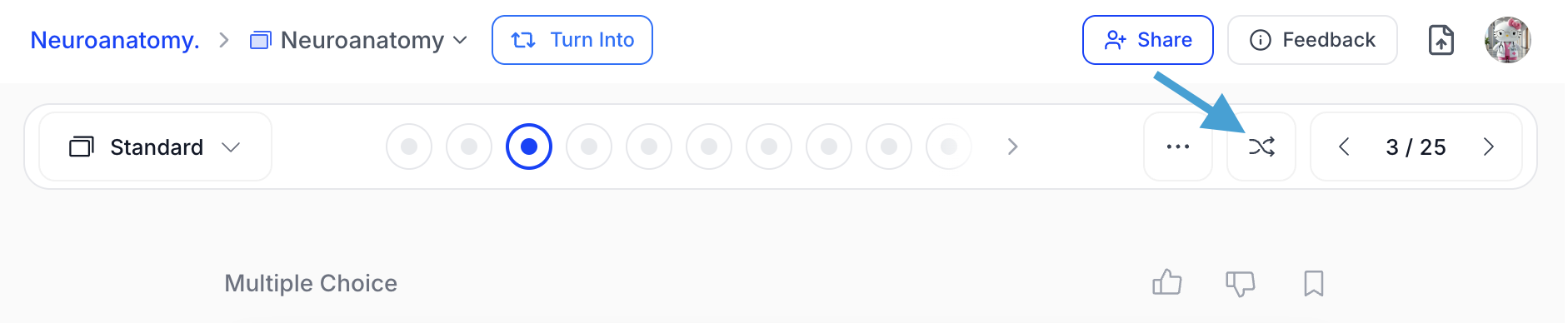 * How do you like your flashcards? Use the **thumbs up** or **thumbs down** buttons located in the top right above your flashcards to provide feedback on AI-generated flashcards. A thumbs up indicates the flashcard contains helpful content, while a thumbs down indicates the content needs improvement. The more feedback provided, the better the flashcards become over time.
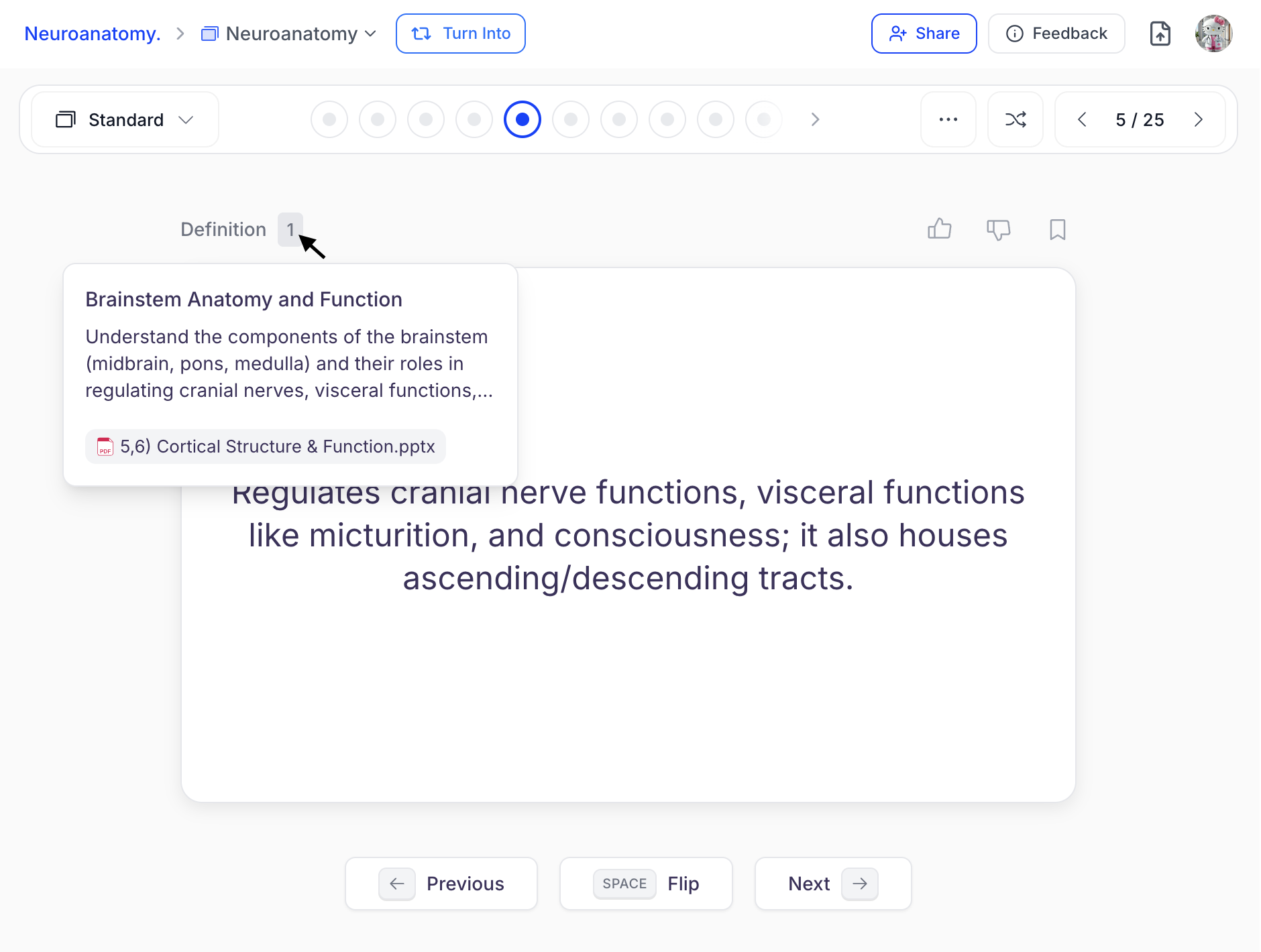
 * Curious about the **source**? Click the **number in the top left** above your flashcard to see exactly where the information comes from in your study material.
 ### Choosing a Study Mode
On the **top left of the toolbar** above your flashcards, you can choose how you want to study. Click the **downward arrow** to select from the following study modes:
### Choosing a Study Mode
On the **top left of the toolbar** above your flashcards, you can choose how you want to study. Click the **downward arrow** to select from the following study modes:
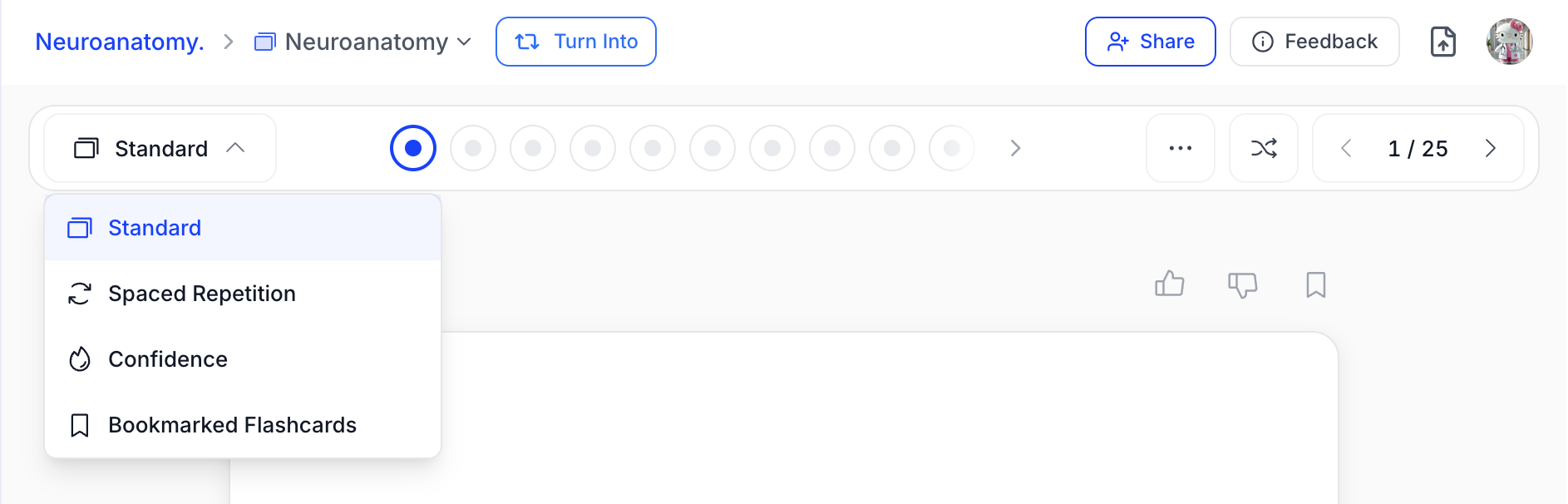 * **Standard:** Review all flashcards in order. Ideal for initial learning or quick review sessions.
* **Spaced Repetition:** Uses smart scheduling based on how well you know each card. Cards you struggle with appear more frequently to optimize retention.
* **Confidence:** Rate your confidence level for each card. Great for tracking progress over time.
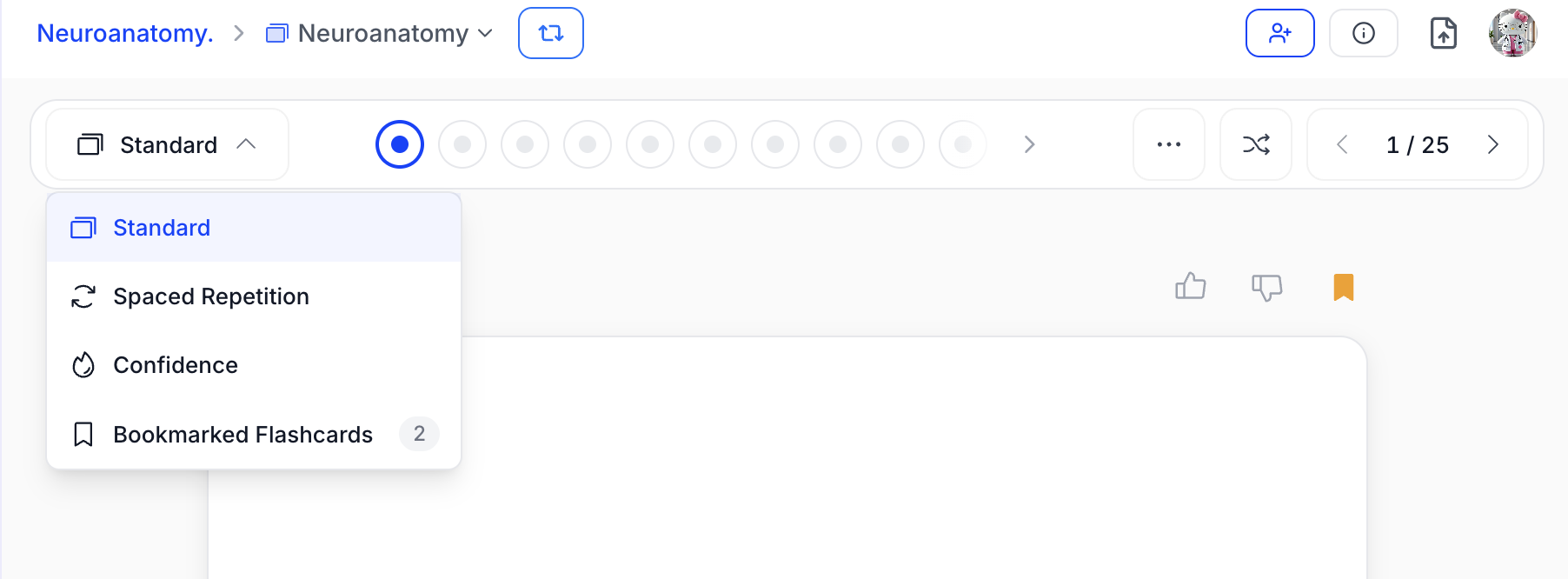
* **Bookmarked Flashcards:** Focus only on flashcards you’ve bookmarked. Perfect for reviewing challenging topics you want to master.
### How to use Spaced Repetition Study Mode
Spaced repetition strengthens long-term memory through timed review intervals. Follow the steps below to easily activate this mode while studying your flashcards in StudyFetch.
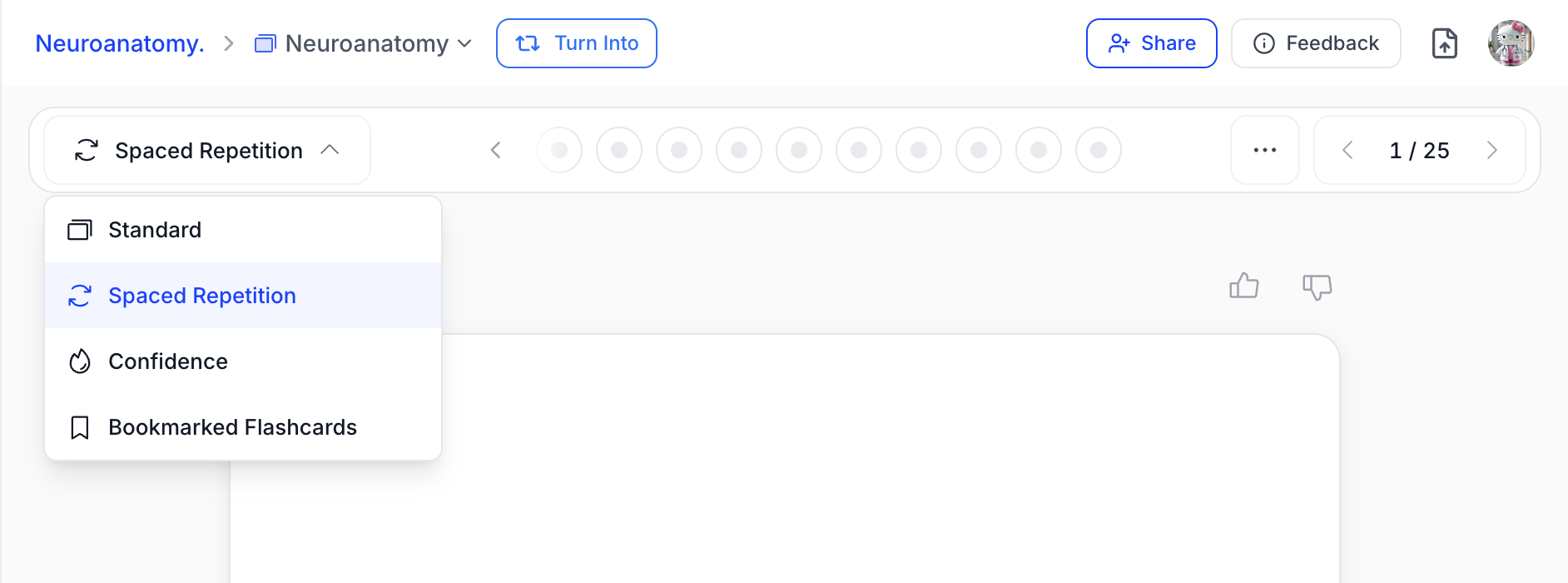
1. To start studying with spaced repetition, select **Spaced Repetition** from the top left of the toolbar
* **Standard:** Review all flashcards in order. Ideal for initial learning or quick review sessions.
* **Spaced Repetition:** Uses smart scheduling based on how well you know each card. Cards you struggle with appear more frequently to optimize retention.
* **Confidence:** Rate your confidence level for each card. Great for tracking progress over time.
* **Bookmarked Flashcards:** Focus only on flashcards you’ve bookmarked. Perfect for reviewing challenging topics you want to master.
### How to use Spaced Repetition Study Mode
Spaced repetition strengthens long-term memory through timed review intervals. Follow the steps below to easily activate this mode while studying your flashcards in StudyFetch.
1. To start studying with spaced repetition, select **Spaced Repetition** from the top left of the toolbar
 2. While studying, once you flip a flashcard or reveal the answer, you will be asked to rate your confidence level using **Again**, **Hard**, **Good**, or **Easy**
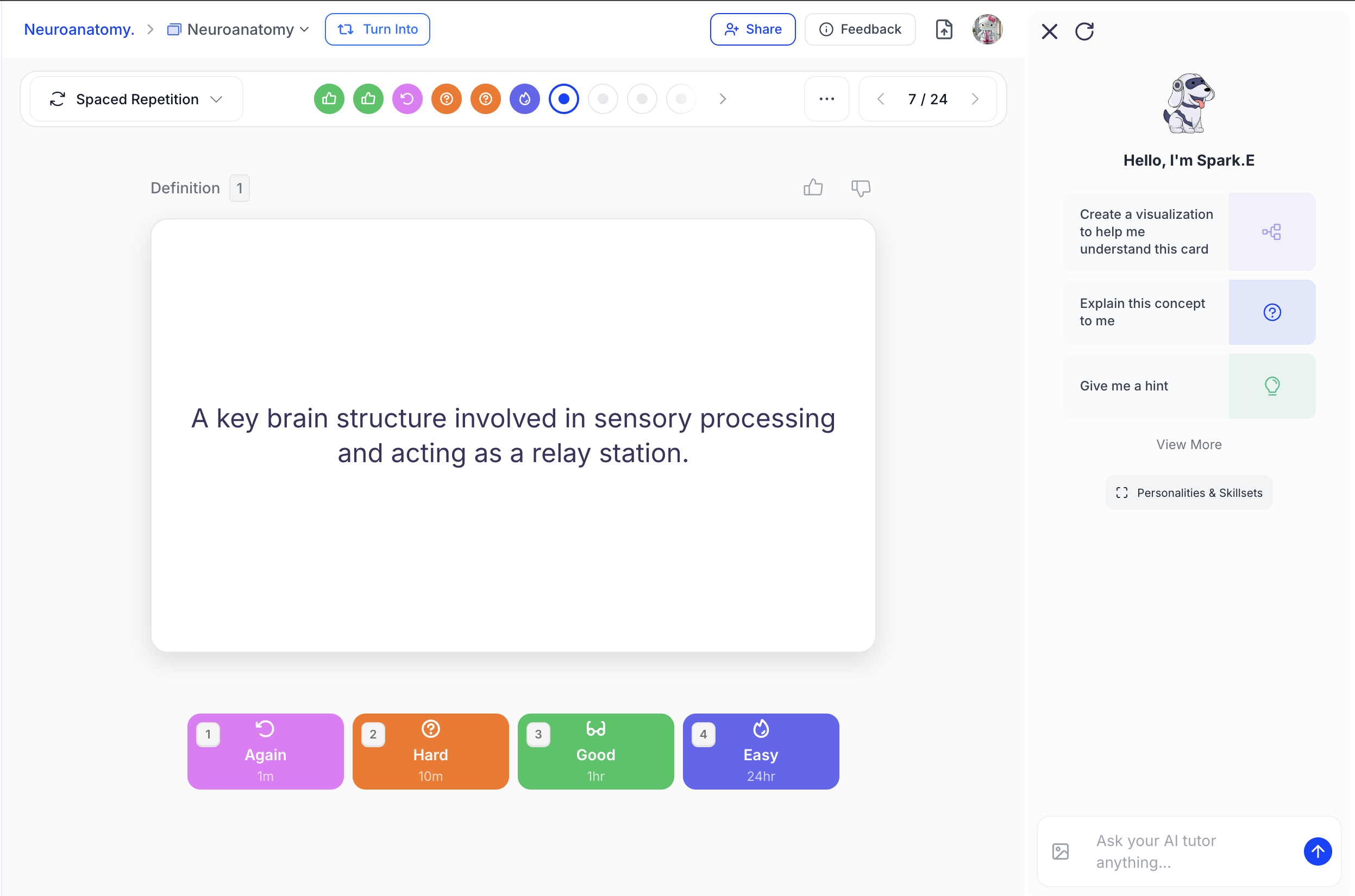 Rate each flashcard using the buttons below the card or by pressing the **1, 2, 3, or 4** keys on your keyboard. Your selection determines when the card will appear again:
* **Again (1):** Shows again in **1 minute**
* **Hard (2):** Shows again in **10 minutes**
* **Good (3):** Shows again in **1 hour**
* **Easy (4):** Shows again in **24 hours**
3. In spaced repetition mode, the **progress bar** appearance of each dot updates based on your confidence ratings to reflect your learning progress.
Rate each flashcard using the buttons below the card or by pressing the **1, 2, 3, or 4** keys on your keyboard. Your selection determines when the card will appear again:
* **Again (1):** Shows again in **1 minute**
* **Hard (2):** Shows again in **10 minutes**
* **Good (3):** Shows again in **1 hour**
* **Easy (4):** Shows again in **24 hours**
3. In spaced repetition mode, the **progress bar** appearance of each dot updates based on your confidence ratings to reflect your learning progress.
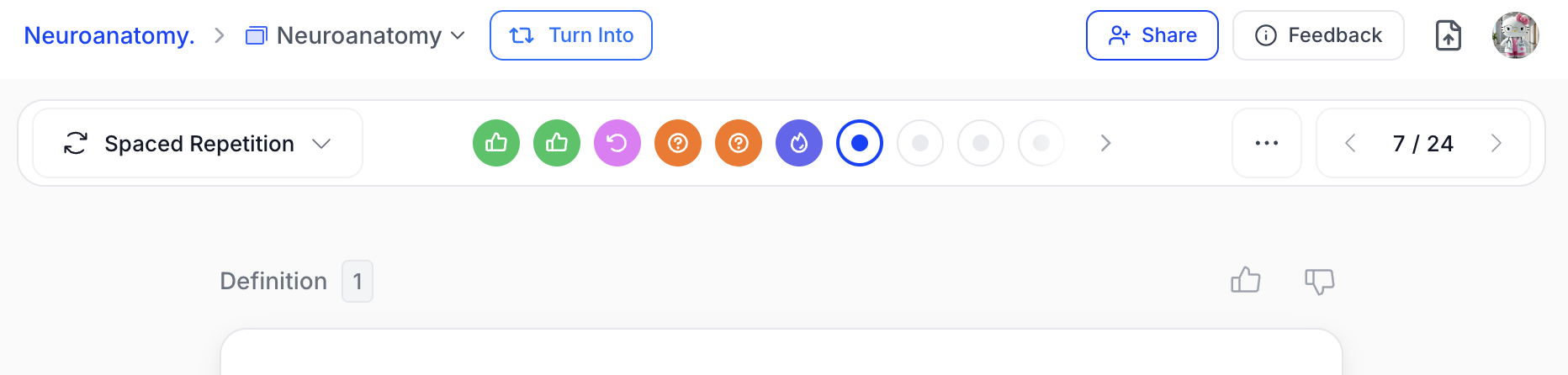 Cards will continue to reappear at scheduled intervals until the learner has mastered all flashcards.
4. When you’re finished studying, you can switch to a different study mode by selecting the **downward arrow** next to **Spaced Repetition** in the top left of the toolbar, or simply leave the page. Don’t worry — your progress is automatically saved, so you can return to Spaced Repetition mode anytime and continue right where you left off.
### How to use Confidence Study mode
Confidence Study Mode lets you rate how confident you feel about each flashcard, making it easy to monitor your progress and identify areas for improvement. Follow the steps below to activate this mode while studying flashcards in StudyFetch.
1. To start, select **Confidence** from the top left of the toolbar
Cards will continue to reappear at scheduled intervals until the learner has mastered all flashcards.
4. When you’re finished studying, you can switch to a different study mode by selecting the **downward arrow** next to **Spaced Repetition** in the top left of the toolbar, or simply leave the page. Don’t worry — your progress is automatically saved, so you can return to Spaced Repetition mode anytime and continue right where you left off.
### How to use Confidence Study mode
Confidence Study Mode lets you rate how confident you feel about each flashcard, making it easy to monitor your progress and identify areas for improvement. Follow the steps below to activate this mode while studying flashcards in StudyFetch.
1. To start, select **Confidence** from the top left of the toolbar
 2. After flipping a flashcard, you will be asked to rate your confidence level using **Not Very Confident (1)**, **Somewhat Confident (2)**, or **Very Confident (3)** .
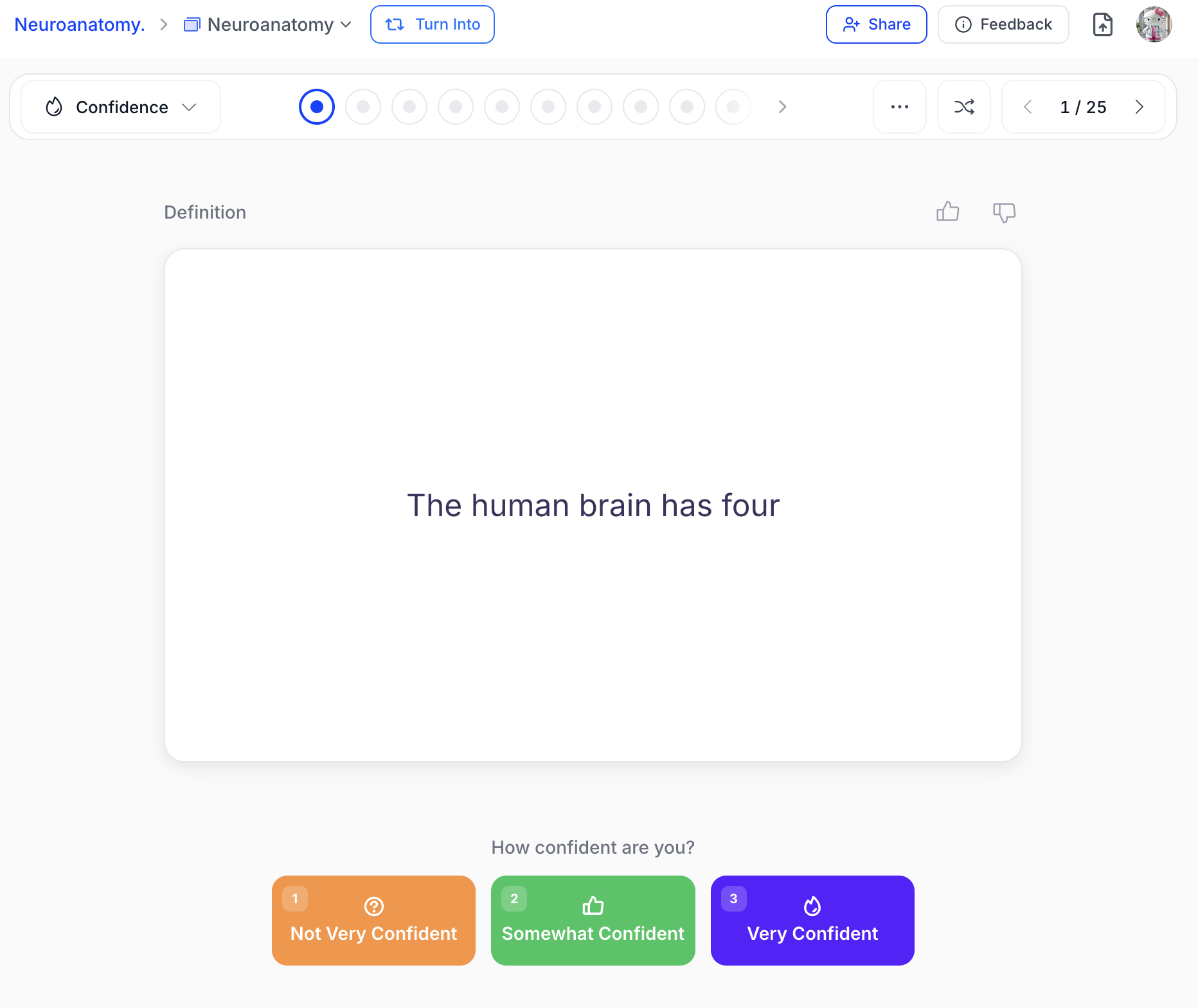 Rate each flashcard using the buttons below the card or by pressing the **1, 2, or 3** keys on your keyboard. Your selections are automatically saved and can be reviewed to help you monitor your progress over time.
3. In Confidence mode, the **progress bar** appearance of each dot updates based on your confidence ratings to reflect your learning progress.
Rate each flashcard using the buttons below the card or by pressing the **1, 2, or 3** keys on your keyboard. Your selections are automatically saved and can be reviewed to help you monitor your progress over time.
3. In Confidence mode, the **progress bar** appearance of each dot updates based on your confidence ratings to reflect your learning progress.
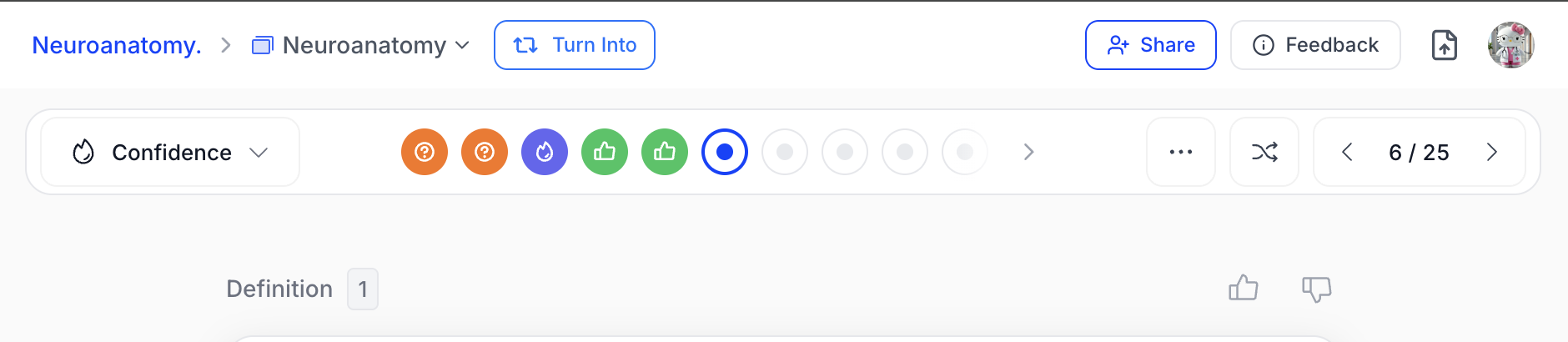 4. When you’re finished studying, you can switch to a different study mode by selecting the downward arrow next to **Confidence** in the top left of the toolbar, or simply leave the page. Don’t worry — your progress is automatically saved and can be reviewed in **Statistics**. You can return to Confidence mode anytime and continue tracking your confidence over time.
### **Using Bookmarks**
When studying flashcards in **Standard mode**, you can use **bookmarks** to tag cards you want to review later — ideal for mastering challenging topics.
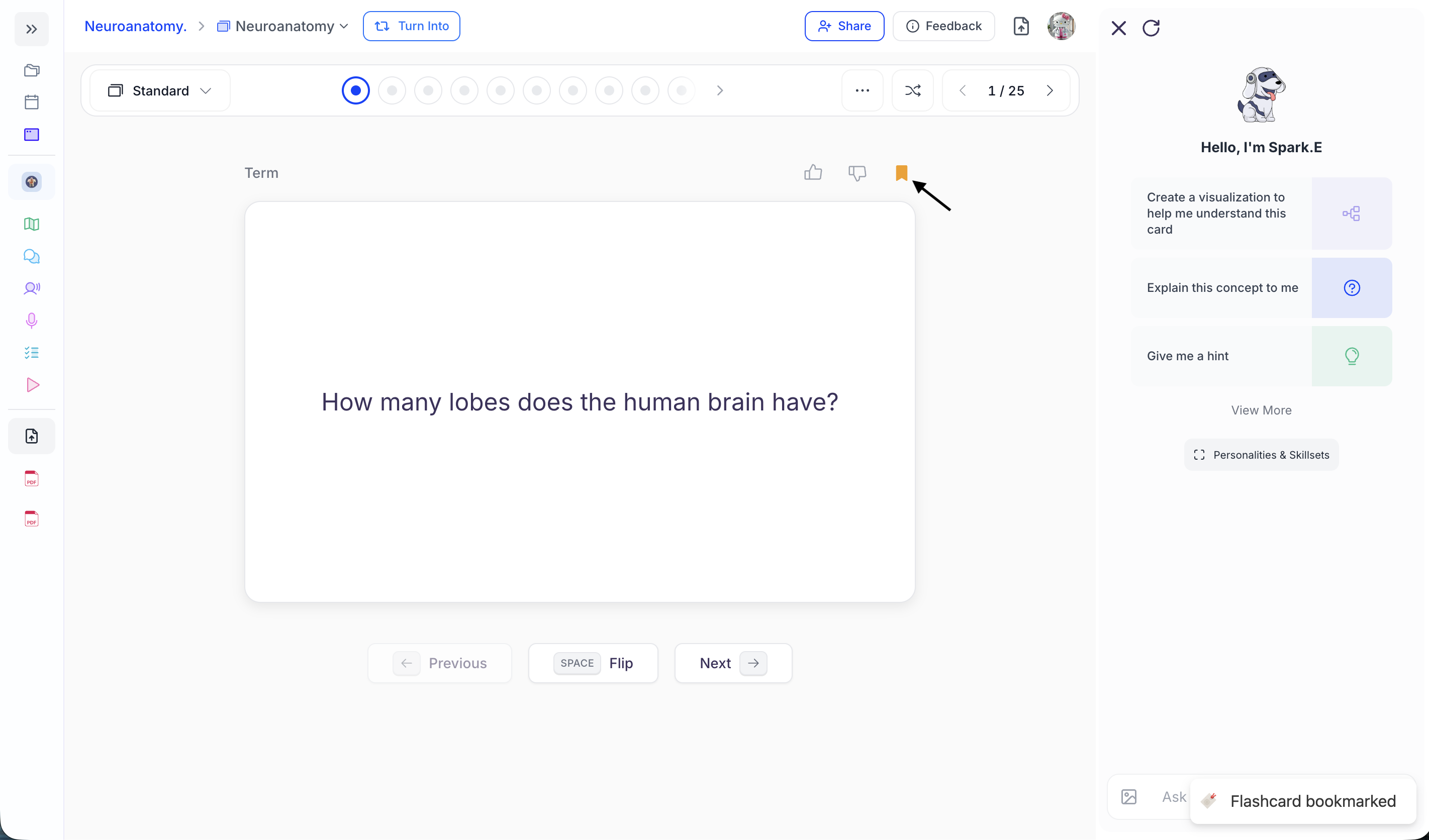
1. Bookmark flashcards you want to revisit by selecting the **bookmark icon** located in the top right above your flashcard.
4. When you’re finished studying, you can switch to a different study mode by selecting the downward arrow next to **Confidence** in the top left of the toolbar, or simply leave the page. Don’t worry — your progress is automatically saved and can be reviewed in **Statistics**. You can return to Confidence mode anytime and continue tracking your confidence over time.
### **Using Bookmarks**
When studying flashcards in **Standard mode**, you can use **bookmarks** to tag cards you want to review later — ideal for mastering challenging topics.
1. Bookmark flashcards you want to revisit by selecting the **bookmark icon** located in the top right above your flashcard.
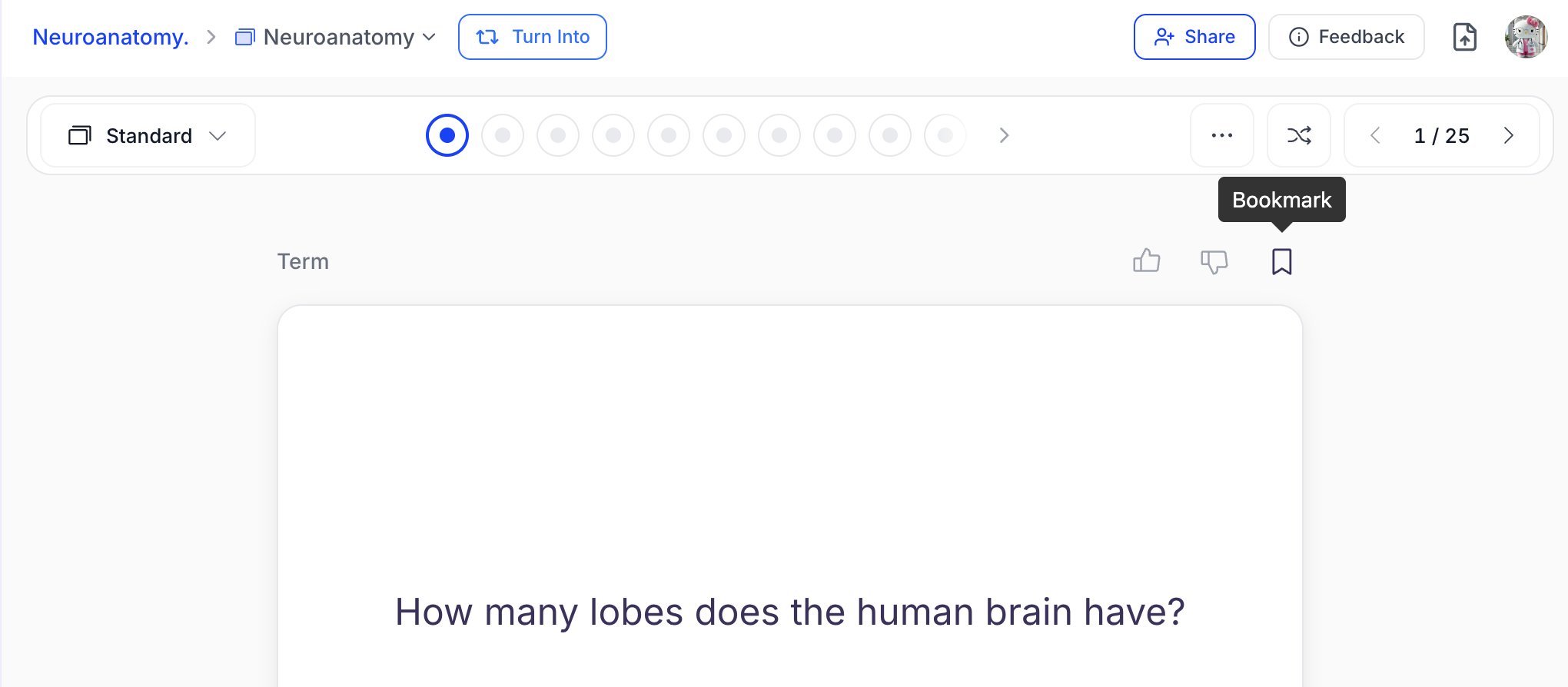 2. When bookmarked, the icon will turn **yellow**.
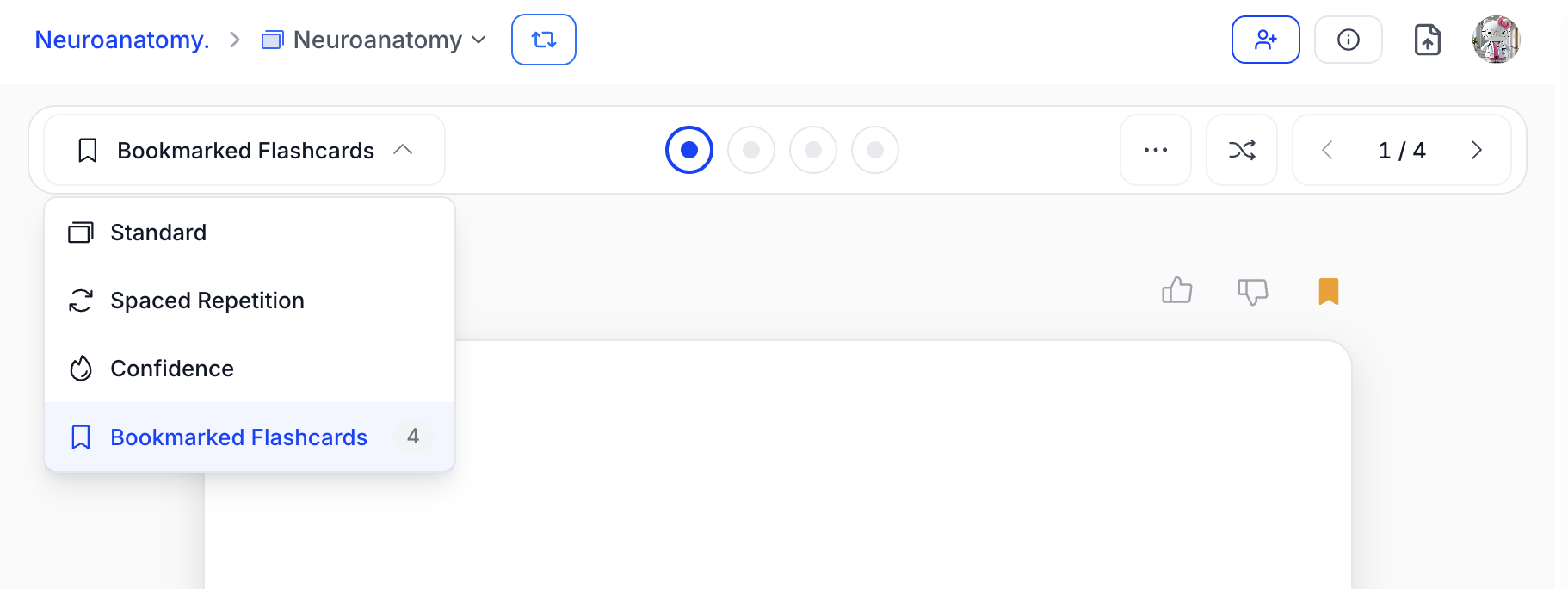
 3. To review your bookmarked flashcards, click the downward arrow next to **Standard** and select **Bookmarked Flashcards**. This will switch your study session to focus only on your bookmarked cards.
The number to the right of **Bookmarked Flashcards** represents the total amount of flashcards you have bookmarked
3. To review your bookmarked flashcards, click the downward arrow next to **Standard** and select **Bookmarked Flashcards**. This will switch your study session to focus only on your bookmarked cards.
The number to the right of **Bookmarked Flashcards** represents the total amount of flashcards you have bookmarked
 4. After you’ve mastered a flashcard, **remove the bookmark** by selecting the same **bookmark icon** in the top right above the flashcard.
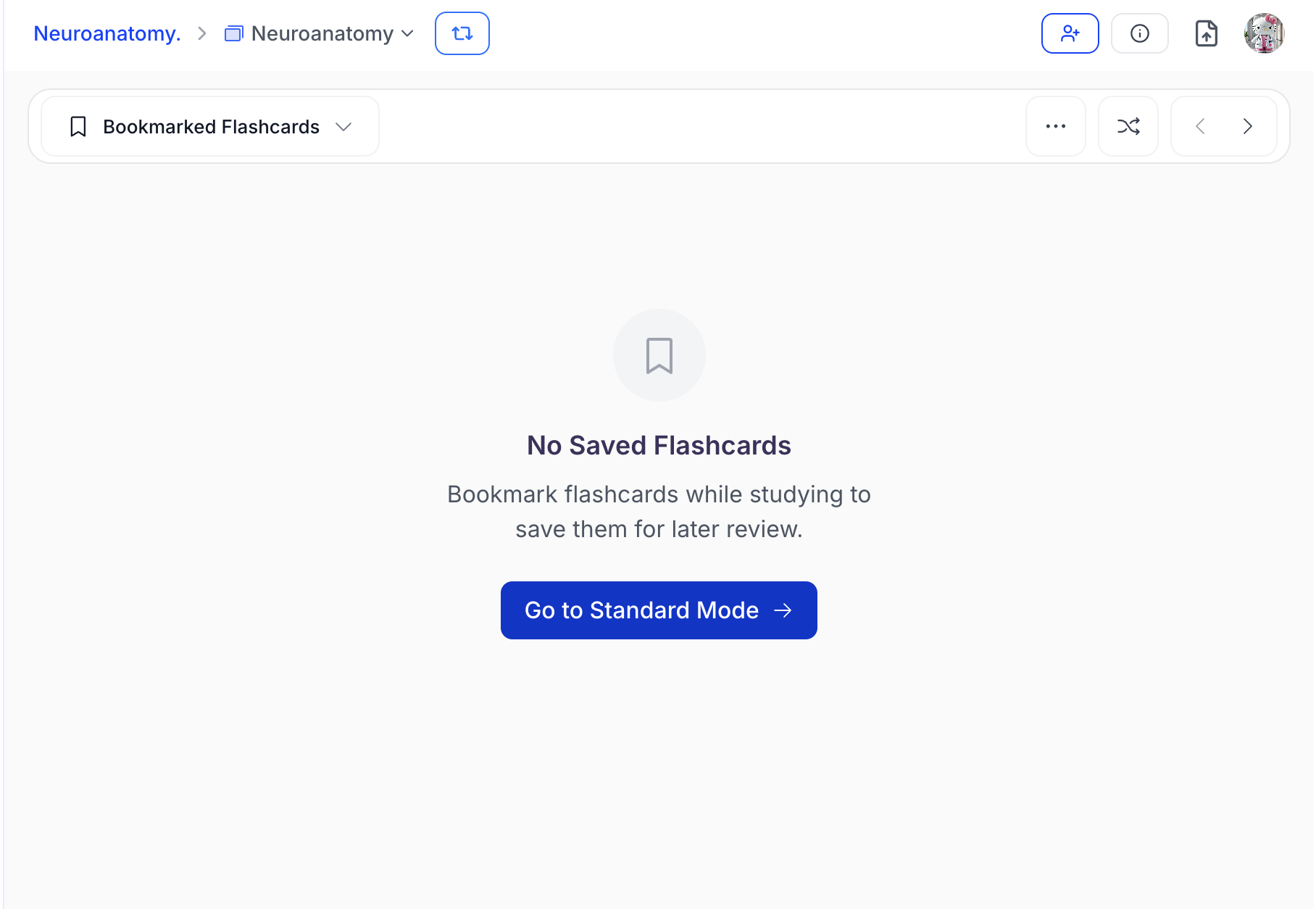
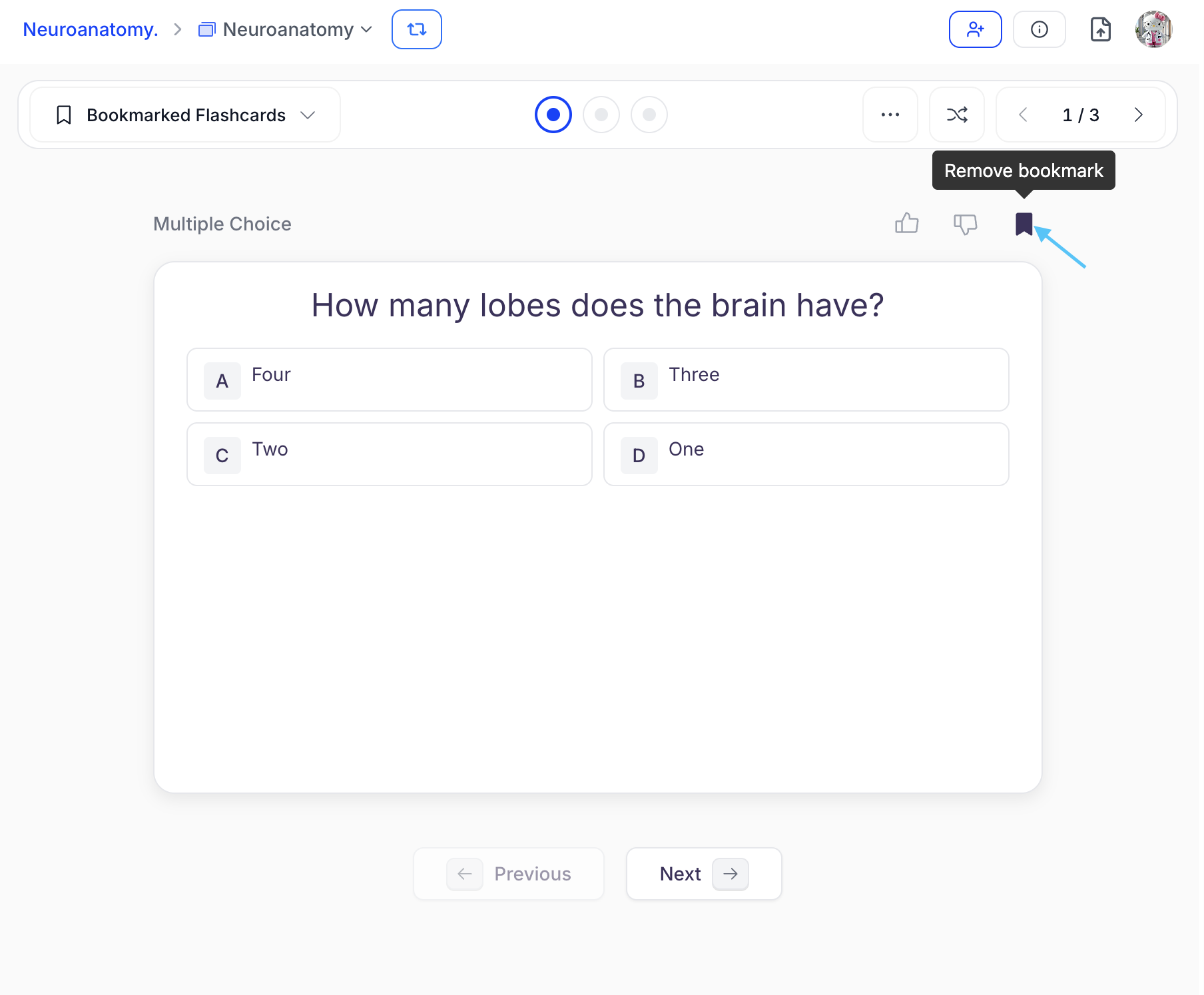 5. After removing the bookmark, the flashcard will be taken out of your **Bookmarked Flashcards** study rotation, and the total number of bookmarked cards will update automatically. Don’t worry — the card will still be available in **Standard** mode.
6. If you want to return to your full flashcard set before mastering all bookmarked cards, select the downward arrow next to **Bookmarked Flashcards** in the top left of the toolbar and choose **Standard**.
5. After removing the bookmark, the flashcard will be taken out of your **Bookmarked Flashcards** study rotation, and the total number of bookmarked cards will update automatically. Don’t worry — the card will still be available in **Standard** mode.
6. If you want to return to your full flashcard set before mastering all bookmarked cards, select the downward arrow next to **Bookmarked Flashcards** in the top left of the toolbar and choose **Standard**.
 Otherwise, once all bookmarks have been removed, select **Go to Standard Mode** to return to your full flashcard set.
 ### Get Help from Spark.E
Have questions or need help clarifying something from your flashcards? Use the **Spark.E chat** to get personalized support instantly!
### Get Help from Spark.E
Have questions or need help clarifying something from your flashcards? Use the **Spark.E chat** to get personalized support instantly!
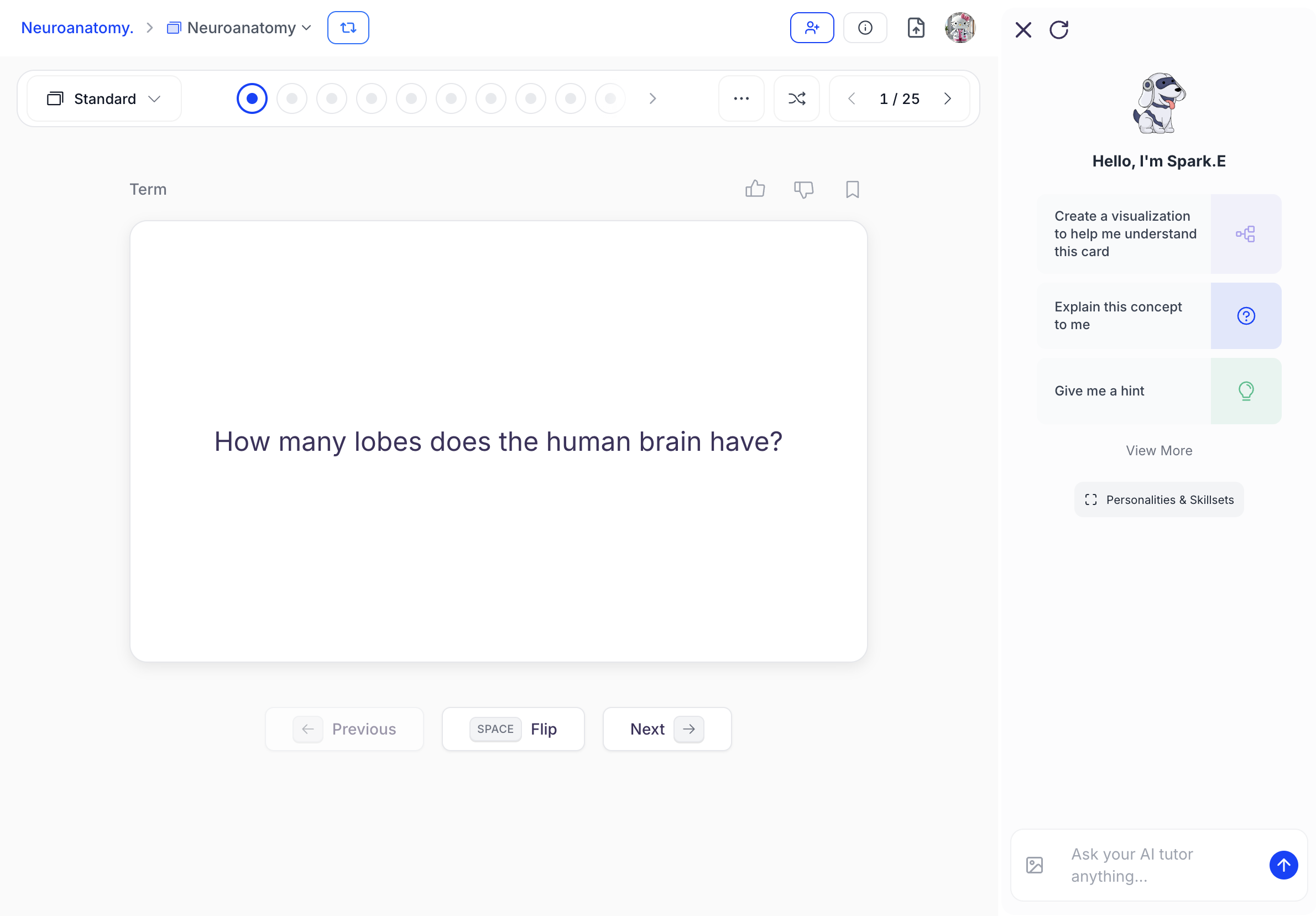 * As you study your flashcards, the Spark.E chat is available on the right side for real-time support.
* You can ask questions by **typing** directly into the **chat box** and pressing **Enter**,
* As you study your flashcards, the Spark.E chat is available on the right side for real-time support.
* You can ask questions by **typing** directly into the **chat box** and pressing **Enter**,
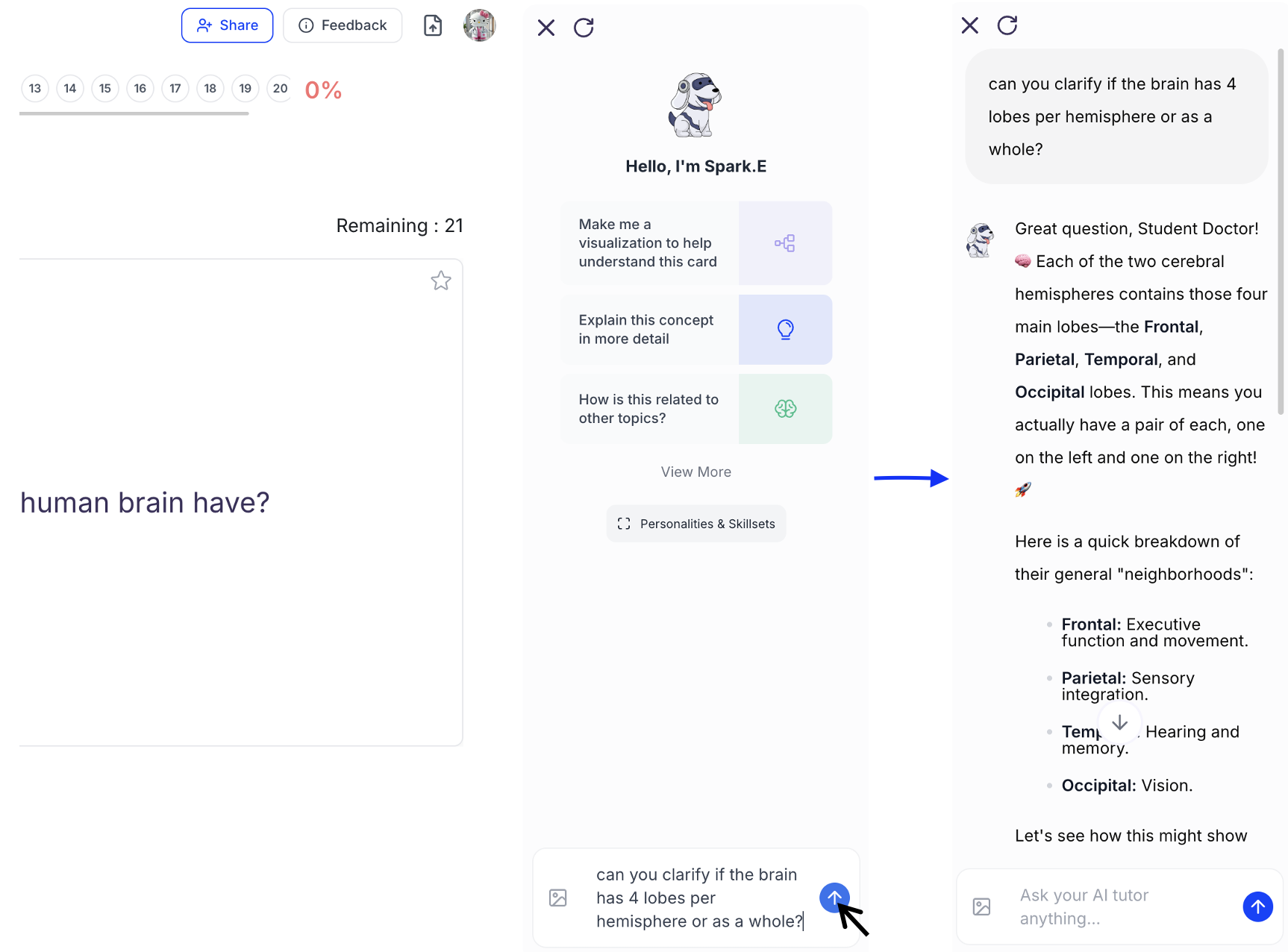 or select from the suggested prompts listed under **Hello, I’m Spark.E**.
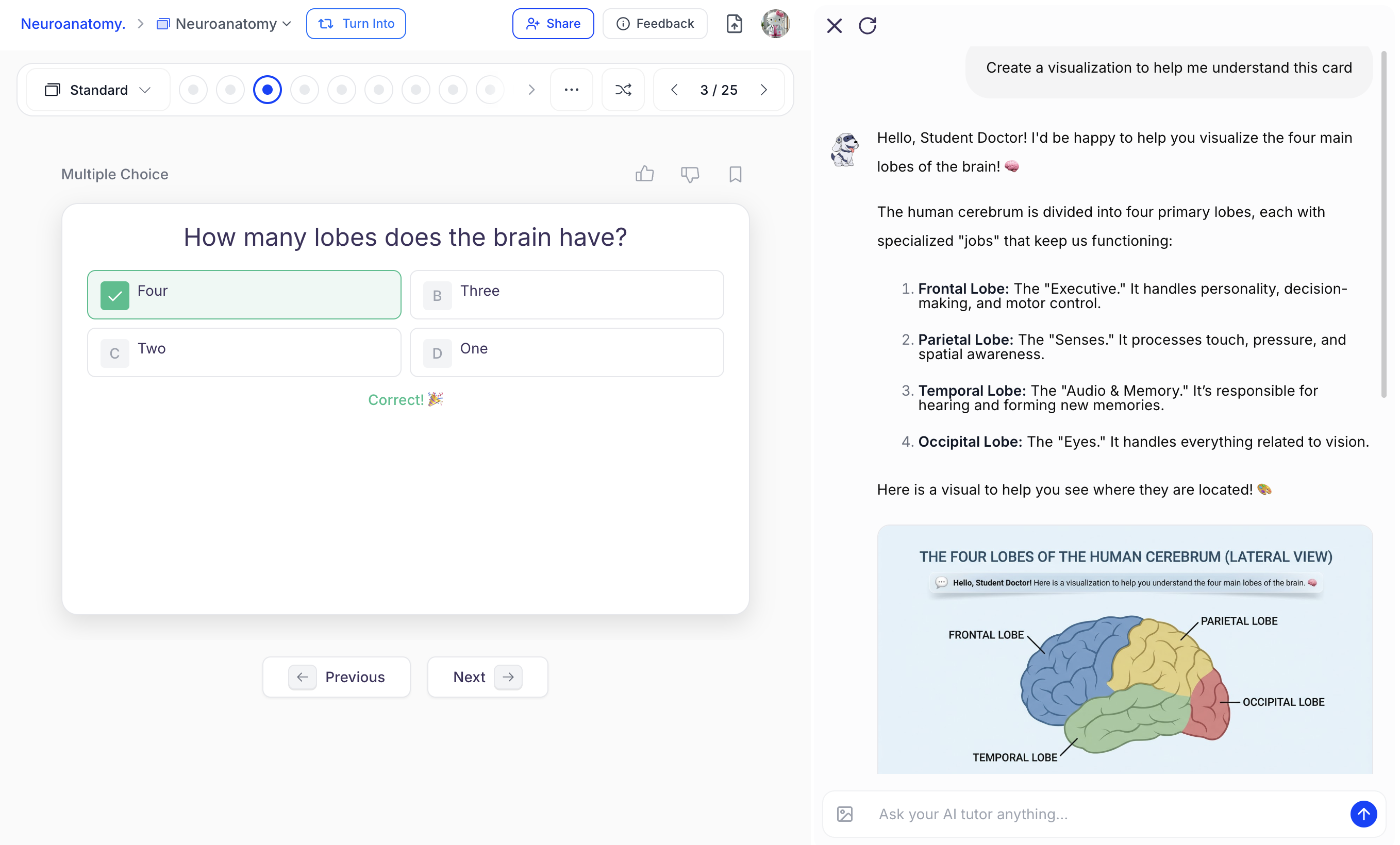
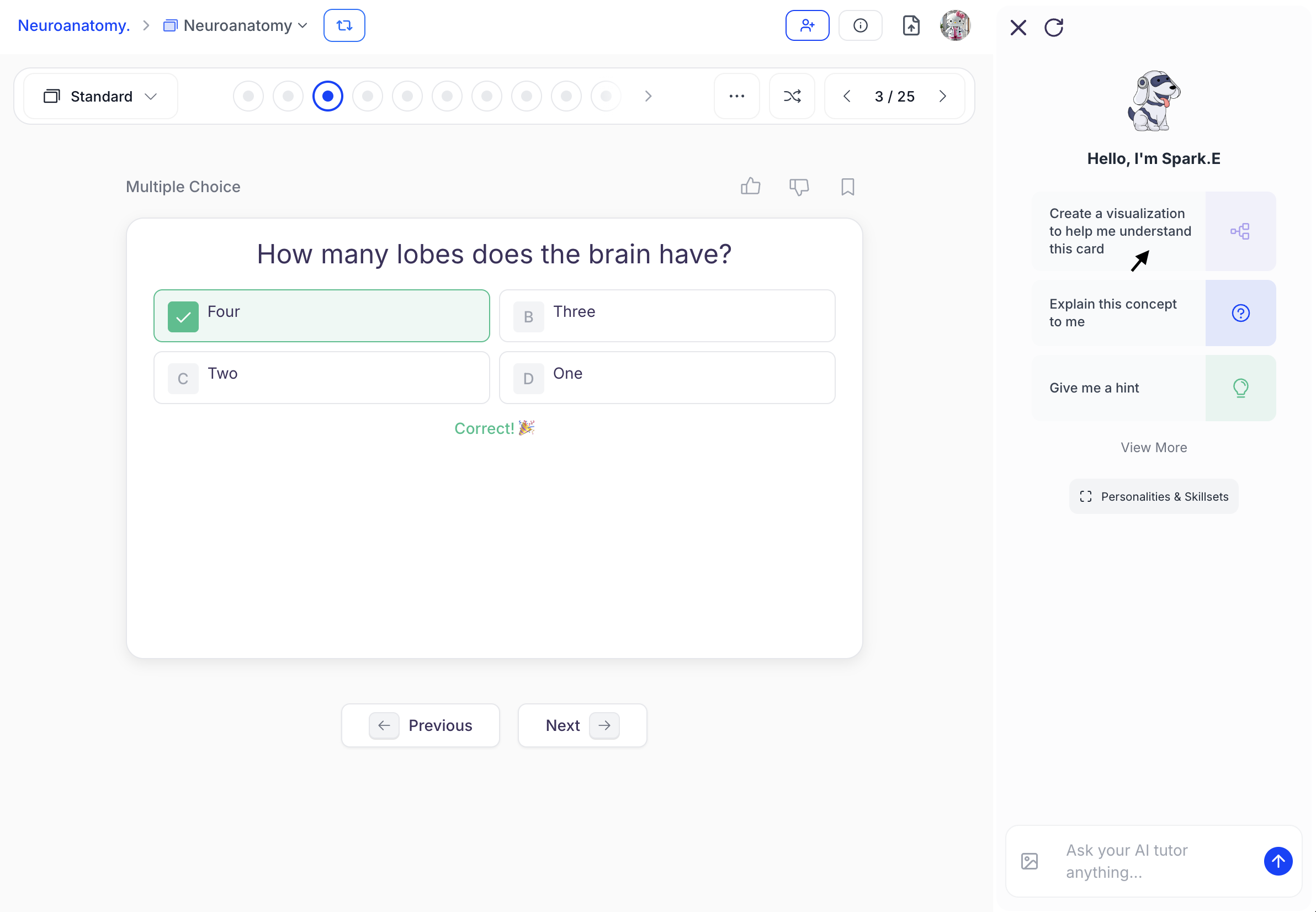 * Ask anything from “make me a visualization of this card,” to “explain this concept in more detail,” or “what is the best way to memorize this?” Spark.E will provide detailed, personalized responses tailored to your learning style.
 ### Interpreting your Statistics
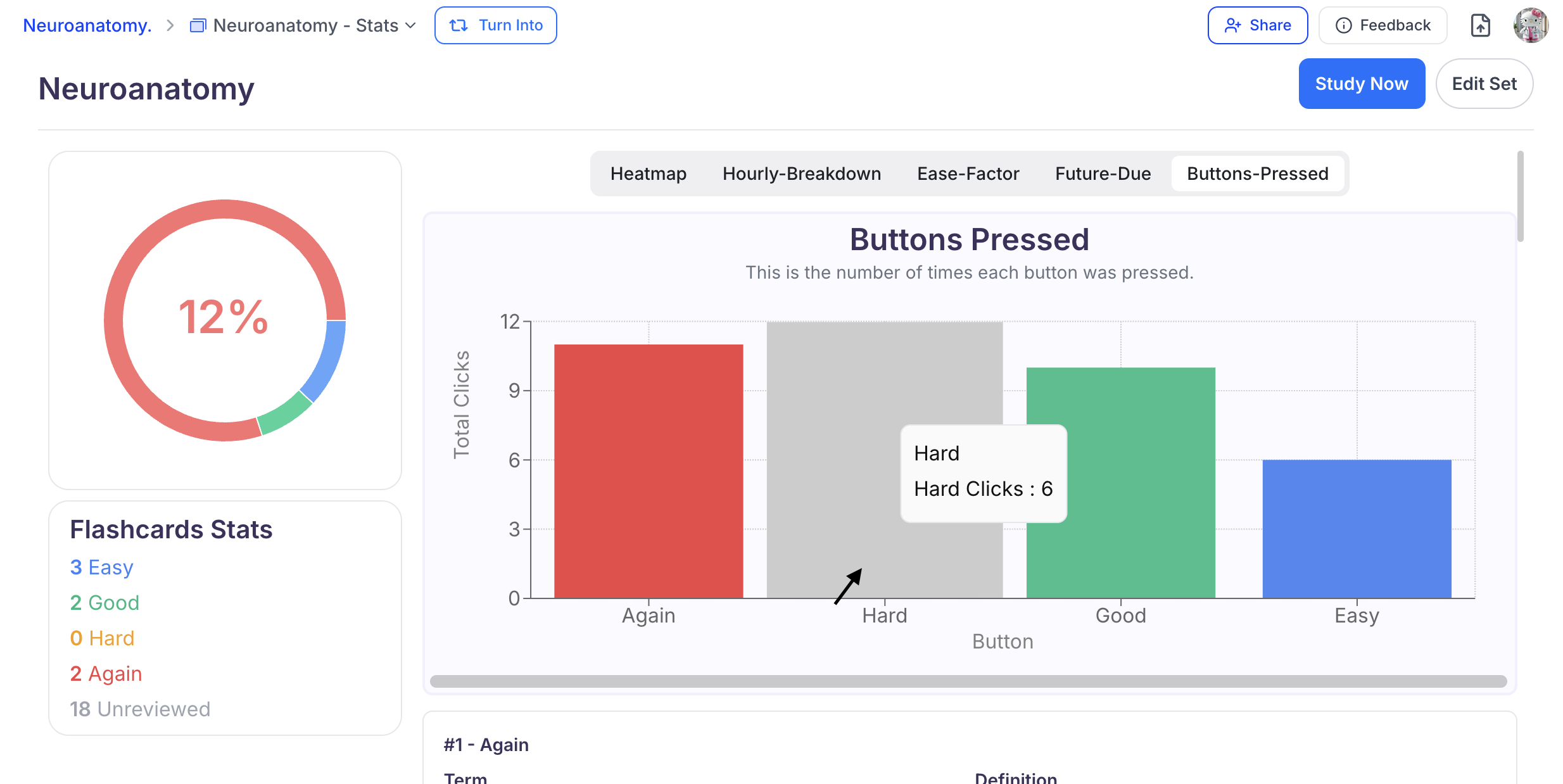
1. To view your flashcard sets study progress and statistics, click the **downward arrow** head to the right of your flashcard name, and then select **Stats**.
### Interpreting your Statistics
1. To view your flashcard sets study progress and statistics, click the **downward arrow** head to the right of your flashcard name, and then select **Stats**.
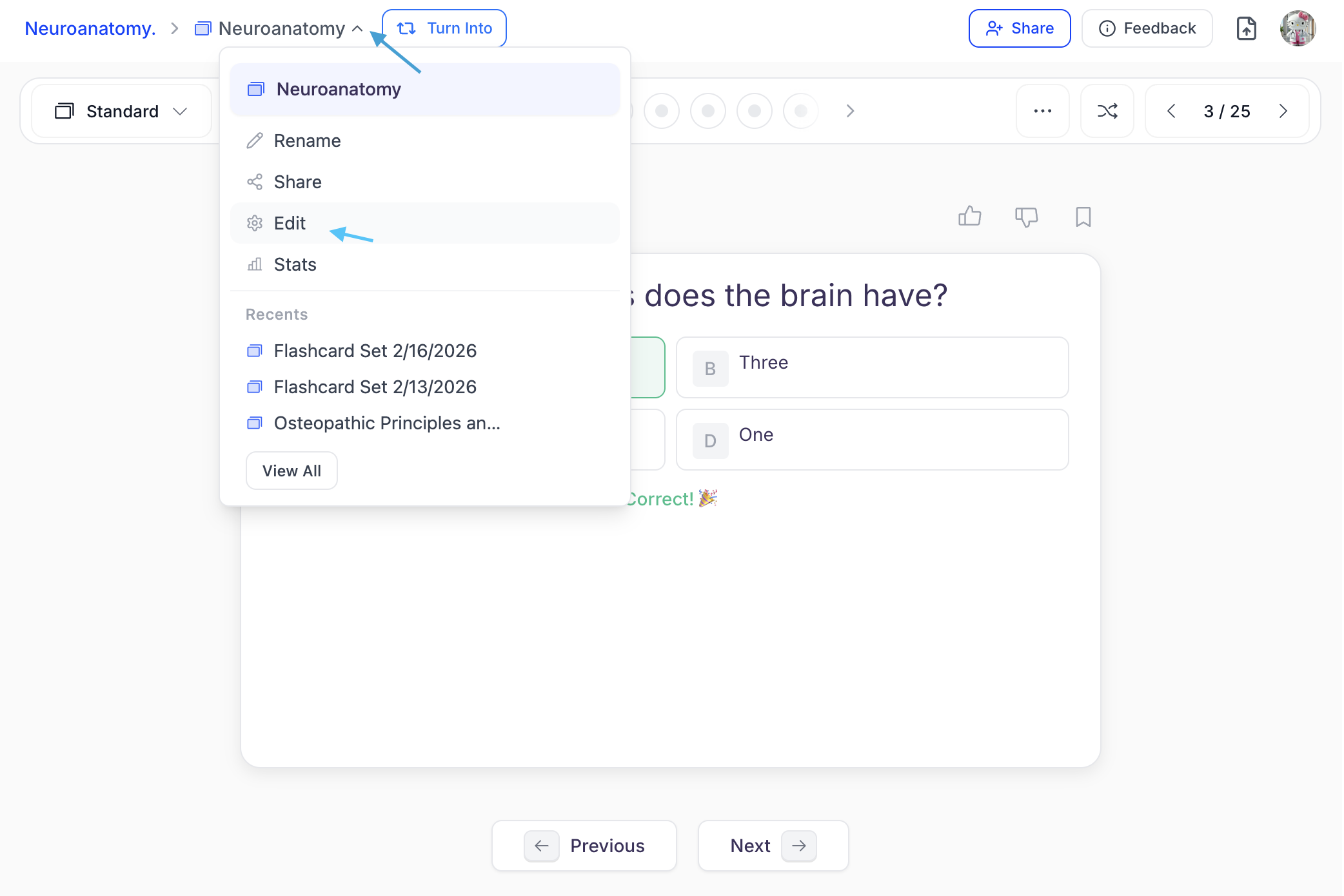 You can now view all of your flashcard statistics:
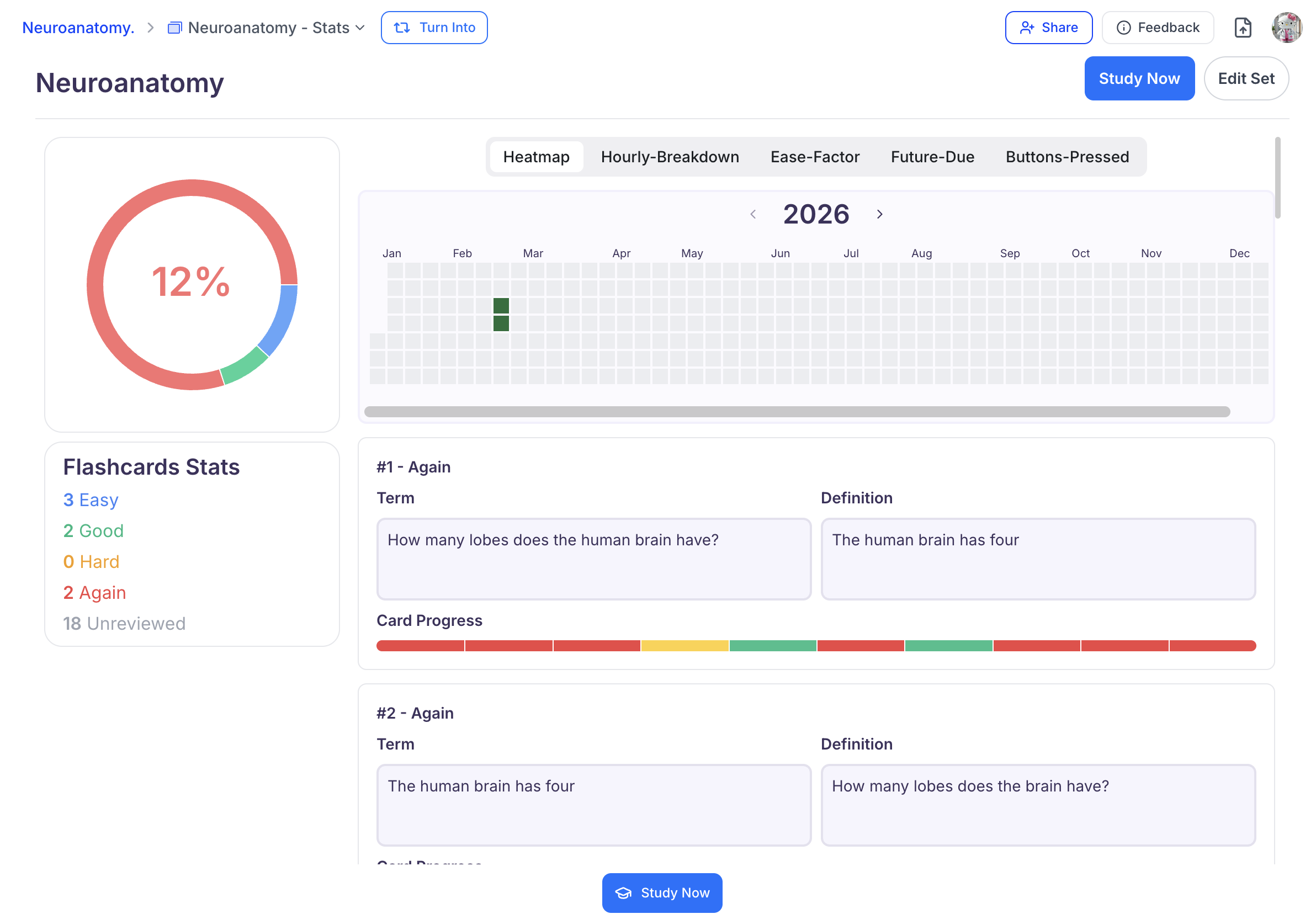 1. Each flashcard includes a **Card Progress** bar with shaded segments for each confidence rating button selection. Hover over a shaded section to view the ease rating and date it was recorded.
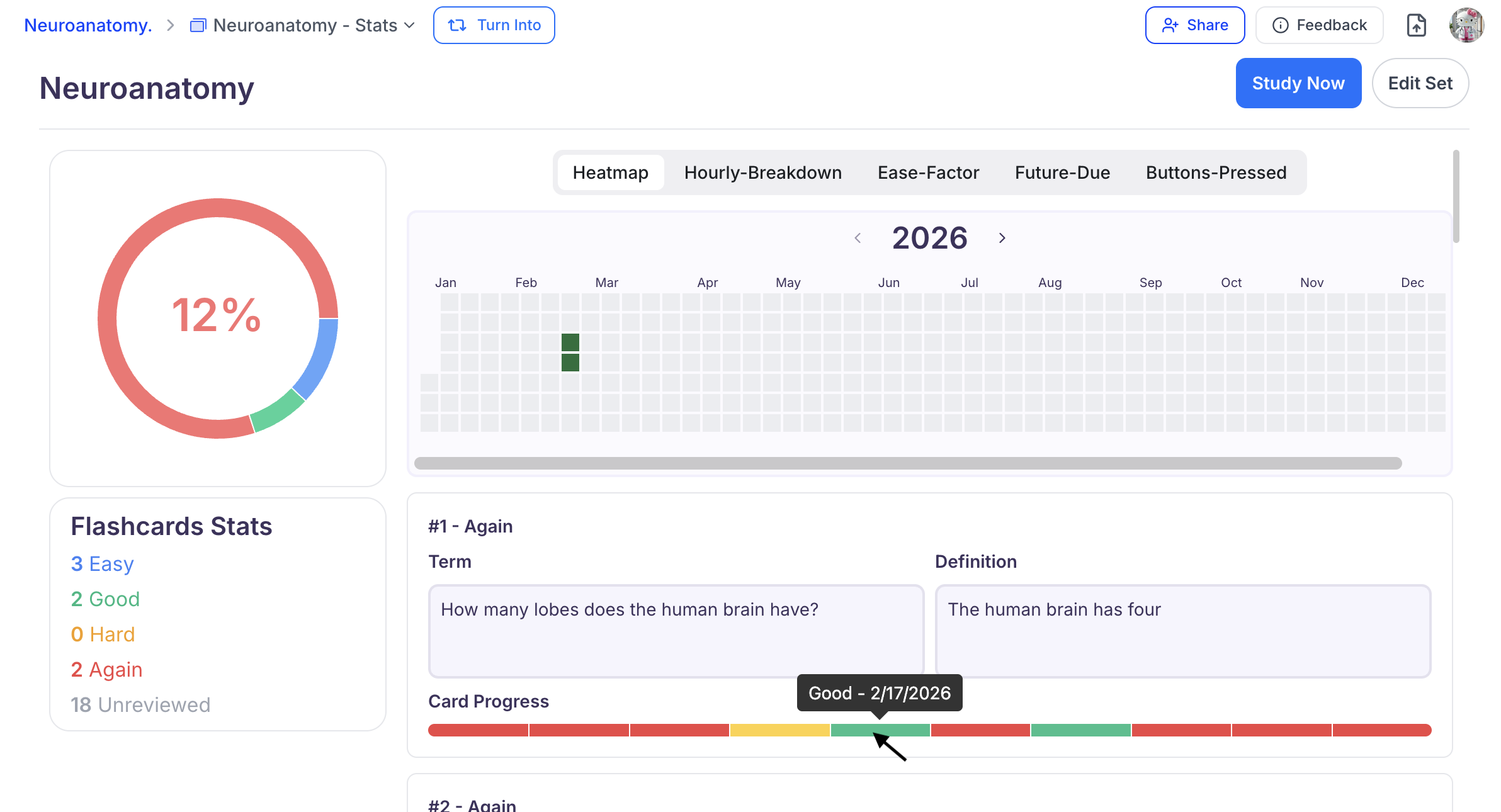 2. The **Heatmap** is a visual calendar that displays your flashcard study activity over time, helping you track consistency and review habits. Each square represents one day and shading indicates study activity:\
**Darker shading** = more reviews completed
**Lighter shading** = fewer reviews
**No Shading** = No study activity
2. The **Heatmap** is a visual calendar that displays your flashcard study activity over time, helping you track consistency and review habits. Each square represents one day and shading indicates study activity:\
**Darker shading** = more reviews completed
**Lighter shading** = fewer reviews
**No Shading** = No study activity
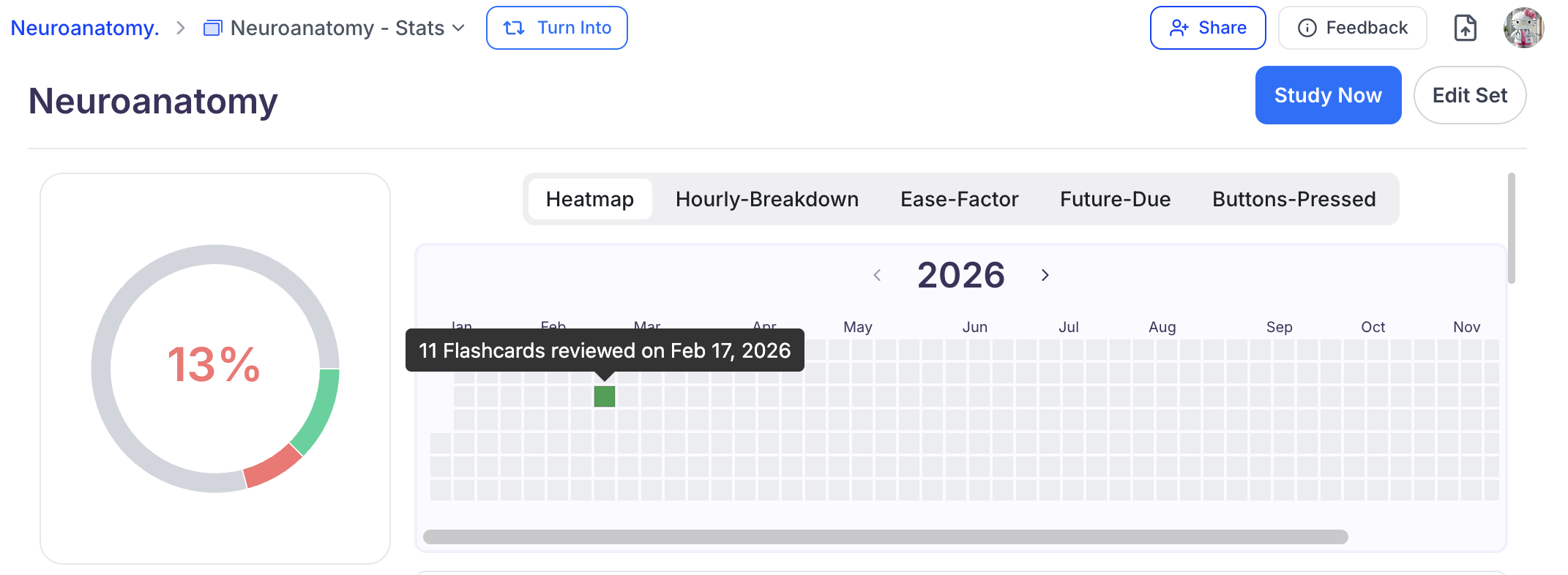 To view details about how many flashcards were reviewed on a specific day, hover over the corresponding square.
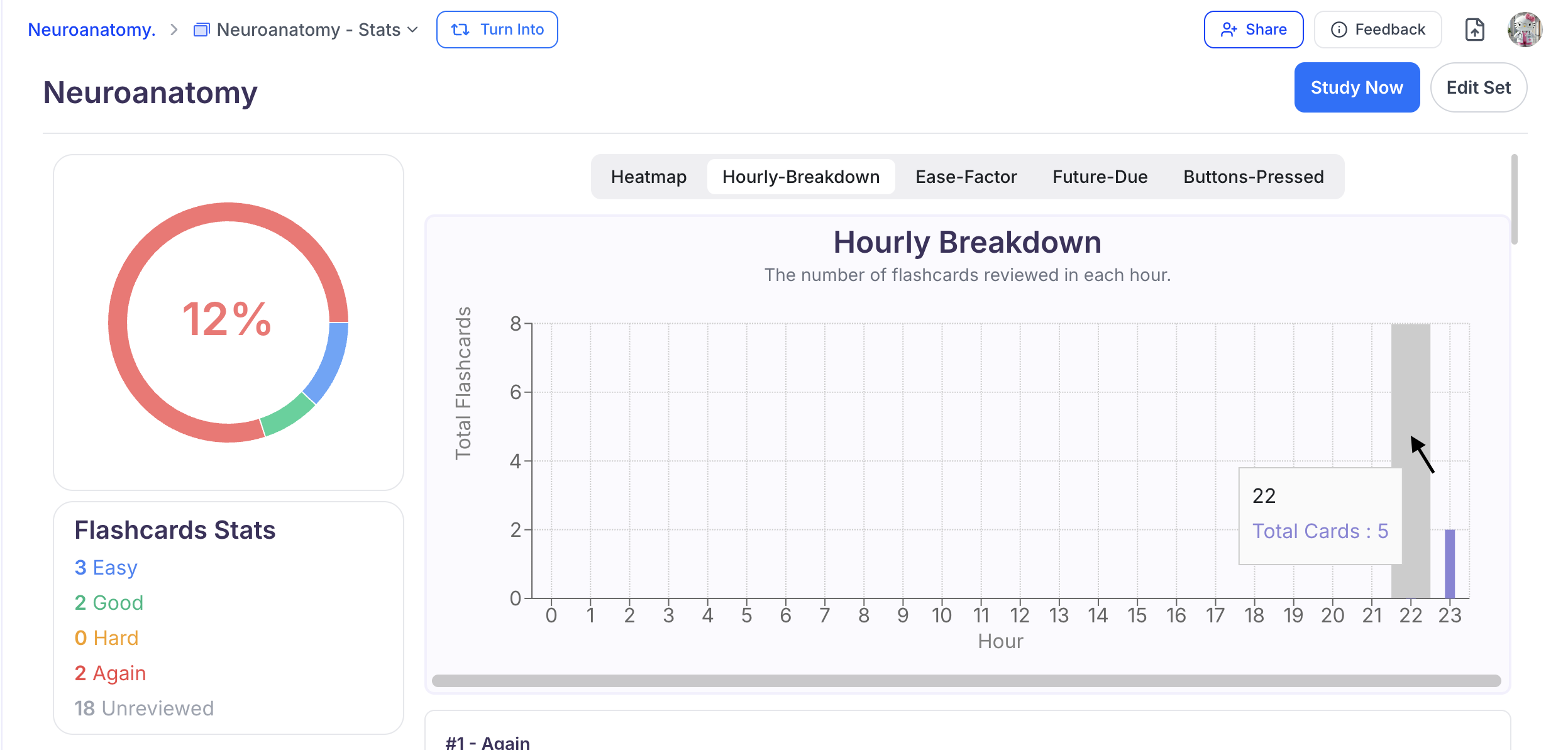
3. The **Hourly-Breakdown** graph shows the number of flashcards reviewed during each hour of the day.
To view specific details, hover over an hourly bar to see the total number of cards reviewed during that time.
To view details about how many flashcards were reviewed on a specific day, hover over the corresponding square.
3. The **Hourly-Breakdown** graph shows the number of flashcards reviewed during each hour of the day.
To view specific details, hover over an hourly bar to see the total number of cards reviewed during that time.
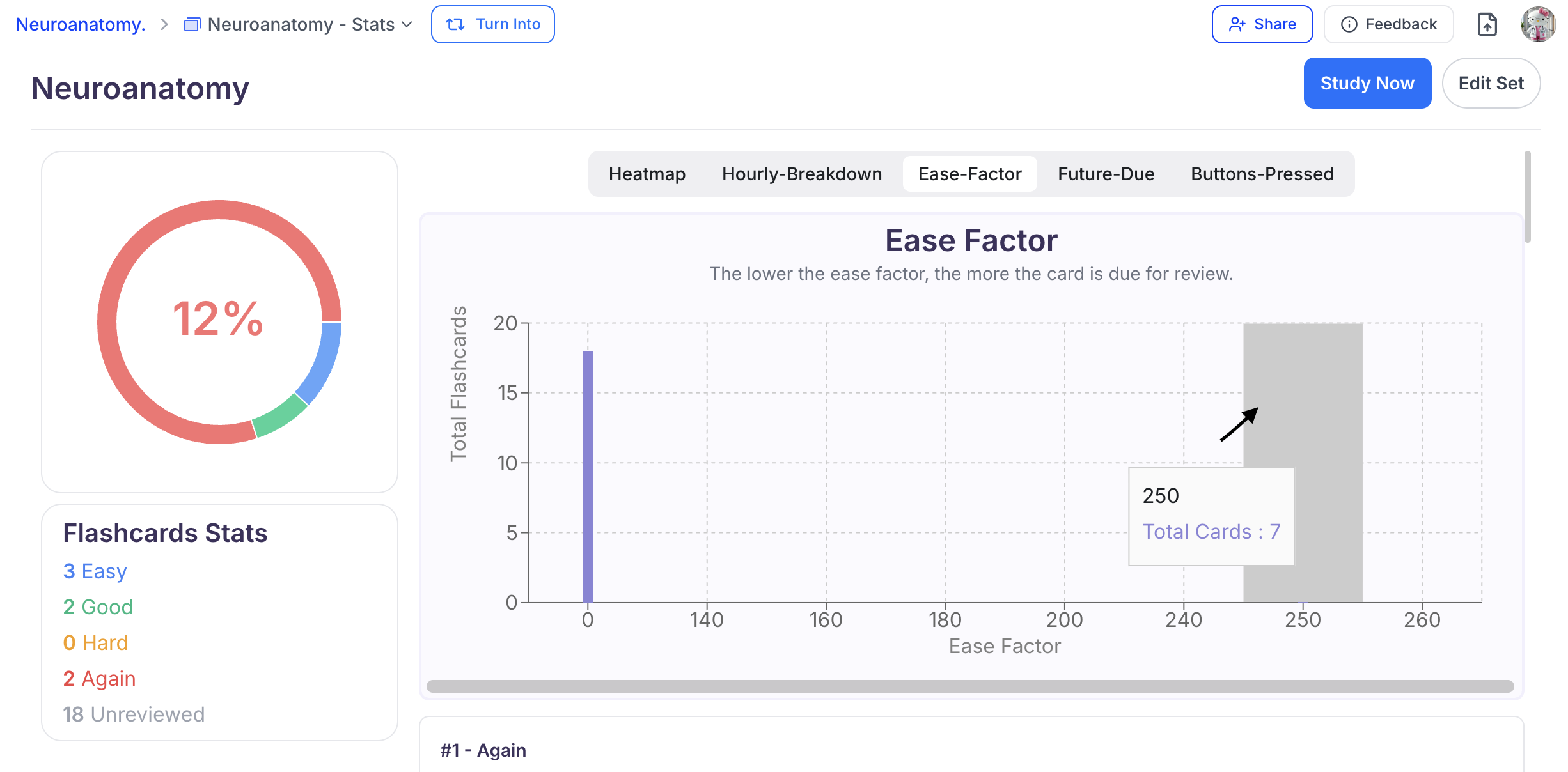
 4. The **Ease-Factor graph** shows how easy or difficult your flashcards are over time based on your performance and ratings during reviews.
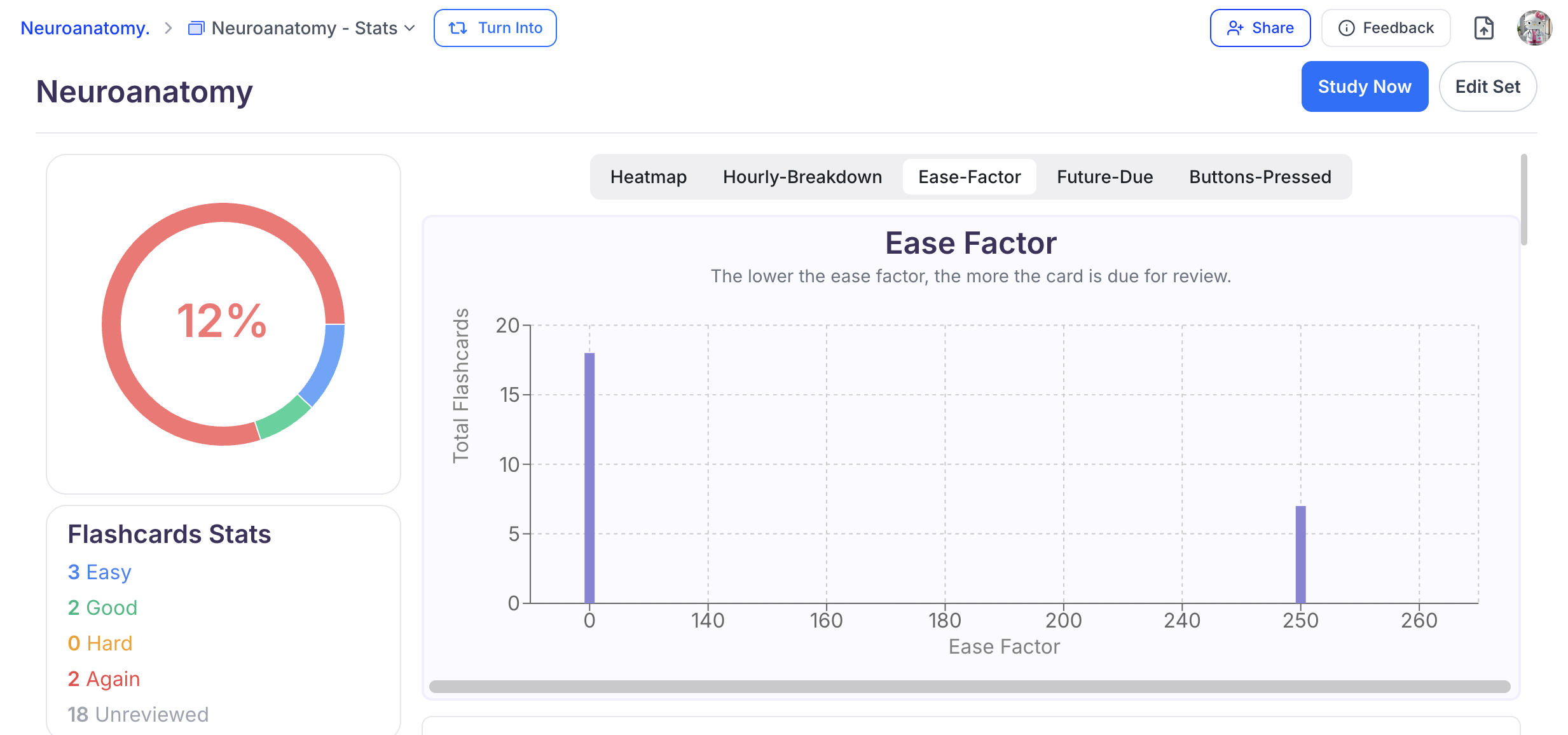 When you rate a flashcard as **easier**, its **ease factor increases**, meaning it will appear **less frequently** over time.
When you rate a card as **harder**, its **ease factor decreases**, causing it to appear **more** **often** until mastery improves.
Hover over the ease factor bar to view how many flashcards fall within each ease category.
When you rate a flashcard as **easier**, its **ease factor increases**, meaning it will appear **less frequently** over time.
When you rate a card as **harder**, its **ease factor decreases**, causing it to appear **more** **often** until mastery improves.
Hover over the ease factor bar to view how many flashcards fall within each ease category.
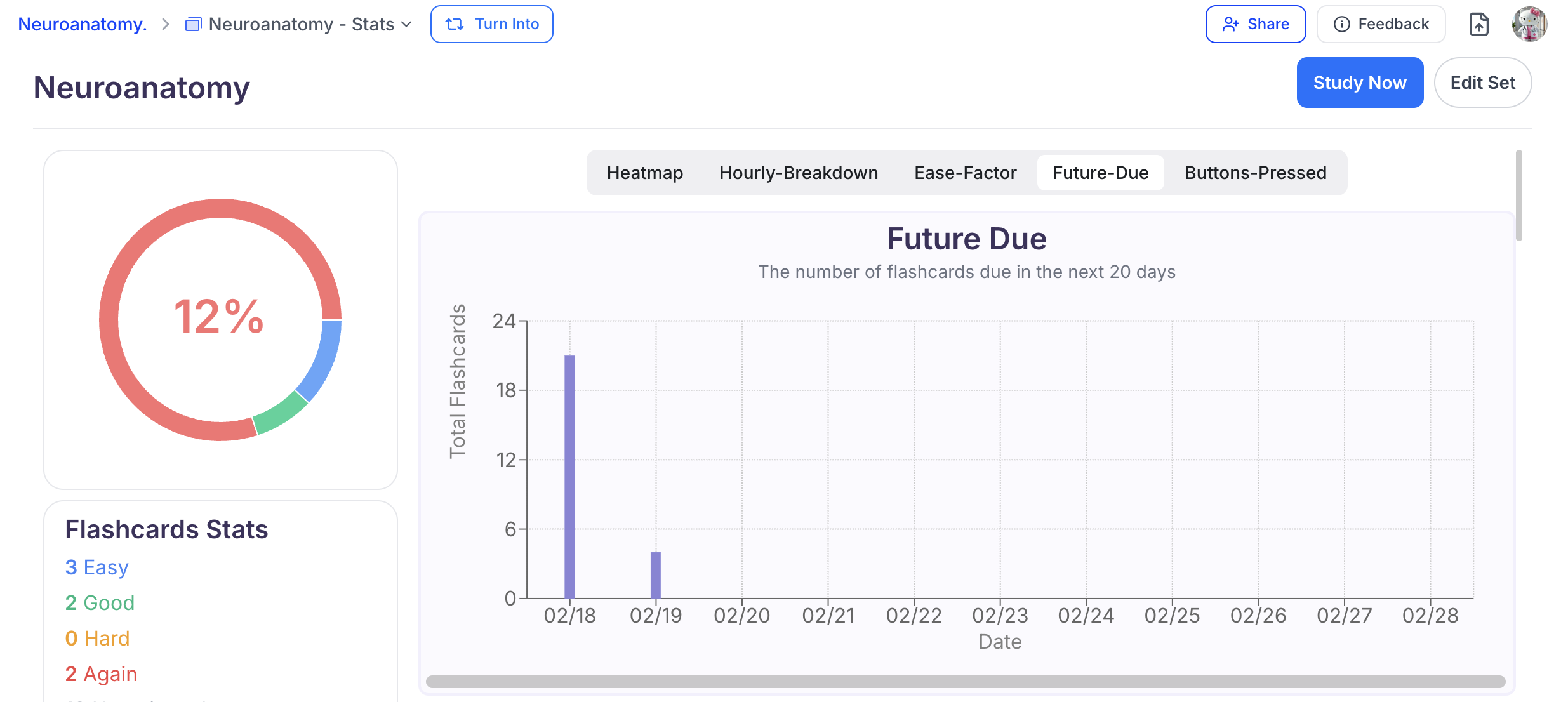
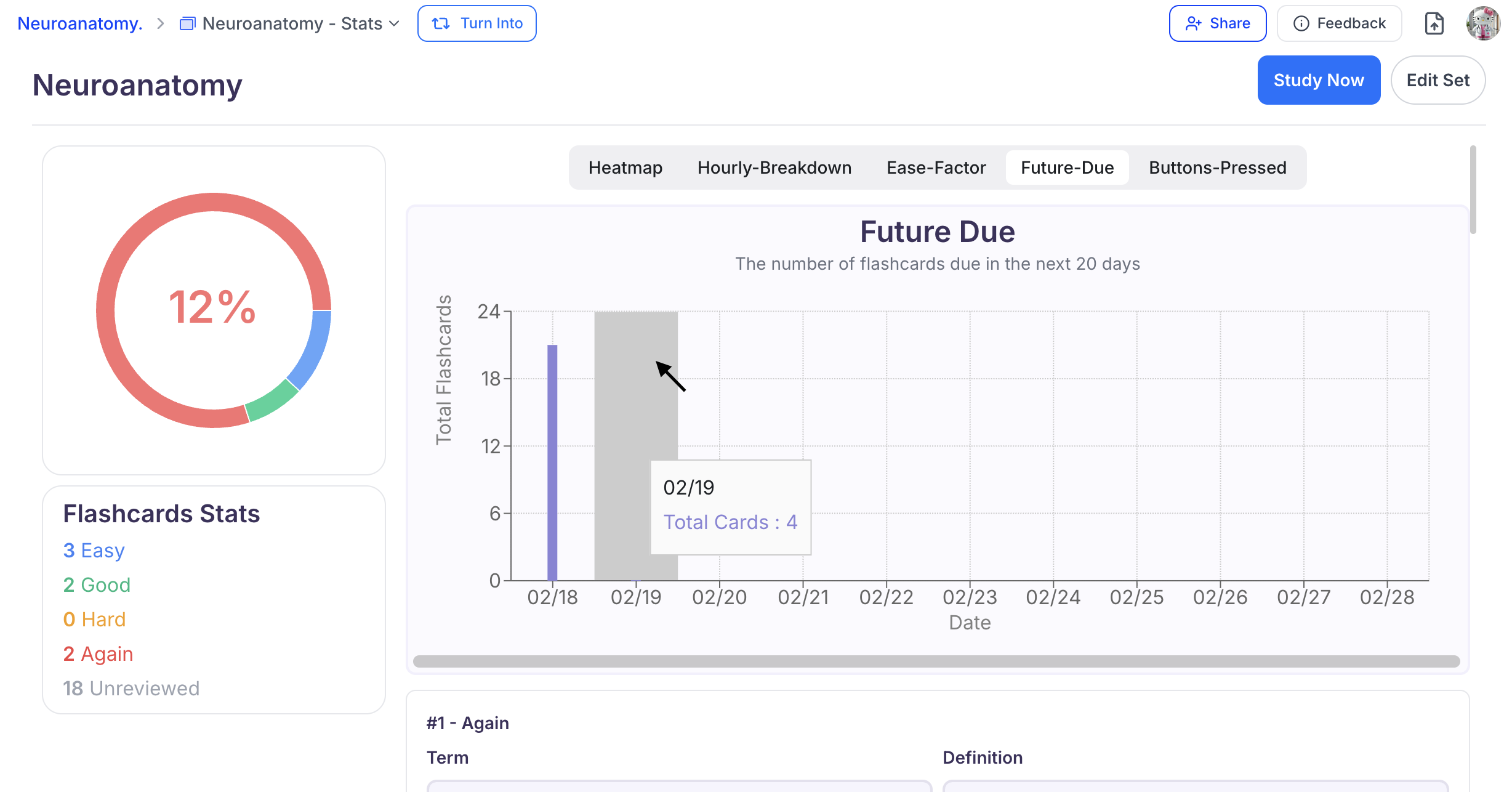
 5. The **Future-Due** graph shows how many flashcards are coming up for review over the next 20 days.
 Hover over a date to see the exact number due.
 6. The **Buttons-Pressed** graph shows the total number of times each ease button was selected.
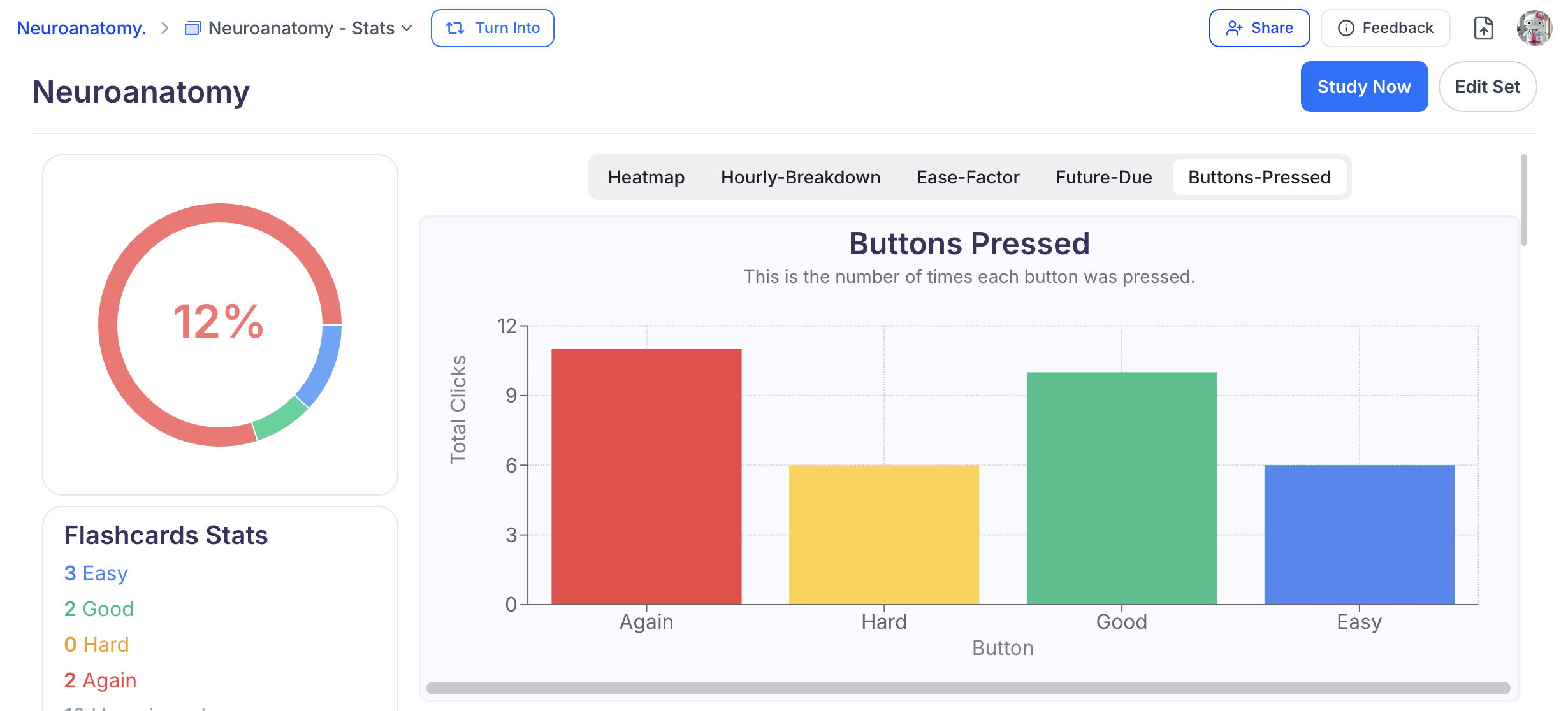 To view detailed counts, hover over the bar for the button you’re interested in.
 ### Sharing Your Flashcards
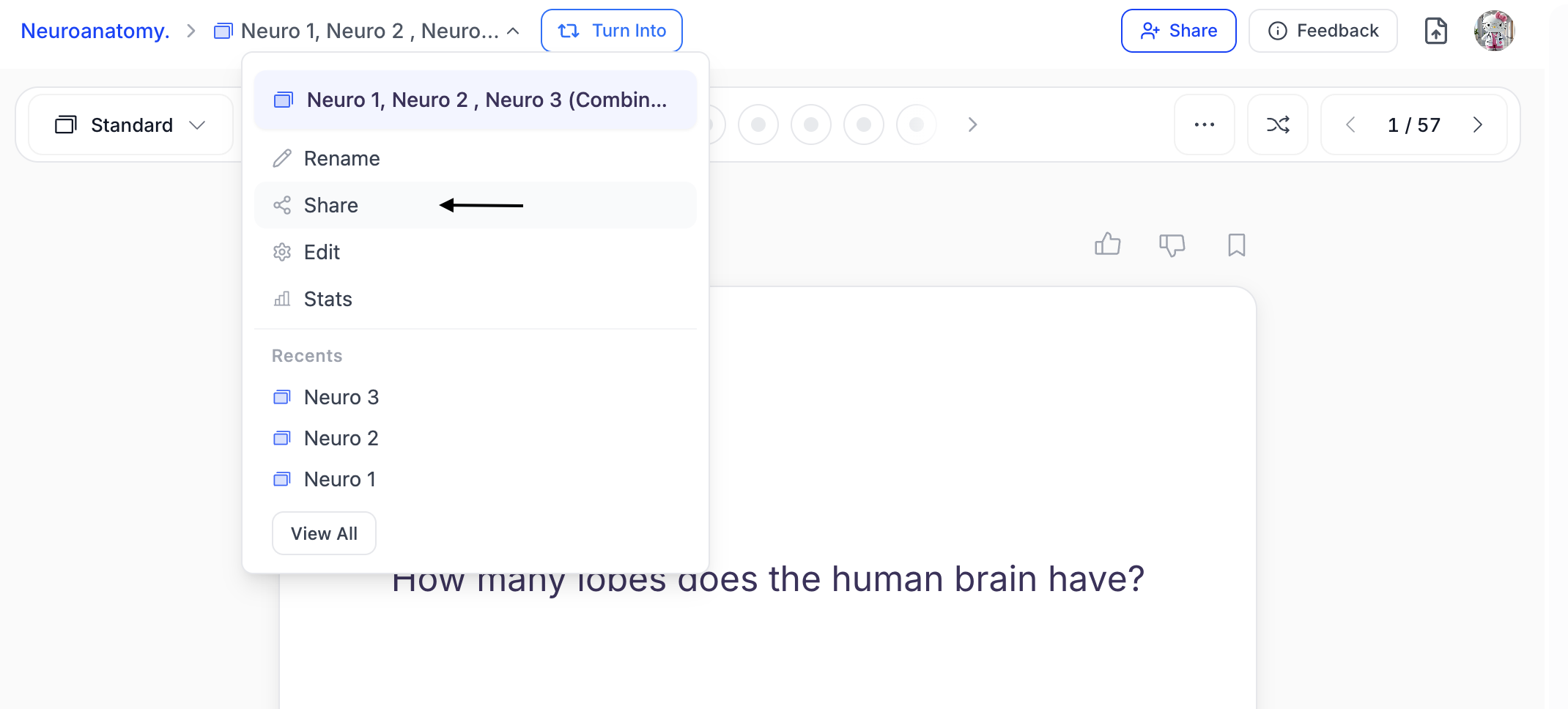
1. Click the **downward arrow** next to your flashcard set name, then select **Share**.
### Sharing Your Flashcards
1. Click the **downward arrow** next to your flashcard set name, then select **Share**.
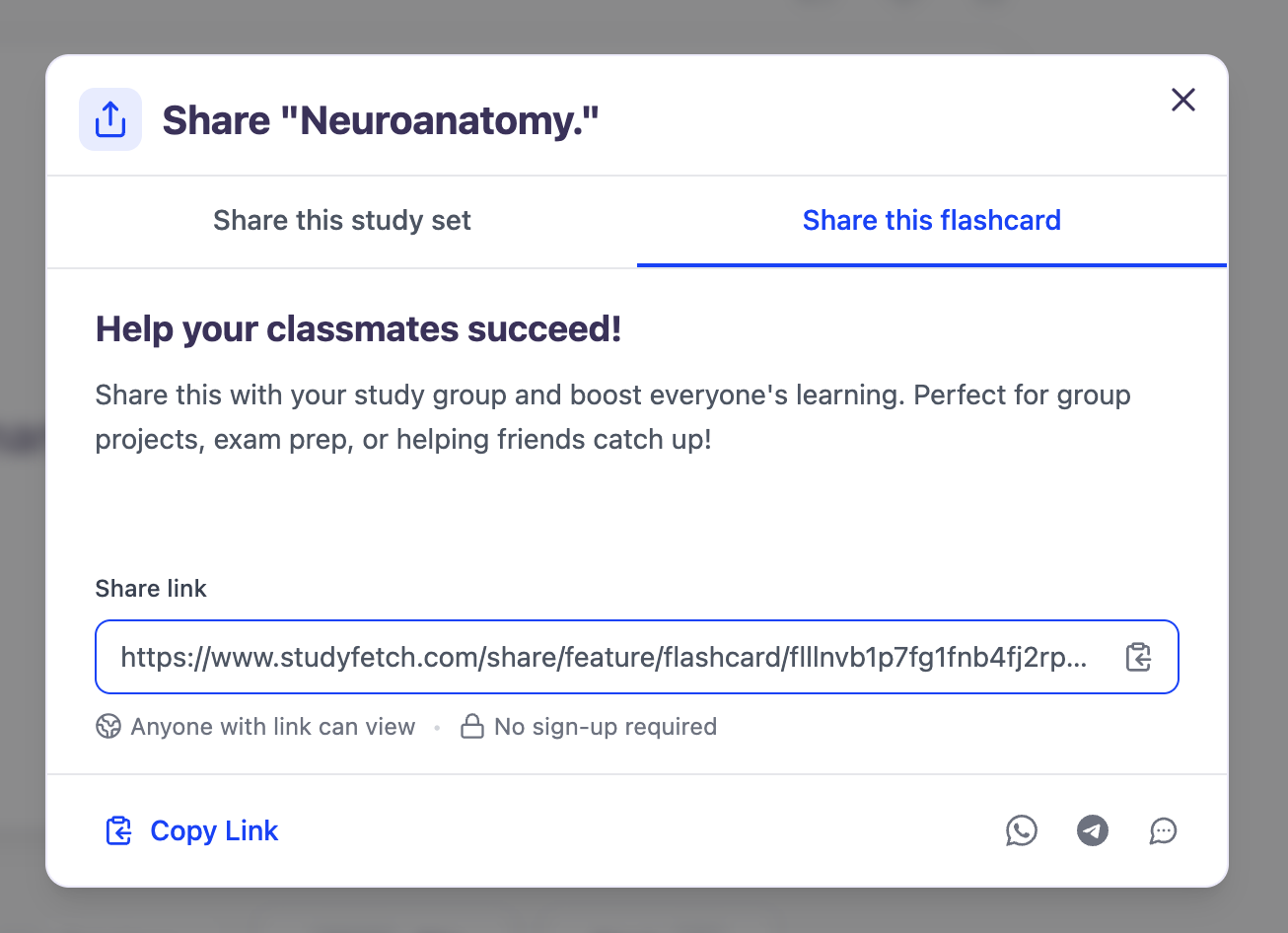
 2. Copy the link by clicking directly on the URL under **Share link**, or select **Copy Link** from the bottom left corner. You can now share the copied link.
 3. To share directly through supported apps:
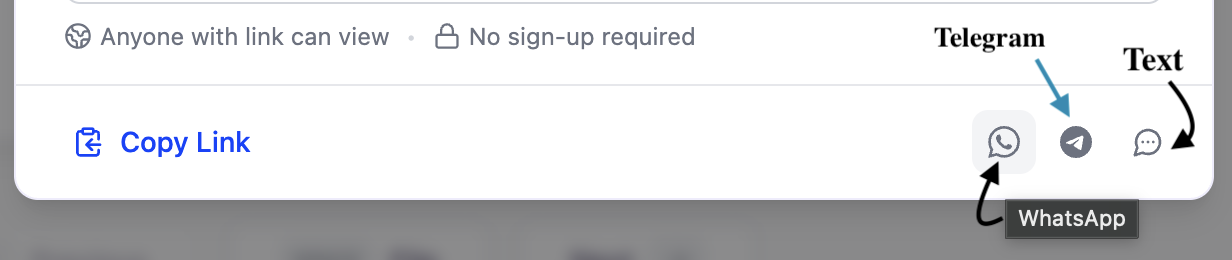 * Select the **WhatsApp** icon to share via WhatsApp.
* Select the **Telegram** icon to share via Telegram.
* Select the **Text** icon to share through your preferred messaging app.
## **Flashcard Study Tips**
Here are some effective ways to use your flashcards:
* **Spaced Repetition**: Review cards at increasing intervals to improve long-term retention
* **Active Recall**: Test yourself by viewing the term first, then attempt to recall the definition
* **Interleaving**: Mix up different types of content rather than focusing on one topic at a time
* **Customize Your Cards**: Add images, diagrams, or additional context to enhance your learning
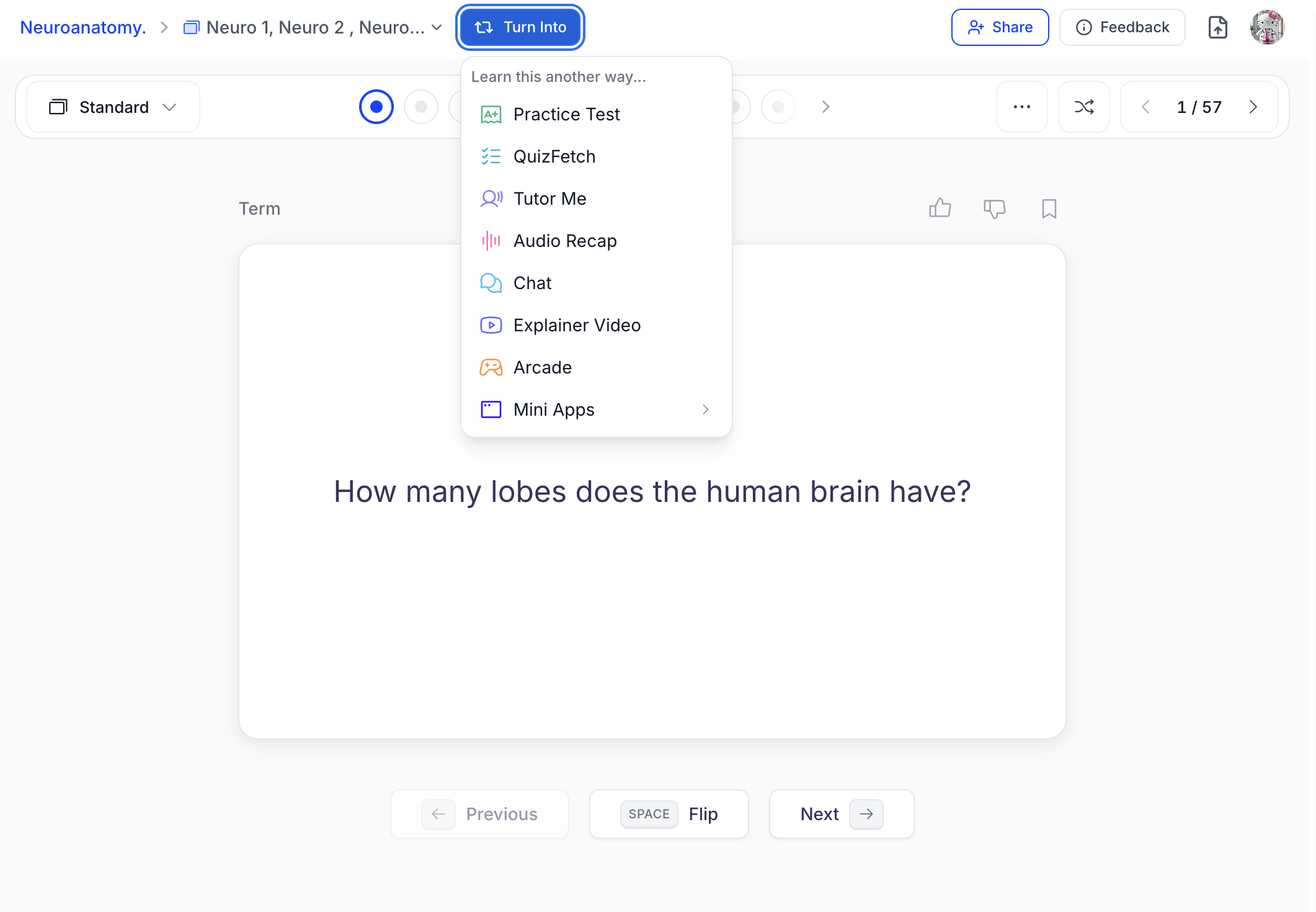
* **Integration with Other Tools**: Your flashcards can be used to generate practice tests, quizzes, and other study materials. You can generate study materials from within each feature section or directly from your flashcards by selecting **Turn Into** above the flashcard set and choosing your desired study tool
* Select the **WhatsApp** icon to share via WhatsApp.
* Select the **Telegram** icon to share via Telegram.
* Select the **Text** icon to share through your preferred messaging app.
## **Flashcard Study Tips**
Here are some effective ways to use your flashcards:
* **Spaced Repetition**: Review cards at increasing intervals to improve long-term retention
* **Active Recall**: Test yourself by viewing the term first, then attempt to recall the definition
* **Interleaving**: Mix up different types of content rather than focusing on one topic at a time
* **Customize Your Cards**: Add images, diagrams, or additional context to enhance your learning
* **Integration with Other Tools**: Your flashcards can be used to generate practice tests, quizzes, and other study materials. You can generate study materials from within each feature section or directly from your flashcards by selecting **Turn Into** above the flashcard set and choosing your desired study tool
 ## **Related Features**
Once you’ve created flashcards, you might want to:
* Take a [**practice test**](https://www.studyfetch.com/docs/tutorial-doc-format/test) to assess your knowledge
* Create [**notes**](https://www.studyfetch.com/docs/tutorial-doc-format/notes) for more comprehensive study materials
* Try [**QuizFetch**](https://www.studyfetch.com/docs/tutorial-doc-format/quizfetch) for a fun, interactive way to test your knowledge
## **Related Features**
Once you’ve created flashcards, you might want to:
* Take a [**practice test**](https://www.studyfetch.com/docs/tutorial-doc-format/test) to assess your knowledge
* Create [**notes**](https://www.studyfetch.com/docs/tutorial-doc-format/notes) for more comprehensive study materials
* Try [**QuizFetch**](https://www.studyfetch.com/docs/tutorial-doc-format/quizfetch) for a fun, interactive way to test your knowledge