> ## Documentation Index
> Fetch the complete documentation index at: https://www.studyfetch.com/docs/llms.txt
> Use this file to discover all available pages before exploring further.
# Live Lecture Tutorial
> Take notes and ask questions in real-time, without touching your computer!
## Introduction
Missed one sentence that your professor said during your lesson? With Live Lecture, you're covered! Automatically record and transcribe your live lectures, and have notes automatically taken in real time!
## Accessing Live Lecture
1. On the left-hand side of your Dashboard, click **Record Lecture**.
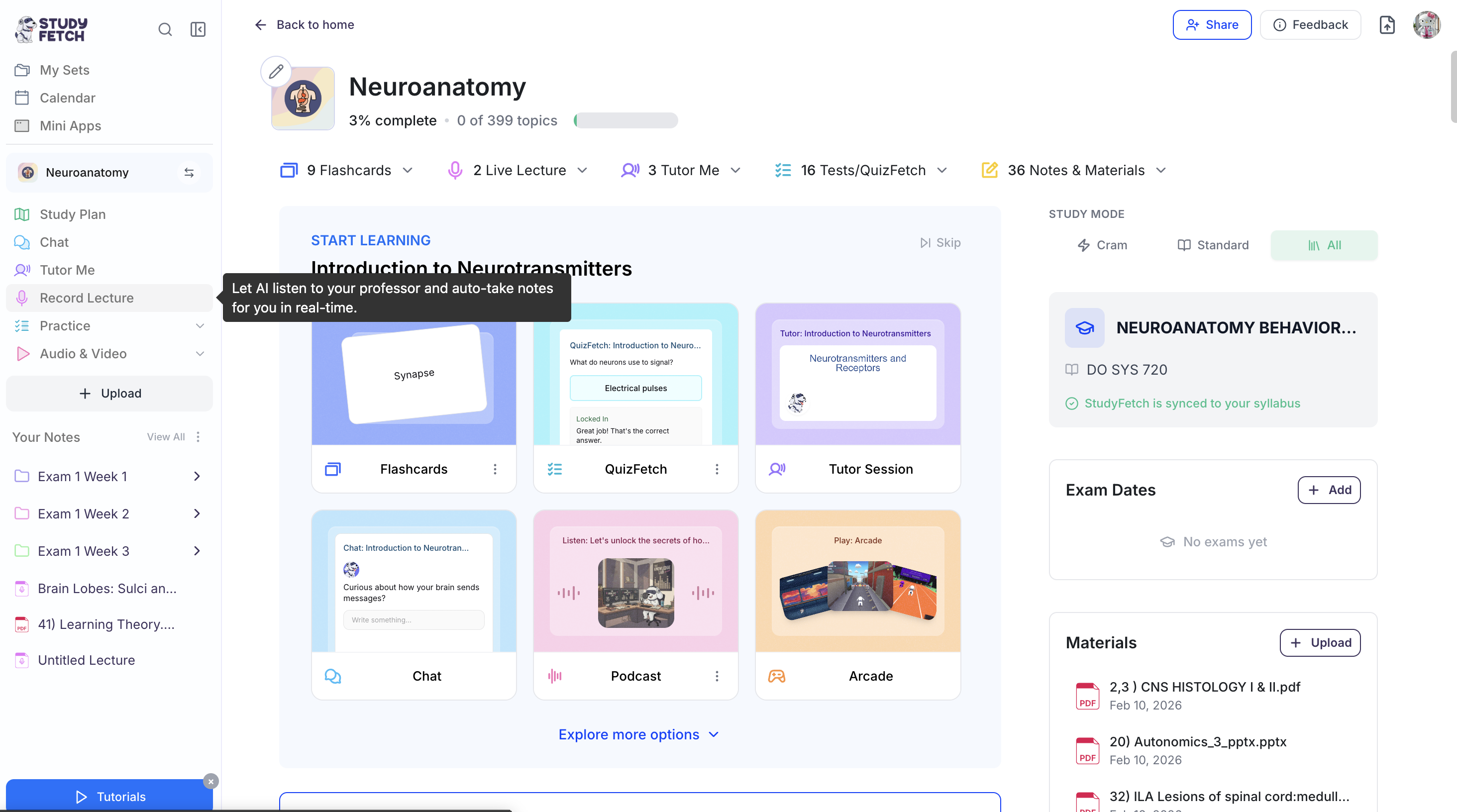 2. All existing Live Lecture sessions associated with your Study Set can be found on this page.
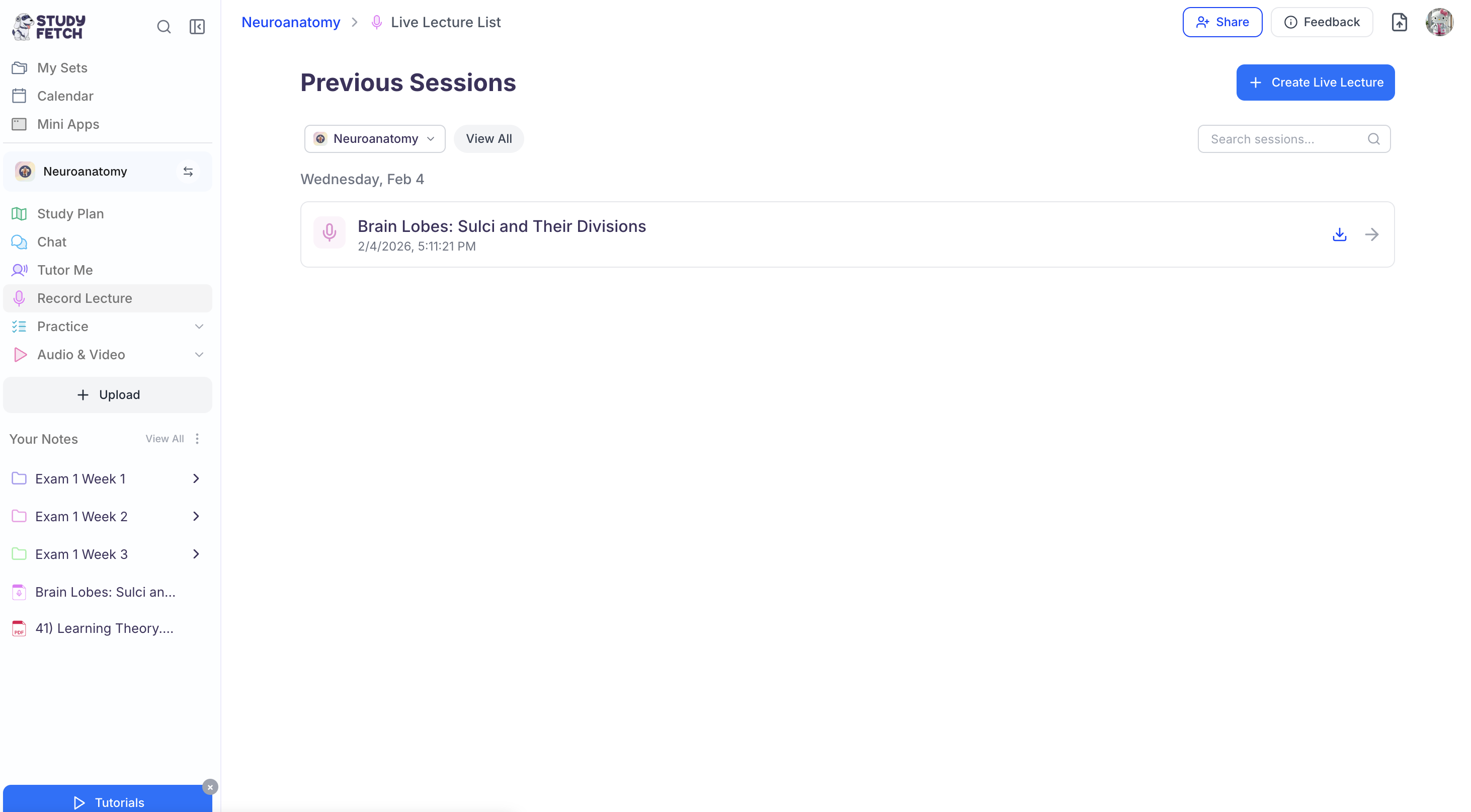 3. To open an existing Live Lecture session, simply **click on the name** of the desired Live Lecture session.
4. To record a new Live Lecture session, follow the steps outlined below.
## **Creating a Live Lecture** **Session**
### Step 1: Create a New Live Lecture
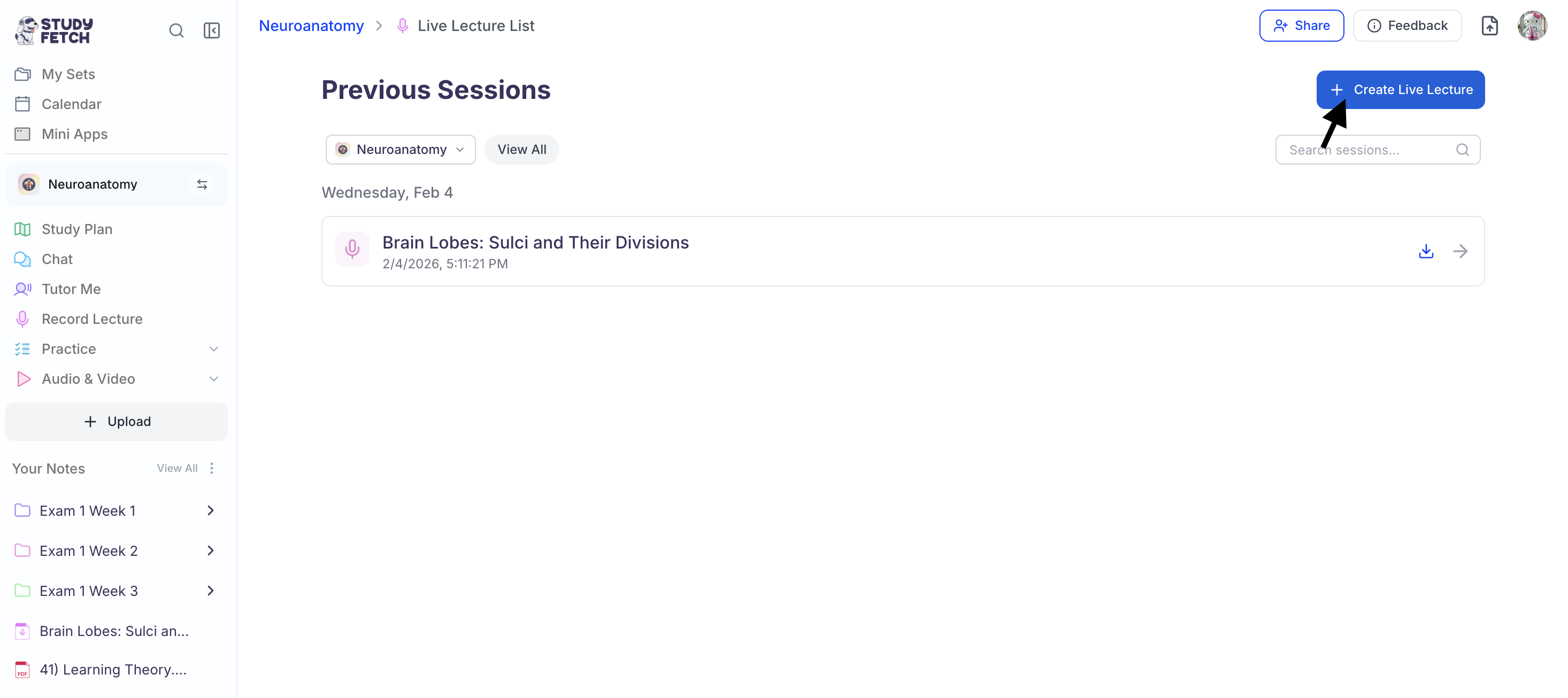
1. After navigating to the **Live Lecture** feature page, select **+ Create Live Lecture** from the top right.
3. To open an existing Live Lecture session, simply **click on the name** of the desired Live Lecture session.
4. To record a new Live Lecture session, follow the steps outlined below.
## **Creating a Live Lecture** **Session**
### Step 1: Create a New Live Lecture
1. After navigating to the **Live Lecture** feature page, select **+ Create Live Lecture** from the top right.
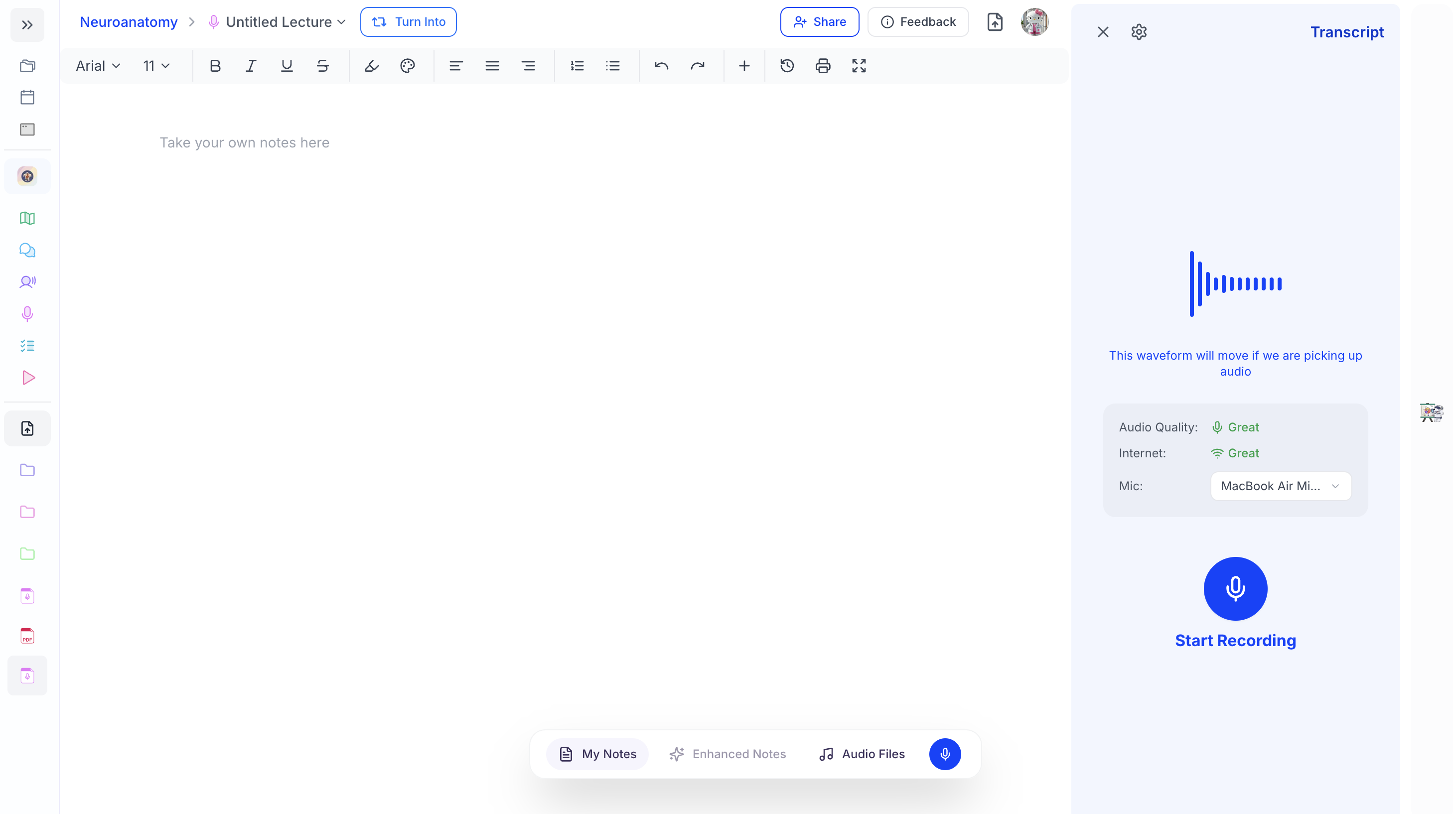
 2. A **New Live Lecture Session** will appear on your screen.
 ### Step 2: Start Recording
1. To allow the AI to begin listening to your lecture and taking notes, click the **Start Recording** button.
### Step 2: Start Recording
1. To allow the AI to begin listening to your lecture and taking notes, click the **Start Recording** button.
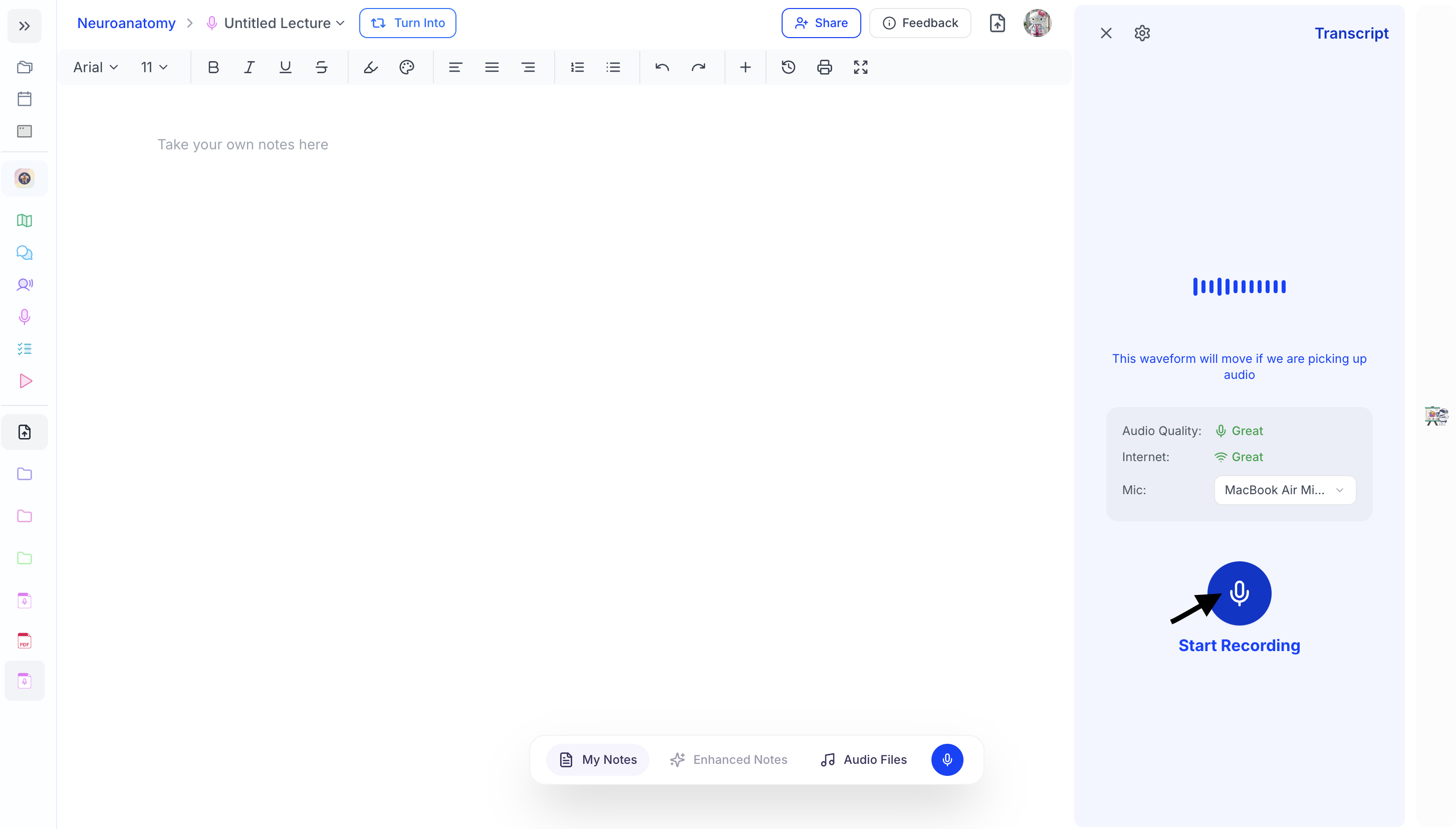 2. Before recording begins, ensure that all participants have consented to being recorded. Once you have received consent from everyone present, click **Yes, Record Now** to begin recording.
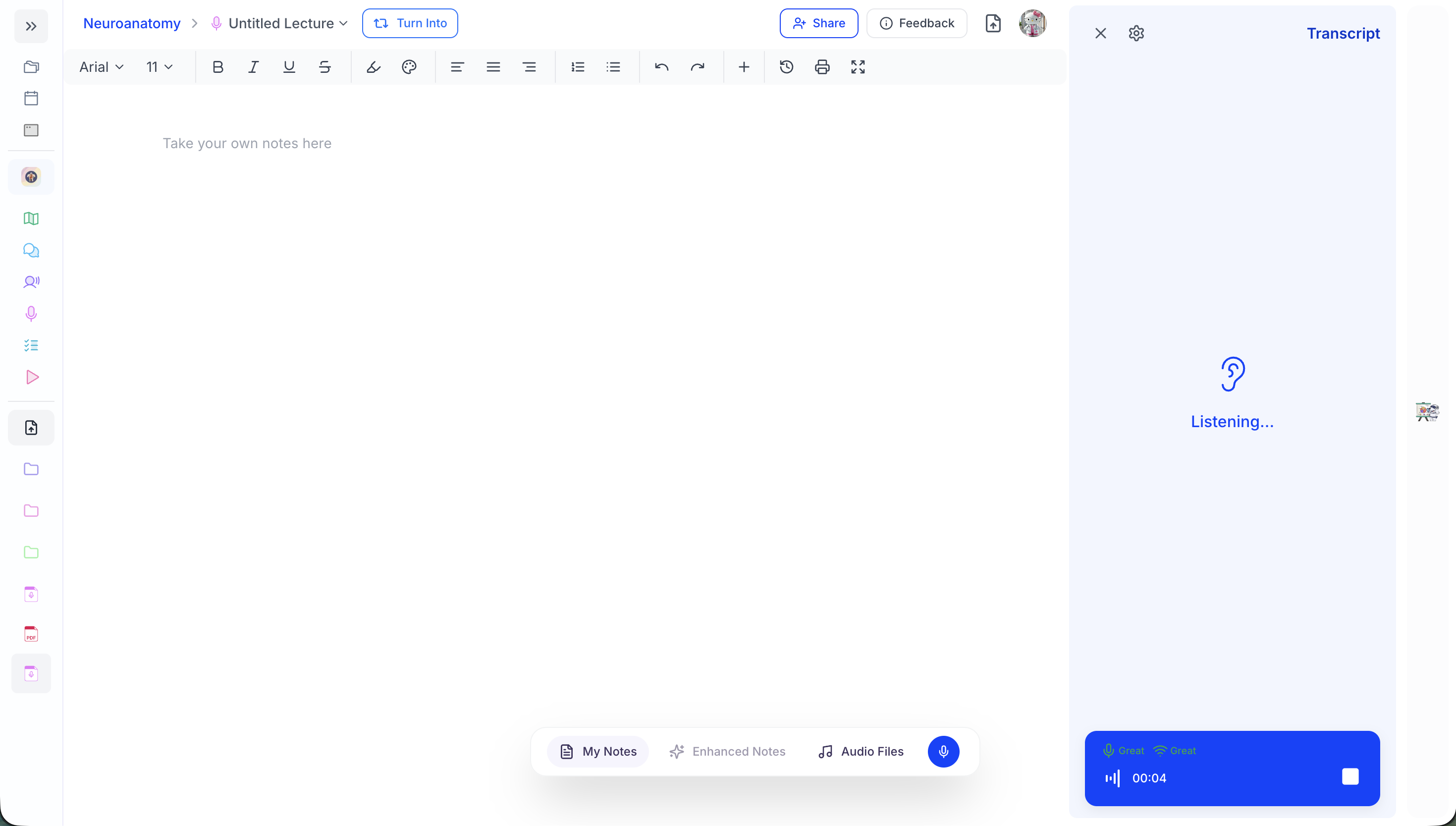
 3. Spark.E will immediately begin listening to your lecture and taking notes on all of the information discussed. At the same time, it will record the lecture audio and generate a transcript of the session.
 ## Navigating Your Live Lecture Session
### Taking Manual Notes During Live Lecture
During your Live Lecture session, Spark.E automatically listens to your lecturer and takes notes for you in real time, allowing you to stay focused on the lecture without needing to type.
However, if you prefer to take notes manually or want to quickly jot something down, you can still add your own notes during the session.
* When a Live Lecture session is created, you are immediately brought to the Live Lecture screen.
## Navigating Your Live Lecture Session
### Taking Manual Notes During Live Lecture
During your Live Lecture session, Spark.E automatically listens to your lecturer and takes notes for you in real time, allowing you to stay focused on the lecture without needing to type.
However, if you prefer to take notes manually or want to quickly jot something down, you can still add your own notes during the session.
* When a Live Lecture session is created, you are immediately brought to the Live Lecture screen.
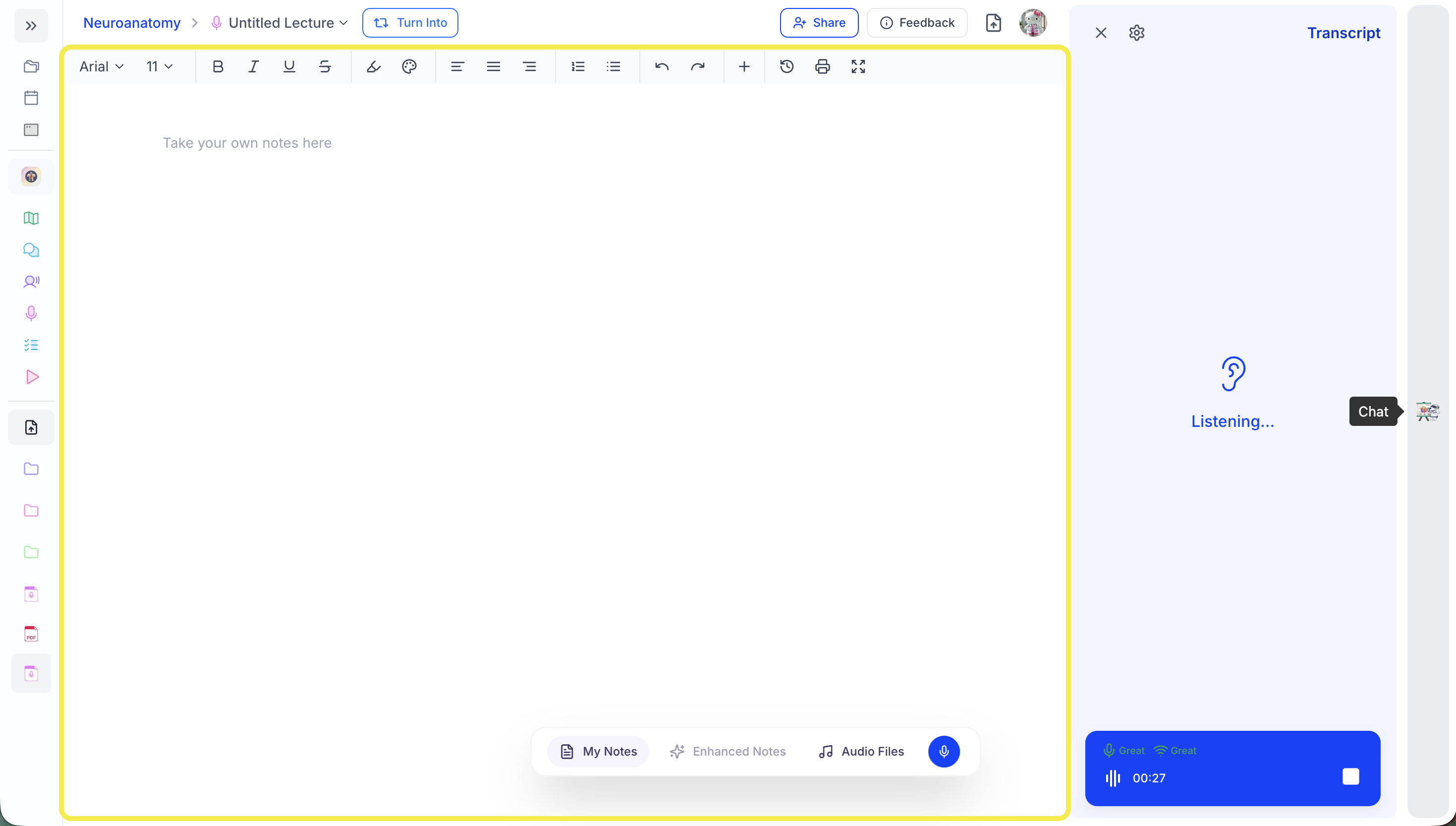 * The main note editor displayed on the left side of the screen and highlighted in yellow in the reference image above, is your **My Notes** workspace, where you can type and organize your own notes while the lecture is in progress.
* To begin taking notes, simply click anywhere inside the blank note area that says **“Take your own notes here”** and start typing.
* The main note editor displayed on the left side of the screen and highlighted in yellow in the reference image above, is your **My Notes** workspace, where you can type and organize your own notes while the lecture is in progress.
* To begin taking notes, simply click anywhere inside the blank note area that says **“Take your own notes here”** and start typing.
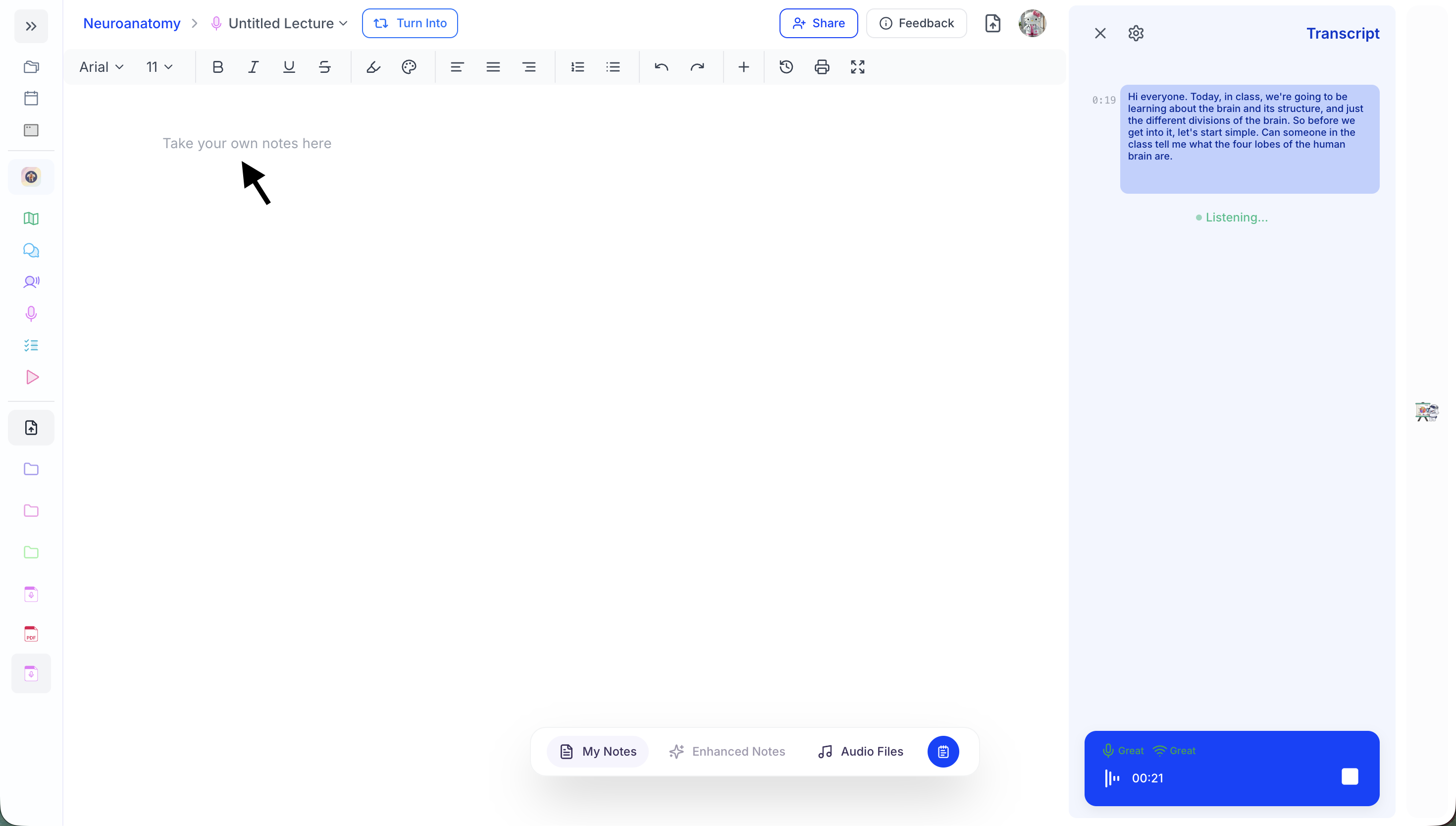 You can type and organize your own notes here while the lecture is in progress.
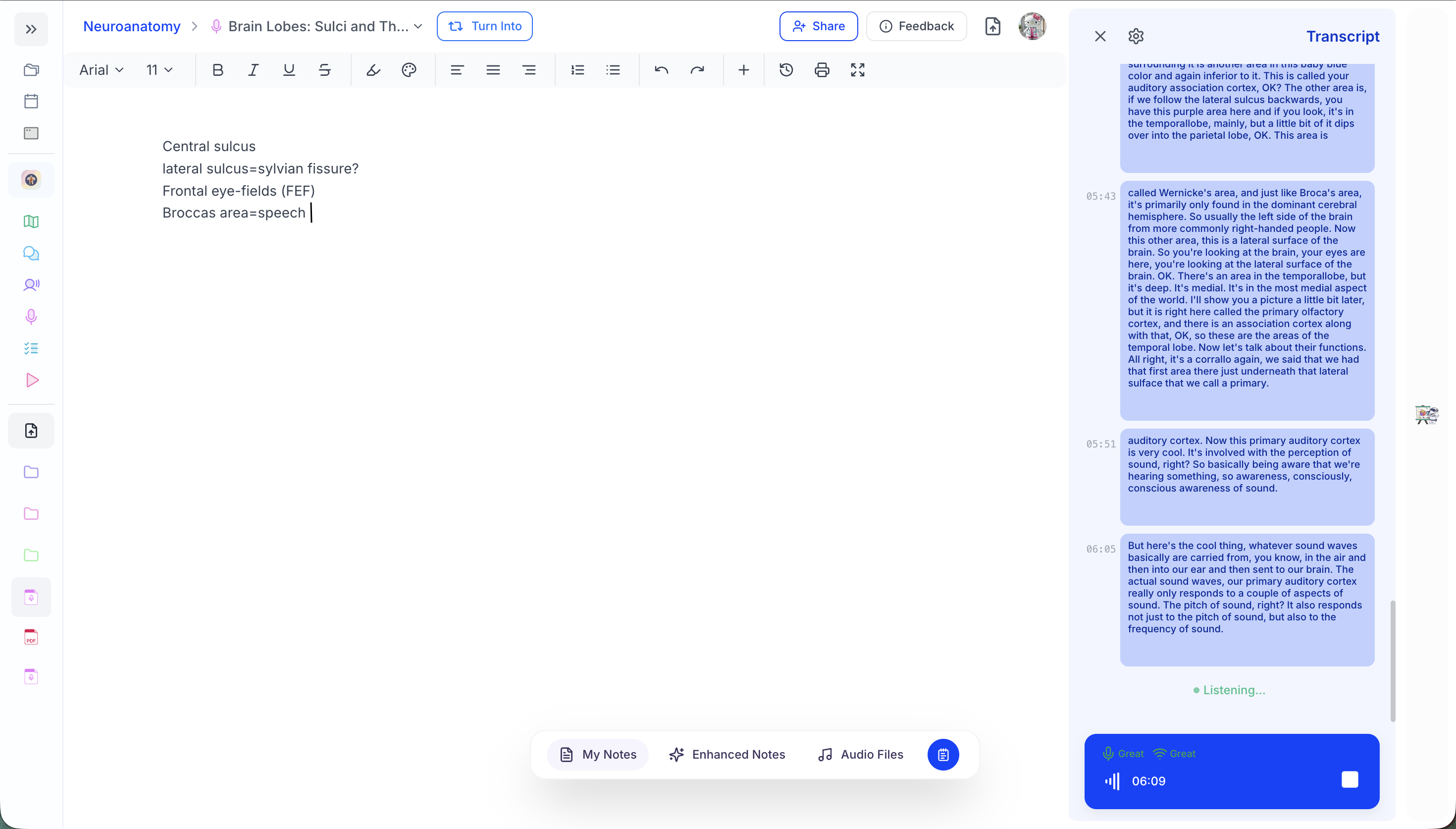 * If you switch to other views such as **Enhanced Notes** or **Audio Files**, you can return to your manual notes at any time by clicking the **My Notes** tab, located in the bottom toolbar.
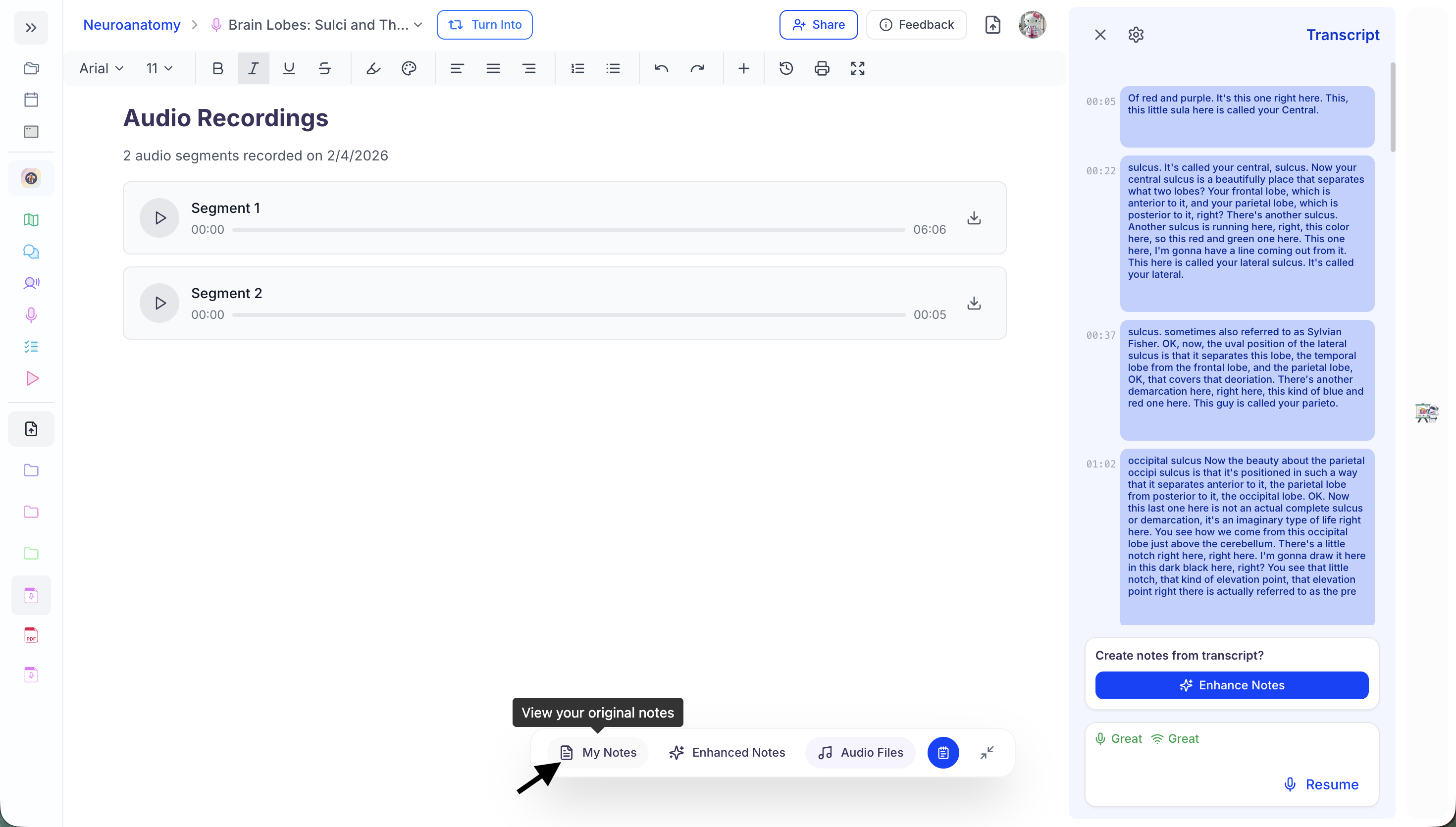 * As you type in the My Notes editor, our AI technology analyzes both the notes you write and the exact moment in the recording when the note was created. Using this context, Spark.E later enhances your notes by expanding on key ideas, clarifying concepts discussed by your lecturer, and filling in any missing information to ensure your notes are as complete and accurate as possible.
### Getting Help from Spark.E
One of the most powerful features of Live Lecture is the ability to ask **Spark.E** questions in real time while your lecture is happening. If something is unclear, confusing, or you want further explanation on a concept being discussed, you can ask Spark.E instantly without interrupting the lecturer.
This allows you to clarify difficult topics as they come up, helping improve understanding and retention while the material is still fresh.
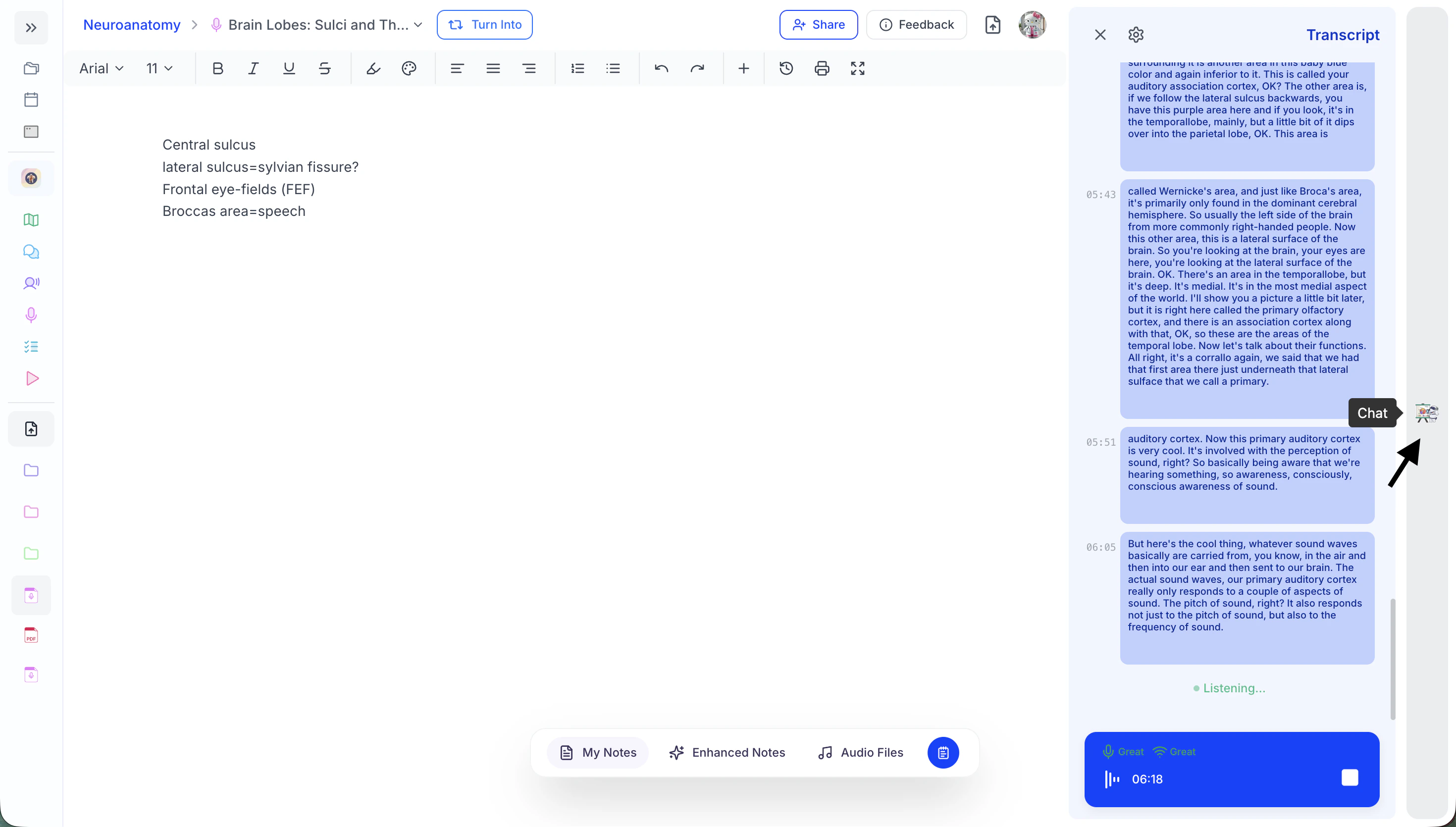
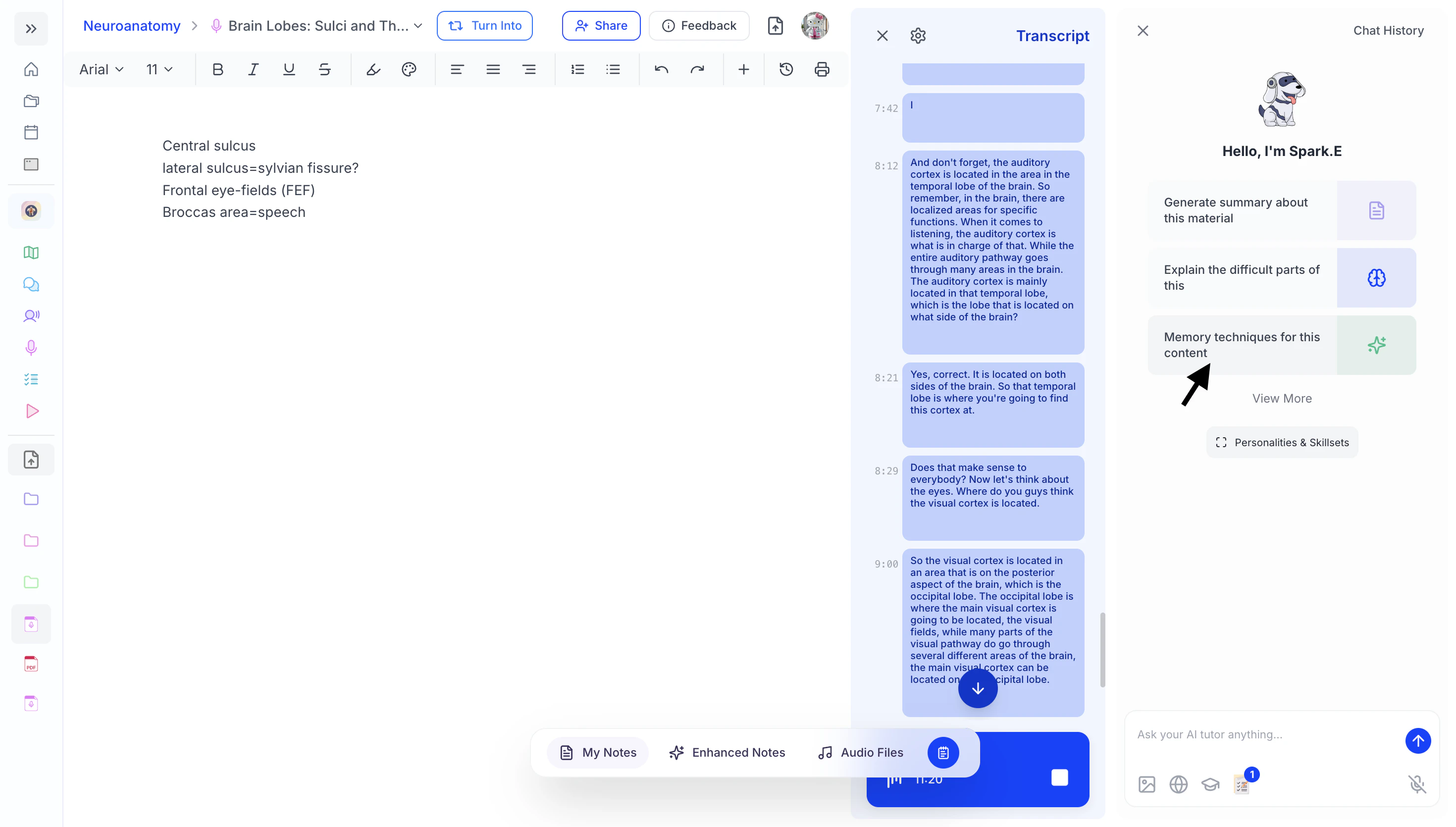
* To get real-time support from your AI tutor Spark.E, open the **Spark.E Chat** by clicking the **Chat icon** on the far right side of the screen.
* As you type in the My Notes editor, our AI technology analyzes both the notes you write and the exact moment in the recording when the note was created. Using this context, Spark.E later enhances your notes by expanding on key ideas, clarifying concepts discussed by your lecturer, and filling in any missing information to ensure your notes are as complete and accurate as possible.
### Getting Help from Spark.E
One of the most powerful features of Live Lecture is the ability to ask **Spark.E** questions in real time while your lecture is happening. If something is unclear, confusing, or you want further explanation on a concept being discussed, you can ask Spark.E instantly without interrupting the lecturer.
This allows you to clarify difficult topics as they come up, helping improve understanding and retention while the material is still fresh.
* To get real-time support from your AI tutor Spark.E, open the **Spark.E Chat** by clicking the **Chat icon** on the far right side of the screen.
 * Once the chat panel opens, click the message field that says **“Ask your AI tutor anything…”** and type your question directly into the chat box, then press **Enter** to send your message.
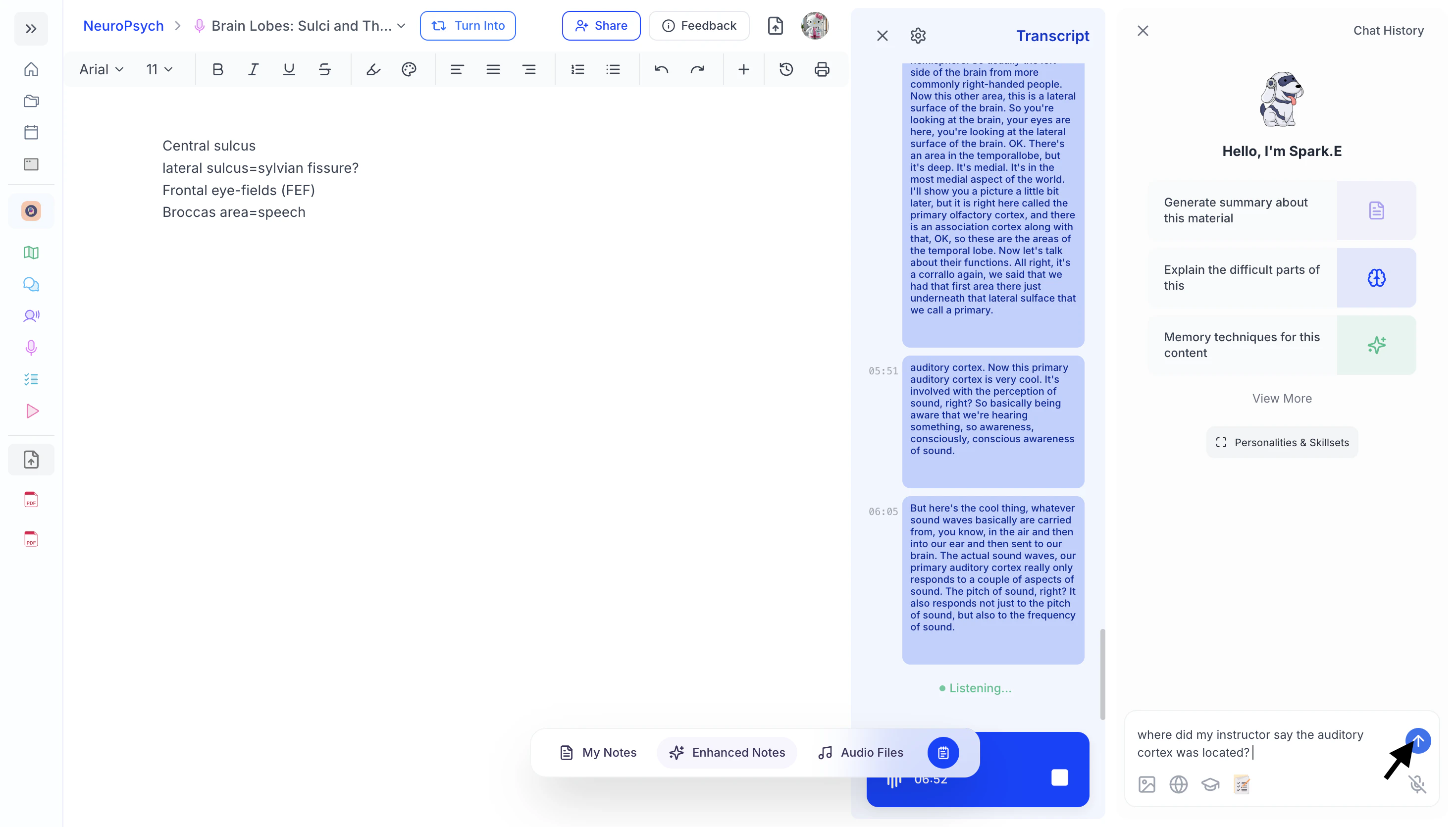 * Or, if you’re not sure what to ask, you can also select from the **suggested prompts** listed under **“Hello, I’m Spark.E.”** These prompts provide quick ways to request explanations, summaries, or clarification about the lecture.
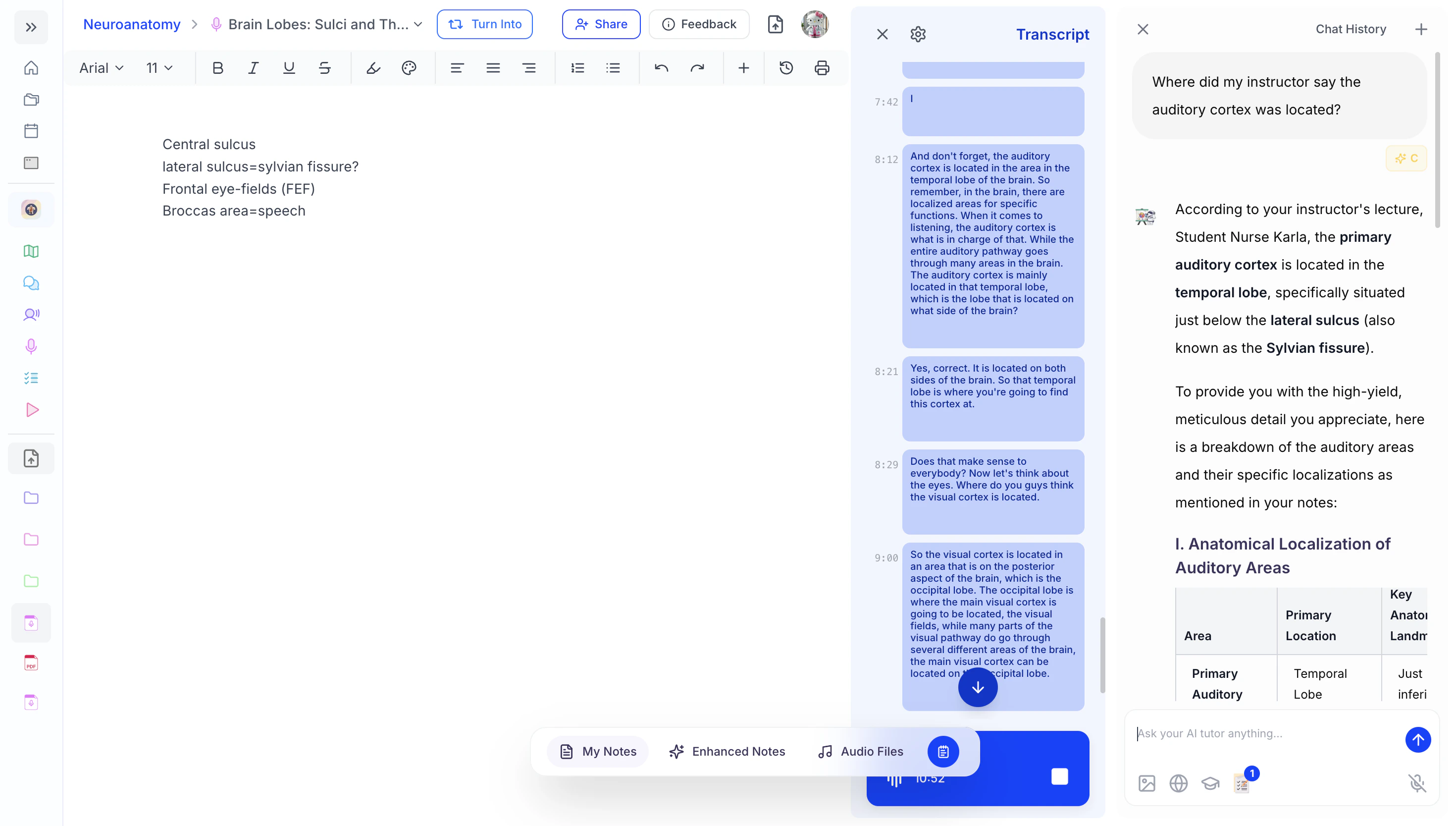
 * Spark.E will immediately respond with a detailed explanation tailored to the material being discussed and your learning context, allowing you to get help instantly without needing to interrupt the lecture or wait to ask your professor later.
 ### Pausing and Ending Your Session
* If you need to pause or end your live lecture recording at any time, click the **square stop button** next to the recording timer.
### Pausing and Ending Your Session
* If you need to pause or end your live lecture recording at any time, click the **square stop button** next to the recording timer.
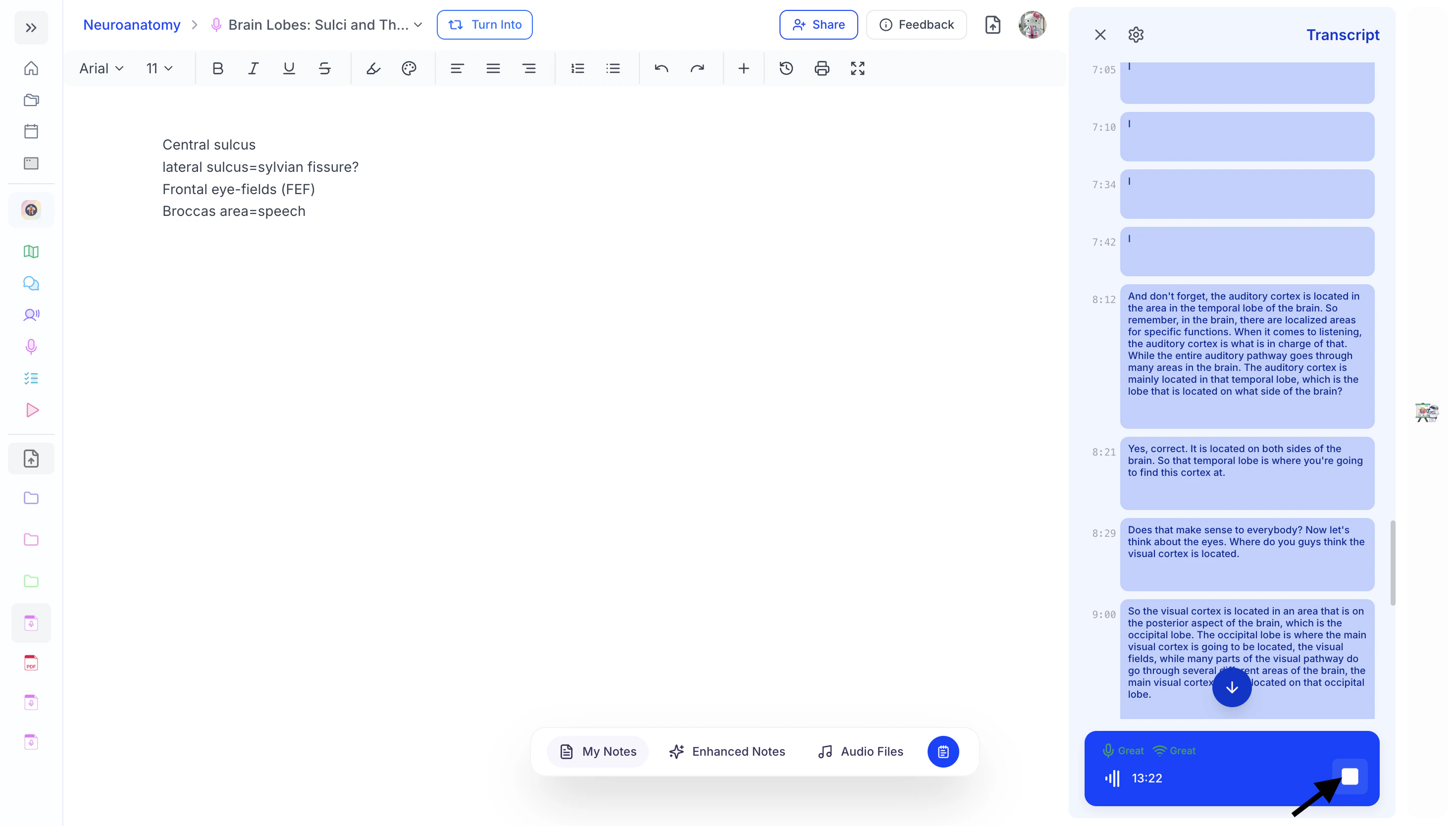 * This will stop the recording and save your progress, so you can safely leave the page.
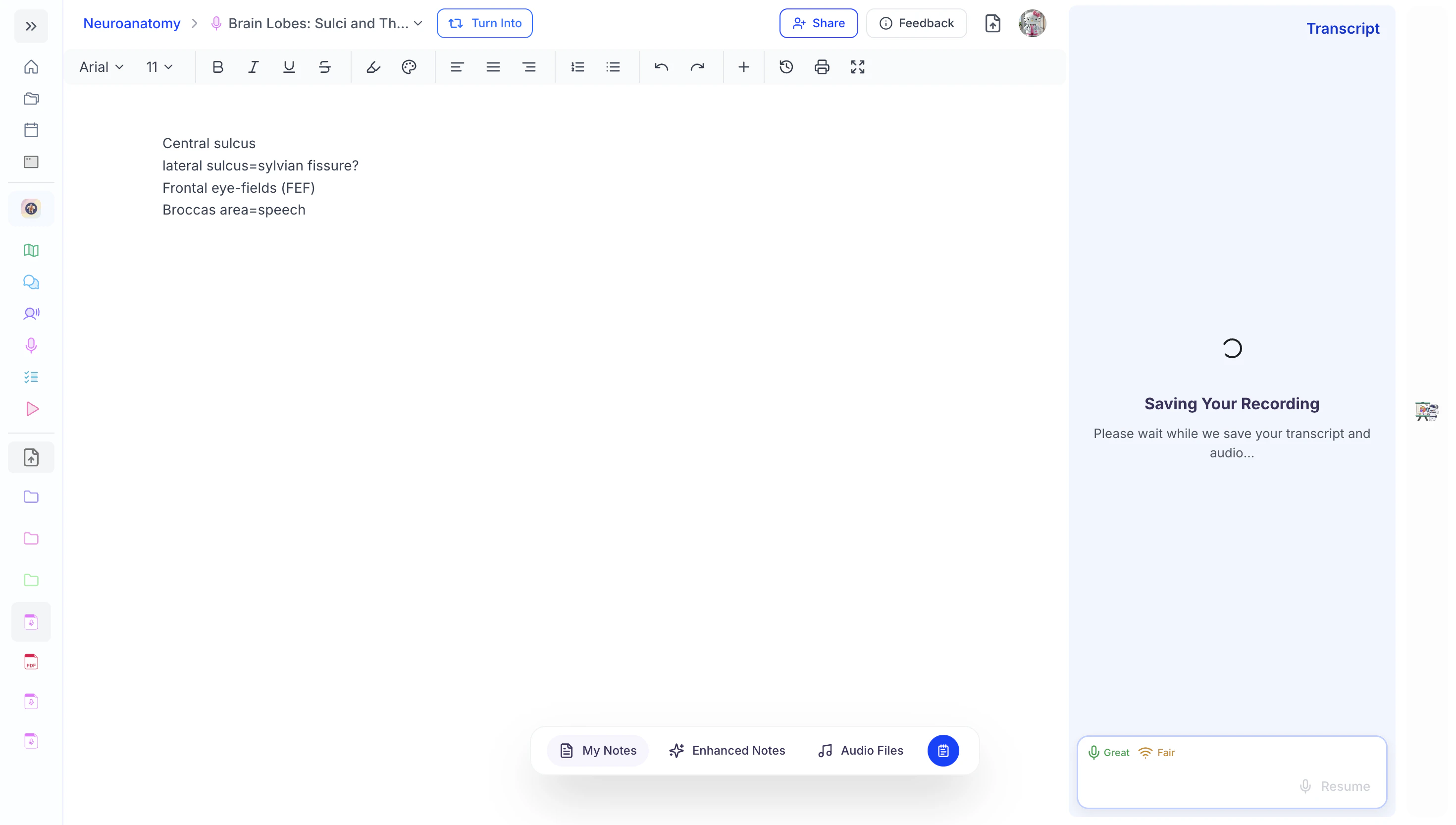 * If you’re completely finished, no further action is needed—your recording has already been saved.
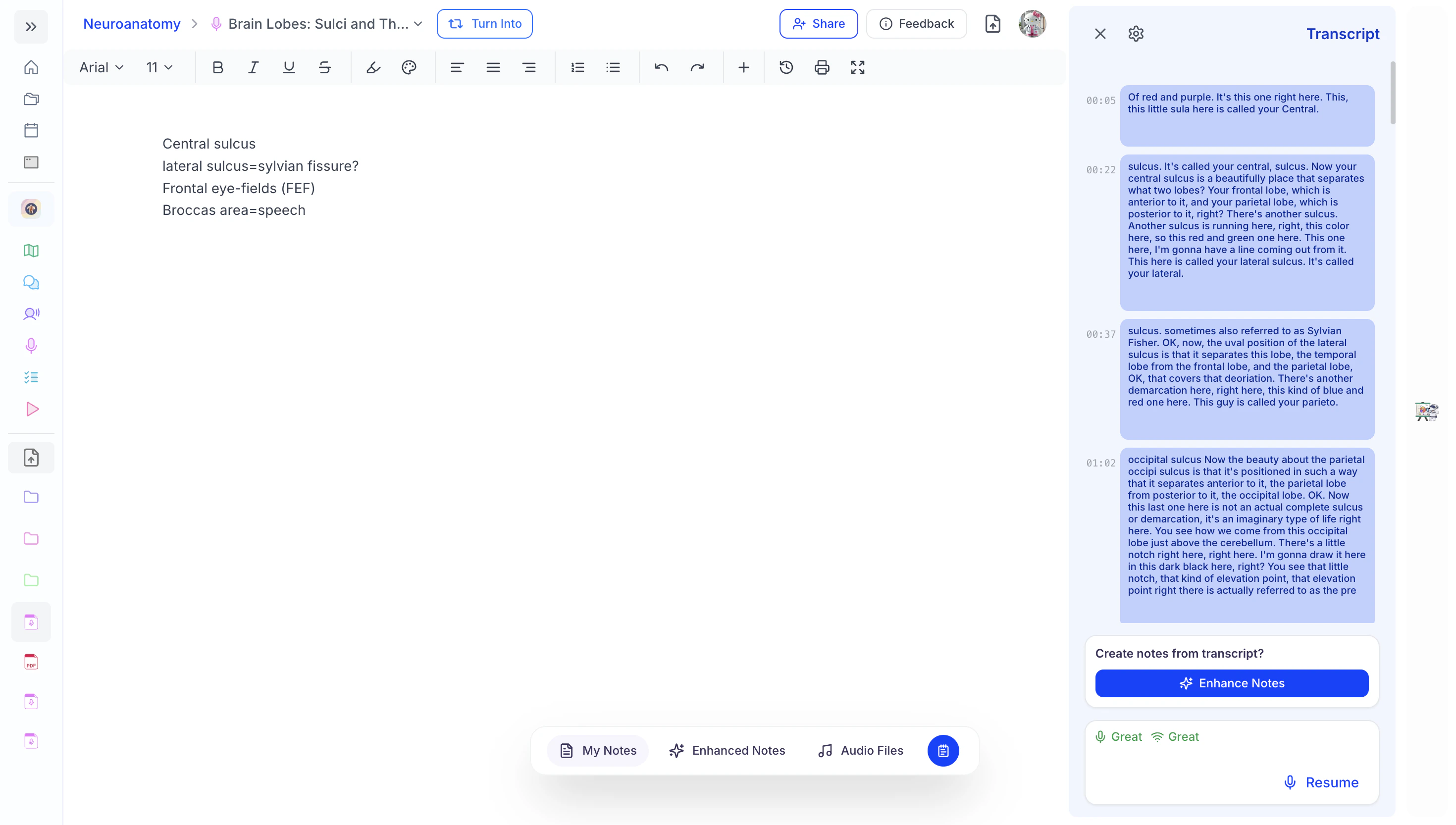 * If you’re taking a short break and plan to continue, simply click **Resume** to pick up right where you left off.
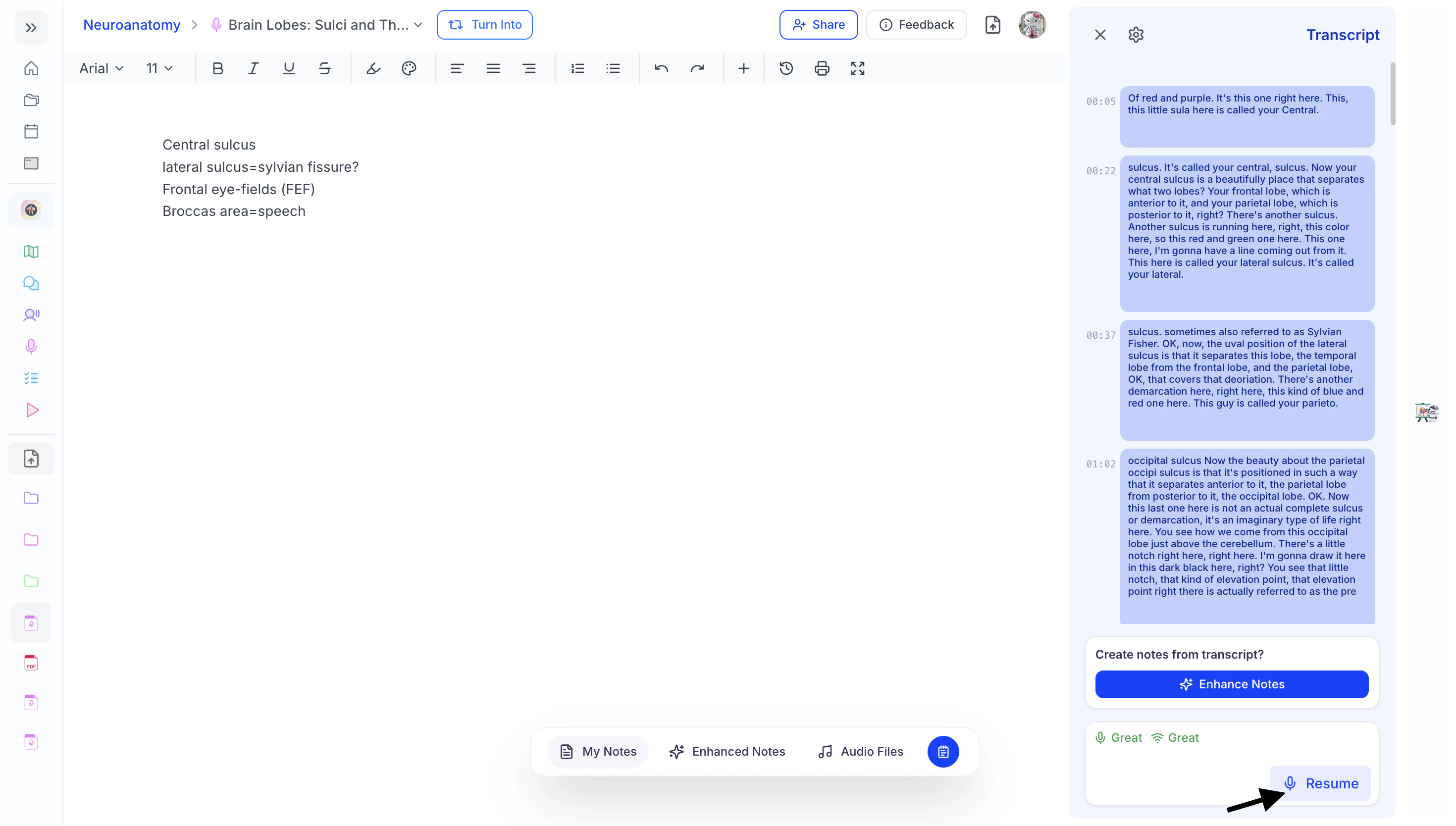 ### Enhancing Your Live Lecture Notes with AI
1. To have Spark.E automatically generate AI-enhanced notes from your live lecture recording, click the **Enhance Notes** button in the Transcript panel on the right side of the screen.
### Enhancing Your Live Lecture Notes with AI
1. To have Spark.E automatically generate AI-enhanced notes from your live lecture recording, click the **Enhance Notes** button in the Transcript panel on the right side of the screen.
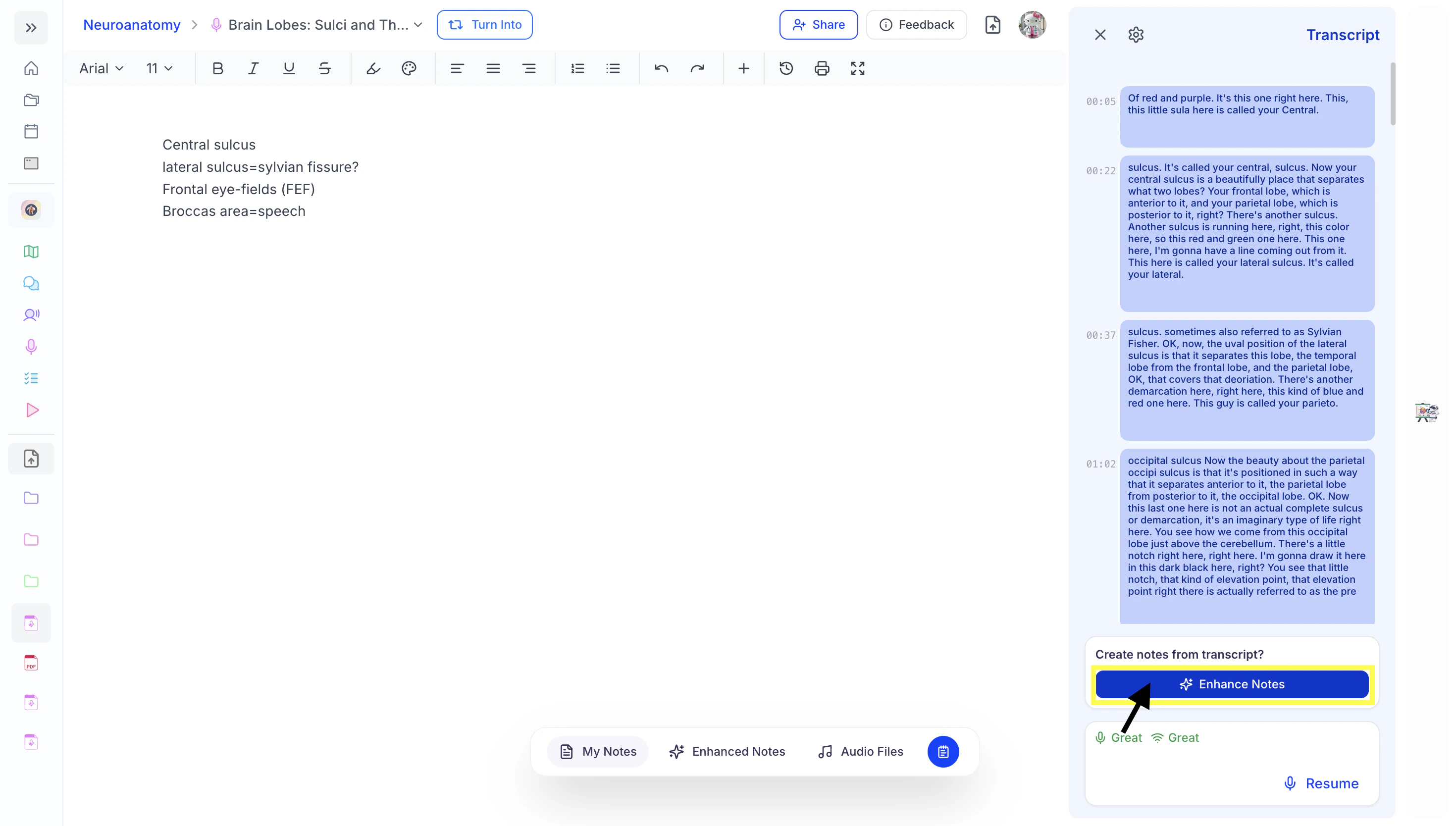 2. Next, select your preferred note format from the options below:
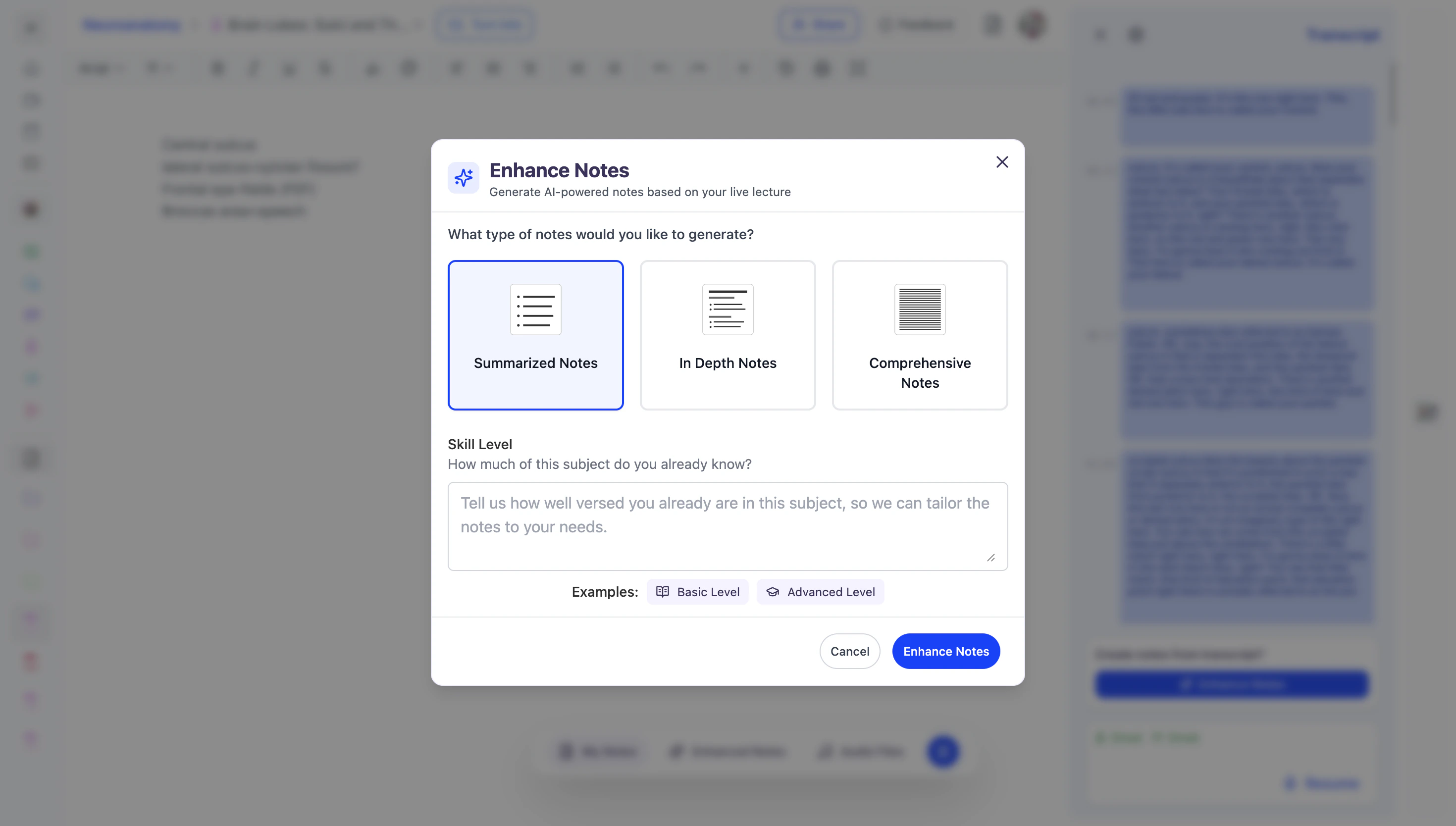 1. **Summarized** **Notes**: highlights key points and main concepts, perfect for a quick review.
2. **In-Depth Notes**: generates expanded, detailed notes with important context and explanations designed to help you fully understand complex topics.
3. **Comprehensive Notes**: retains every detail, perfect for subjects where missing information isn’t an option.
3. To ensure your notes are tailored to your current level of understanding, specify your current skill level on the topic in the box under **Skill Level**; however, this is optional.
4. Once you're ready, click **Enhance Notes**,
1. **Summarized** **Notes**: highlights key points and main concepts, perfect for a quick review.
2. **In-Depth Notes**: generates expanded, detailed notes with important context and explanations designed to help you fully understand complex topics.
3. **Comprehensive Notes**: retains every detail, perfect for subjects where missing information isn’t an option.
3. To ensure your notes are tailored to your current level of understanding, specify your current skill level on the topic in the box under **Skill Level**; however, this is optional.
4. Once you're ready, click **Enhance Notes**,
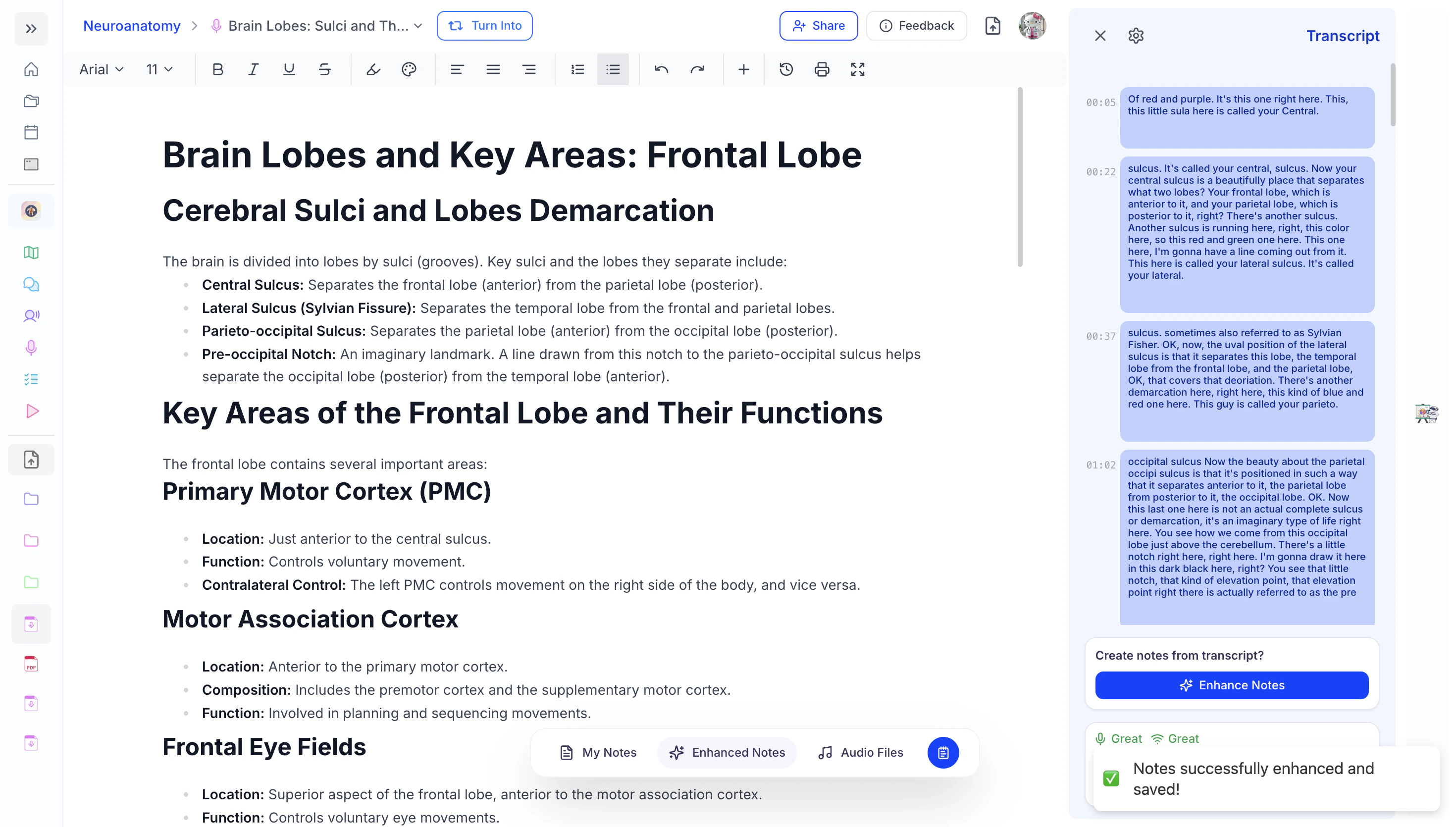
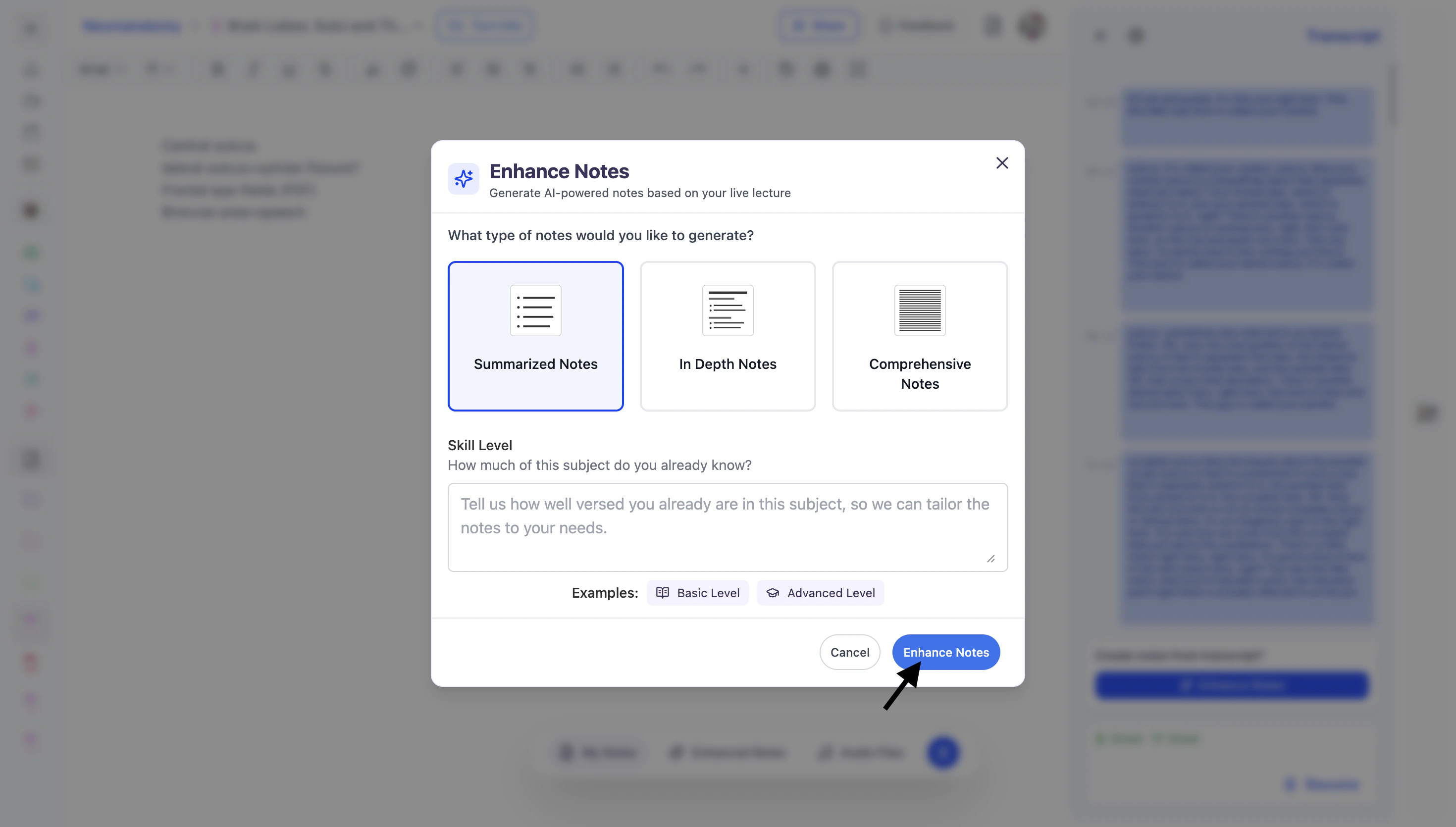 and the AI will begin analyzing your lecture to generate personalized, enhanced notes.
 ### **Editing and Customizing** Your AI Notes
* Notes are fully editable, allowing you to **customize content directly within the document**. Simply click into the note to select, add, or delete text as needed.
### **Editing and Customizing** Your AI Notes
* Notes are fully editable, allowing you to **customize content directly within the document**. Simply click into the note to select, add, or delete text as needed.
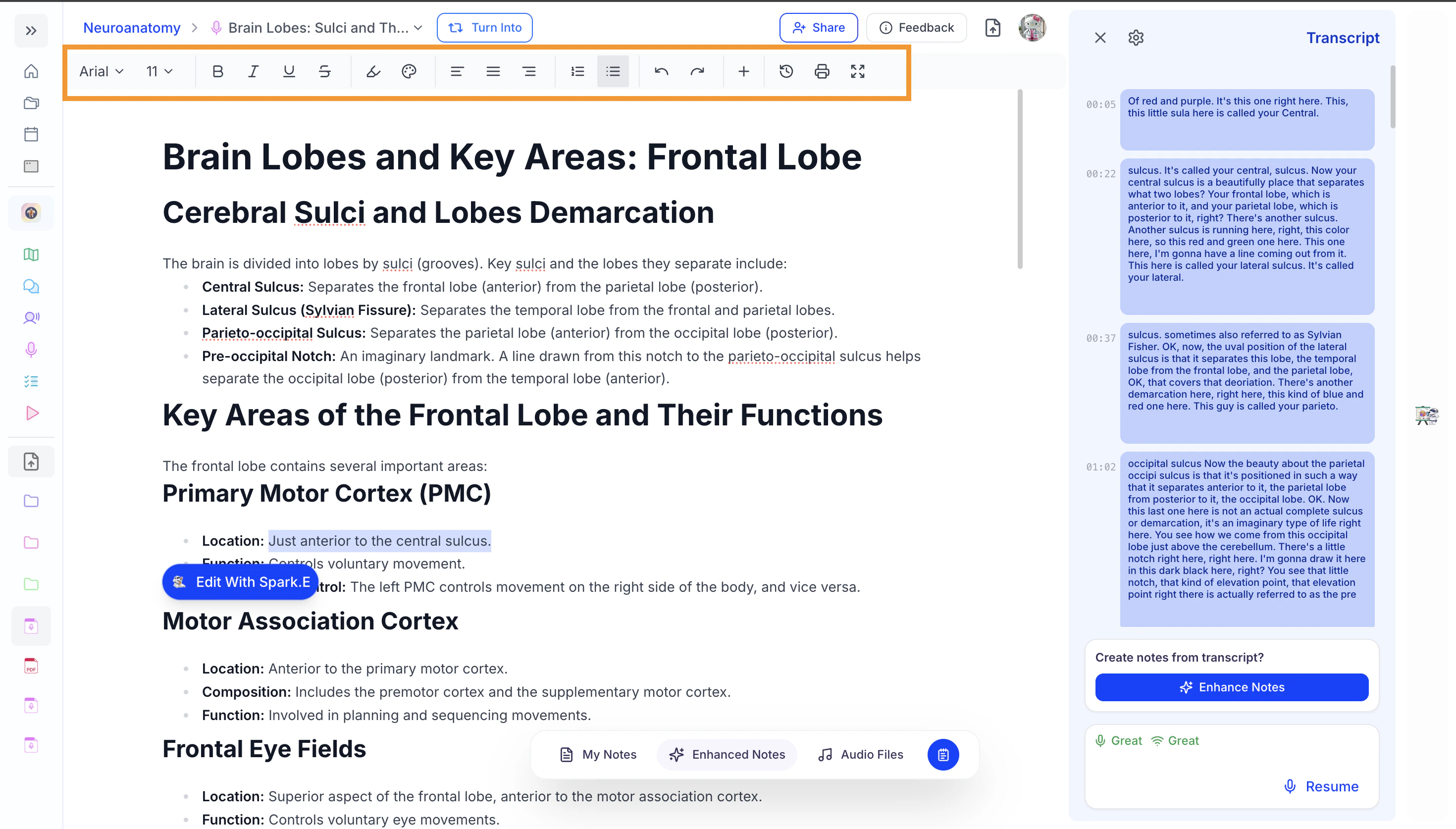 * You can also use the **editing tools** on the top of the Notes to further format your notes
### Accessing the Live Lecture Transcript
* To view the transcript of your Live Lecture session, click the **Show Transcript** button located in the bottom toolbar.
* You can also use the **editing tools** on the top of the Notes to further format your notes
### Accessing the Live Lecture Transcript
* To view the transcript of your Live Lecture session, click the **Show Transcript** button located in the bottom toolbar.
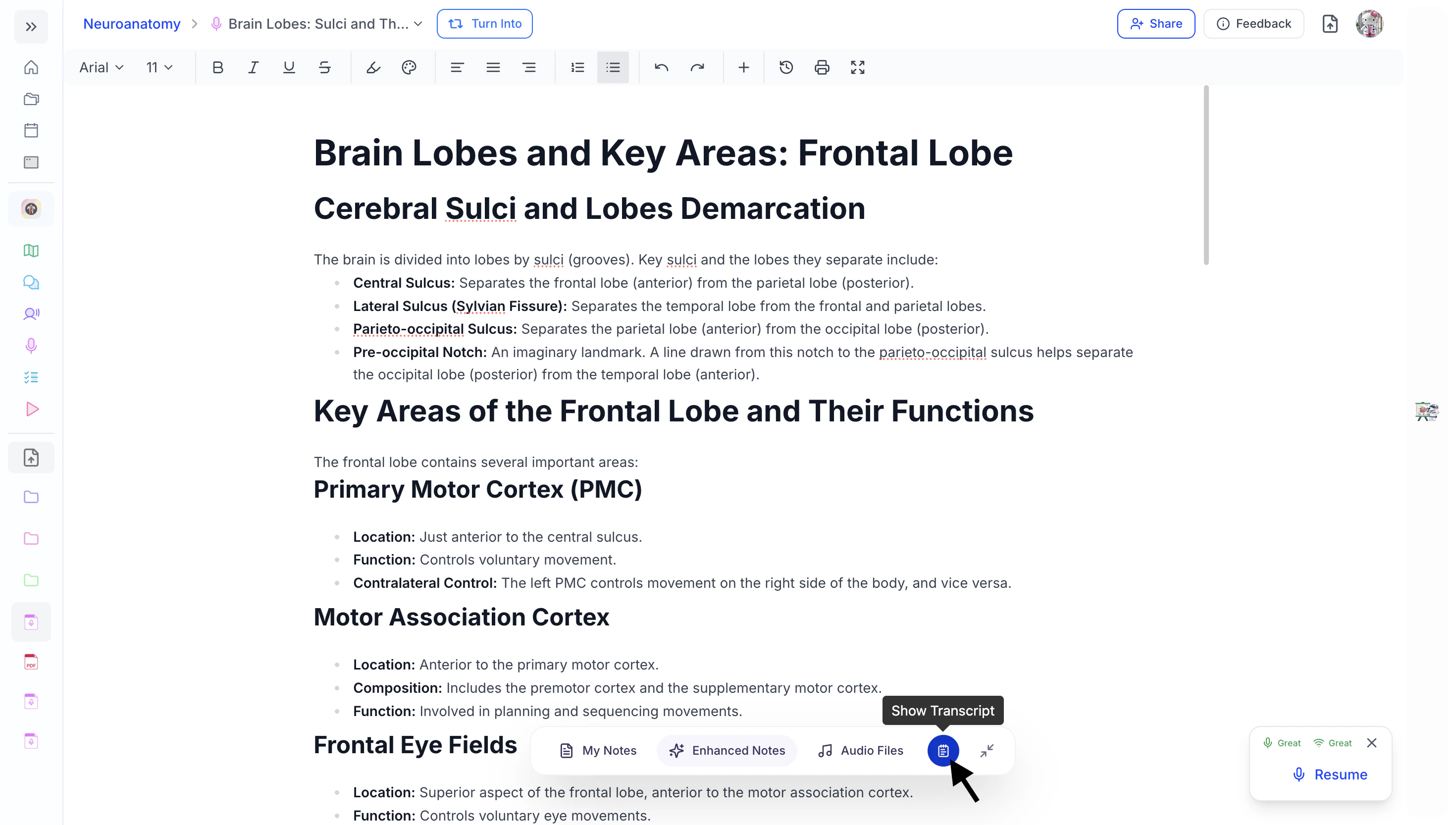 * The Live Lecture Transcript side panel will open on the right side of the screen. Here you'll be able to scroll through the entire transcript of your Live Lecture recording.
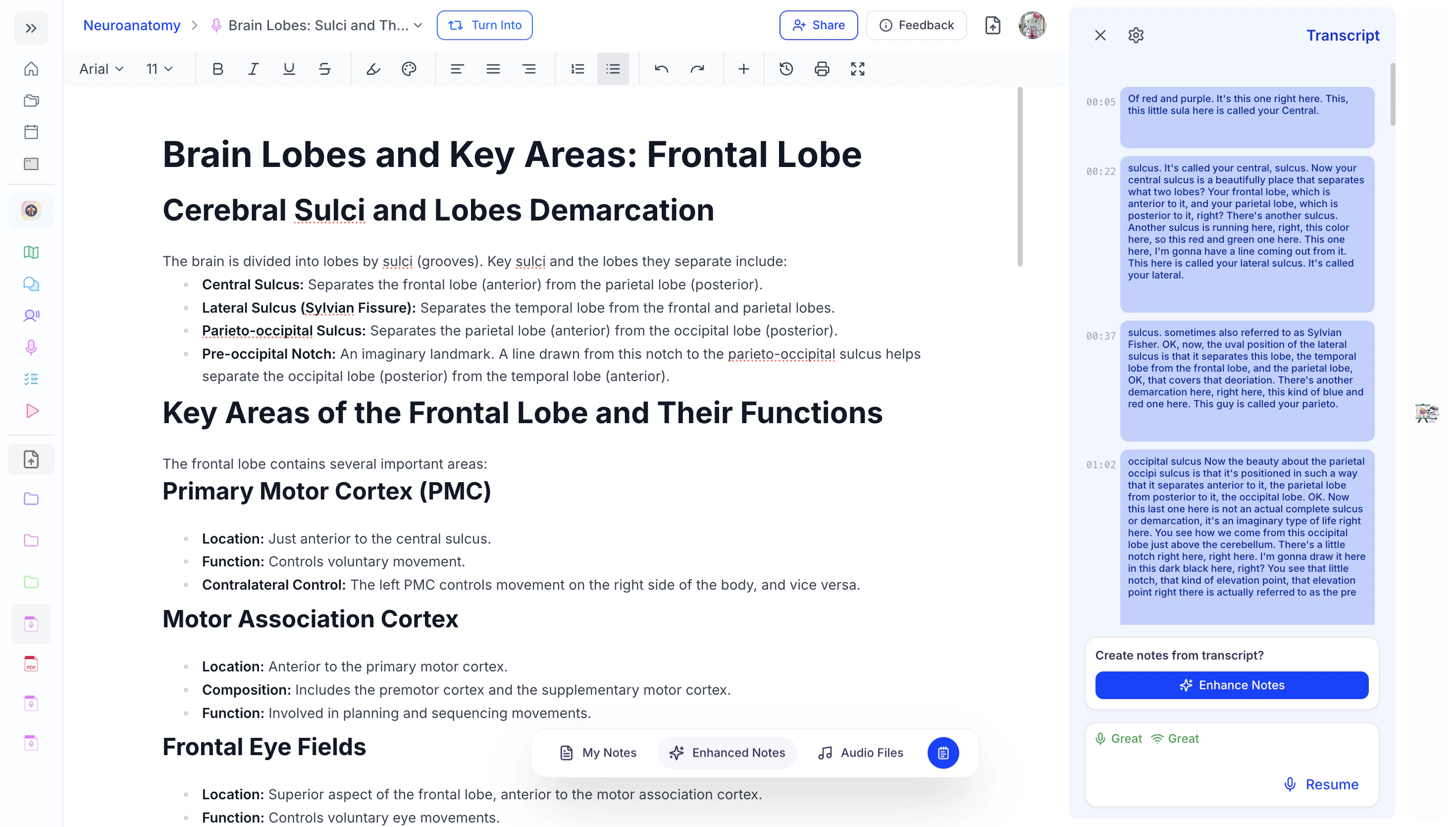 * To close the Transcript, click the **X** on the top left of the Transcript panel or
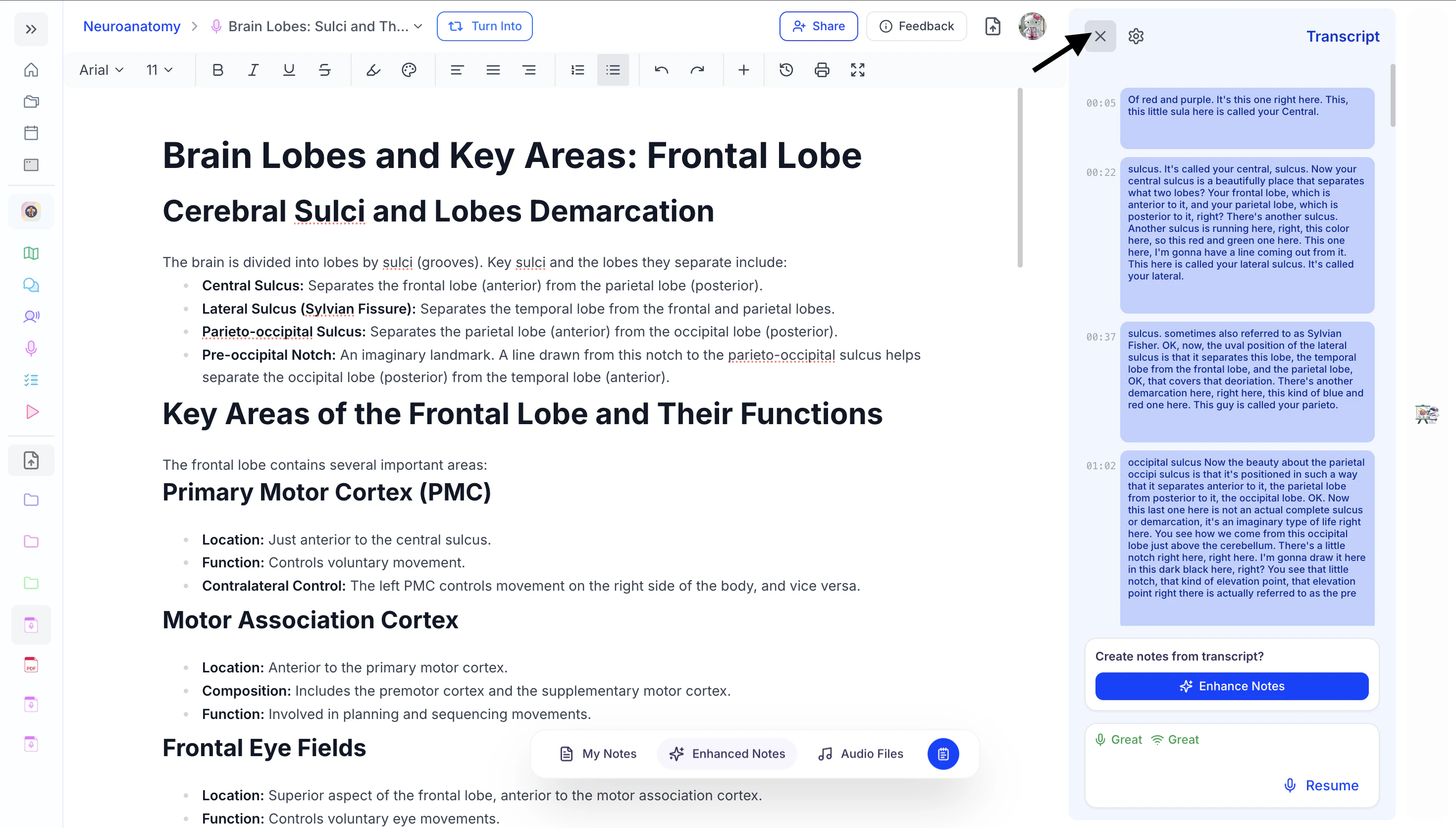 select the **Hide Transcript** button from the bottom toolbar.
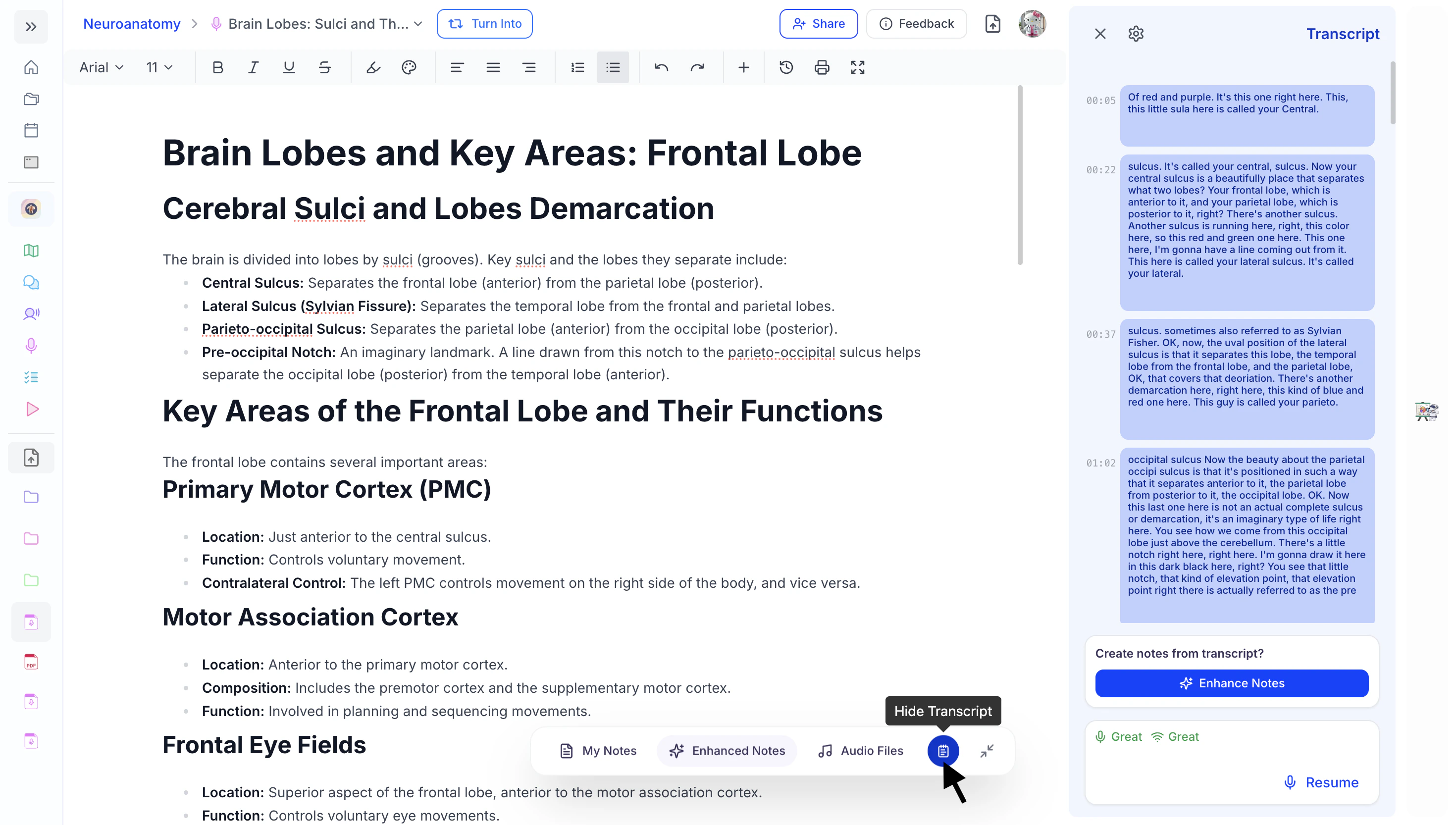 ### Accessing the Live Lecture Audio File
* To access the audio file of your Live Lecture recording, select the **Audio Files** button from the bottom toolbar.
### Accessing the Live Lecture Audio File
* To access the audio file of your Live Lecture recording, select the **Audio Files** button from the bottom toolbar.
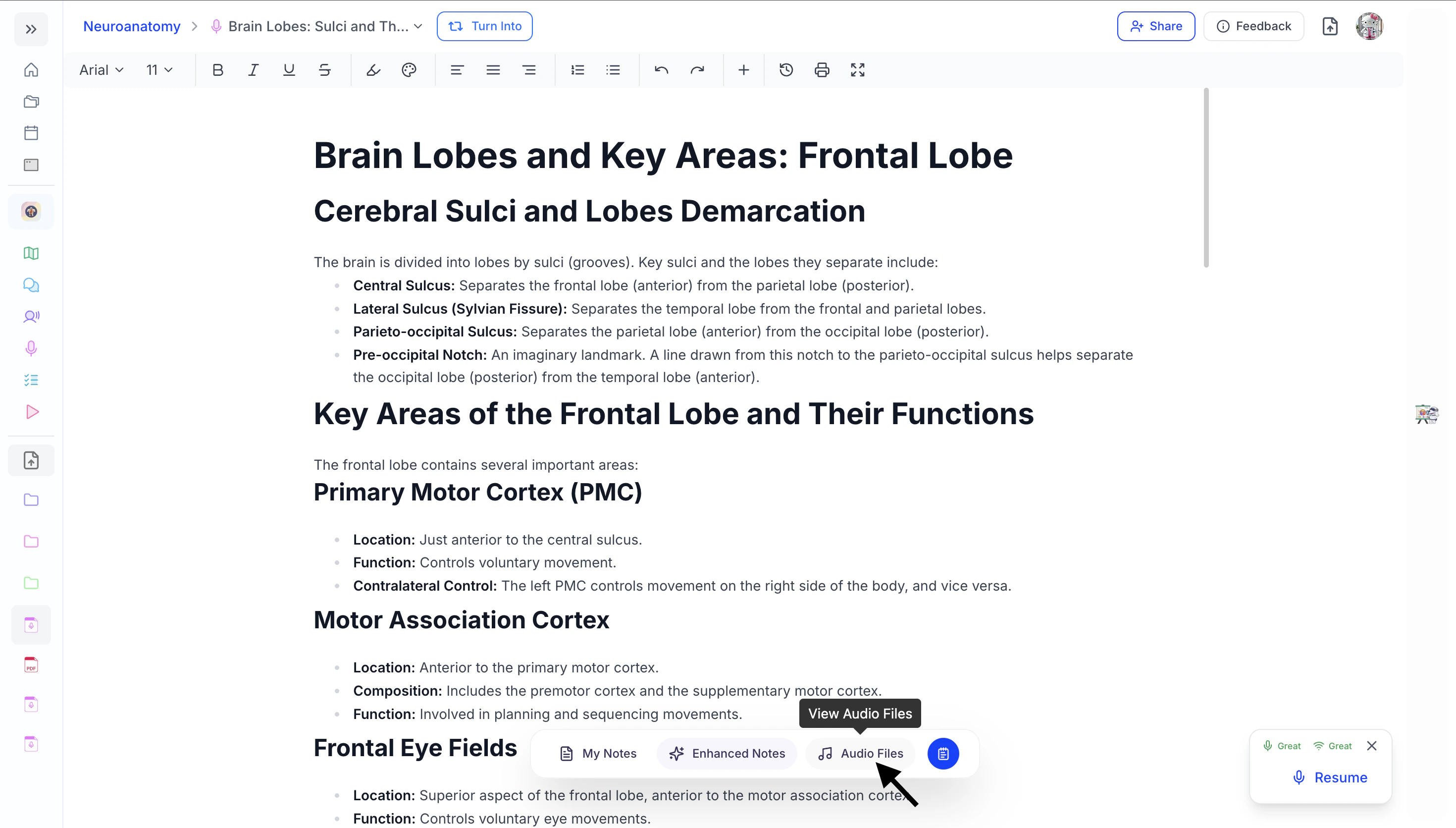 * Here, you will see all audio segments from the selected Live Lecture session.
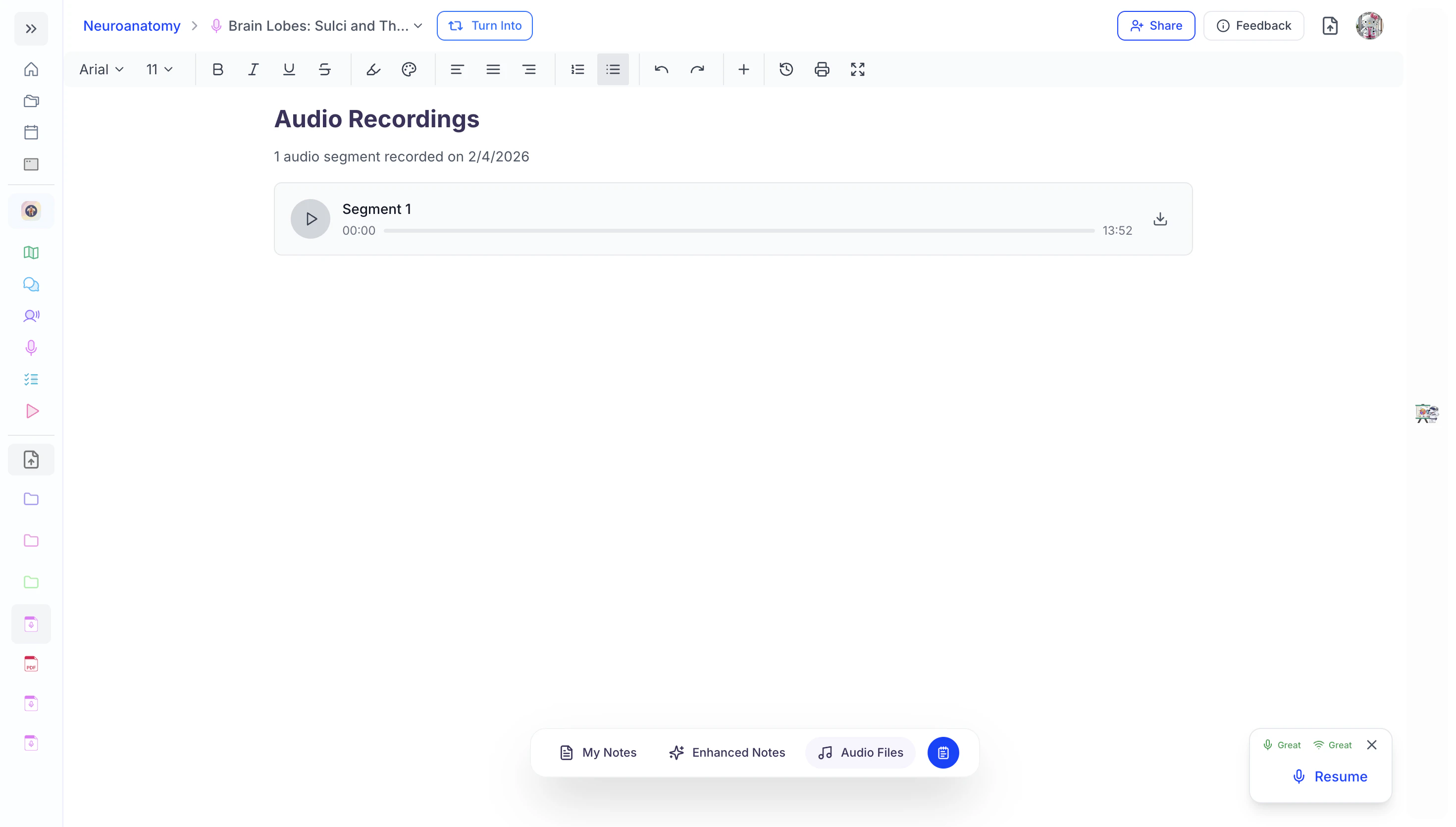 * To start listening to the audio file recording, simply click the **Play** button to the left of the desired segment.
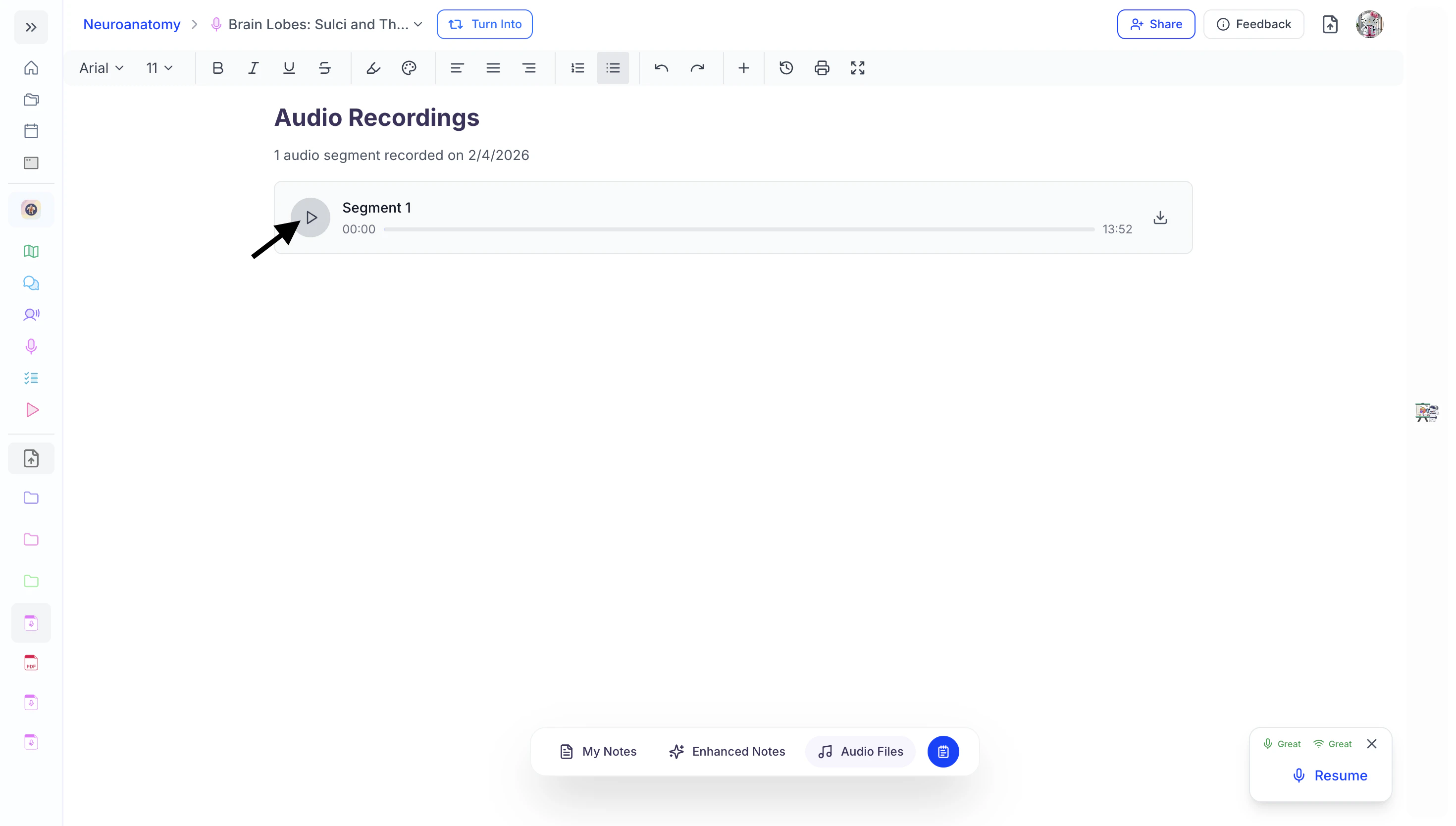 * To jump to a specific time, click and drag the audio file slider to the desired position.
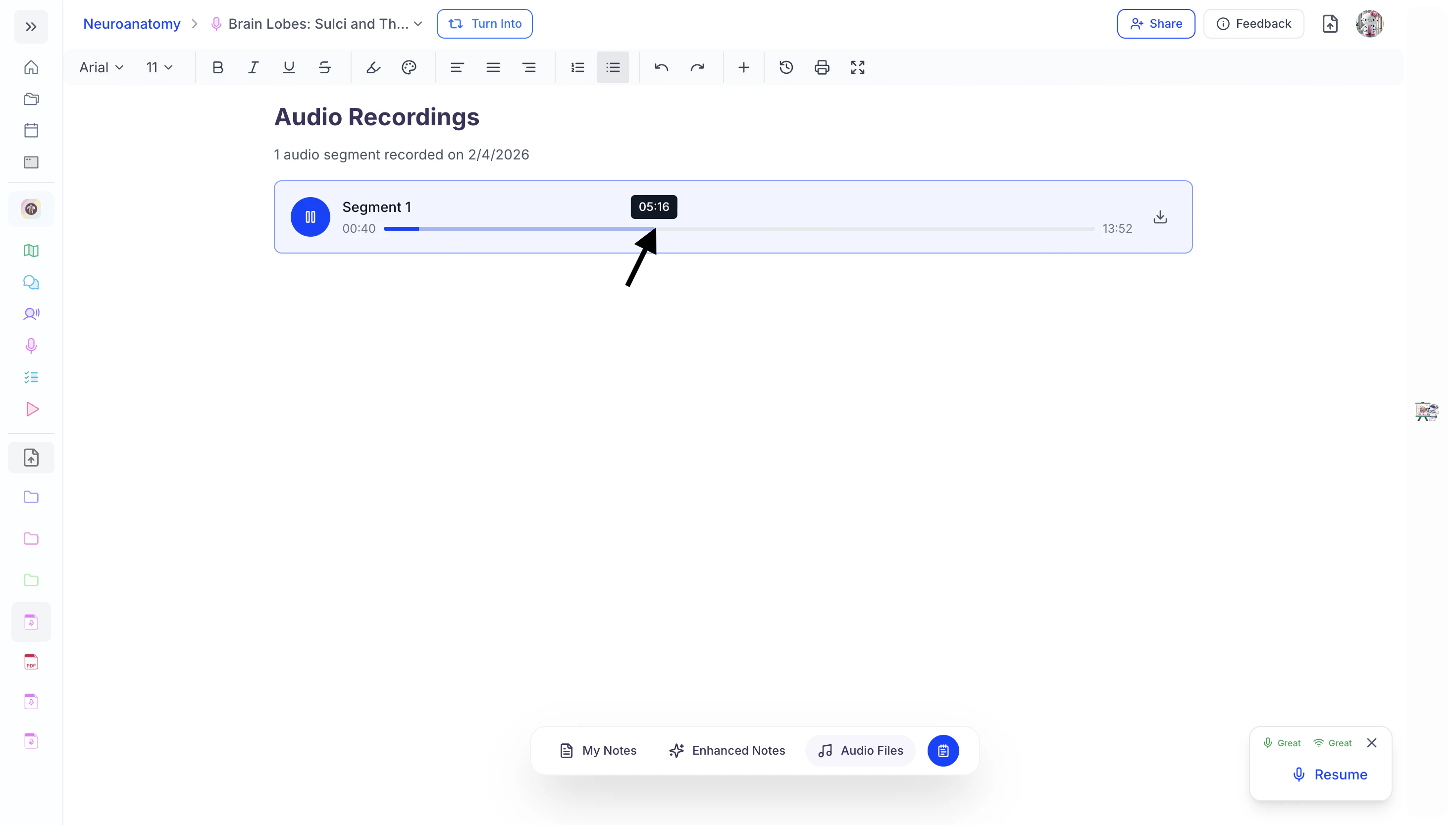 * To pause the audio file recording, select the **Pause** button.
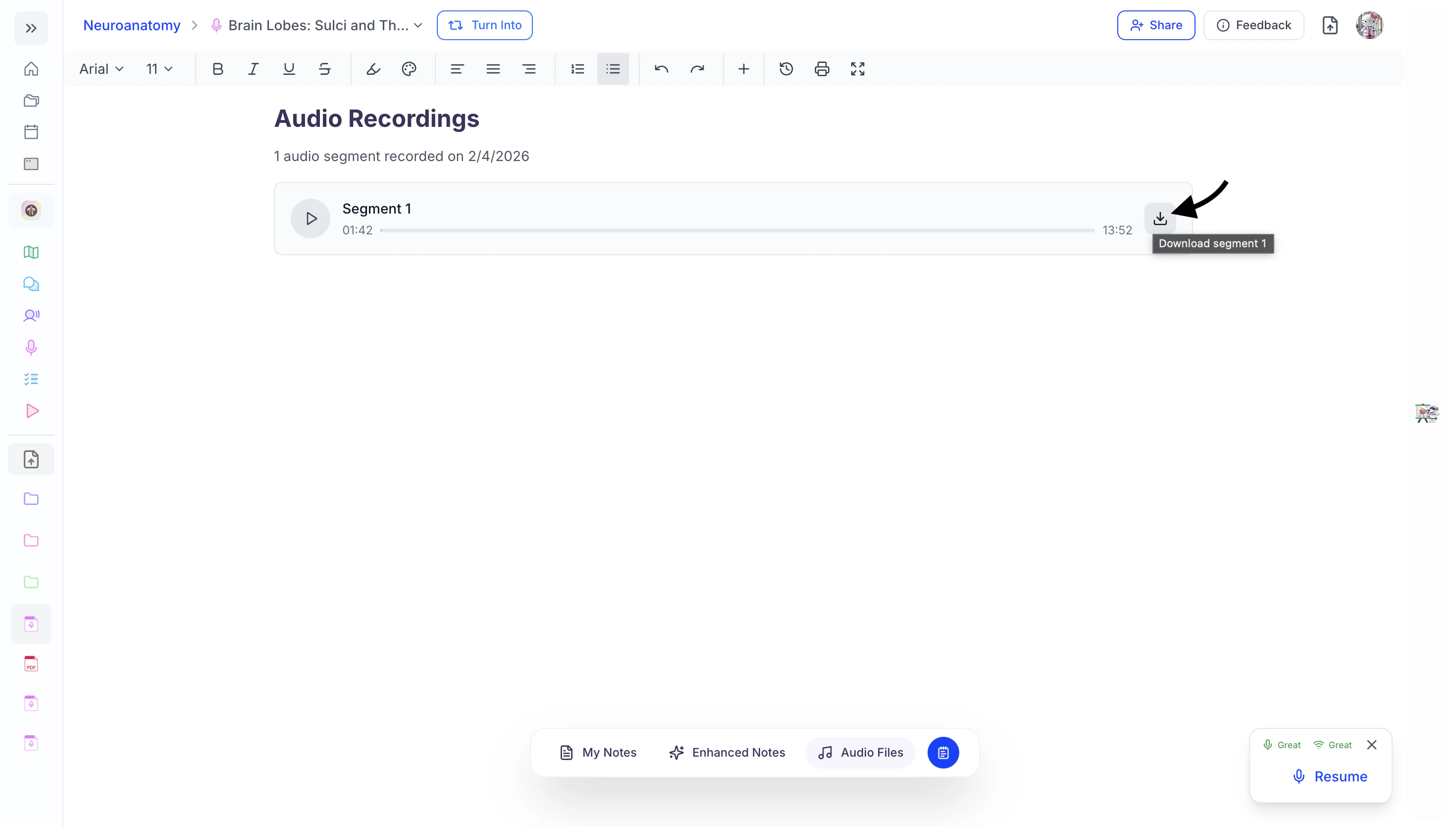
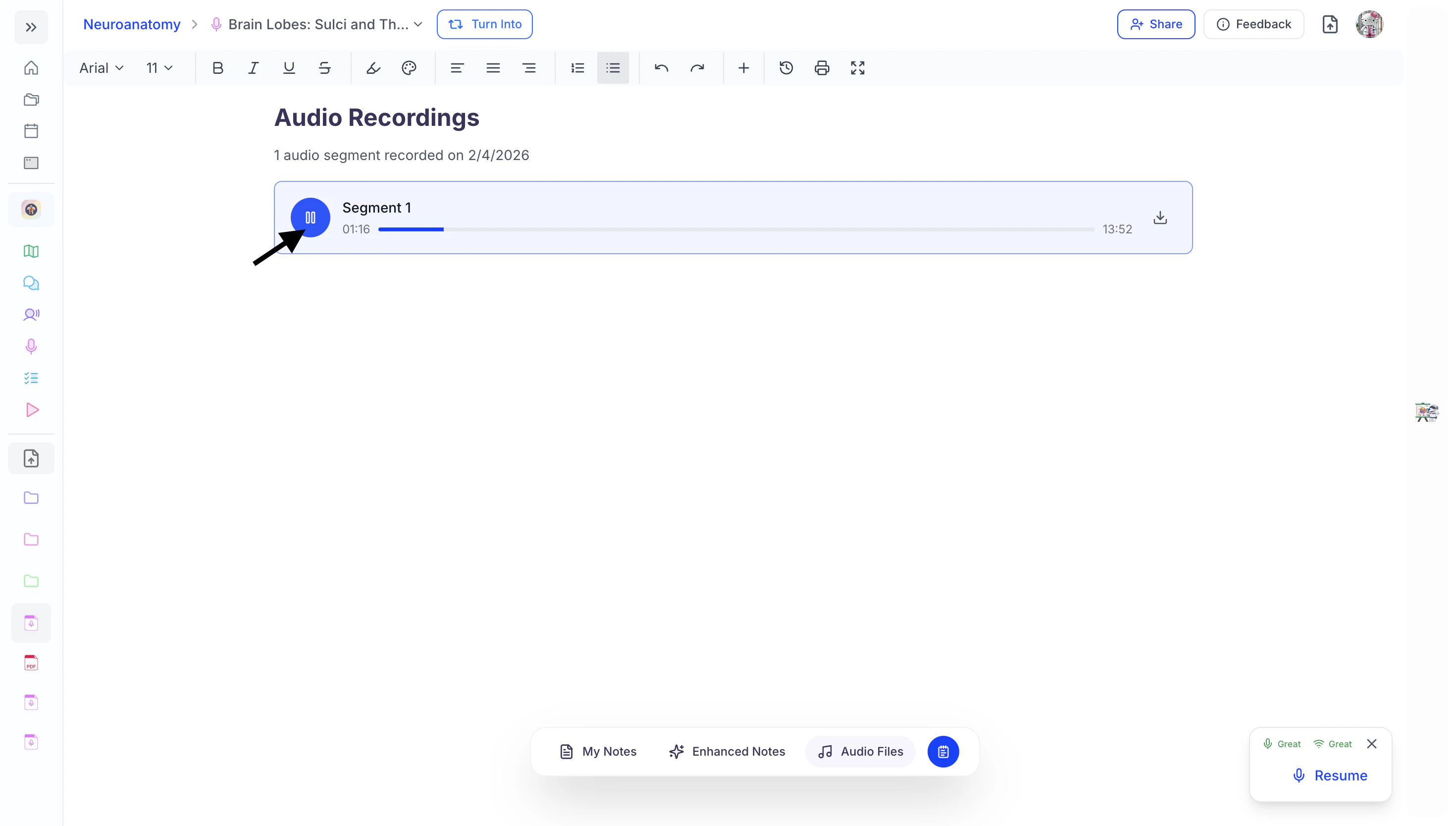 * You can also download the audio file by clicking the **Download** button to the right of the desired segment.
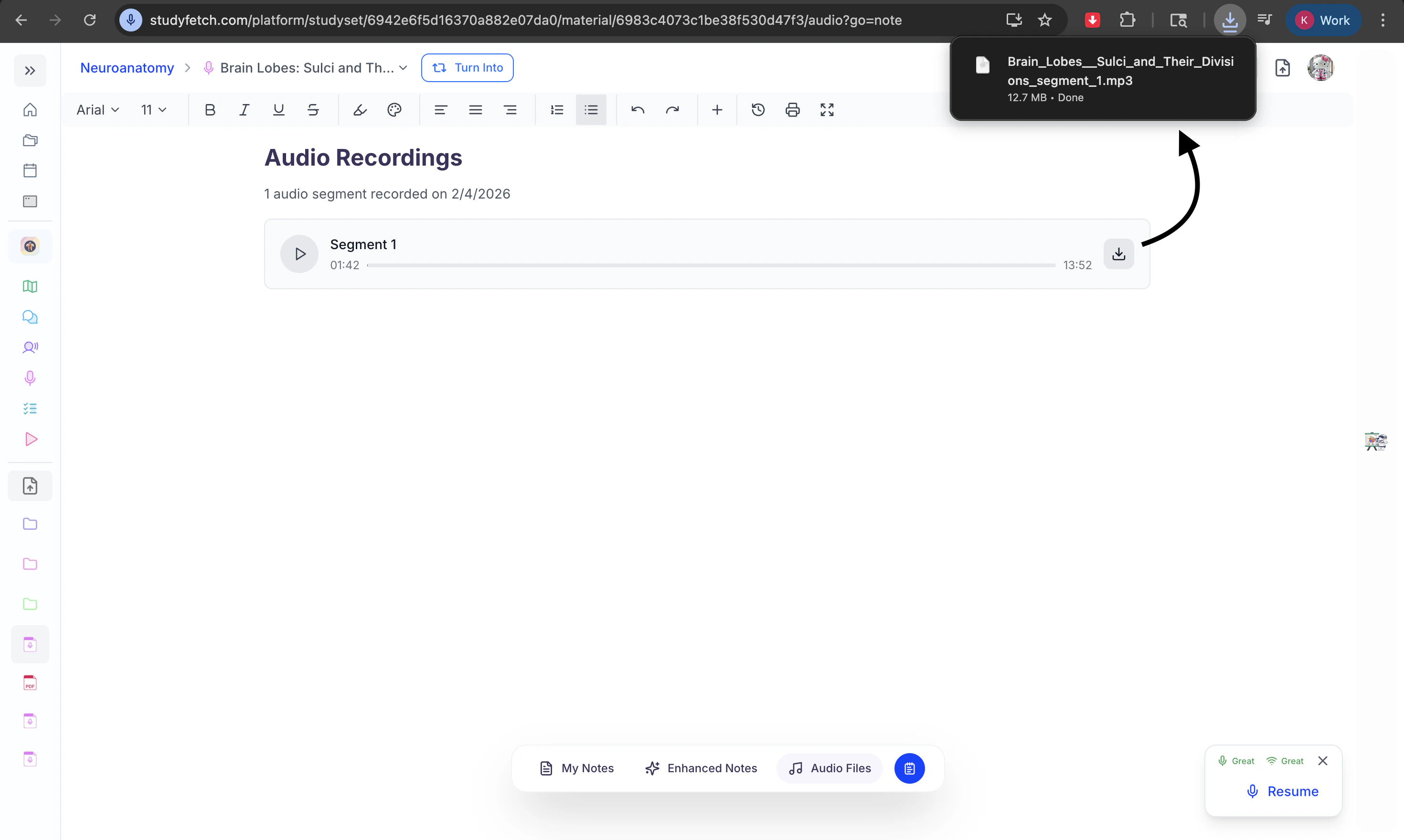
 * Your audio file recording will then appear in your device downloads.
 ### Resuming a Live Lecture Session
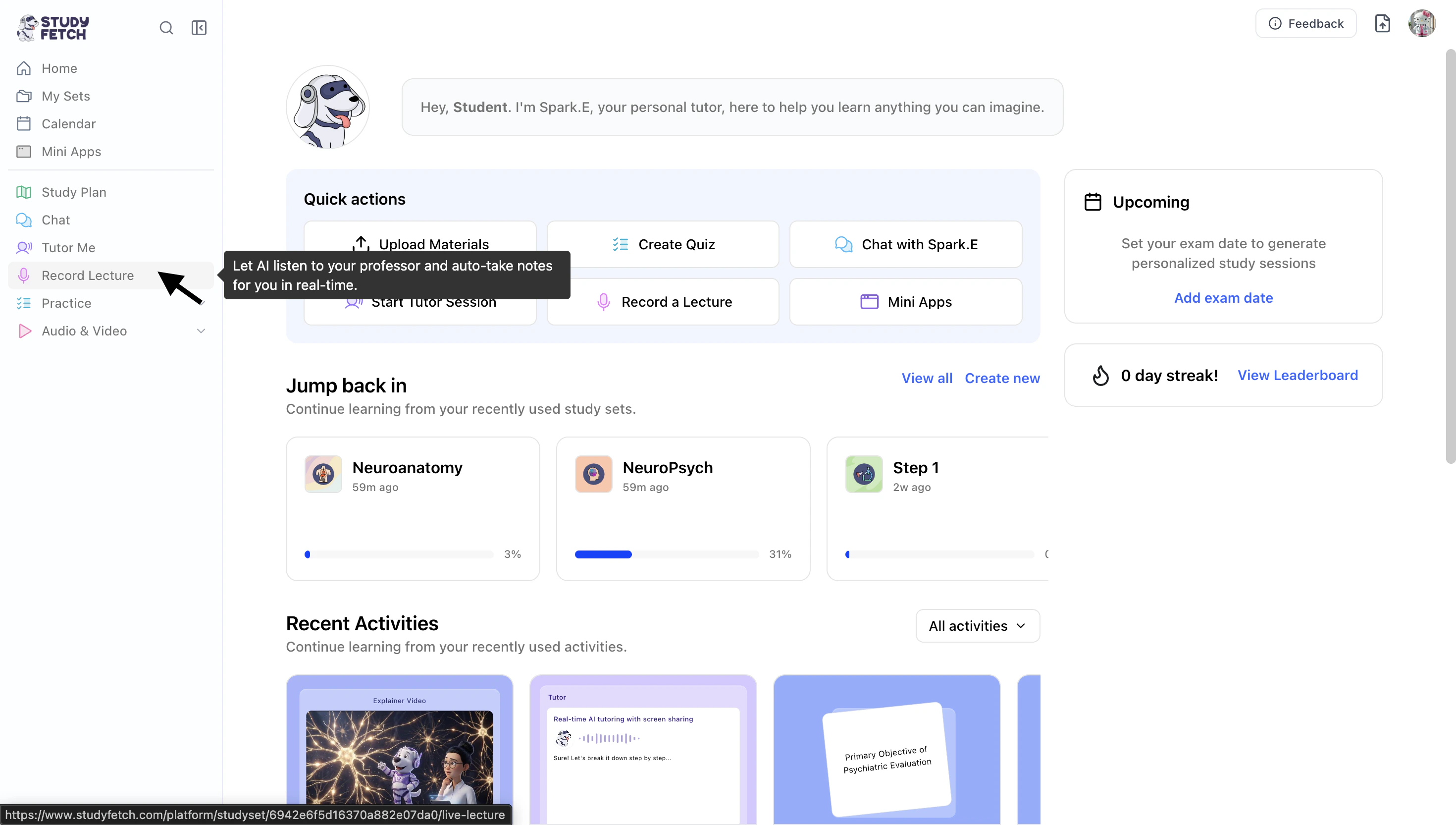
1. To resume a previous Live Lecture Session, start by selecting **Record Lecture** from the left sidebar.
### Resuming a Live Lecture Session
1. To resume a previous Live Lecture Session, start by selecting **Record Lecture** from the left sidebar.
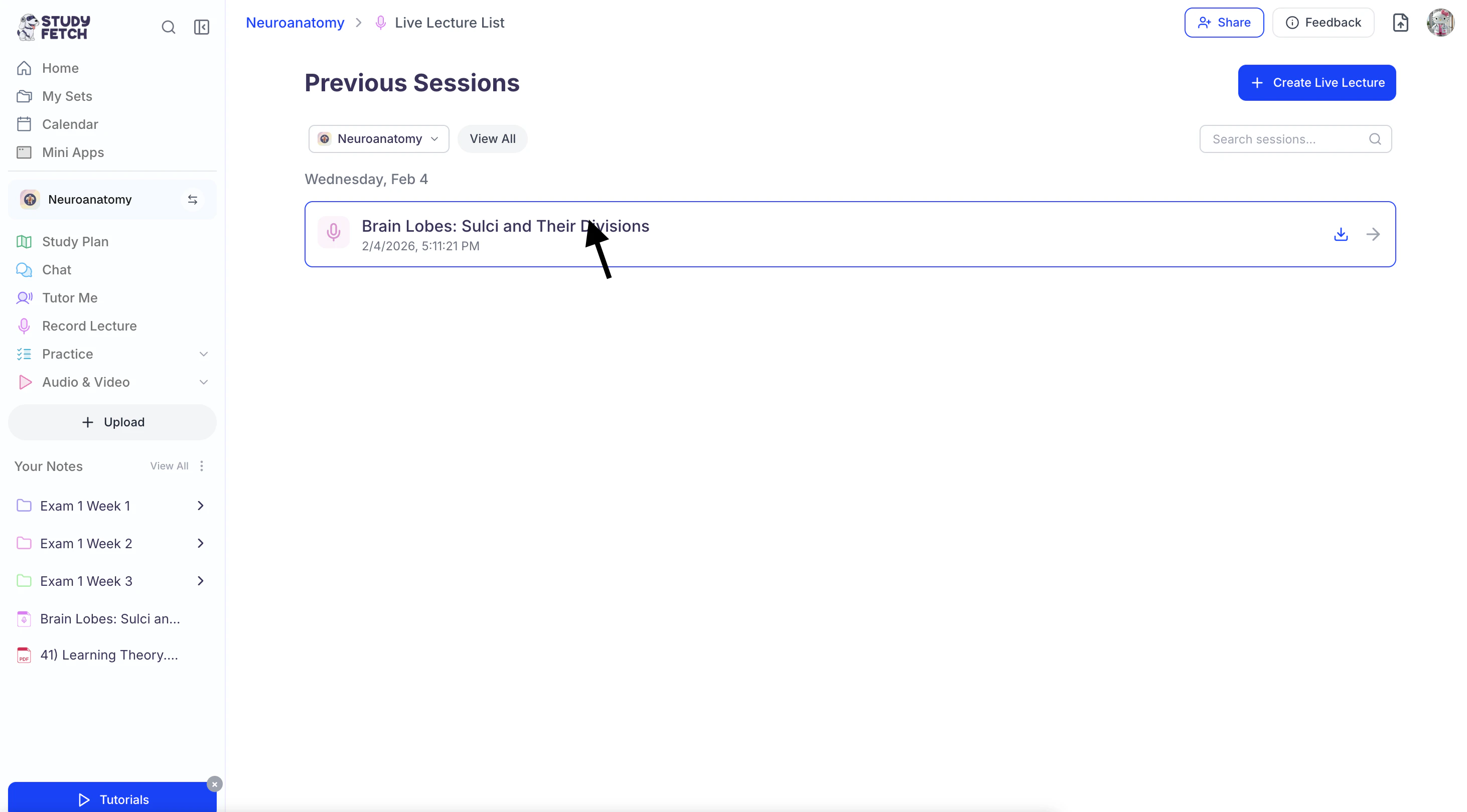
 2. Next, choose the session you’d like to continue.
 3. Then, click the **Resume** button in the bottom right corner of the screen.
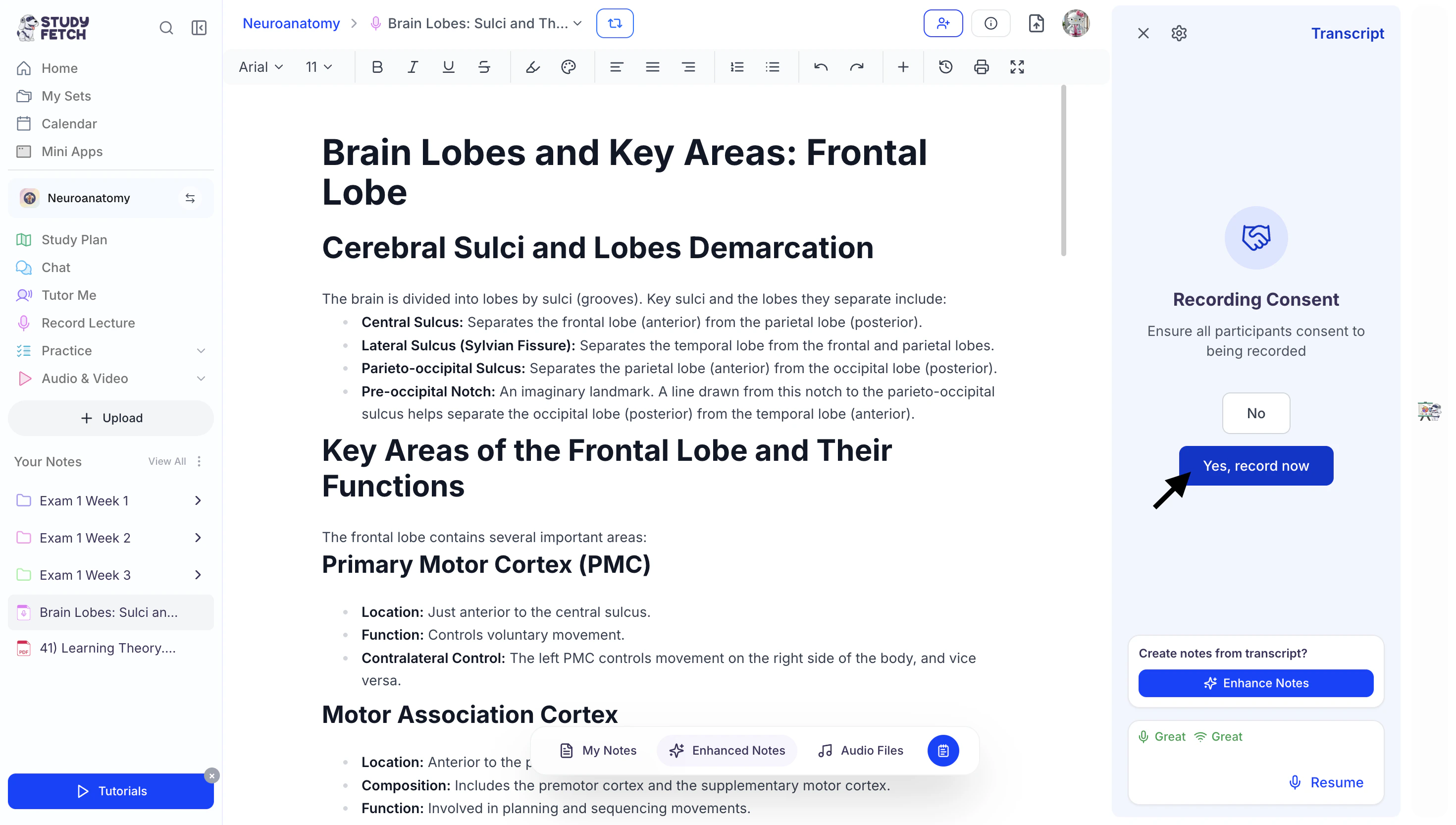
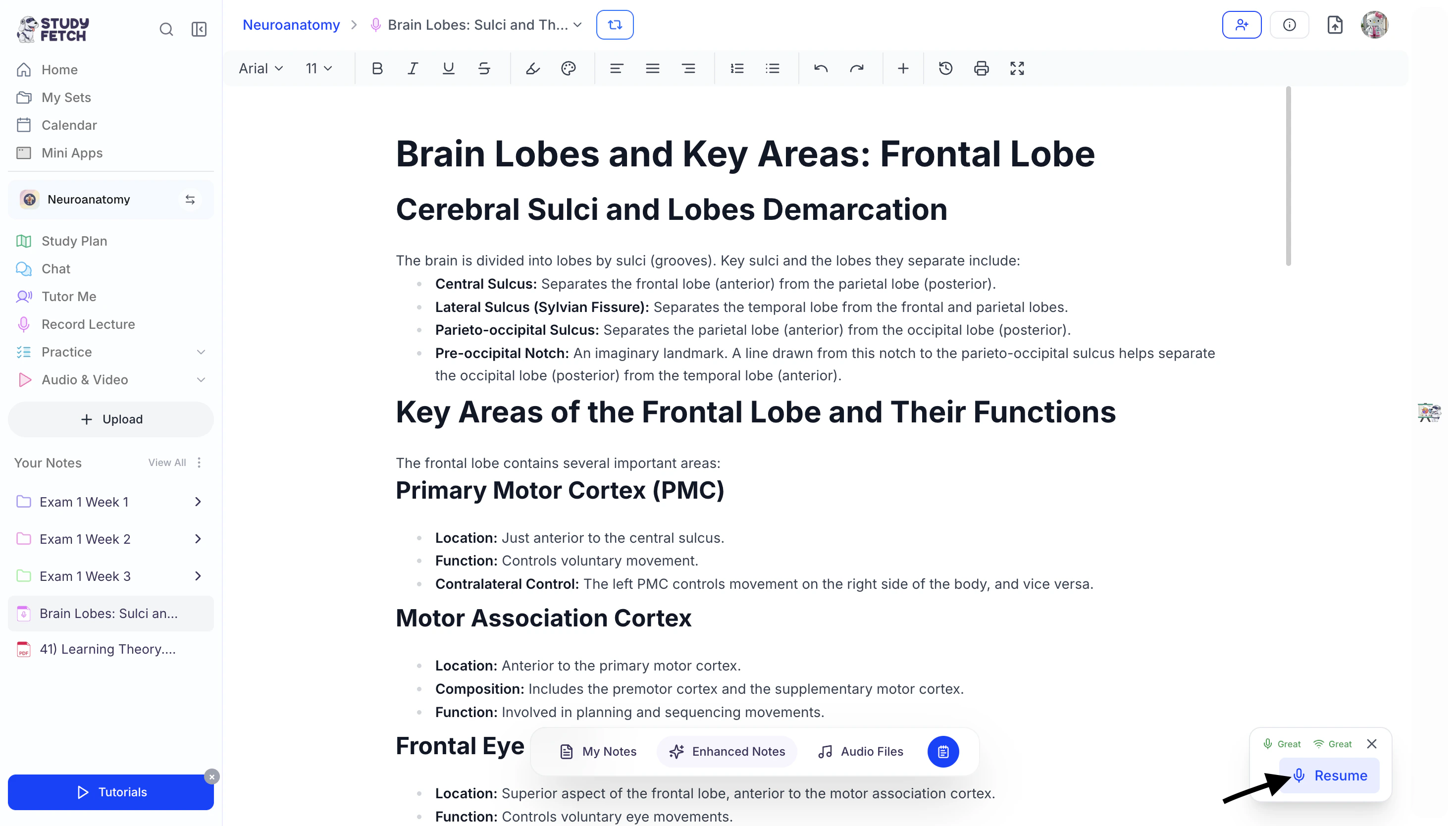 4. Before recording begins, make sure all participants have consented to being recorded. Once you’ve received consent, click **Yes, Record Now** to continue.
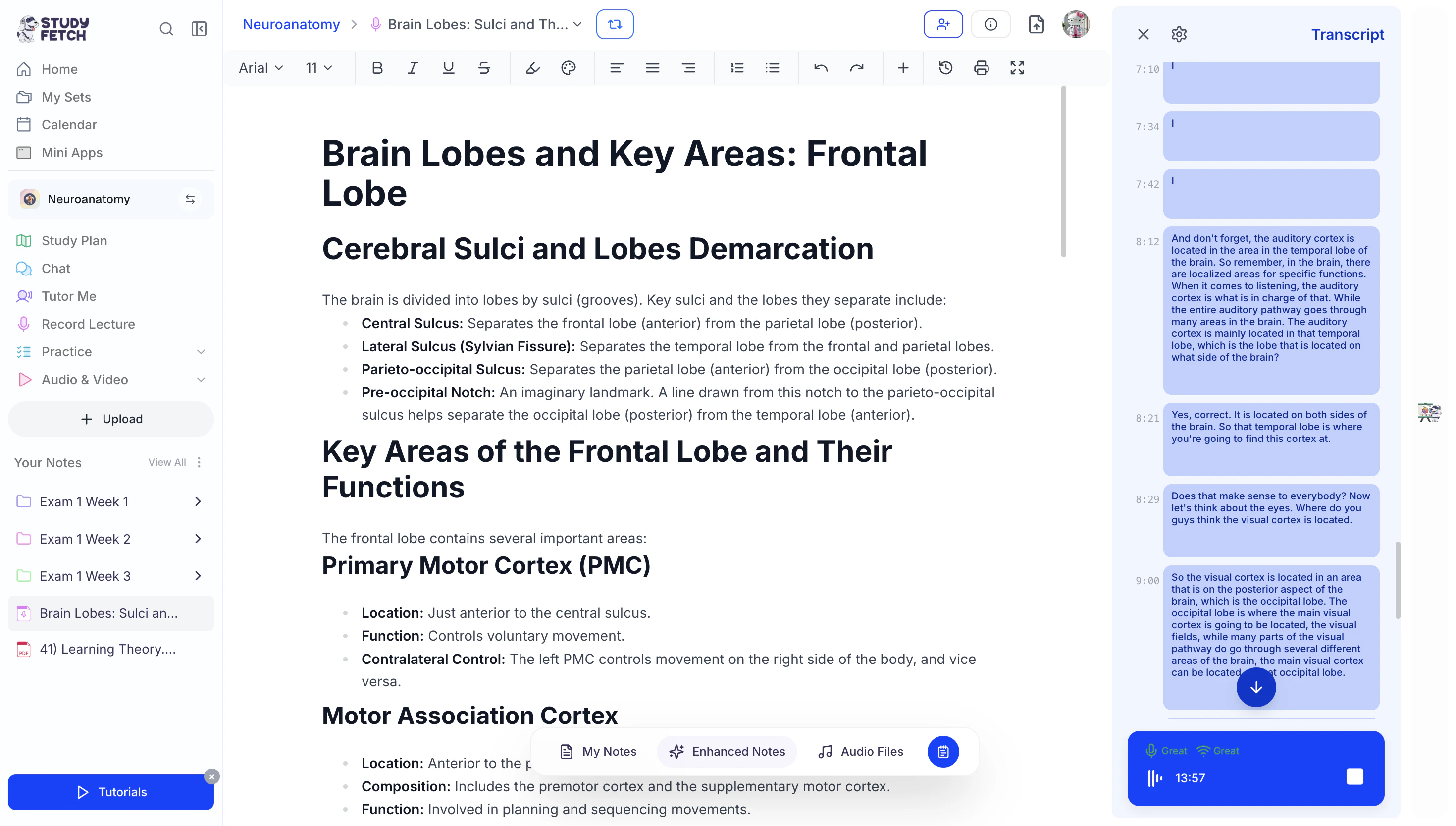
 5. Spark.E will immediately begin listening to your lecture, capturing audio, generating a transcript, and continuing your notes—all within the same Live Lecture Session.
 ## Managing Your Live Lecture Session
### Rename Your Live Lecture Session
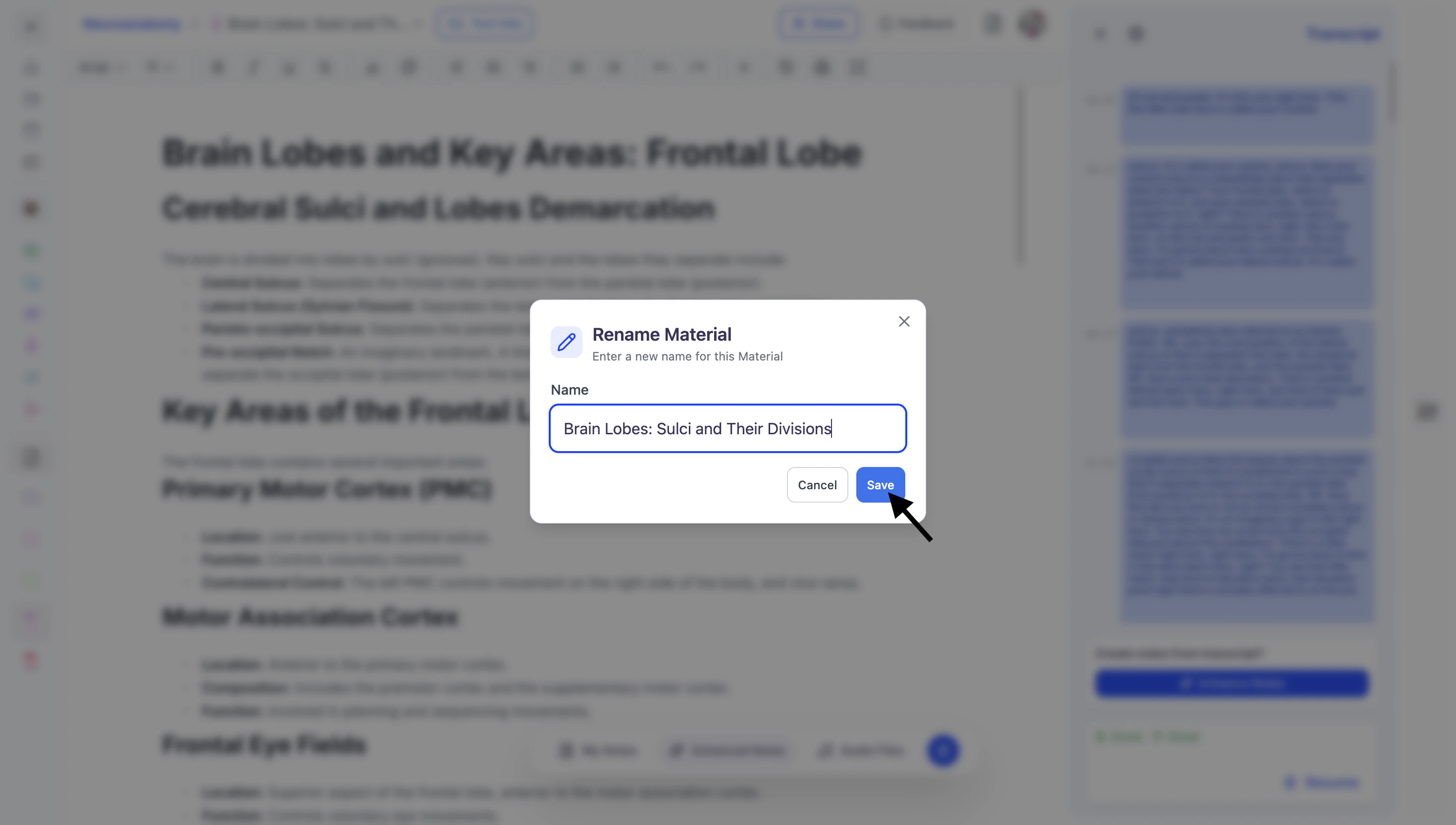
1. After opening the desired Live Lecture Session, click the **downward arrow** to the right of your current Live Lecture Session name and then click **Rename**.
## Managing Your Live Lecture Session
### Rename Your Live Lecture Session
1. After opening the desired Live Lecture Session, click the **downward arrow** to the right of your current Live Lecture Session name and then click **Rename**.
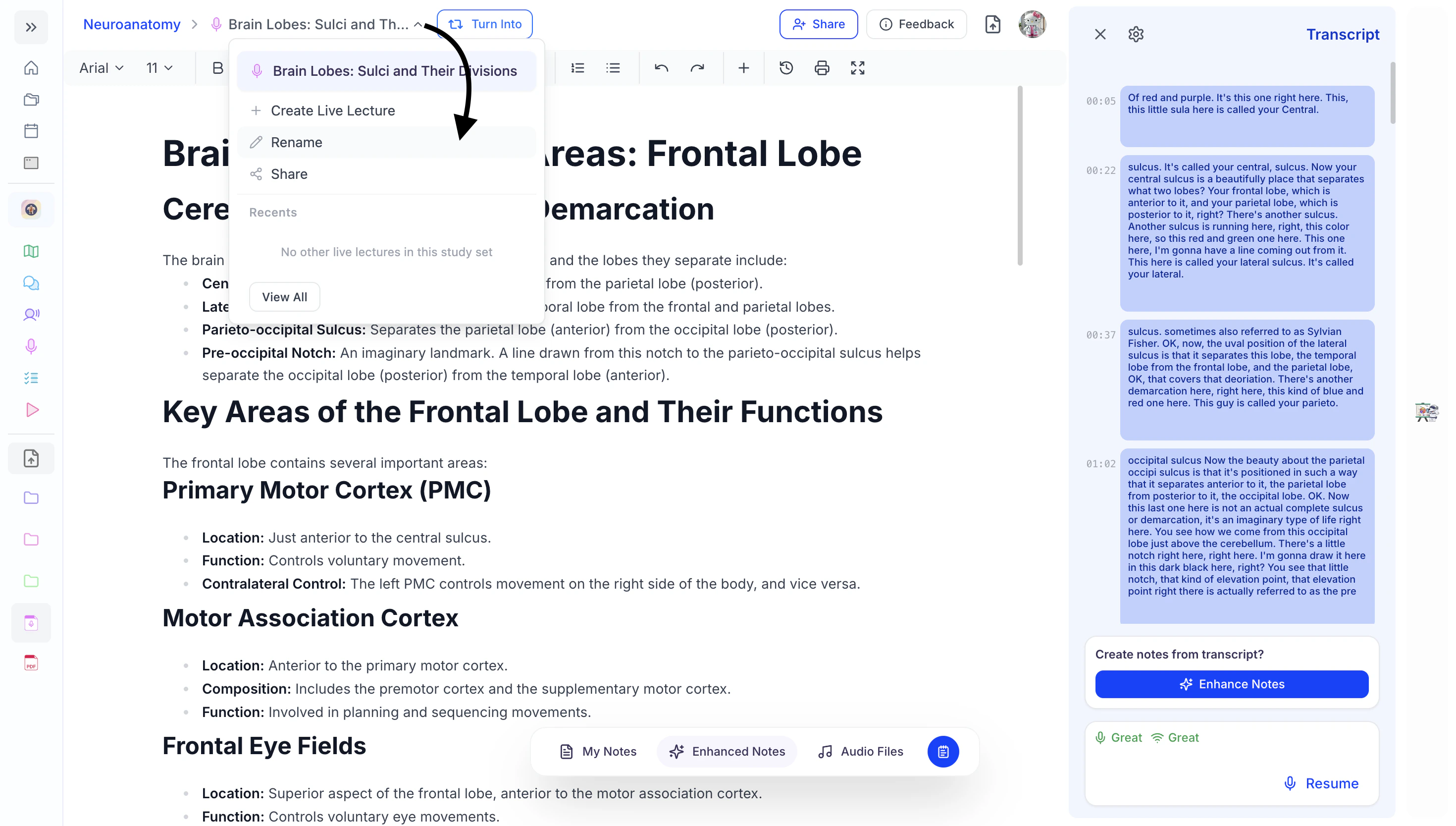 2. You can edit the existing name or enter a new name in the **Name** field.
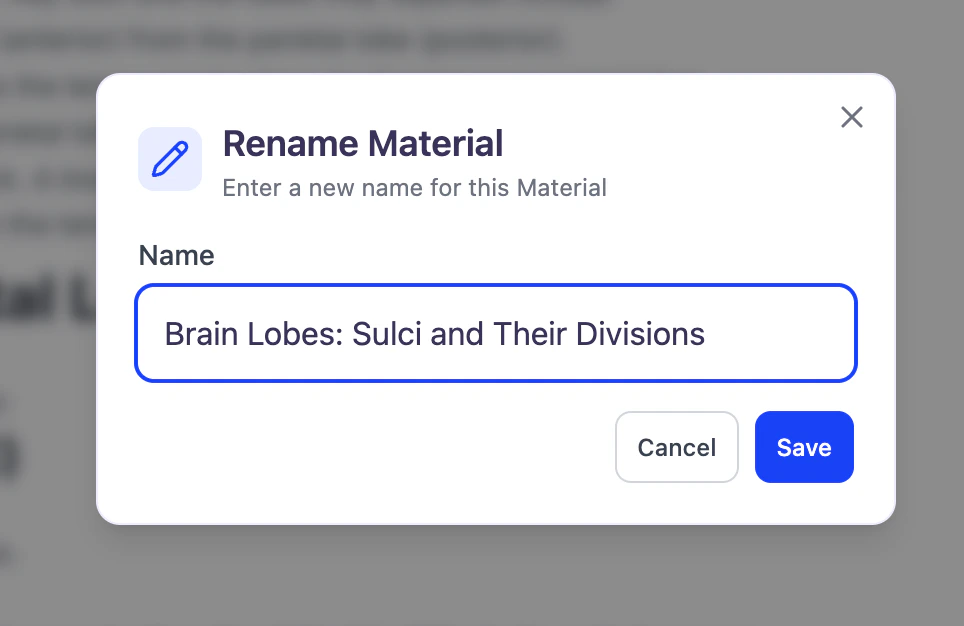 3. When done, click **Save**.
 ### Share Your Live Lecture Session
Found your Live Lecture Session helpful? Feel free to share it with friends or classmates who may benefit from it as well.
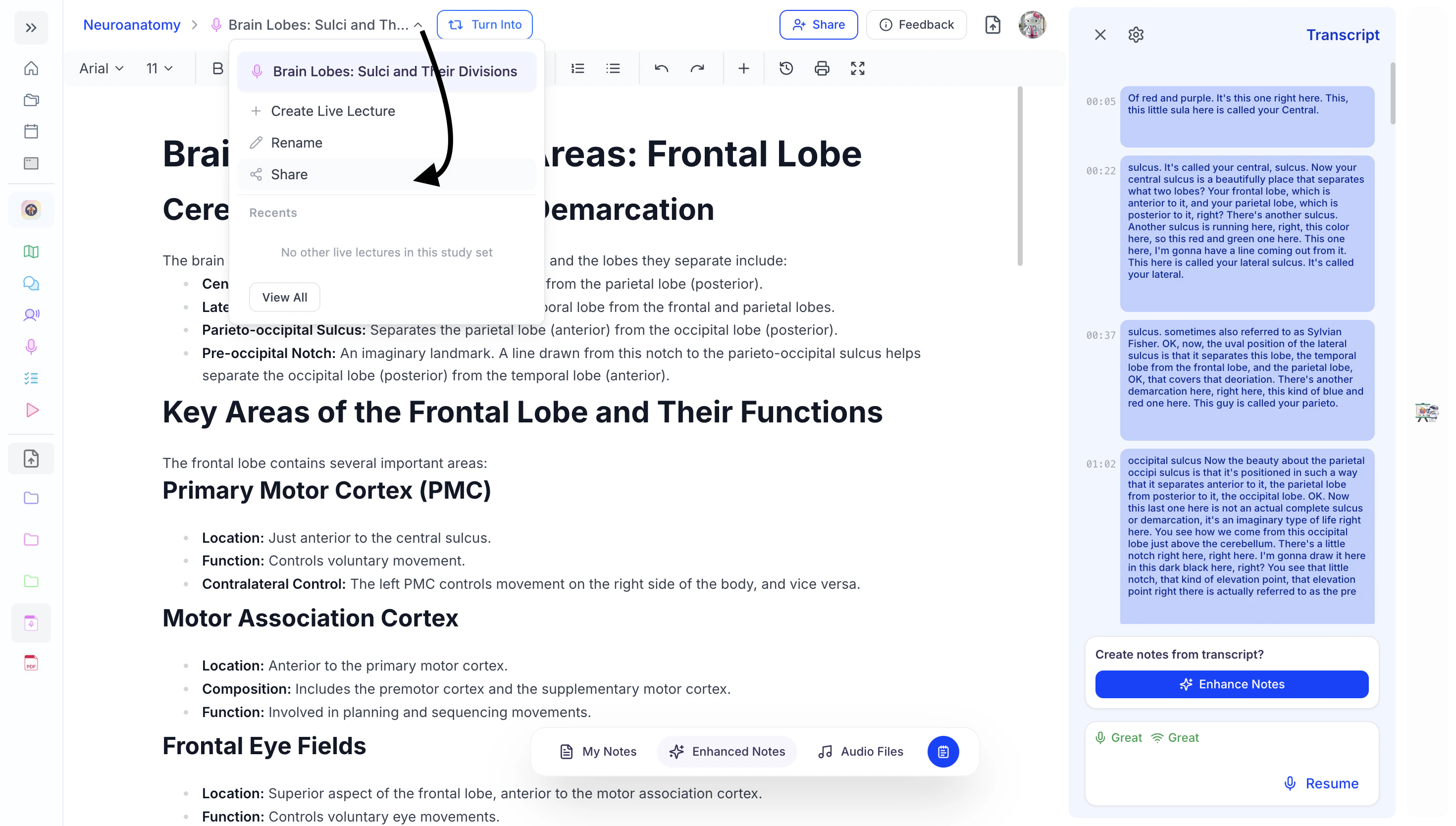
1. Click the **downward arrow** next to your Live Lecture Session name, then select **Share**.
### Share Your Live Lecture Session
Found your Live Lecture Session helpful? Feel free to share it with friends or classmates who may benefit from it as well.
1. Click the **downward arrow** next to your Live Lecture Session name, then select **Share**.
 2. Copy the link by clicking the **Copy Link** button from the bottom left corner. You can now share the copied link.
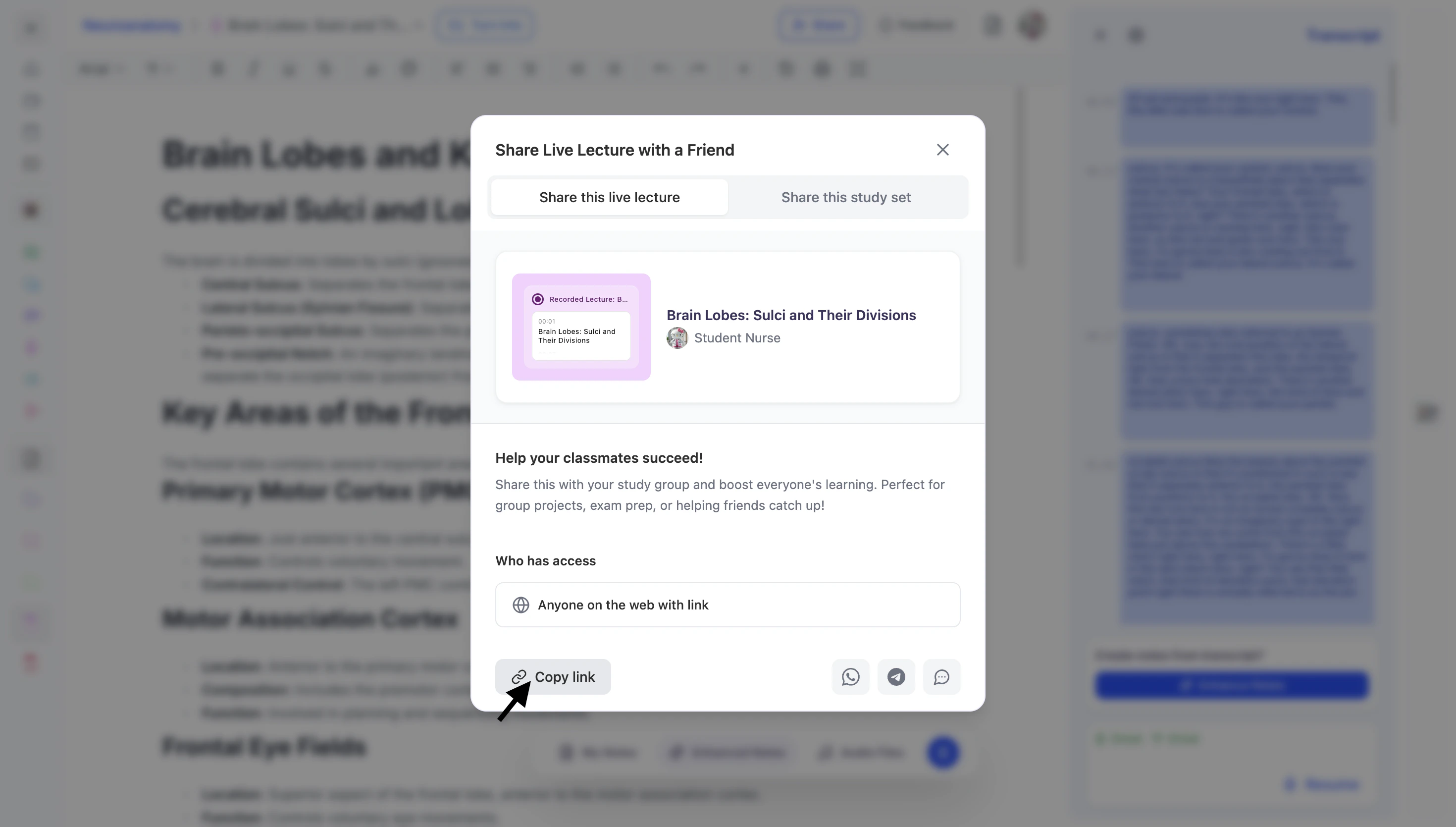 3. To share directly through supported apps:
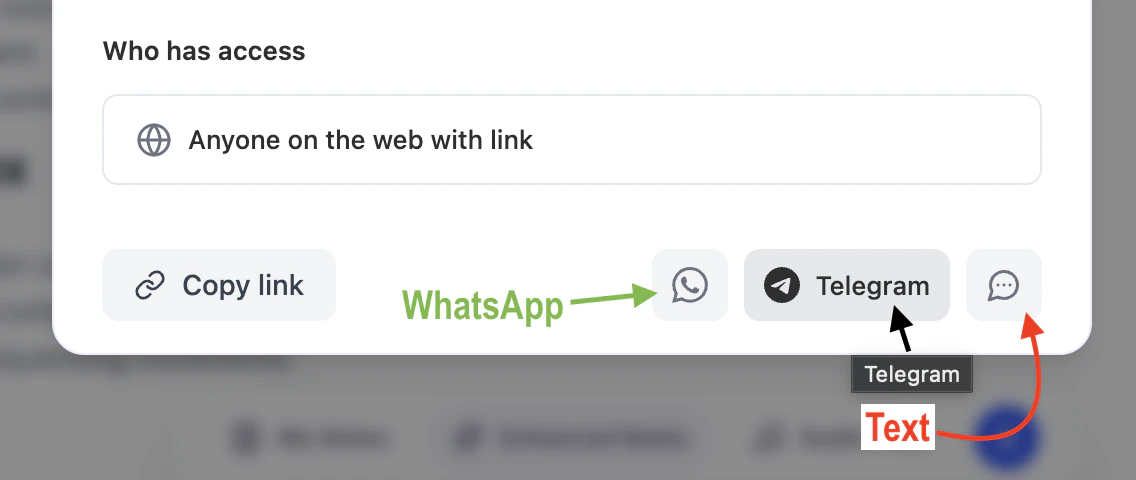 1. Select the **WhatsApp** icon to share via WhatsApp.
2. Select the **Telegram** icon to share via Telegram.
3. Select the **Text** icon to share through your preferred messaging app.
### Delete Your Live Lecture Session
Once a Live Lecture Session is completed, it is automatically saved to **Your Notes**.
1. Select the **WhatsApp** icon to share via WhatsApp.
2. Select the **Telegram** icon to share via Telegram.
3. Select the **Text** icon to share through your preferred messaging app.
### Delete Your Live Lecture Session
Once a Live Lecture Session is completed, it is automatically saved to **Your Notes**.
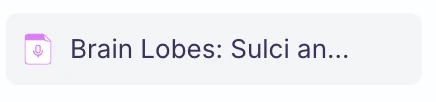
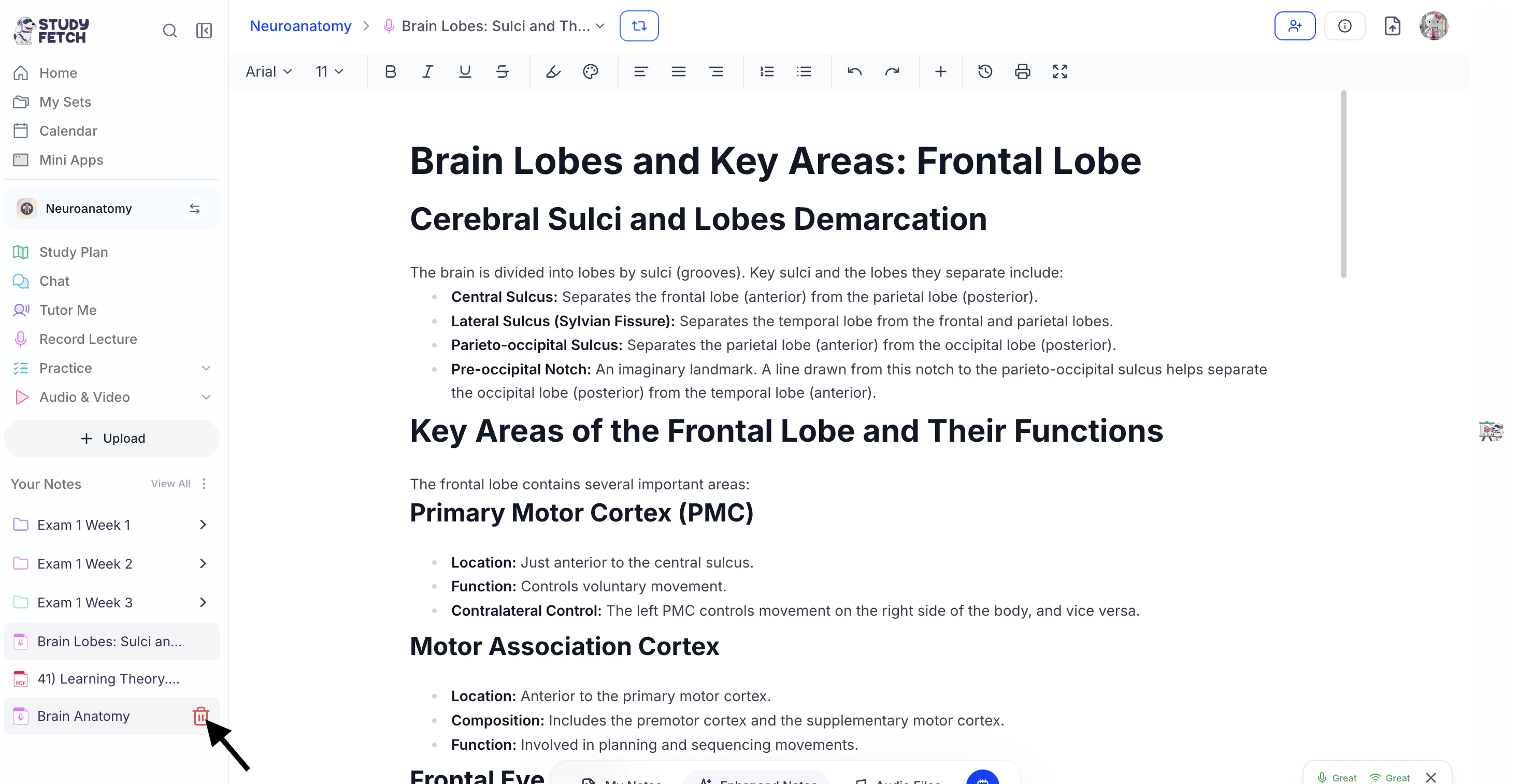
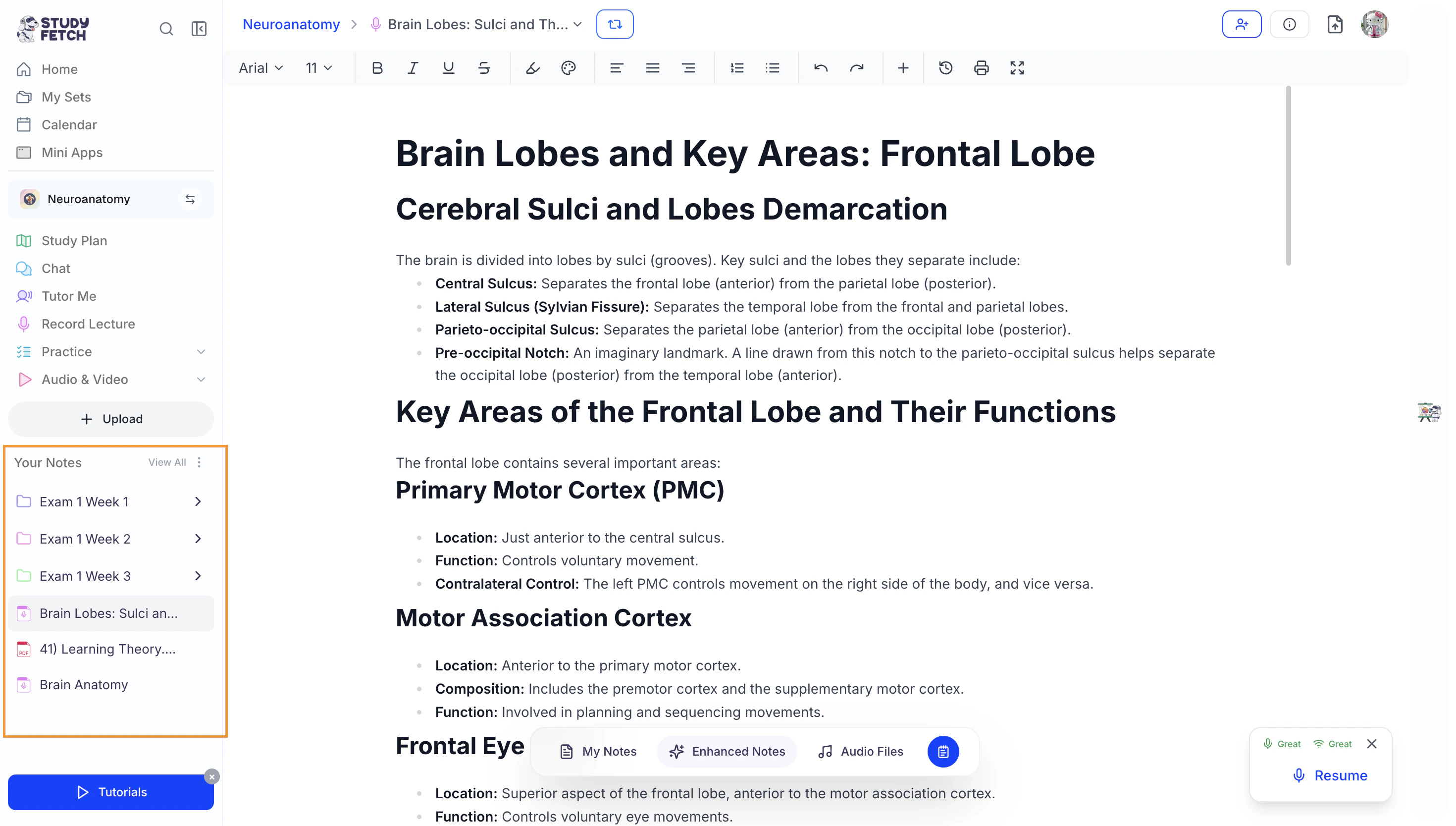 You can recognize it by the session name along with the pink microphone icon.
 1. To delete a session, locate it in your notes on the left sidebar.
2. Next, hover over the Live Lecture Session you want to remove.
1. To delete a session, locate it in your notes on the left sidebar.
2. Next, hover over the Live Lecture Session you want to remove.
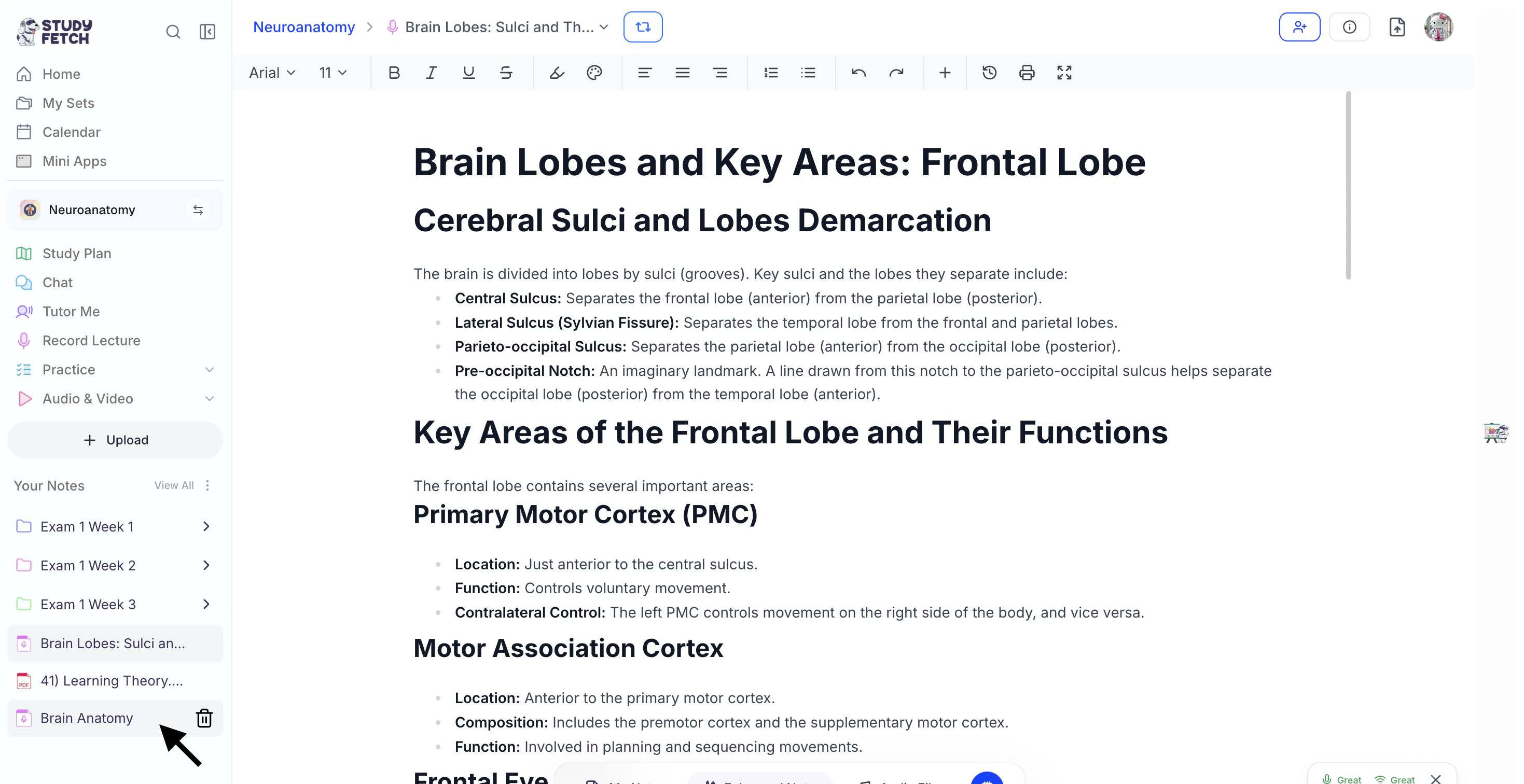 3. Then, click the **trash can icon** to the right of the session name.
 4. If you are sure you want to delete this Live Lecture Session, select **OK**.
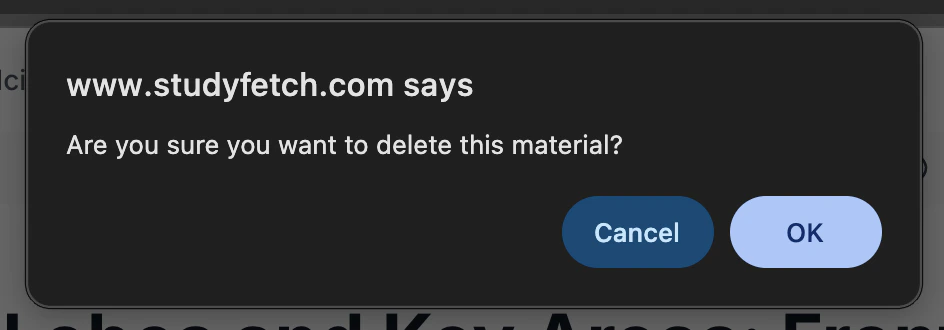 Be cautious as this cannot be undone!
## Benefits of Live Lecture
Live Lecture helps you capture, organize, and transform your lectures into powerful study materials—without missing a word:
* **One-Click Recording:** Instantly start capturing your lecture with a single click—no setup required
* **Real-Time Transcription:** Spark.E listens and transcribes everything as you focus on the lecture
* **AI-Enhanced Notes:** Automatically generate structured notes with headers, bullet points, and key highlights
* **Customizable Note Depth:** Choose between summarized, in-depth, or comprehensive notes based on your needs
* **Focus-First Learning:** Spend less time writing and more time understanding during class
* **Integrated Note-Taking:** Add your own notes alongside the recording, with AI highlighting key topics you wrote about
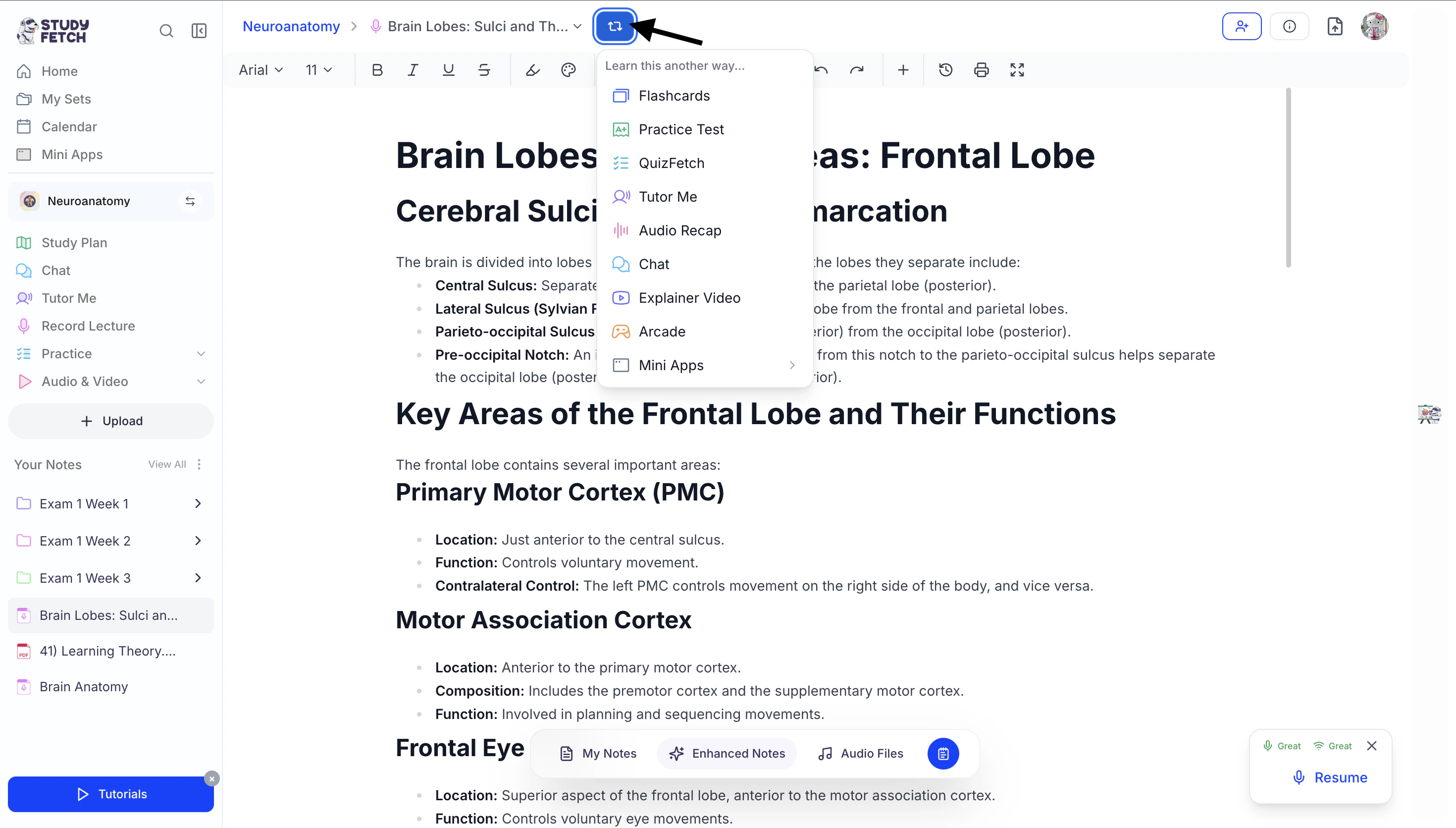
* **Integration with Other Tools**: Your Live Lecture Session can be used to generate flashcards, tests, and other study materials. You can create new study resources directly from your Live Lecture by selecting **Turn Into** at the top of the Live Lecture Session page and choosing your desired study tool.
Be cautious as this cannot be undone!
## Benefits of Live Lecture
Live Lecture helps you capture, organize, and transform your lectures into powerful study materials—without missing a word:
* **One-Click Recording:** Instantly start capturing your lecture with a single click—no setup required
* **Real-Time Transcription:** Spark.E listens and transcribes everything as you focus on the lecture
* **AI-Enhanced Notes:** Automatically generate structured notes with headers, bullet points, and key highlights
* **Customizable Note Depth:** Choose between summarized, in-depth, or comprehensive notes based on your needs
* **Focus-First Learning:** Spend less time writing and more time understanding during class
* **Integrated Note-Taking:** Add your own notes alongside the recording, with AI highlighting key topics you wrote about
* **Integration with Other Tools**: Your Live Lecture Session can be used to generate flashcards, tests, and other study materials. You can create new study resources directly from your Live Lecture by selecting **Turn Into** at the top of the Live Lecture Session page and choosing your desired study tool.
 ## **Related Features**
Once you’ve finished a Live Lecture Session, you might want to:
* Generate [**Flashcards**](https://www.studyfetch.com/docs/tutorial-doc-format/flashcards) to memorize key concepts
* Create [**Practice Tests**](https://www.studyfetch.com/docs/tutorial-doc-format/test) to assess your knowledge
* Use [**Audio Recap**](https://www.studyfetch.com/docs/tutorial-doc-format/audiorecap) to review material on the go
## **Related Features**
Once you’ve finished a Live Lecture Session, you might want to:
* Generate [**Flashcards**](https://www.studyfetch.com/docs/tutorial-doc-format/flashcards) to memorize key concepts
* Create [**Practice Tests**](https://www.studyfetch.com/docs/tutorial-doc-format/test) to assess your knowledge
* Use [**Audio Recap**](https://www.studyfetch.com/docs/tutorial-doc-format/audiorecap) to review material on the go