> ## Documentation Index
> Fetch the complete documentation index at: https://www.studyfetch.com/docs/llms.txt
> Use this file to discover all available pages before exploring further.
# Test Tutorial
> Create your own test by selecting your study materials, customizing question types, and setting the number of questions to match your learning goals!
## Introduction
The Test feature allows you to create customized practice tests based on your study materials. These tests help you assess your knowledge, identify areas that need improvement, and prepare for upcoming exams with personalized questions.
## Accessing the Test Feature
1. On the left-hand side of your Dashboard click **Practice** and then select **Test**
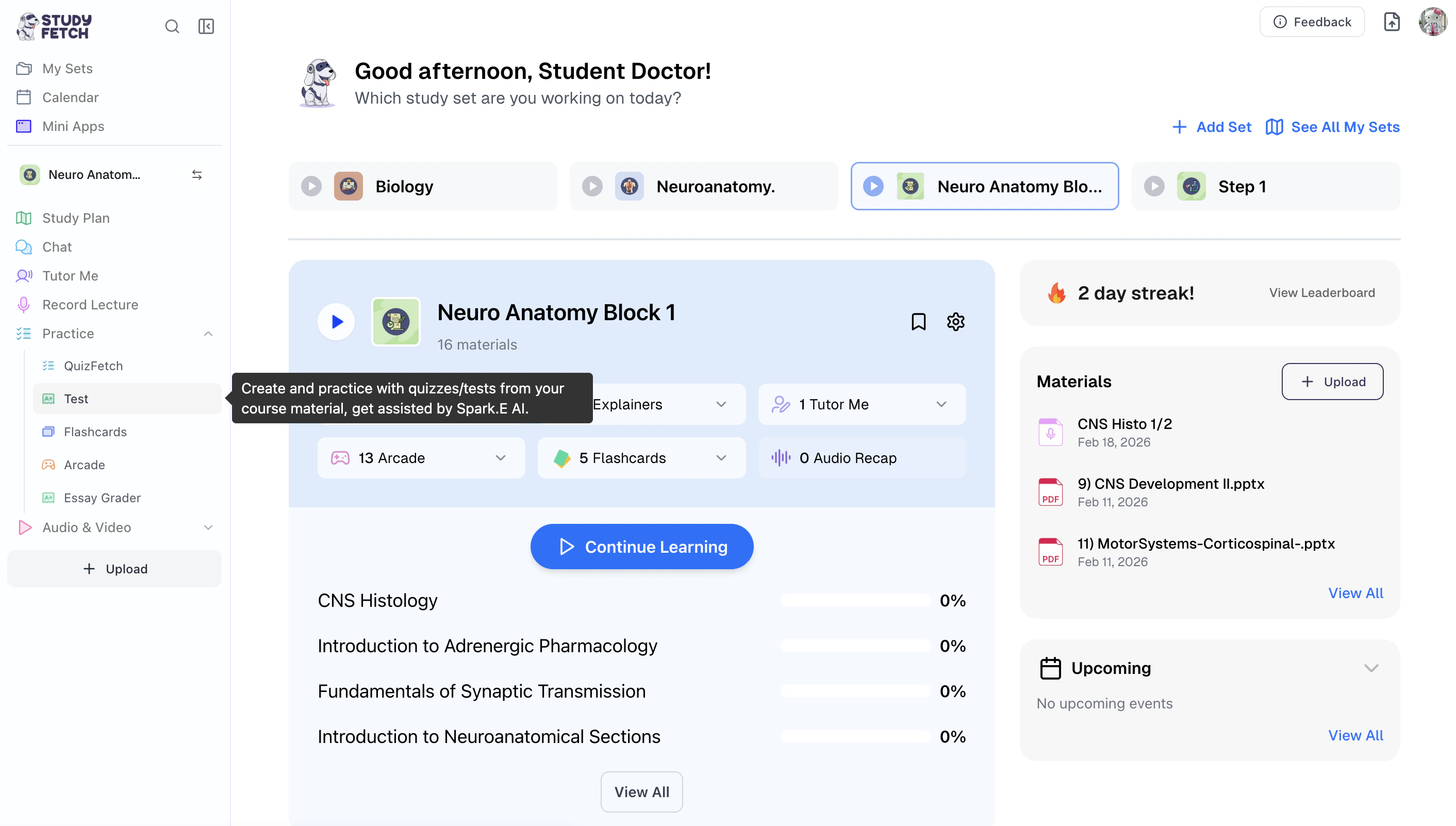 2. All existing practice tests associated with your Study Set can be found on this page.
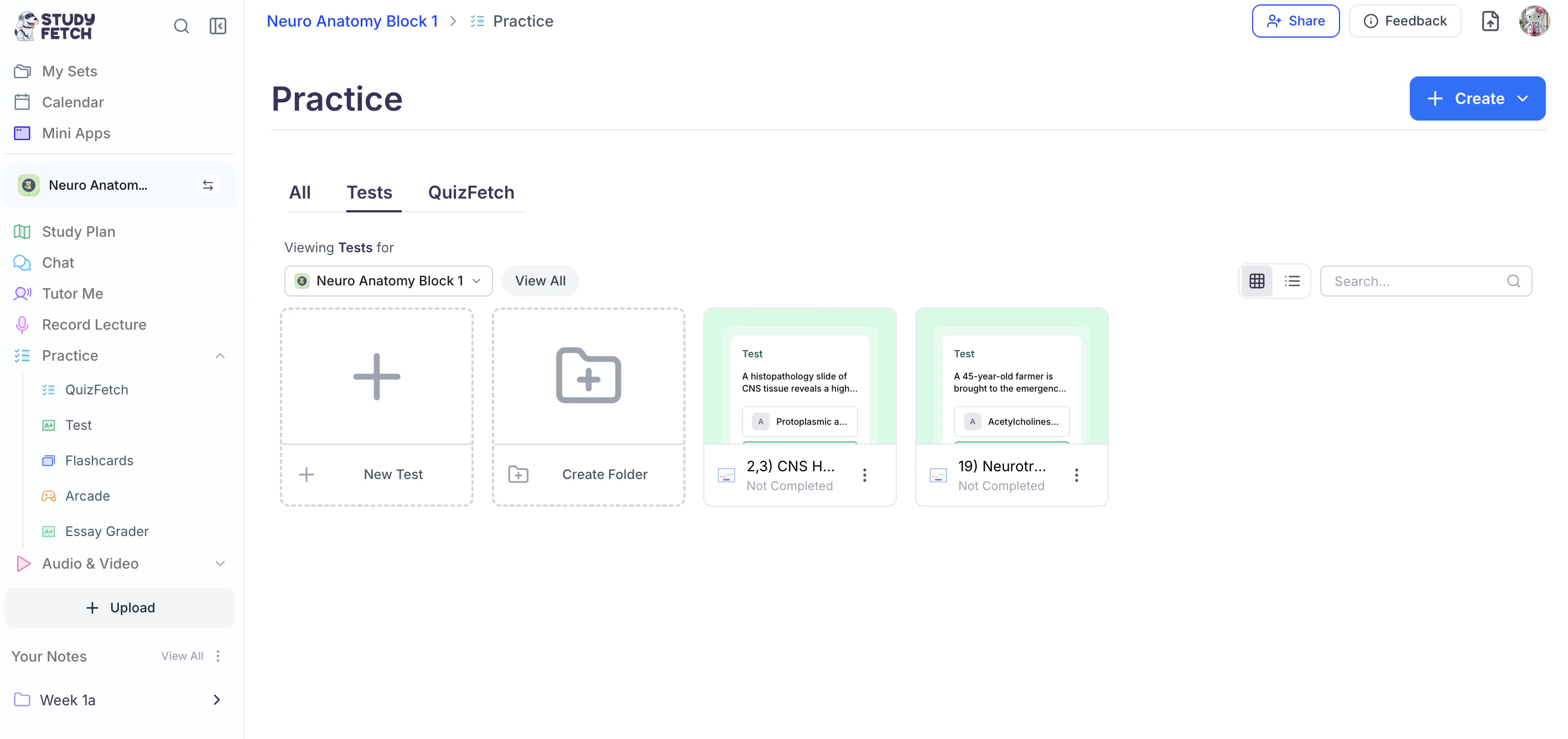 3. To open a specific test, simply click on the name of the practice test you would like to view.
4. To generate a new practice test, follow the steps outlined below.
## Creating Your Test
### Step 1: Create a New Test
1. To generate a new practice test:
1. Select **+ New Test**, or
3. To open a specific test, simply click on the name of the practice test you would like to view.
4. To generate a new practice test, follow the steps outlined below.
## Creating Your Test
### Step 1: Create a New Test
1. To generate a new practice test:
1. Select **+ New Test**, or
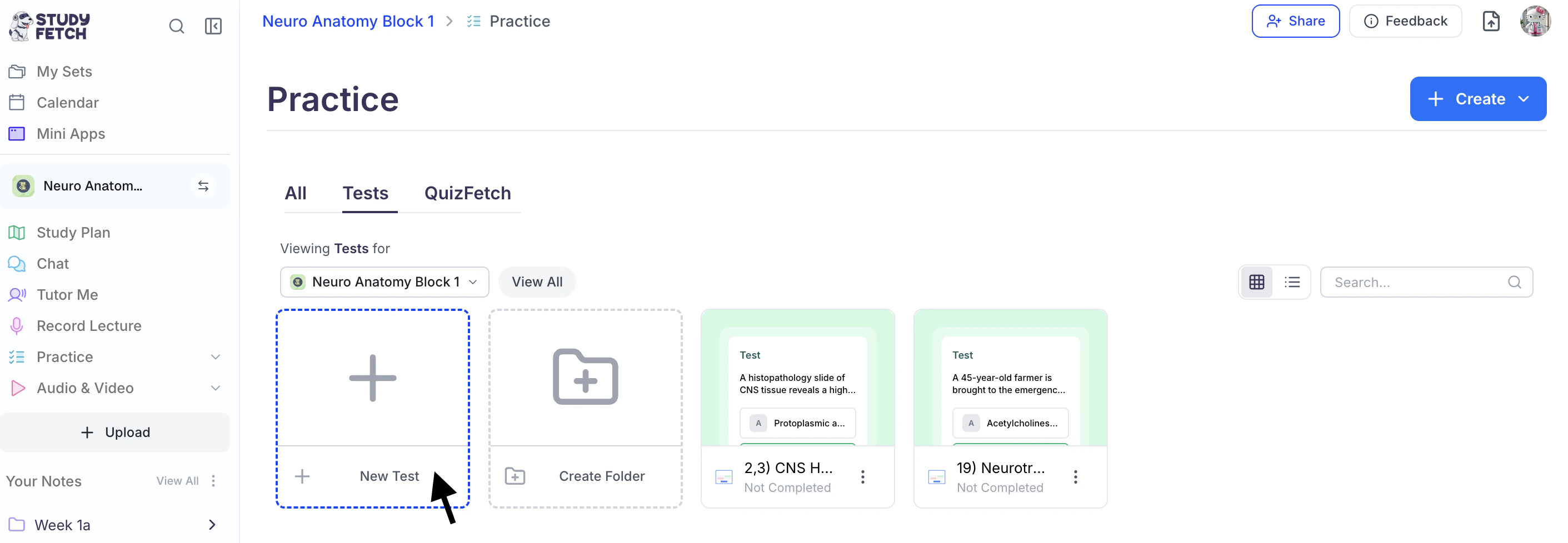 2. Click the **downward arrow** next to the **+ Create** button in the top-right corner.
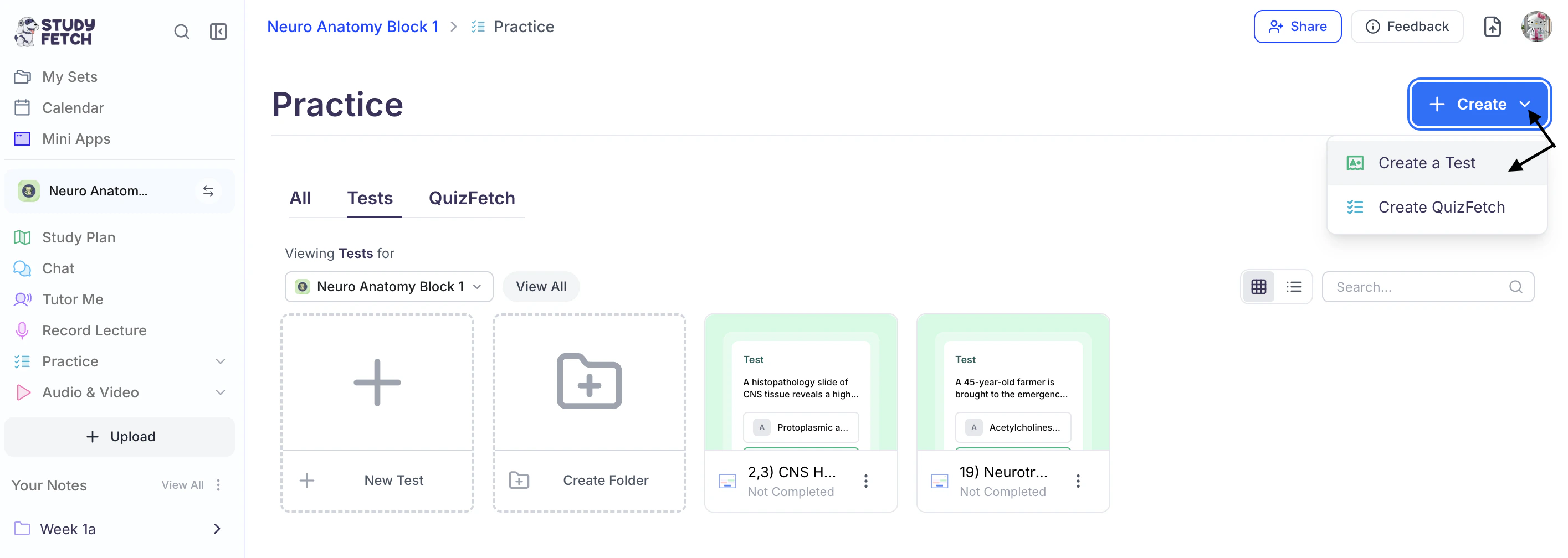 3. From the dropdown menu, select **Create a Test**.
### Step 2: Choose the Source
1. Next, select how you would like to generate your test. Choose **Create from Materials** to build a practice test from your study materials, or select **Create from Flashcards** to generate a test from your flashcards.
3. From the dropdown menu, select **Create a Test**.
### Step 2: Choose the Source
1. Next, select how you would like to generate your test. Choose **Create from Materials** to build a practice test from your study materials, or select **Create from Flashcards** to generate a test from your flashcards.
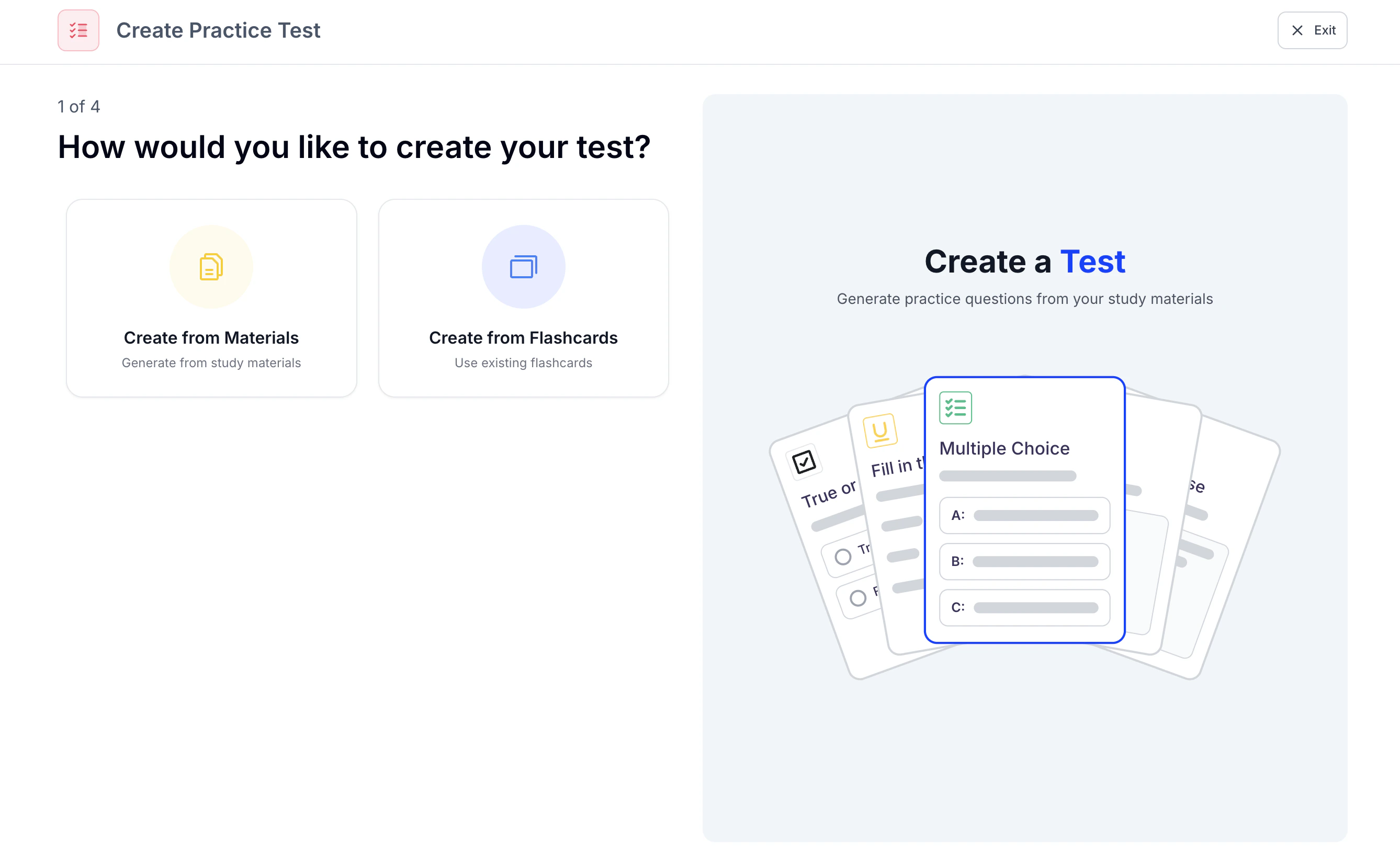 2. Then follow the steps for your selected method below.
### Method 1: **Create from Materials**
1. Select **Create from Materials** if you want to create a practice test from your materials
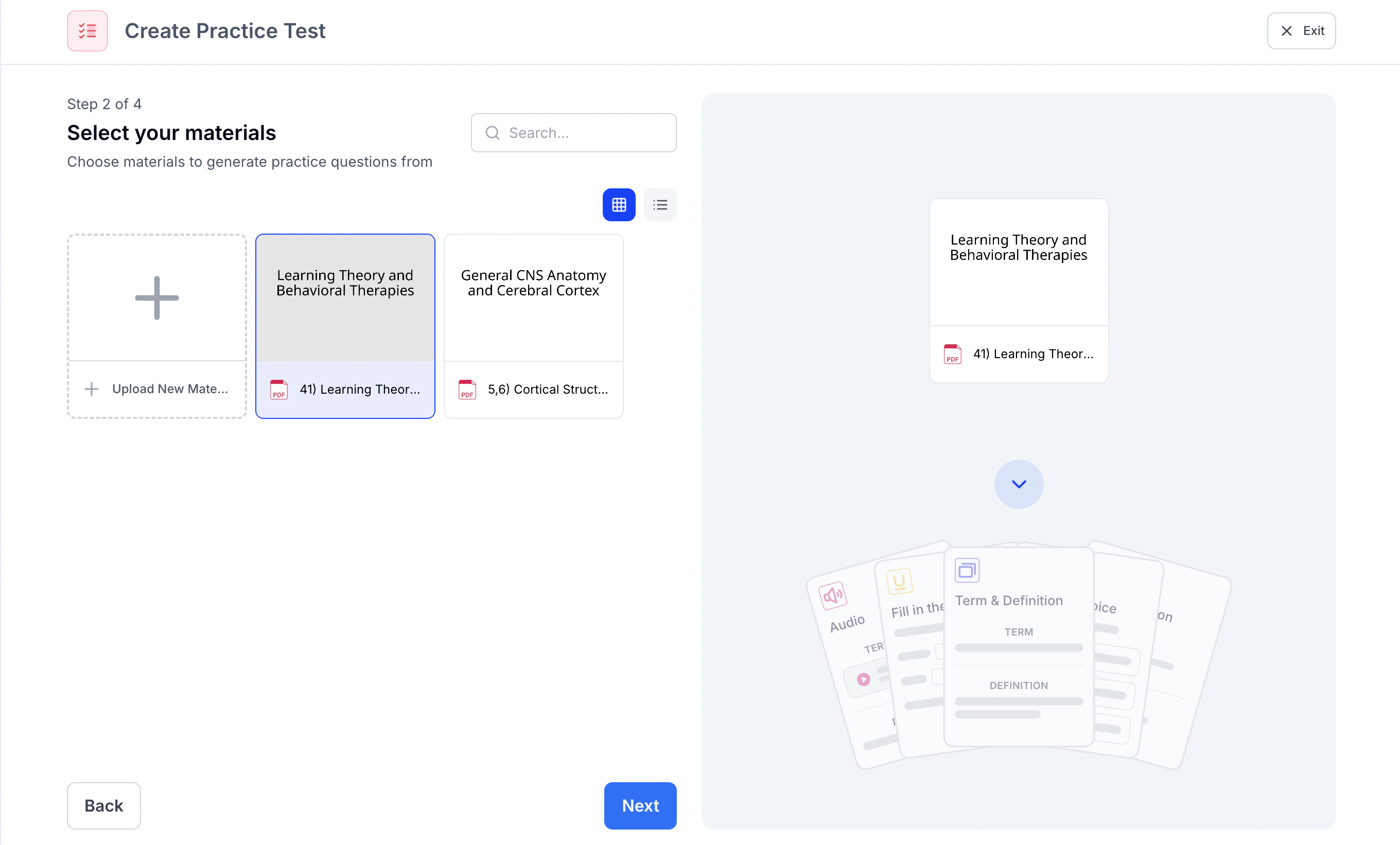
2. Choose which previously uploaded materials you would like to create a practice test from or select **+ Upload New Material** to import material you haven’t uploaded, and click **Next**
2. Then follow the steps for your selected method below.
### Method 1: **Create from Materials**
1. Select **Create from Materials** if you want to create a practice test from your materials
2. Choose which previously uploaded materials you would like to create a practice test from or select **+ Upload New Material** to import material you haven’t uploaded, and click **Next**
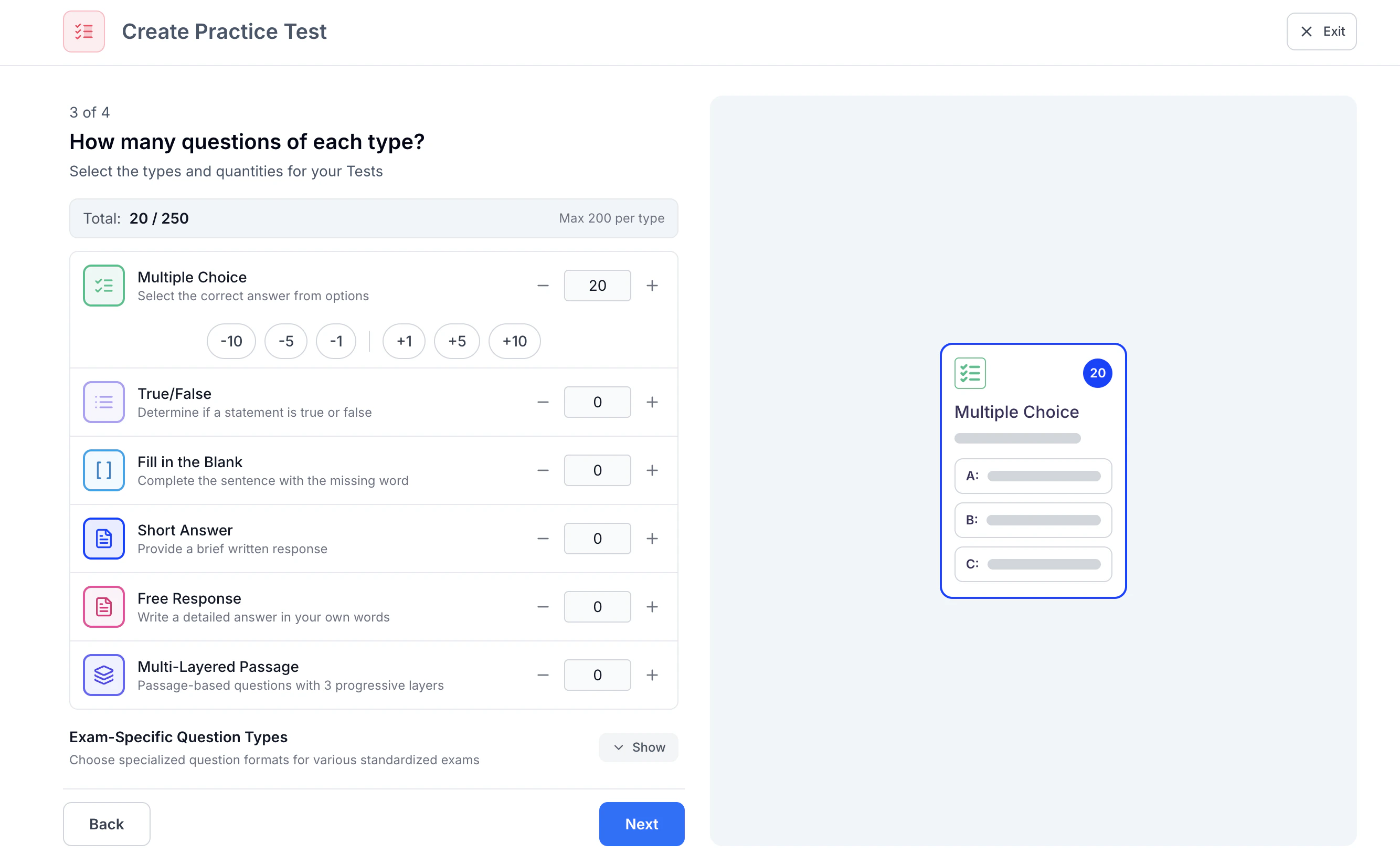
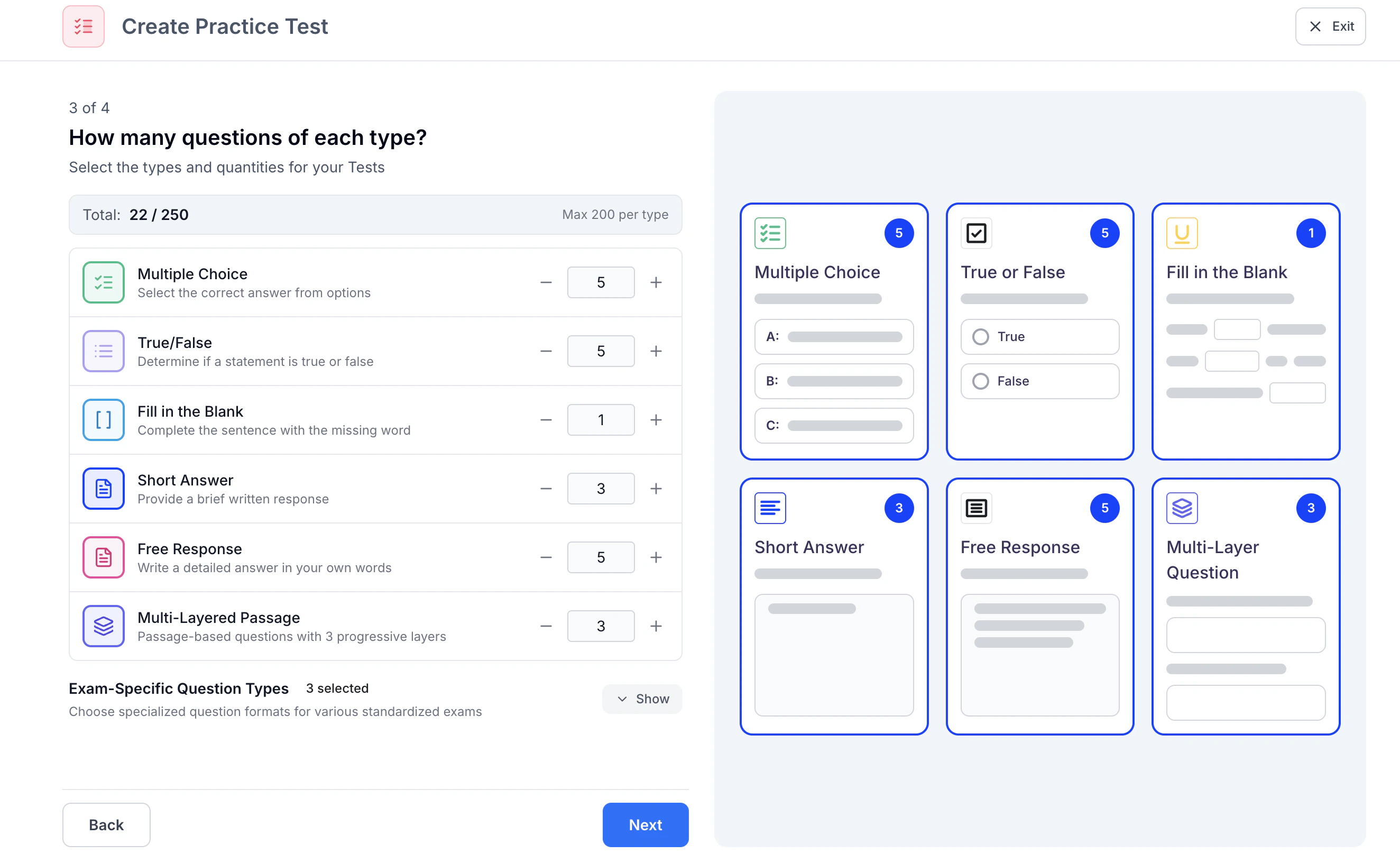
 3. Next, customize your test by selecting the desired number of questions for each format, including **Multiple Choice**, **True/False**, **Fill in the Blank**, **Short Answer**, **Free Response**, and **Multi-Layered Passage**. To adjust the number of questions, use the **–** and **+** buttons within each question type. For faster adjustments, select one of the preset options to add or remove multiple questions at once.
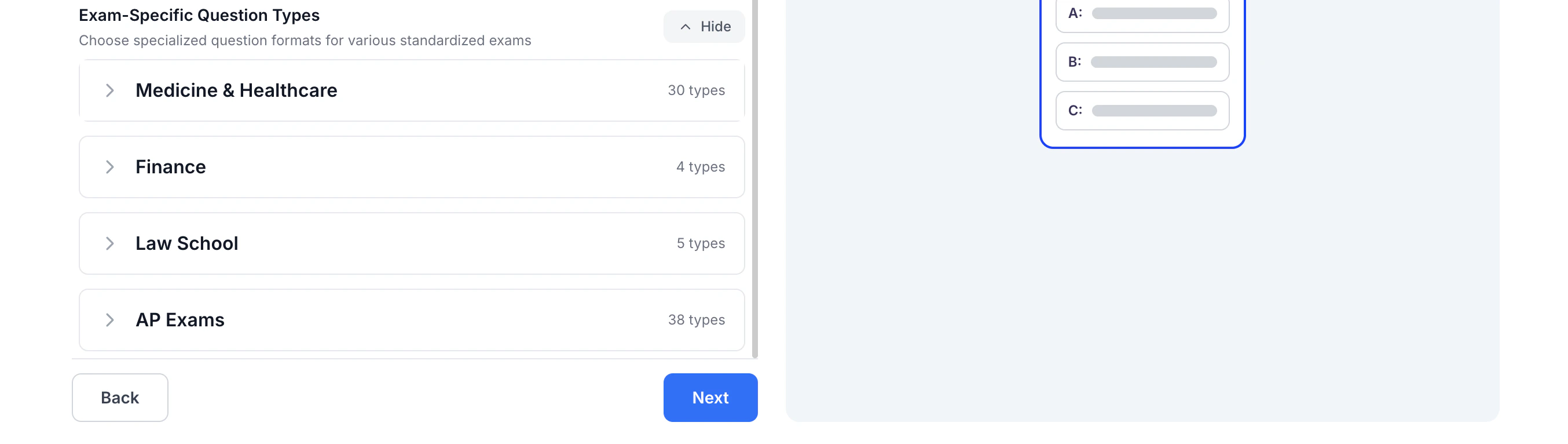
 4. Under **Exam-Specific Question Types**, you can choose the exam you are preparing for (e.g., **USMLE Step 1**, **MCAT**, **NCLEX**, **AP Exams**, and more) to generate questions that align with real exam formats.
 For more details, see [**Exam-Specific Question Types**](https://www.studyfetch.com/docs/tutorial-doc-format/exam-specific-question-types-tutorial).
5. Each selected question type will appear in its own box on the right-hand side, with the number of questions displayed in a blue circle in the top-right corner.
For more details, see [**Exam-Specific Question Types**](https://www.studyfetch.com/docs/tutorial-doc-format/exam-specific-question-types-tutorial).
5. Each selected question type will appear in its own box on the right-hand side, with the number of questions displayed in a blue circle in the top-right corner.
 When you are finished making your selections, click **Next**.
6. Now you can add additional optional settings:
When you are finished making your selections, click **Next**.
6. Now you can add additional optional settings:
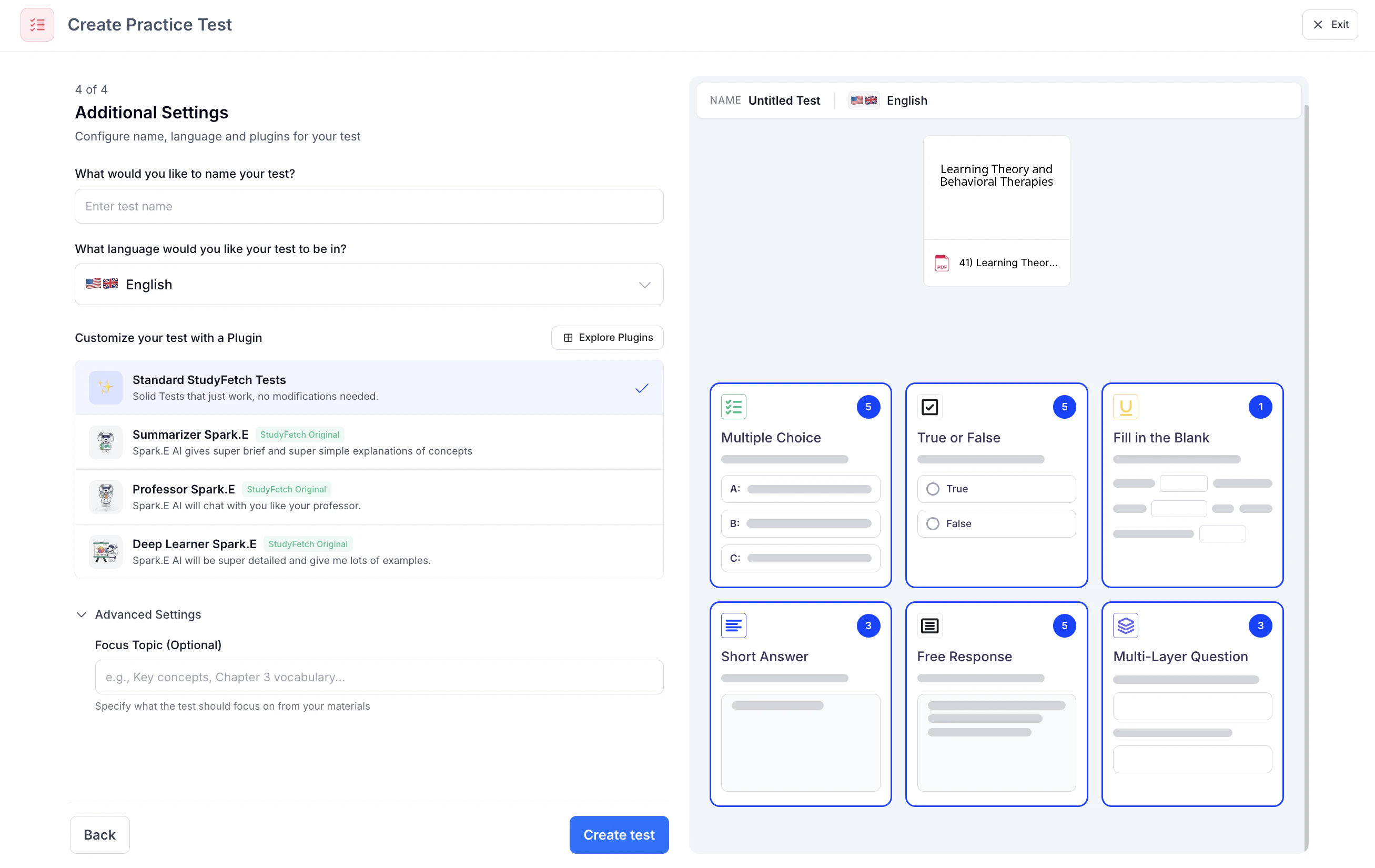 **Name your Practice Test** by typing in the box under **What would you like to name your test?** If you leave this blank, don’t worry, we will name your practice test for you.\
\
**Choose the language** you want your practice test to be in by clicking the box under **What language would you like your test to be in?** and selecting your preferred language from the list.\
\
**Select a customization plugin** by selecting one from the list under **Customize your test with a Plugin** or click **Explore Plugins** to use a plugin not listed or create your own. \
\
To ensure your practice test is tailored to your learning goals, specify a focus topic in the box under **Focus Topic (optional)**
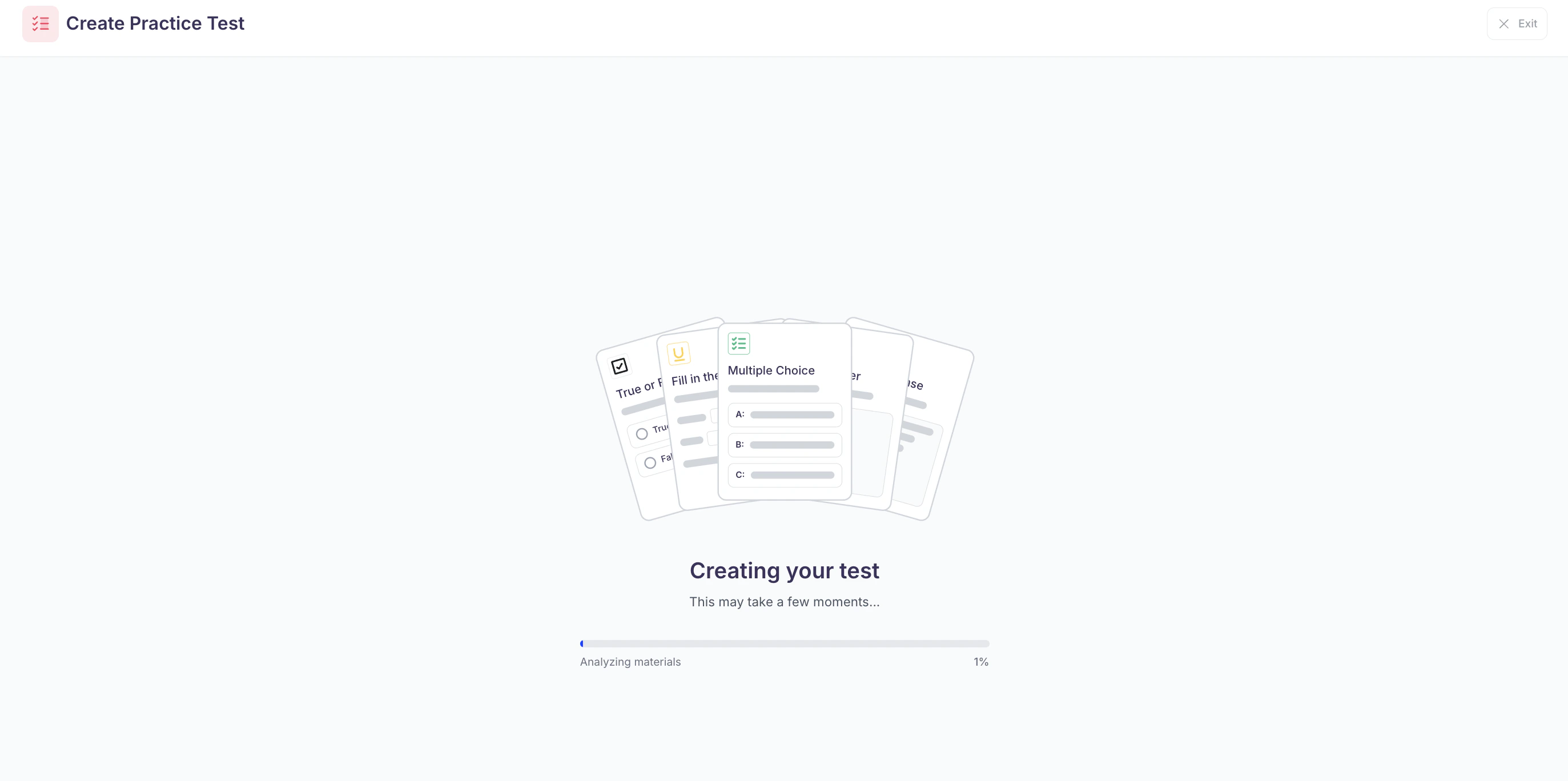
7. Lastly, select **Create test** and StudyFetch will automatically generate your customized practice test!
**Name your Practice Test** by typing in the box under **What would you like to name your test?** If you leave this blank, don’t worry, we will name your practice test for you.\
\
**Choose the language** you want your practice test to be in by clicking the box under **What language would you like your test to be in?** and selecting your preferred language from the list.\
\
**Select a customization plugin** by selecting one from the list under **Customize your test with a Plugin** or click **Explore Plugins** to use a plugin not listed or create your own. \
\
To ensure your practice test is tailored to your learning goals, specify a focus topic in the box under **Focus Topic (optional)**
7. Lastly, select **Create test** and StudyFetch will automatically generate your customized practice test!
 ### Method 2: **Create from Flashcards**
1. Select **Create from Flashcards** if you want to create a practice test from your flashcards
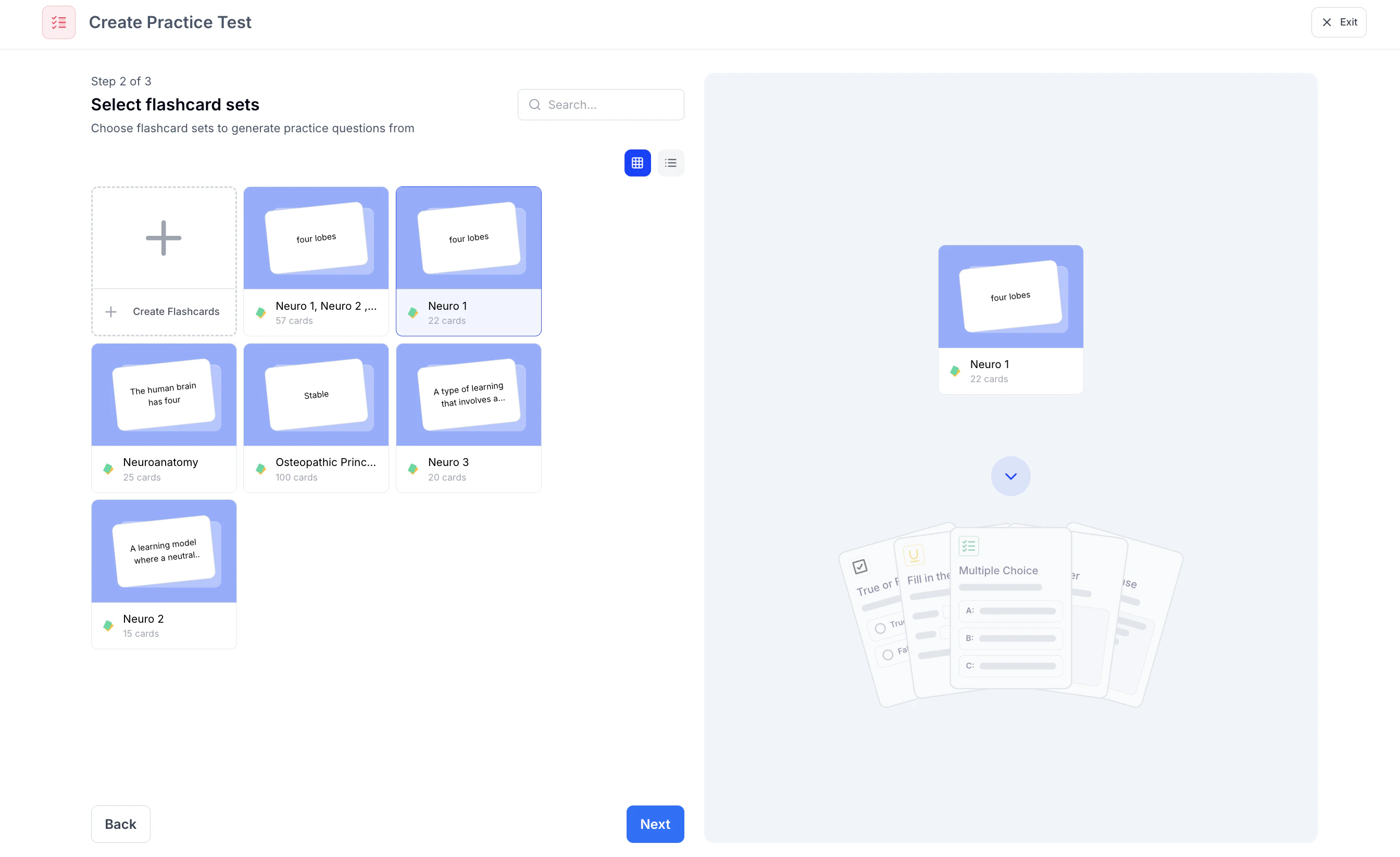
2. Choose the existing flashcard set(s) you want to use for your practice test, or select **+ Create Flashcards** to generate a new set. Once your selection is complete, click **Next** to continue.
### Method 2: **Create from Flashcards**
1. Select **Create from Flashcards** if you want to create a practice test from your flashcards
2. Choose the existing flashcard set(s) you want to use for your practice test, or select **+ Create Flashcards** to generate a new set. Once your selection is complete, click **Next** to continue.
 3. **Name your Practice Test** by typing in the box under **What would you like to name your test?** If you leave this blank, don’t worry, we will name your practice test for you.
 Creating a practice test from flashcards automatically generates a 20-question multiple choice test. For more advanced customization options, use the **Create from Materials method**.
4. Lastly, select **Create test** and StudyFetch will automatically generate your customized practice test!
Creating a practice test from flashcards automatically generates a 20-question multiple choice test. For more advanced customization options, use the **Create from Materials method**.
4. Lastly, select **Create test** and StudyFetch will automatically generate your customized practice test!
 ## Taking Your Test
### Step 1: Choose your Layout
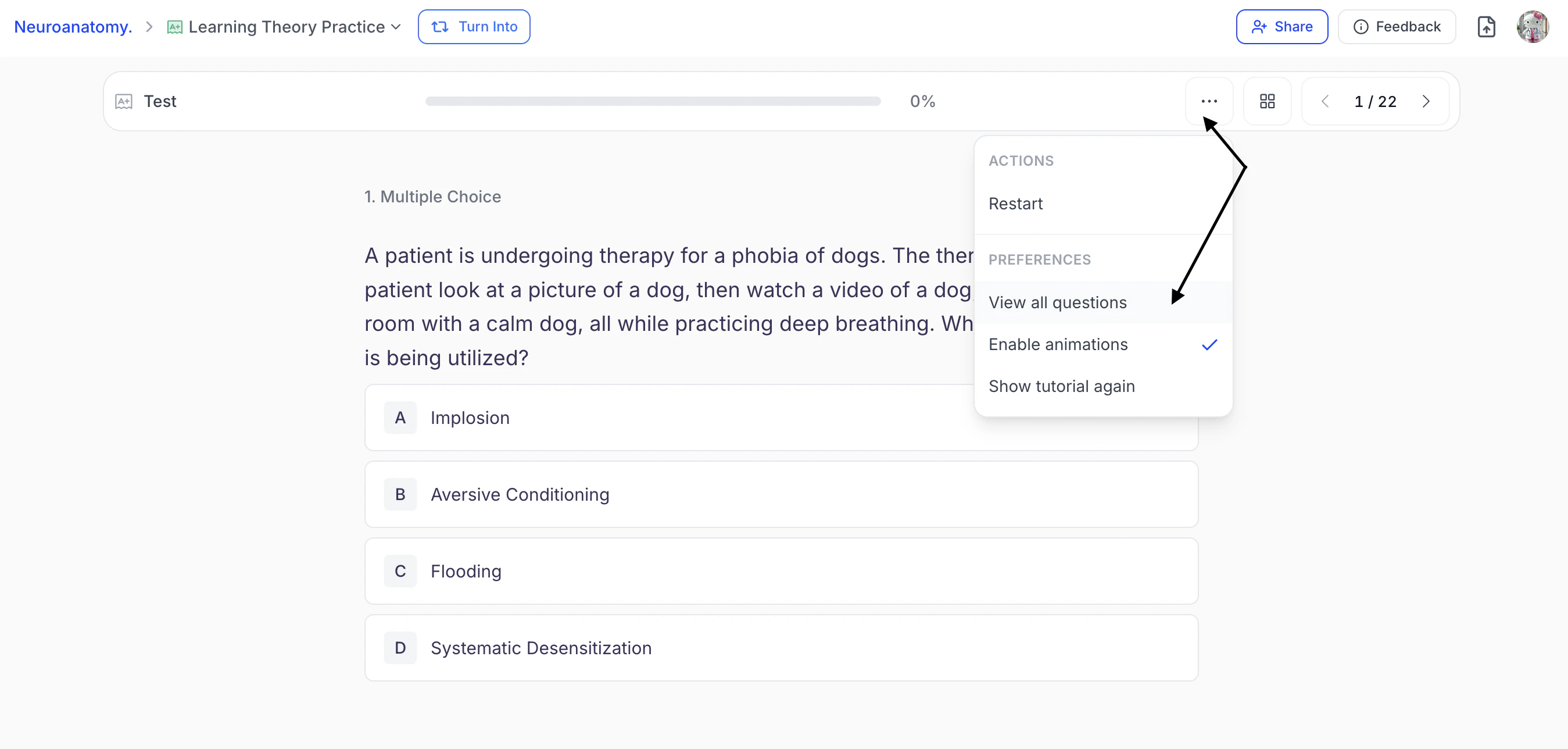
1. By default, questions are presented one at a time. To view all practice test questions at once, select the **…** (Settings) button and choose **View all questions**.
## Taking Your Test
### Step 1: Choose your Layout
1. By default, questions are presented one at a time. To view all practice test questions at once, select the **…** (Settings) button and choose **View all questions**.
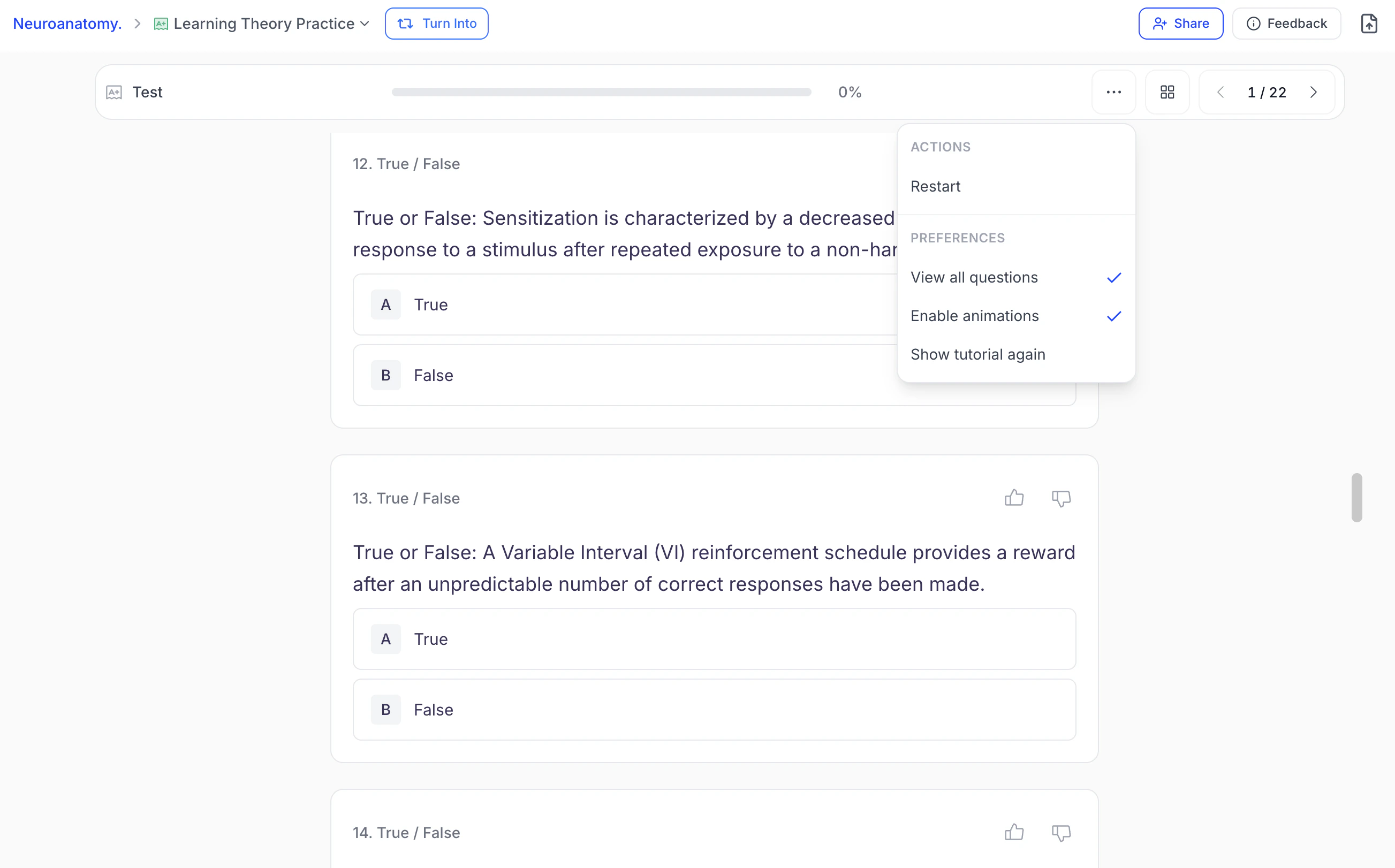
 2. A checkmark will appear next to **View all questions**, allowing you to scroll through and view all questions simultaneously.
 3. To return to single-question view, select the **…** (Settings) button again and click **View all questions** to remove the checkmark.
### Step 2: Answer Questions
1. Choose your answer by selecting an option or entering your response in the answer field when indicated.
3. To return to single-question view, select the **…** (Settings) button again and click **View all questions** to remove the checkmark.
### Step 2: Answer Questions
1. Choose your answer by selecting an option or entering your response in the answer field when indicated.
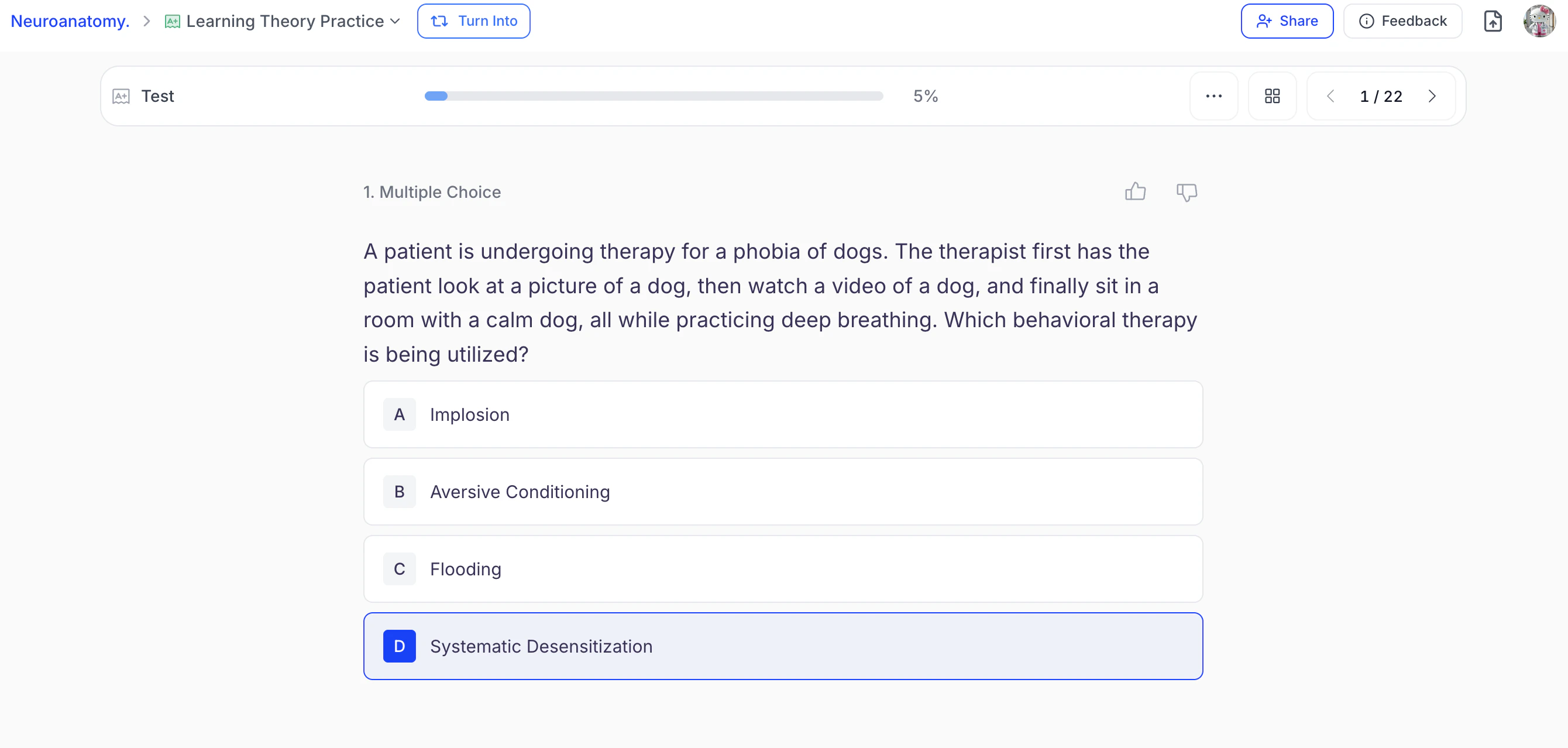 2. When entering a typed response, click **Submit** to confirm your answer.
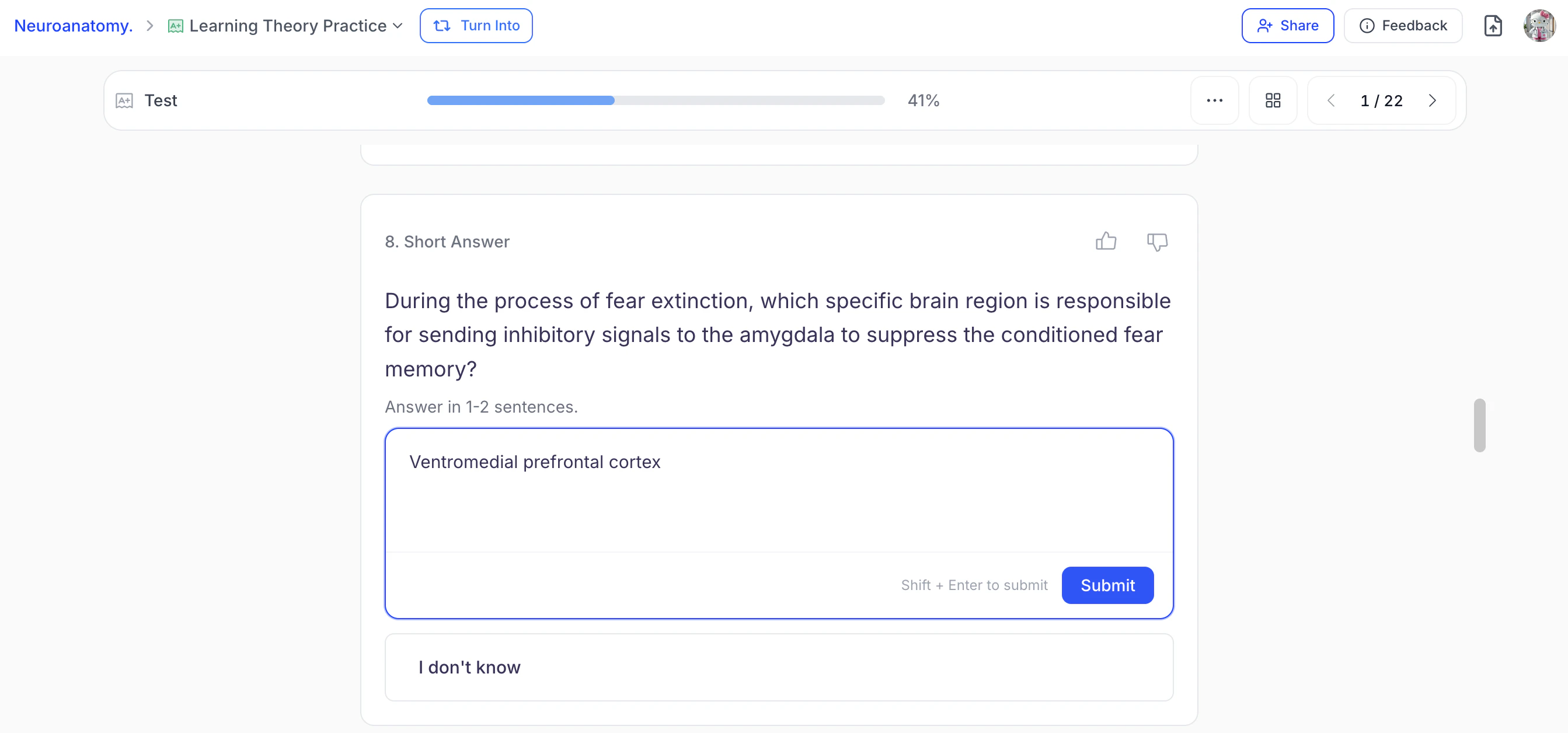 3. In single-question view, the next question appears automatically after answering. However, you can return to any question and make changes at any time before submitting your test.
4. In **View All Questions** mode, scroll to move to the next questions.
### Step 3: Navigation tools
1. A **progress bar** at the top of the practice test fills as you answer questions, with your **completion percentage** shown on the right.
3. In single-question view, the next question appears automatically after answering. However, you can return to any question and make changes at any time before submitting your test.
4. In **View All Questions** mode, scroll to move to the next questions.
### Step 3: Navigation tools
1. A **progress bar** at the top of the practice test fills as you answer questions, with your **completion percentage** shown on the right.
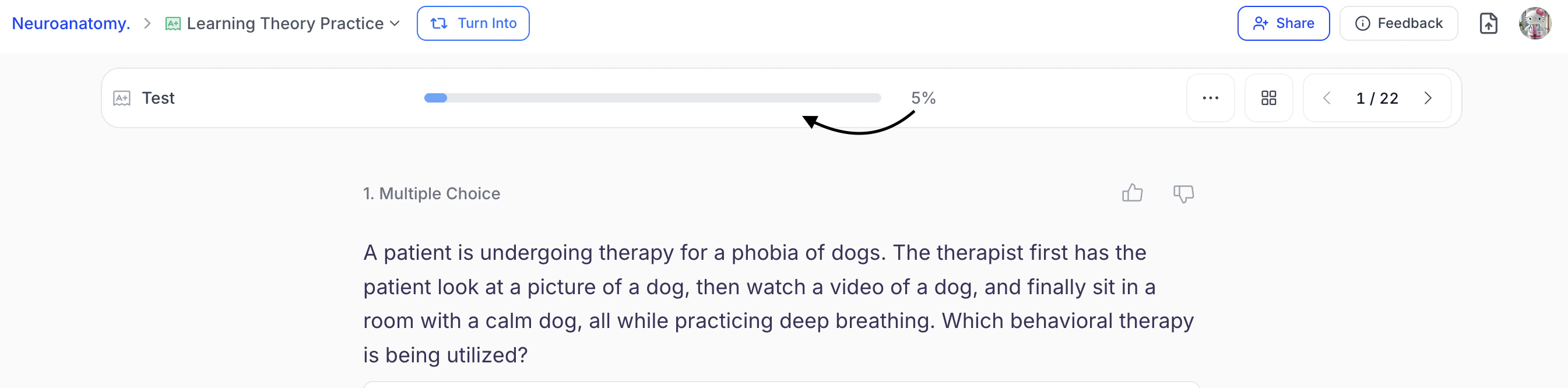 2. Use the **← →** arrow keys or the **\<** (Previous) and **>**(Next) buttons found on the top right of your toolbar to move between questions. Answer in any order you like.
3. To view question-by-question progress, select the **View All** button to the right of the **Settings** button.
2. Use the **← →** arrow keys or the **\<** (Previous) and **>**(Next) buttons found on the top right of your toolbar to move between questions. Answer in any order you like.
3. To view question-by-question progress, select the **View All** button to the right of the **Settings** button.
 4. Numbered rectangles will appear, representing each question. **Answered** questions are **shaded in blue**, while **unanswered** questions**remain unshaded** .
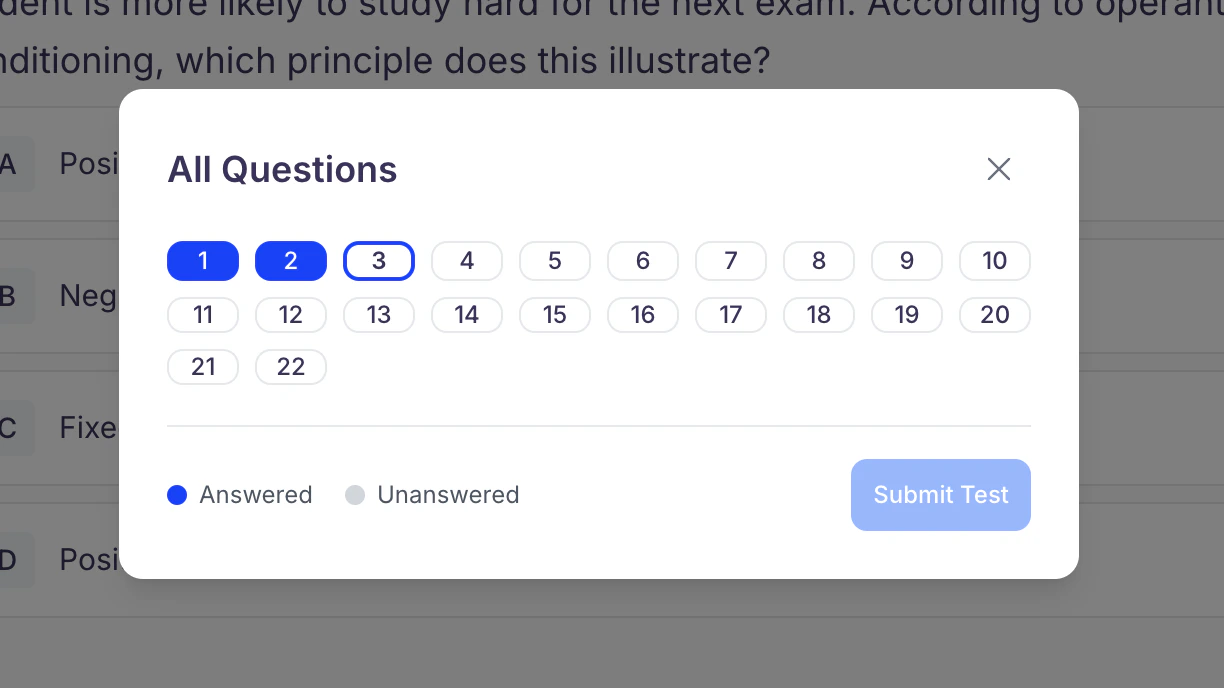 5. Click any rectangle to jump directly to that question.
6. If you want to restart your practice test, select the **settings** button from the top toolbar and click **Restart**.
5. Click any rectangle to jump directly to that question.
6. If you want to restart your practice test, select the **settings** button from the top toolbar and click **Restart**.
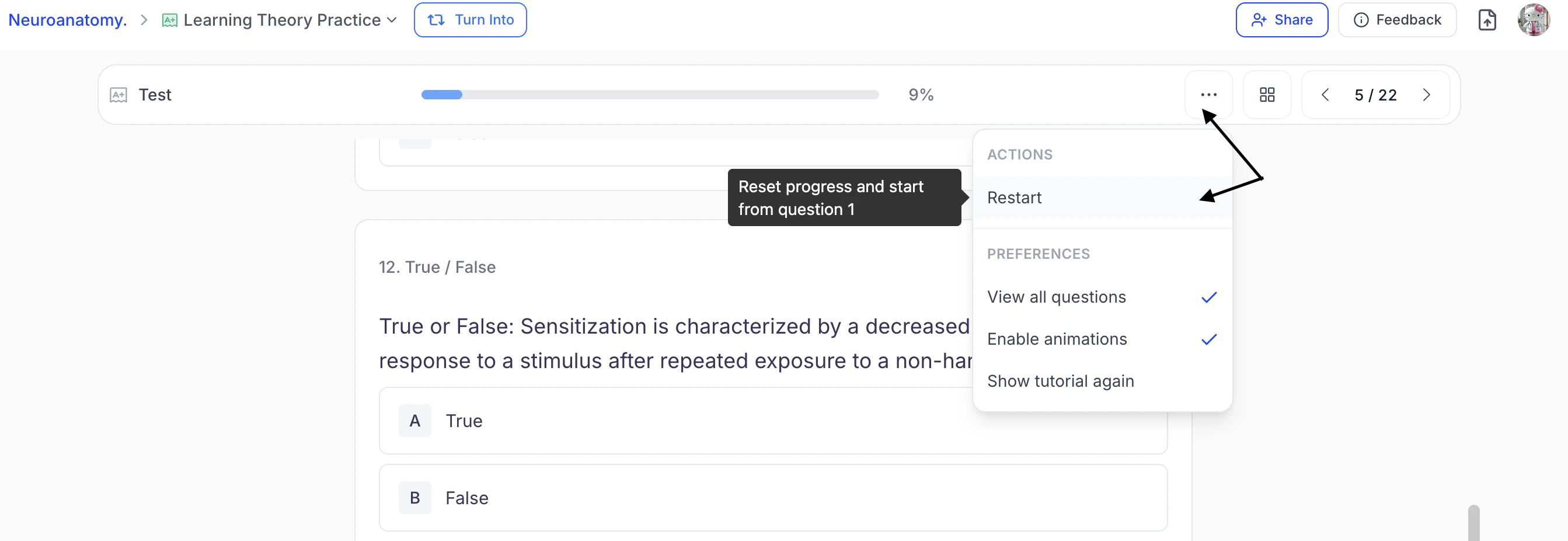 7. If you are sure you want to restart your practice test, select **Restart**.
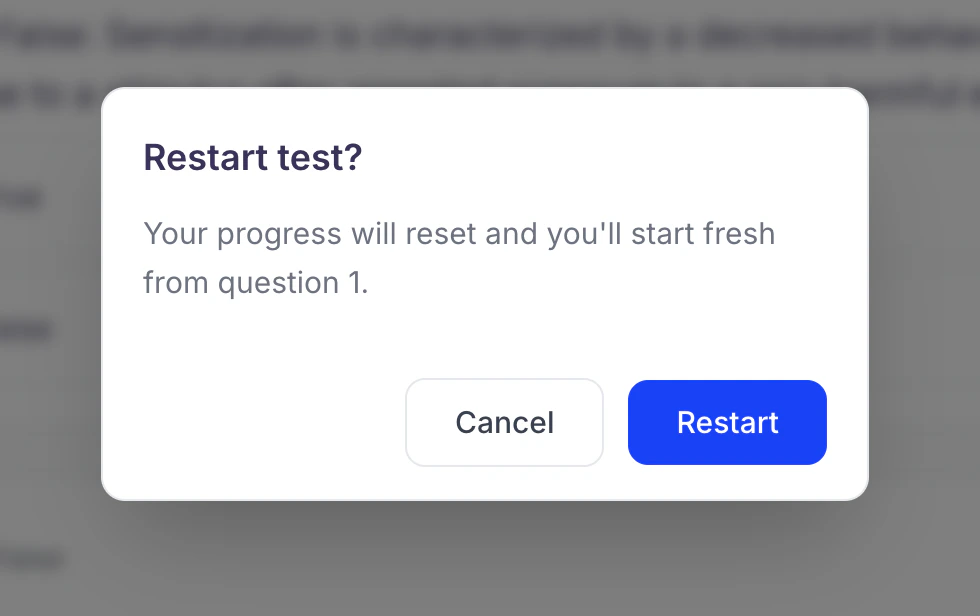 Your progress will reset and you will be taken to question 1.
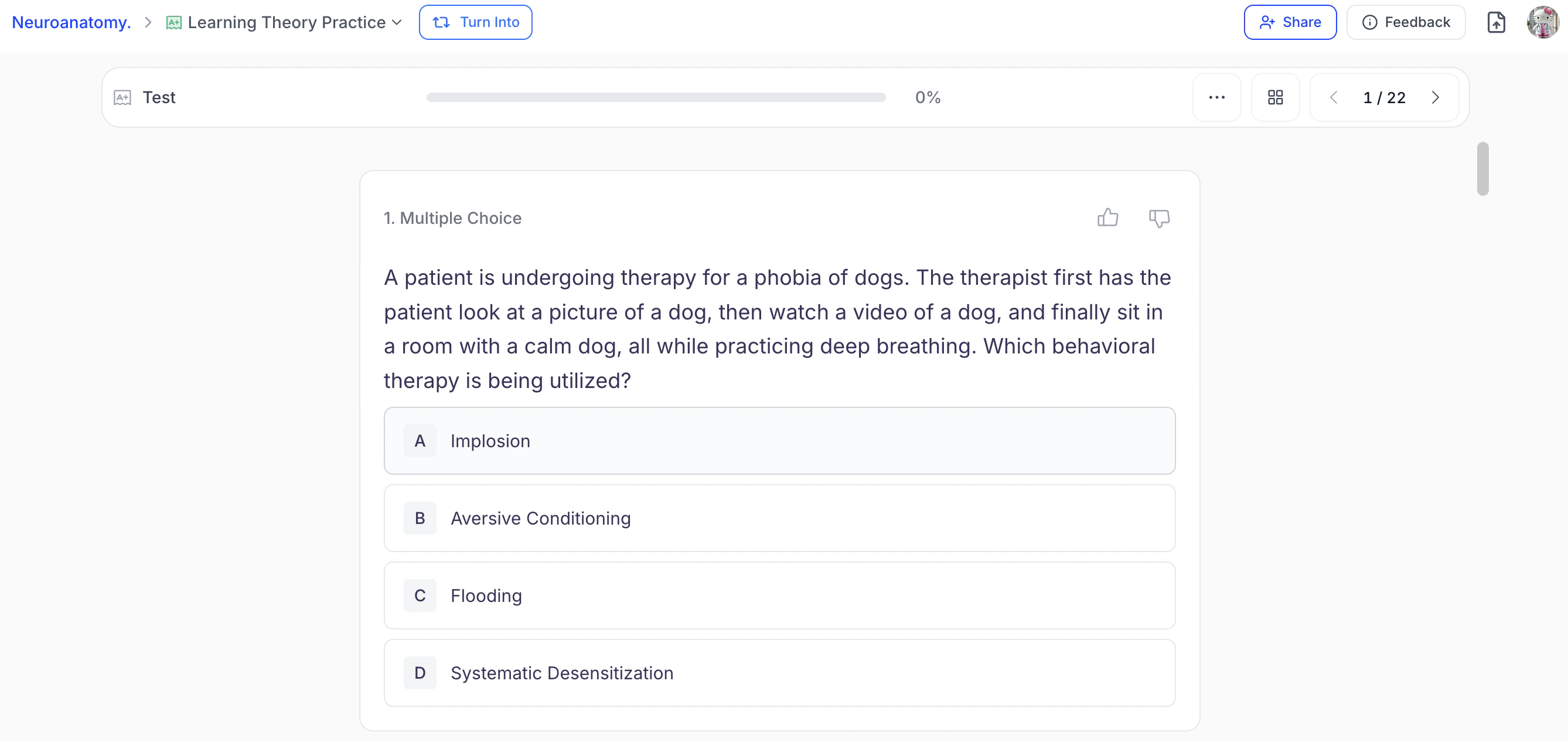 ### Step 3: Submit and View Your Score
1. Once you've answered all the questions, click **Submit Test**.
### Step 3: Submit and View Your Score
1. Once you've answered all the questions, click **Submit Test**.
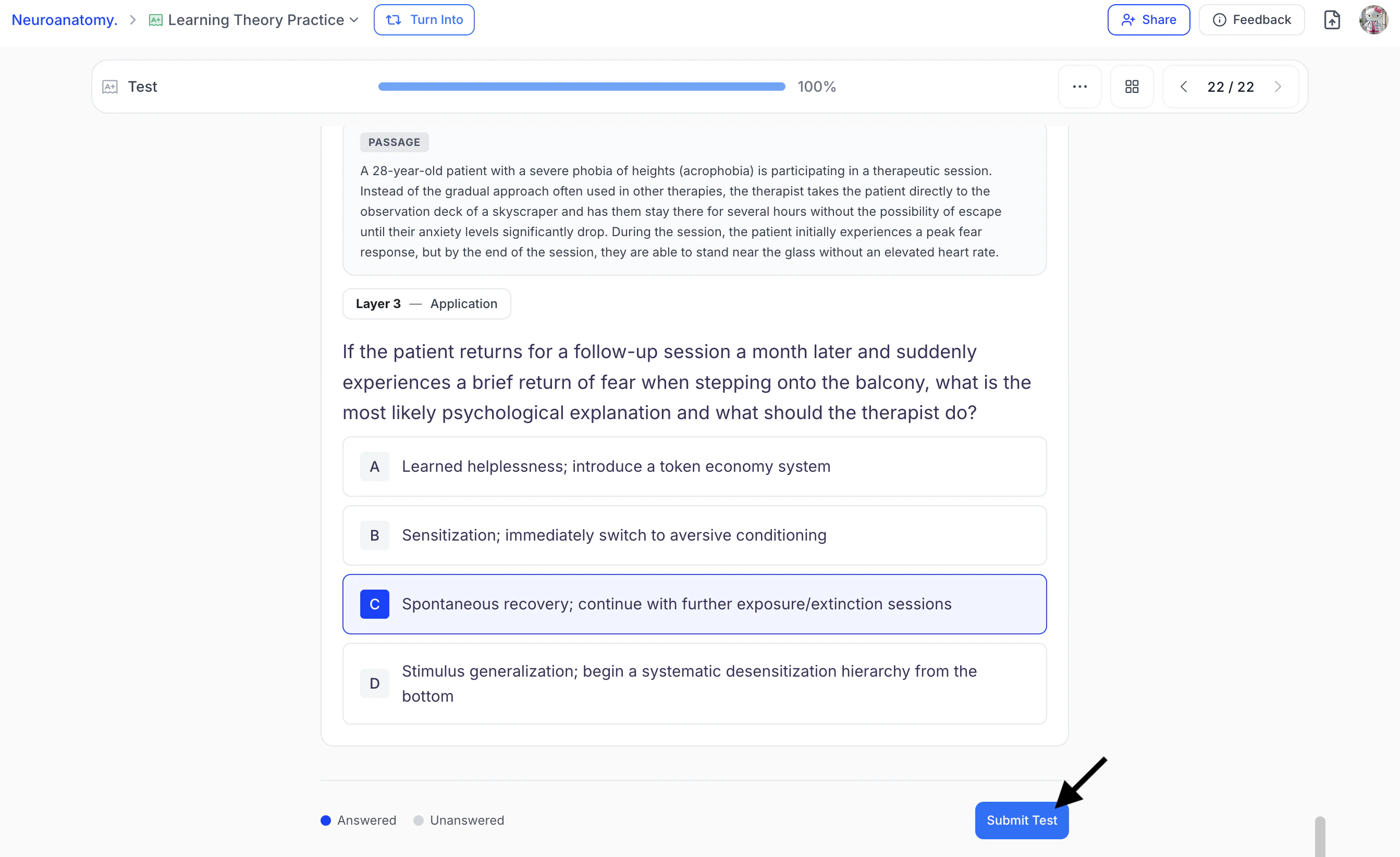 2. If you need to review or modify your answers, select **Cancel**. If you are ready to have your test graded, click **Submit**.
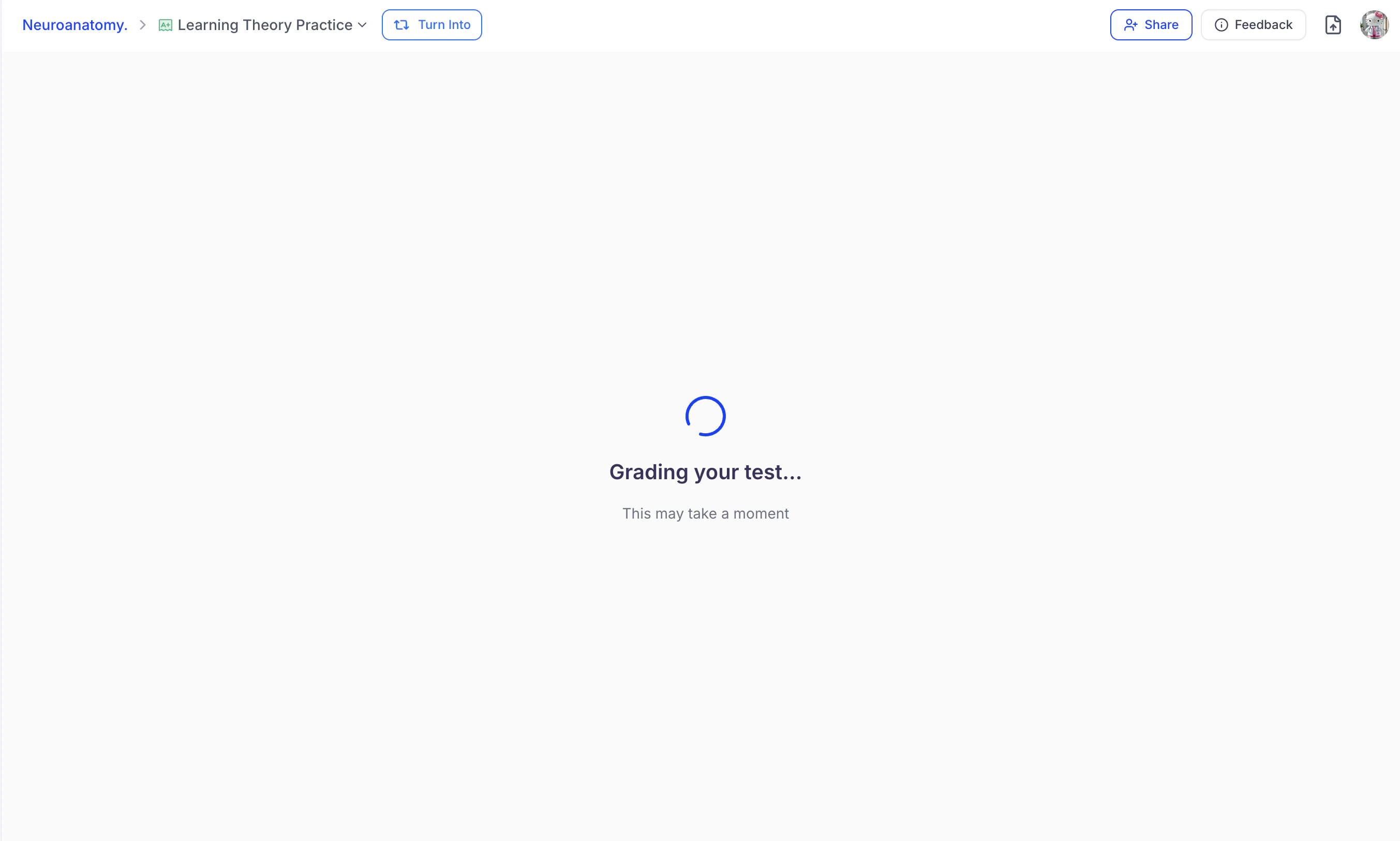
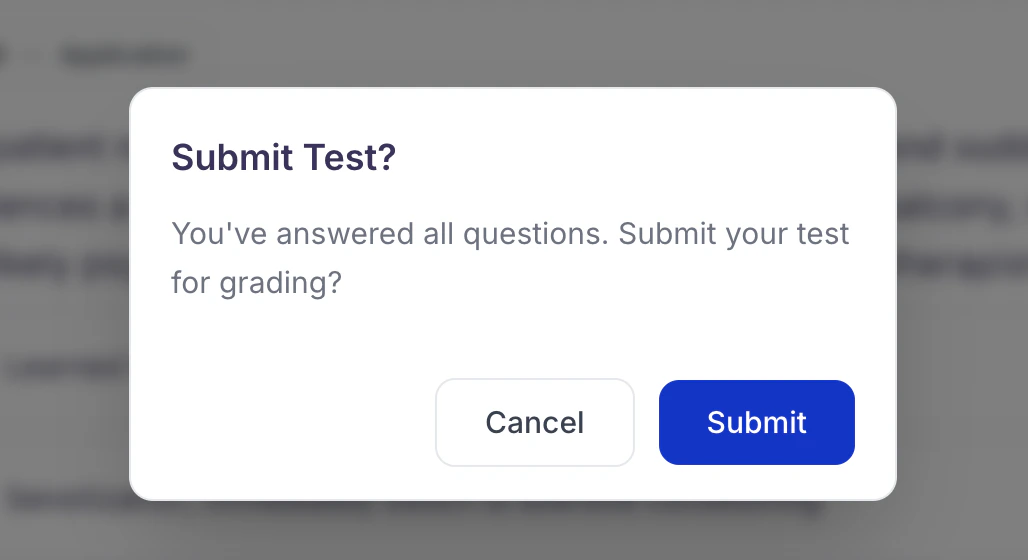 3. StudyFetch will instantly grade your test and provide a complete breakdown of your results.
 4. After grading is complete you will see your score percentage and amount of questions answered correctly.
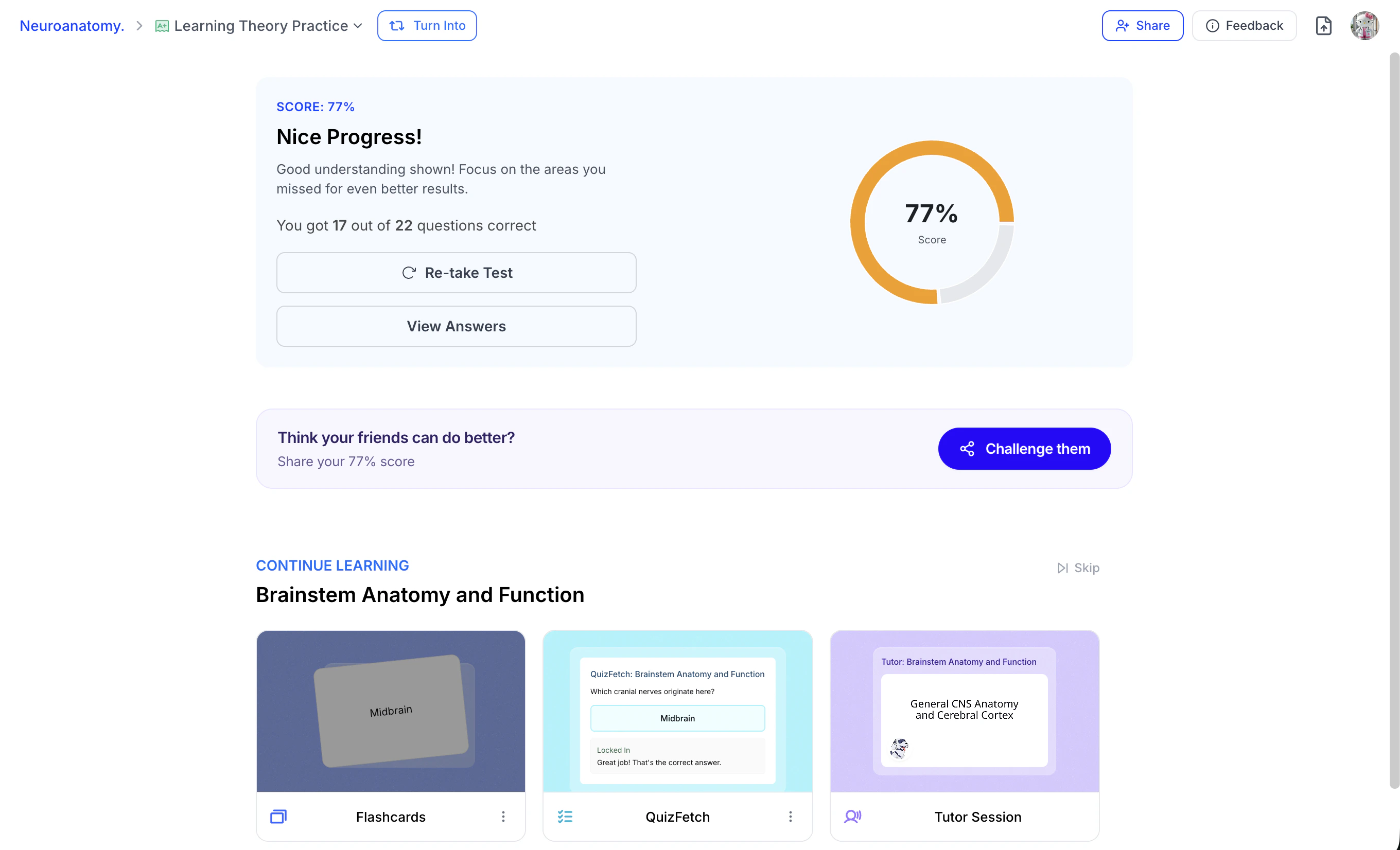 If you would like to retake your test before reviewing your first attempt, select **Retake Test**. Otherwise, continue to the next step to review your practice test.
### Step 4: Review Your Results and Learn with Spark.E
1. Select **View Answers** to start reviewing your practice test performance.
2. You can now scroll to view all of your answers and see whether each response is correct or incorrect.
If you would like to retake your test before reviewing your first attempt, select **Retake Test**. Otherwise, continue to the next step to review your practice test.
### Step 4: Review Your Results and Learn with Spark.E
1. Select **View Answers** to start reviewing your practice test performance.
2. You can now scroll to view all of your answers and see whether each response is correct or incorrect.
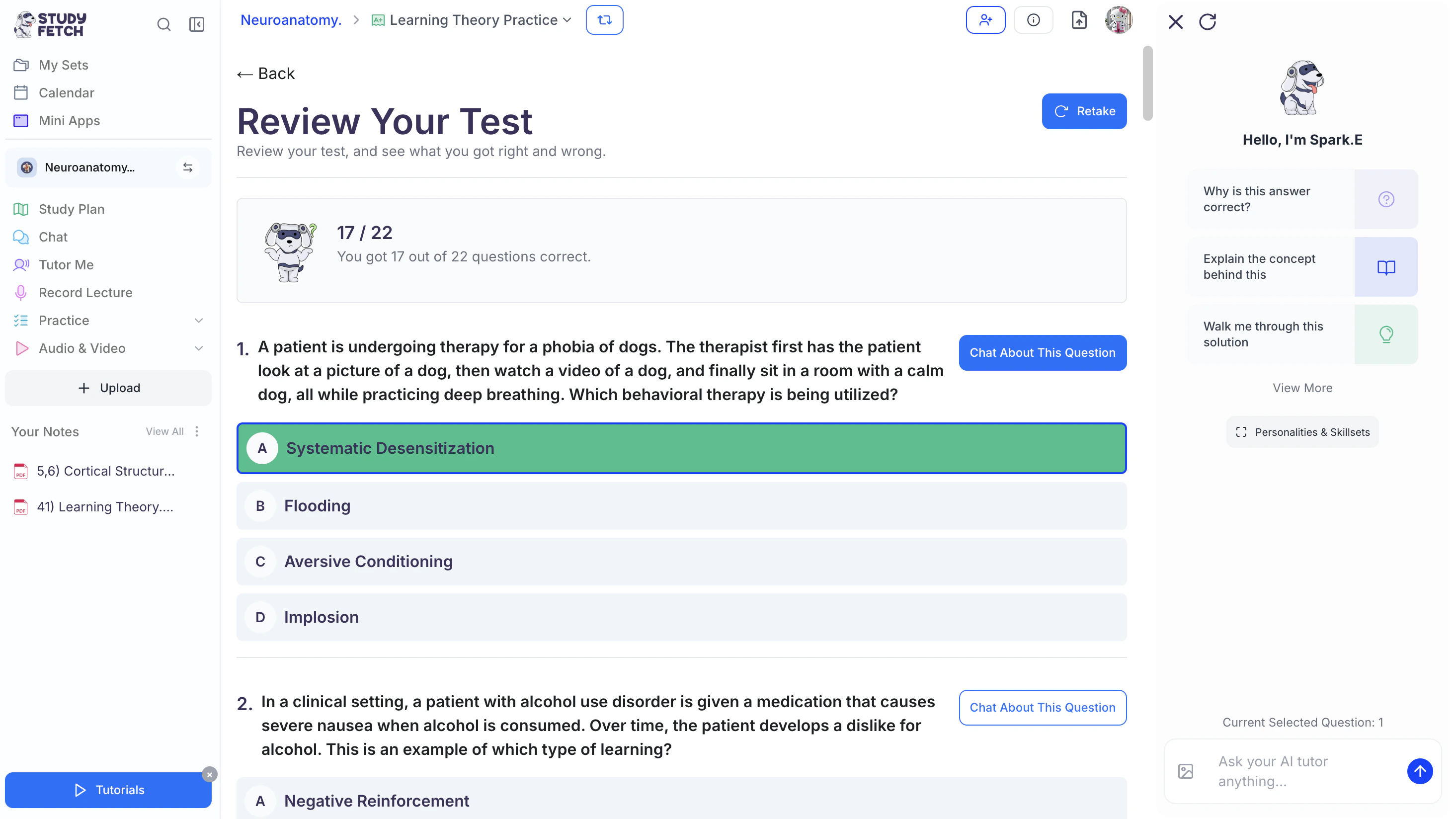 3. Use the **Spark.E Chat** on the right side to ask questions or explore topics in more depth. First, select **Chat About This Question** next to a specific question.
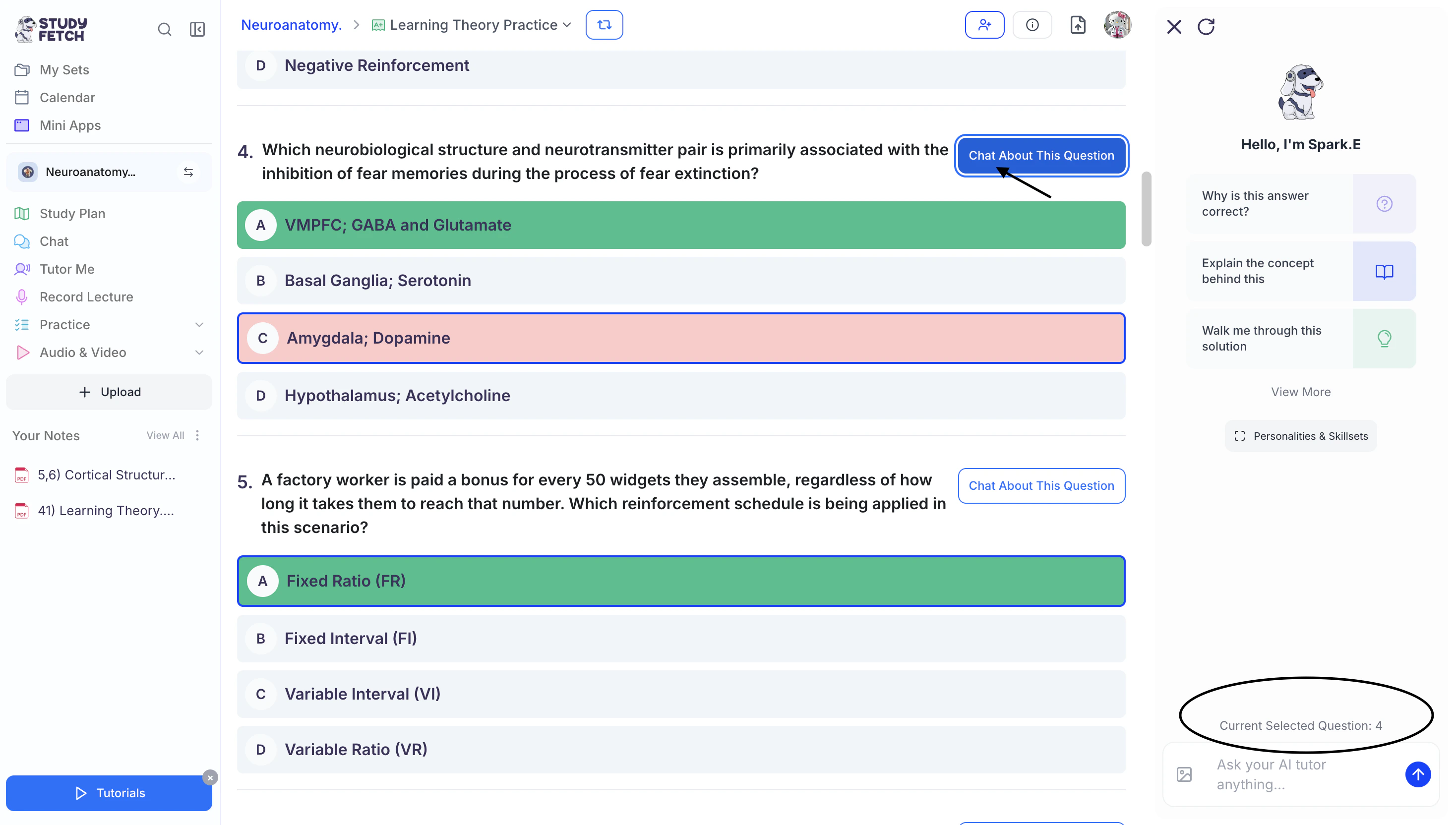 The **Current Selected Question** displayed above the chat box will update to reflect the question you selected.
4. Then **type** your message in the **chat box** and press **Enter**,
The **Current Selected Question** displayed above the chat box will update to reflect the question you selected.
4. Then **type** your message in the **chat box** and press **Enter**,
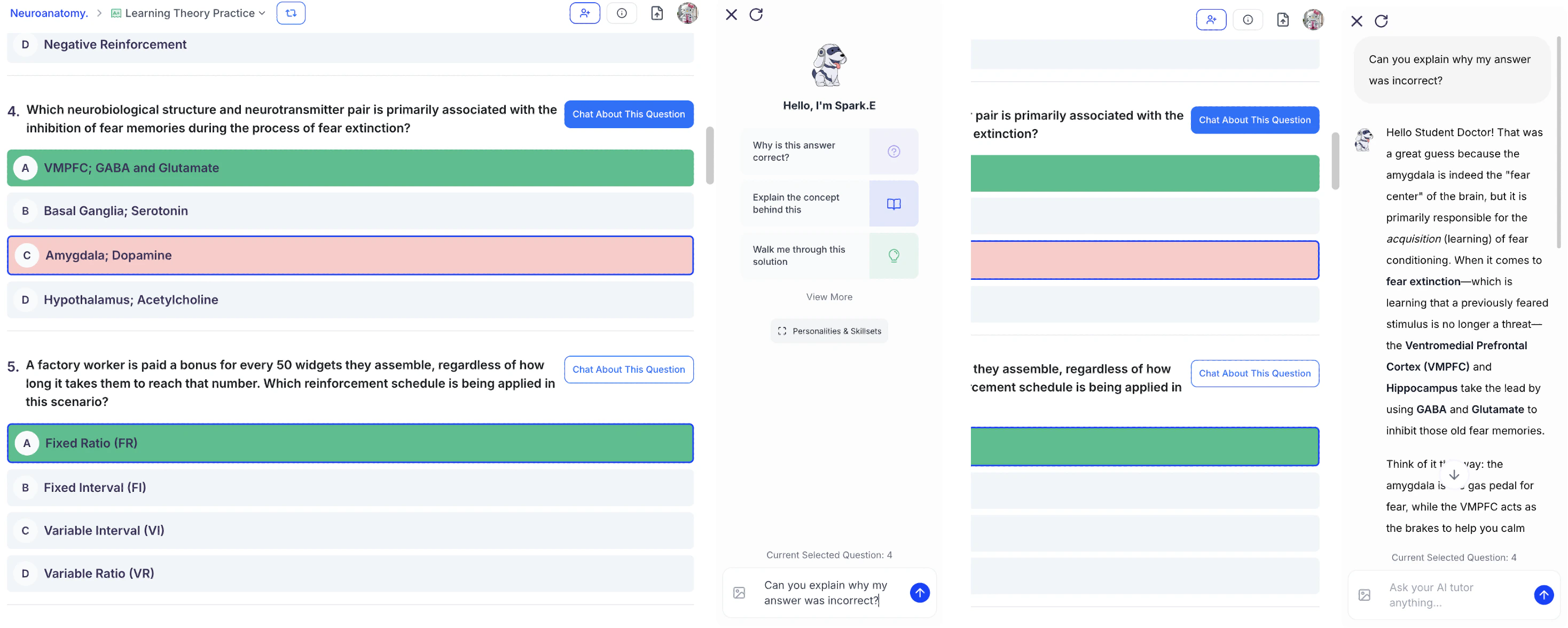 or choose from the suggested prompts under **Hello, I’m Spark.E**.
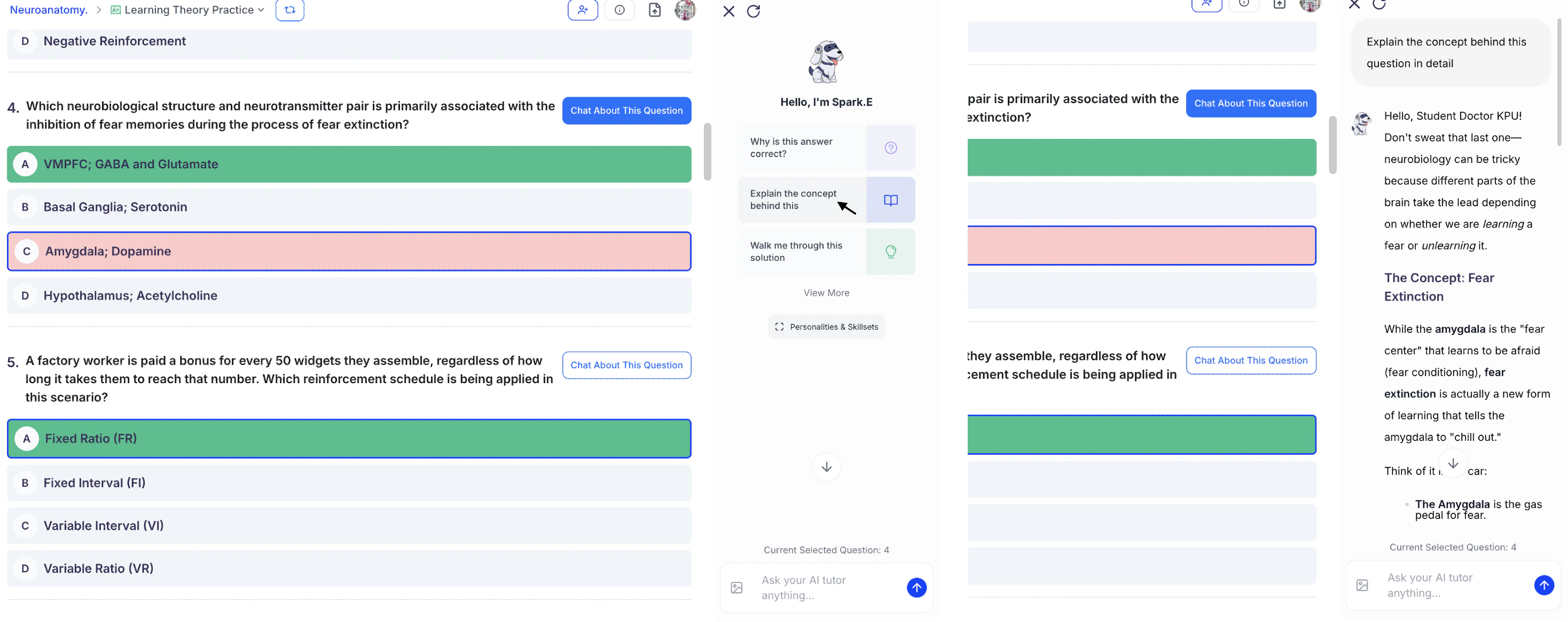 5. Spark.E will provide detailed, personalized responses tailored to your learning style.
### Step 5: Retake Your Test
Use your results to guide targeted study, then reattempt the practice test to reinforce mastery.
1. In the **Review Your Test** page, click **Retake** from the top right, or..
5. Spark.E will provide detailed, personalized responses tailored to your learning style.
### Step 5: Retake Your Test
Use your results to guide targeted study, then reattempt the practice test to reinforce mastery.
1. In the **Review Your Test** page, click **Retake** from the top right, or..
 2. To retake a completed test that you are not currently reviewing, first navigate to the **Test feature page**. From the left-hand side of your dashboard, click **Practice**, then select **Test**.
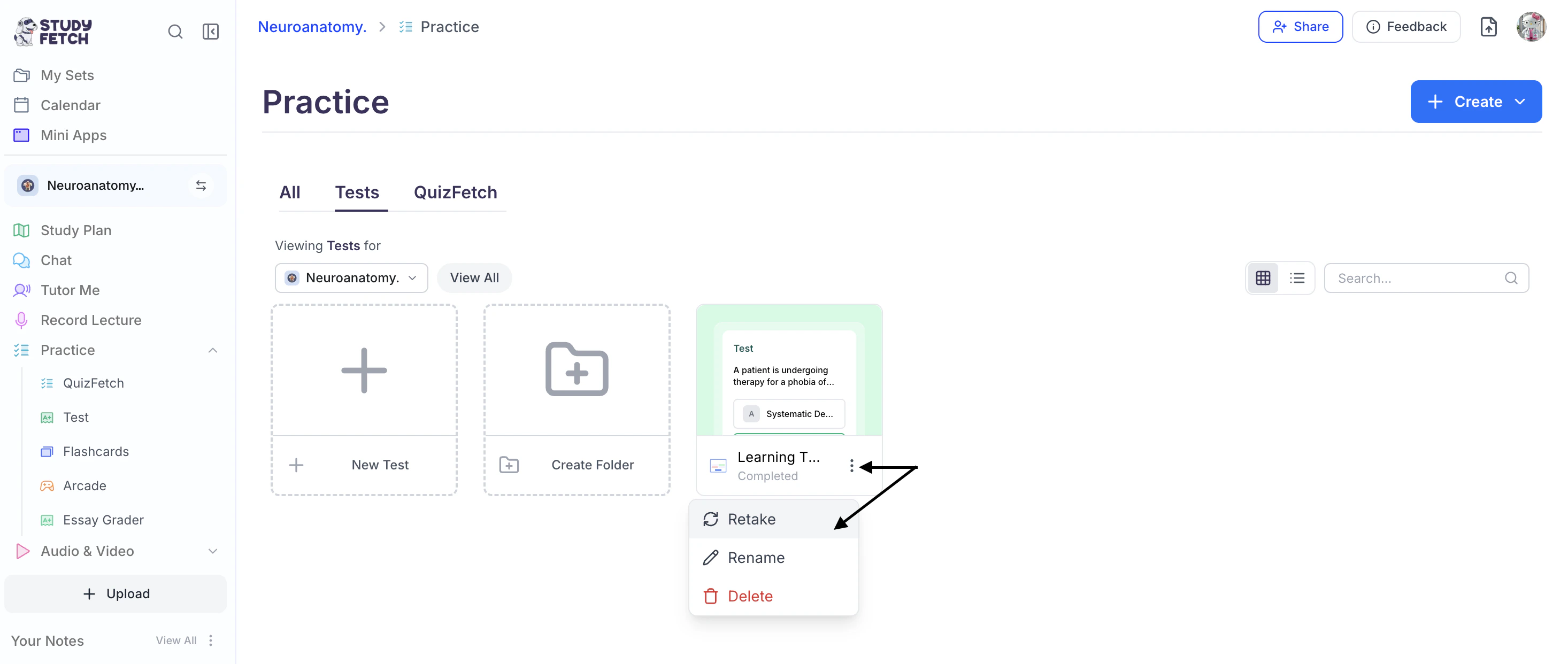 3. Select the **⋮** button to the right of the desired test name and choose **Retake**.
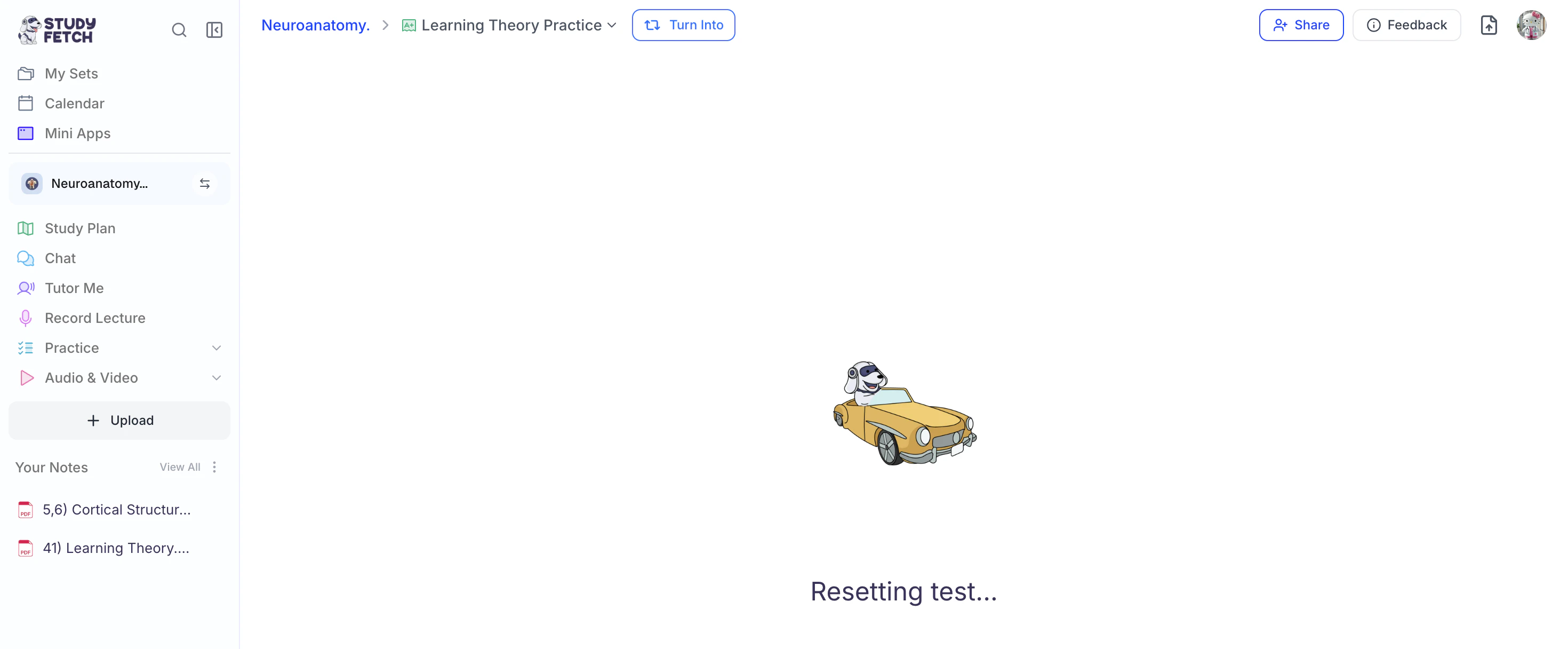
4. StudyFetch will now reset your test!
3. Select the **⋮** button to the right of the desired test name and choose **Retake**.
4. StudyFetch will now reset your test!
 ## Managing your Test
### Rate Your Questions
How do you like your practice test questions? Let us know what is working and what isn't. The more feedback provided, the better future questions become over time.
* Use the **thumbs up** or **thumbs down** buttons located in the top right above each question to provide feedback on your AI-generated practice test questions.
## Managing your Test
### Rate Your Questions
How do you like your practice test questions? Let us know what is working and what isn't. The more feedback provided, the better future questions become over time.
* Use the **thumbs up** or **thumbs down** buttons located in the top right above each question to provide feedback on your AI-generated practice test questions.
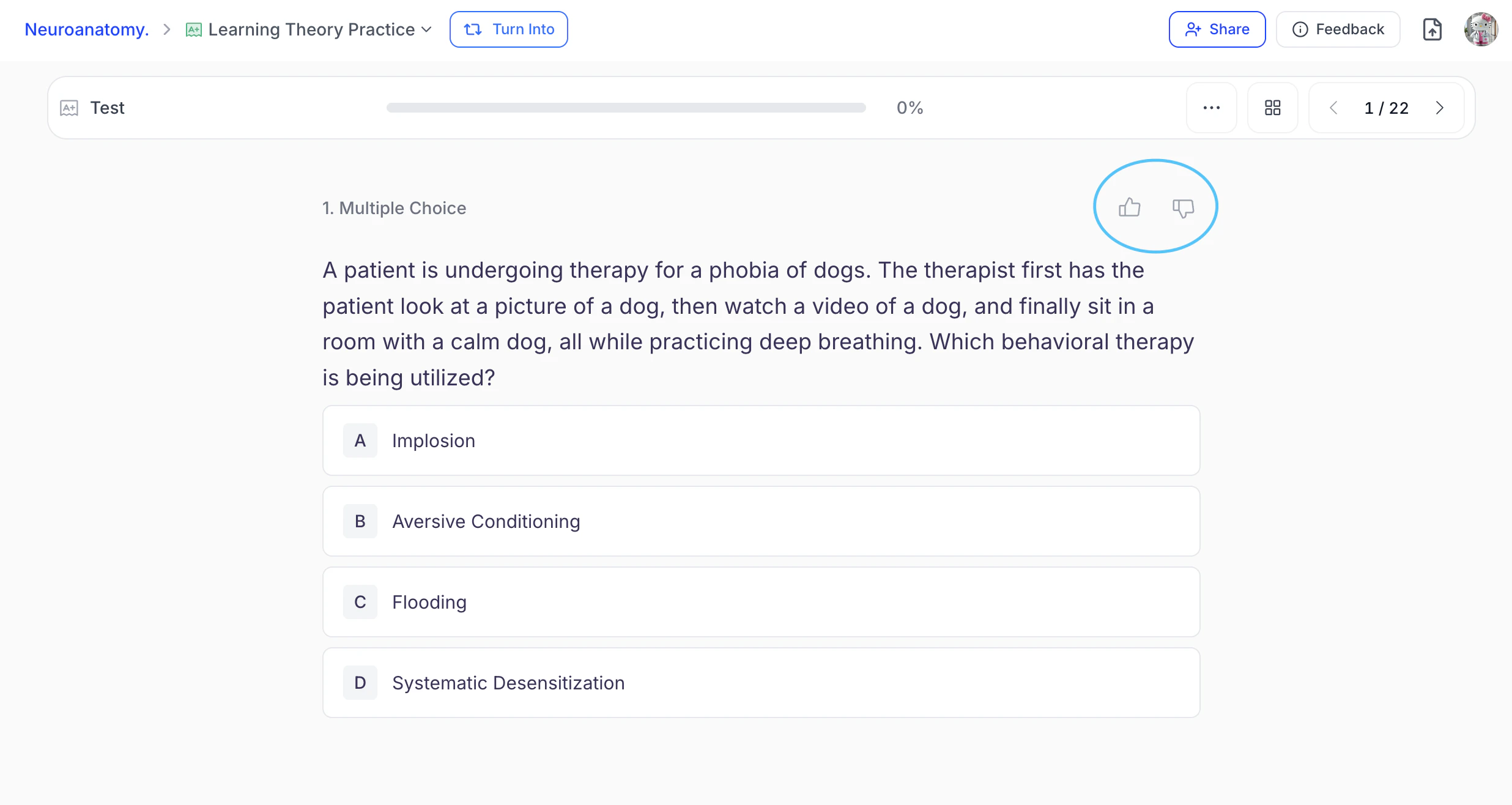 * A thumbs up indicates the question contains helpful content, while a thumbs down indicates the content needs improvement.
### **Changing the Name of** Your Test
Test names can be updated **While Taking a Test** or from the **Test Feature Page**. Choose the method that works best for you:
**While Taking a Test:**
1. Click the **downward arrow** to the right of your test name and then click **Rename**.
* A thumbs up indicates the question contains helpful content, while a thumbs down indicates the content needs improvement.
### **Changing the Name of** Your Test
Test names can be updated **While Taking a Test** or from the **Test Feature Page**. Choose the method that works best for you:
**While Taking a Test:**
1. Click the **downward arrow** to the right of your test name and then click **Rename**.
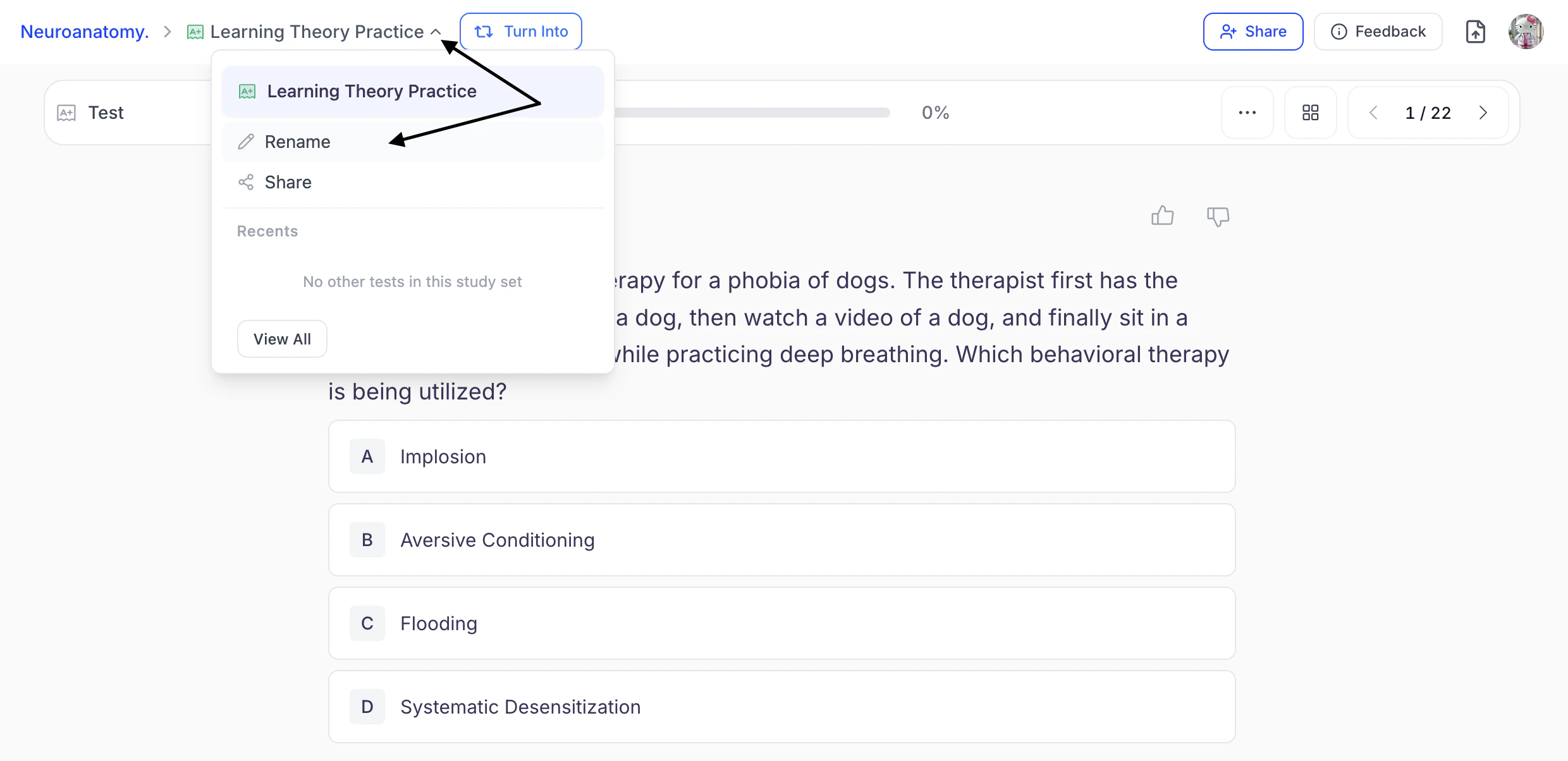 2. You can edit the existing name or enter a new name for your test in the **Name** field. When done click **Save**.
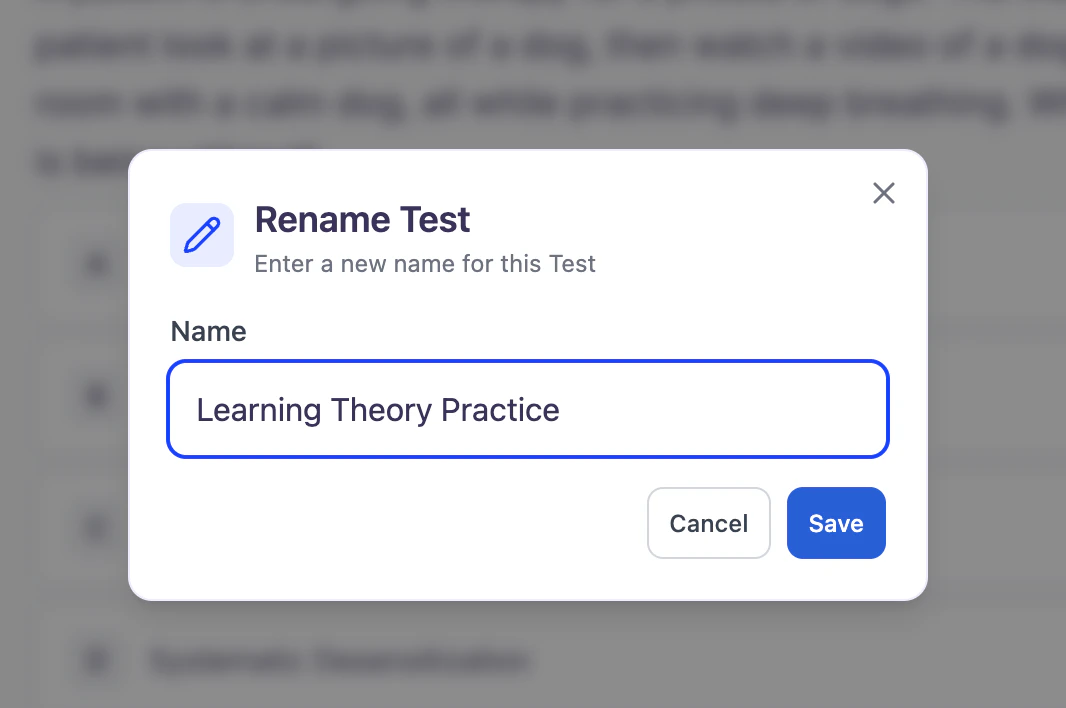 **From Test feature page:**
1. First navigate to the **Test feature page**. From the left-hand side of your dashboard, click **Practice**, then select **Test**.
**From Test feature page:**
1. First navigate to the **Test feature page**. From the left-hand side of your dashboard, click **Practice**, then select **Test**.
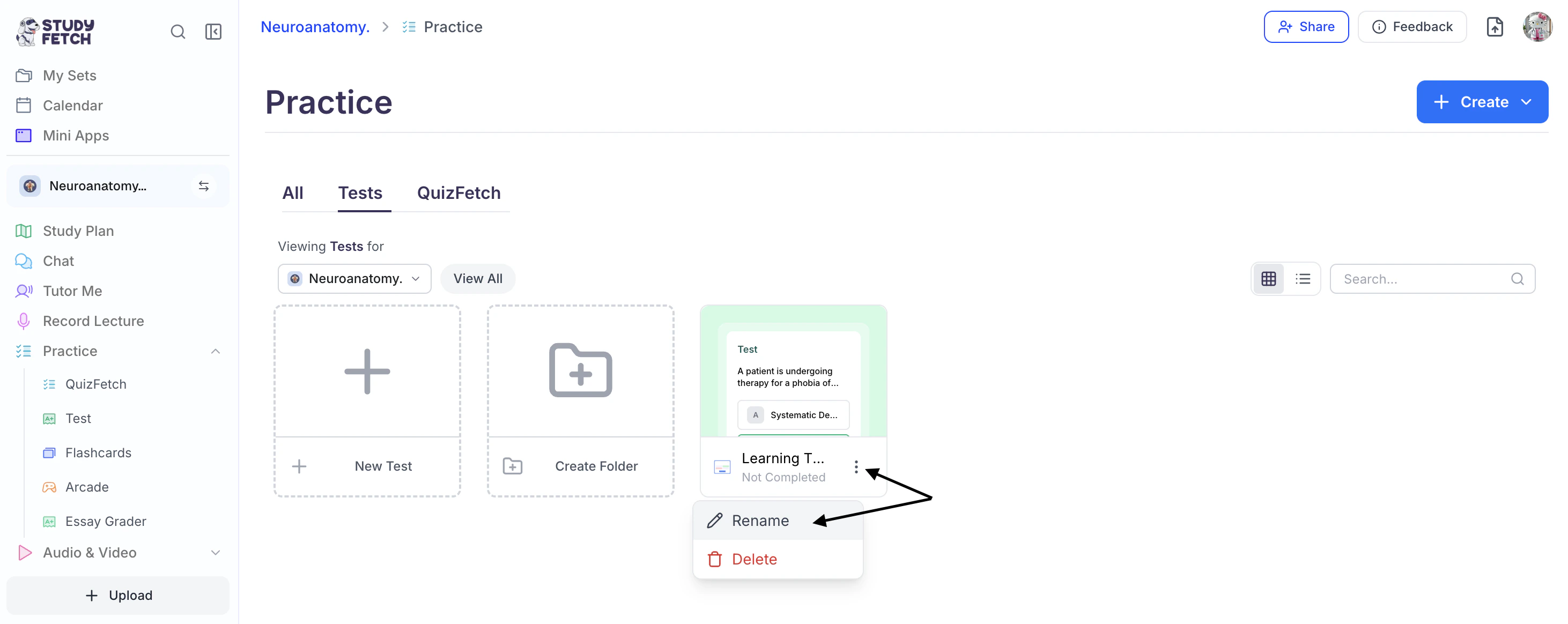 2. Select the **⋮** button to the right of the desired test name and choose **Rename**.
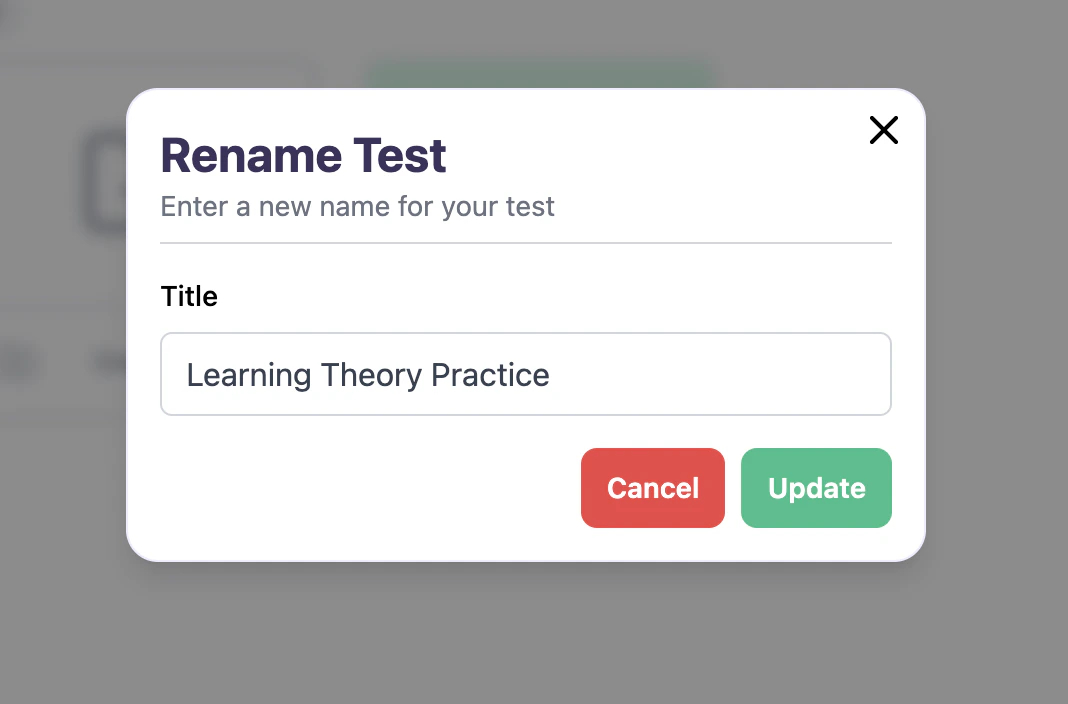
3. You can edit the existing name or enter a new name for your test in the **Title** field. When done click **Update**.
2. Select the **⋮** button to the right of the desired test name and choose **Rename**.
3. You can edit the existing name or enter a new name for your test in the **Title** field. When done click **Update**.
 ### Share Your Test
Found your test helpful? Share it **during the test** or from the **Test Results** page, and optionally include your score to challenge friends or highlight your achievement.
**During a Test:**
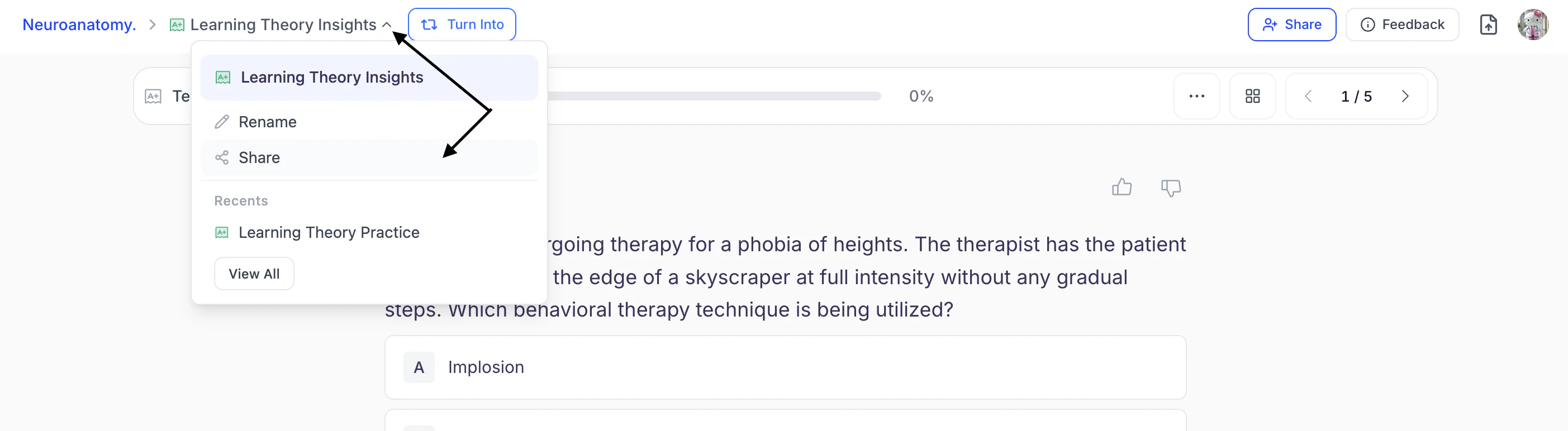
1. Click the **downward arrow** next to your test name, then select **Share**.
### Share Your Test
Found your test helpful? Share it **during the test** or from the **Test Results** page, and optionally include your score to challenge friends or highlight your achievement.
**During a Test:**
1. Click the **downward arrow** next to your test name, then select **Share**.
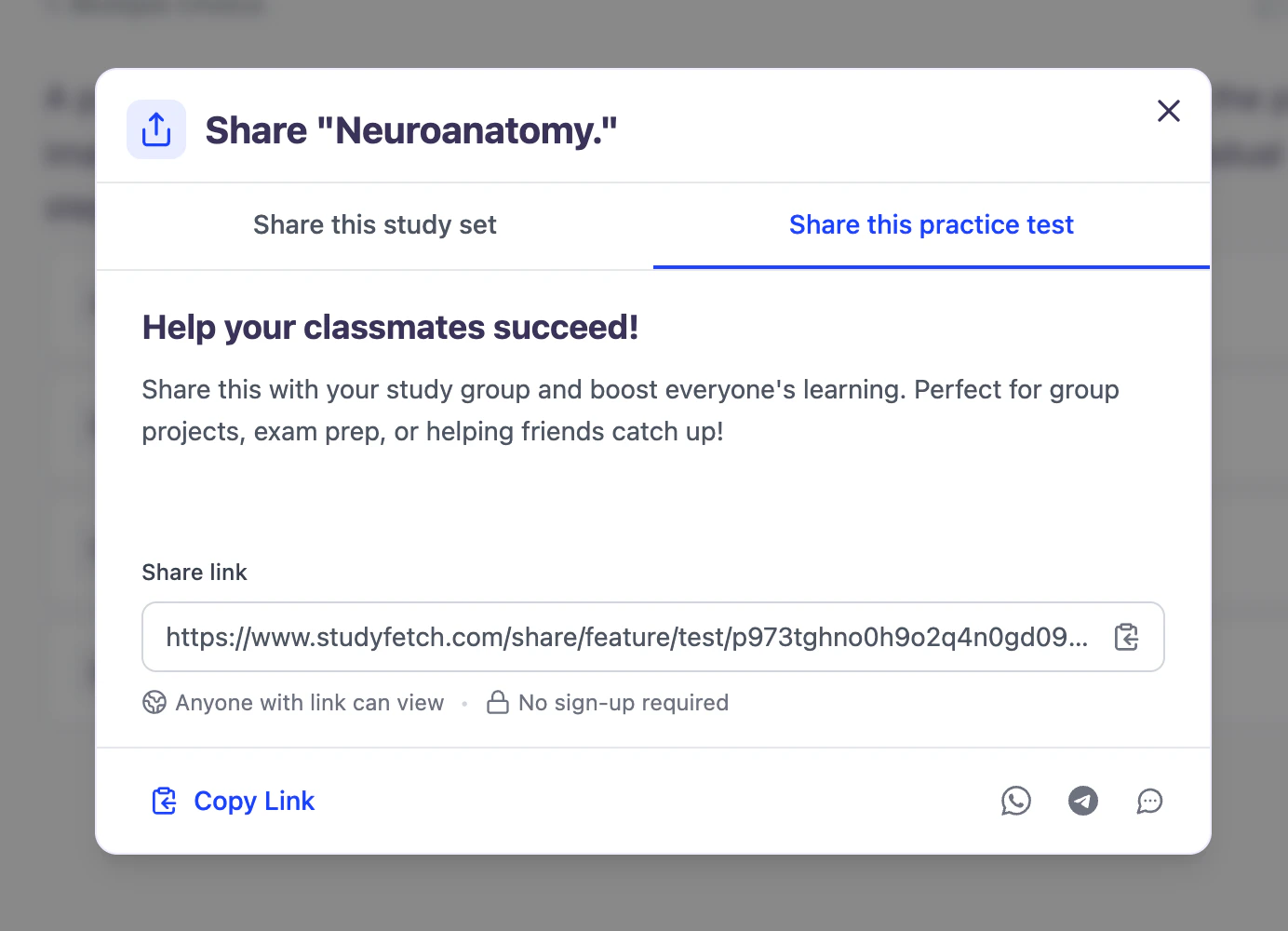
 2. Copy the link by clicking directly on the URL under **Share link**, or select **Copy Link** from the bottom left corner. You can now share the copied link.
 3. To share directly through supported apps:
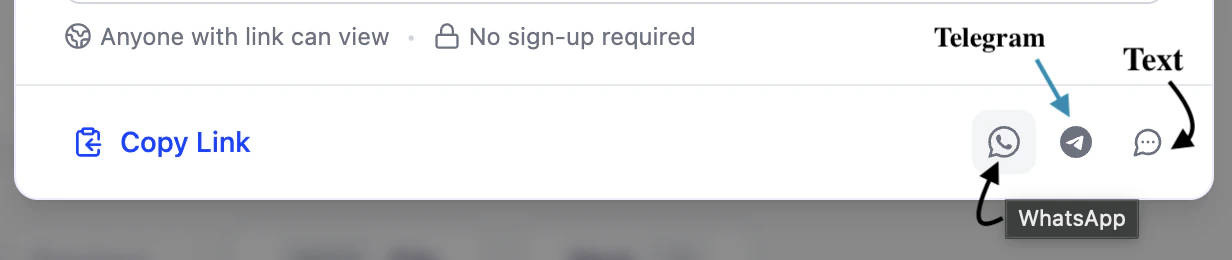 * Select the **WhatsApp** icon to share via WhatsApp.
* Select the **Telegram** icon to share via Telegram.
* Select the **Text** icon to share through your preferred messaging app.
**From the Test Results Page:**
1. Want to share your test with results, click **Challenge them** within the **Think your friends can do better?** field.
* Select the **WhatsApp** icon to share via WhatsApp.
* Select the **Telegram** icon to share via Telegram.
* Select the **Text** icon to share through your preferred messaging app.
**From the Test Results Page:**
1. Want to share your test with results, click **Challenge them** within the **Think your friends can do better?** field.
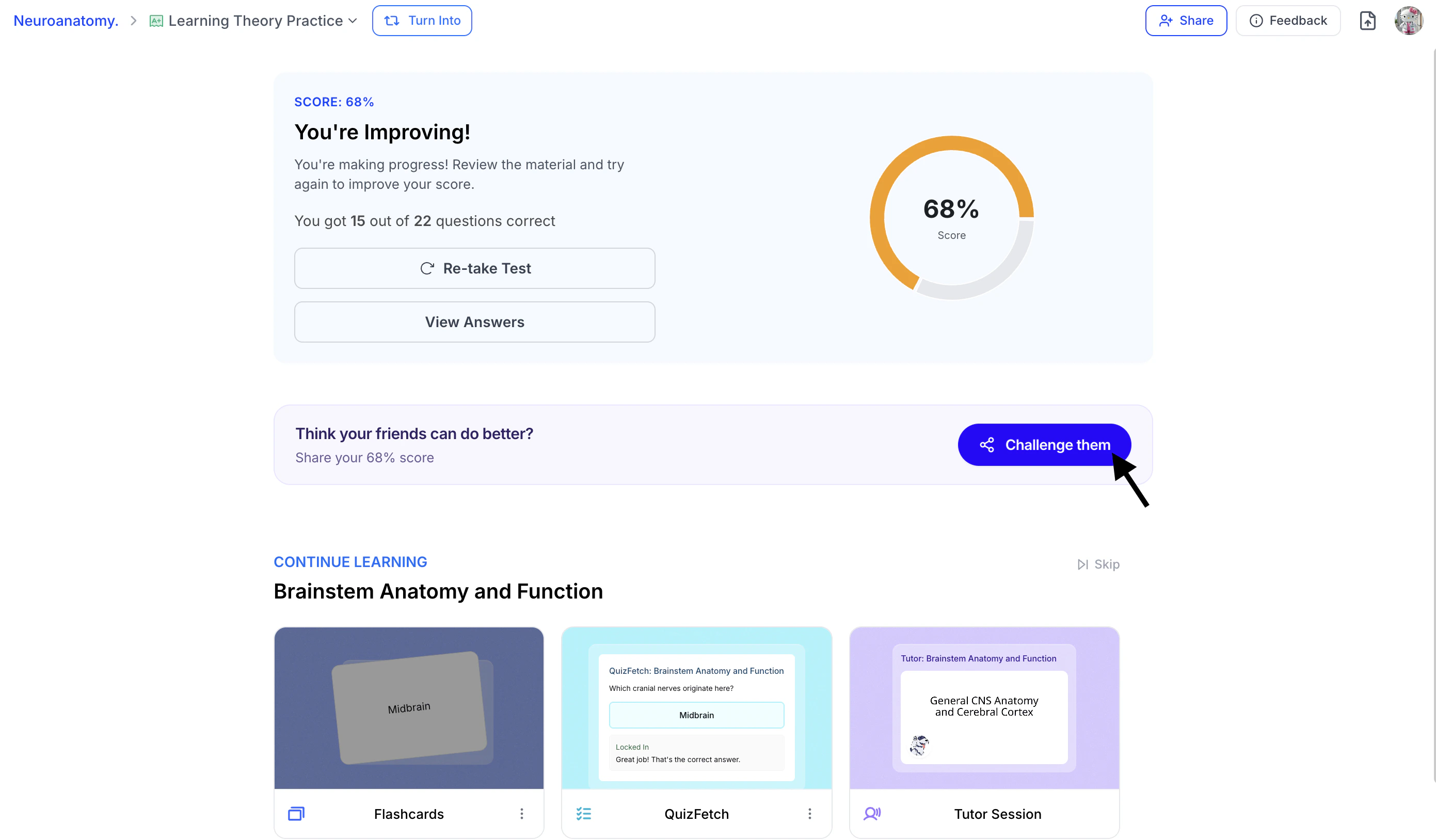 2. Next, choose how you would like to share:
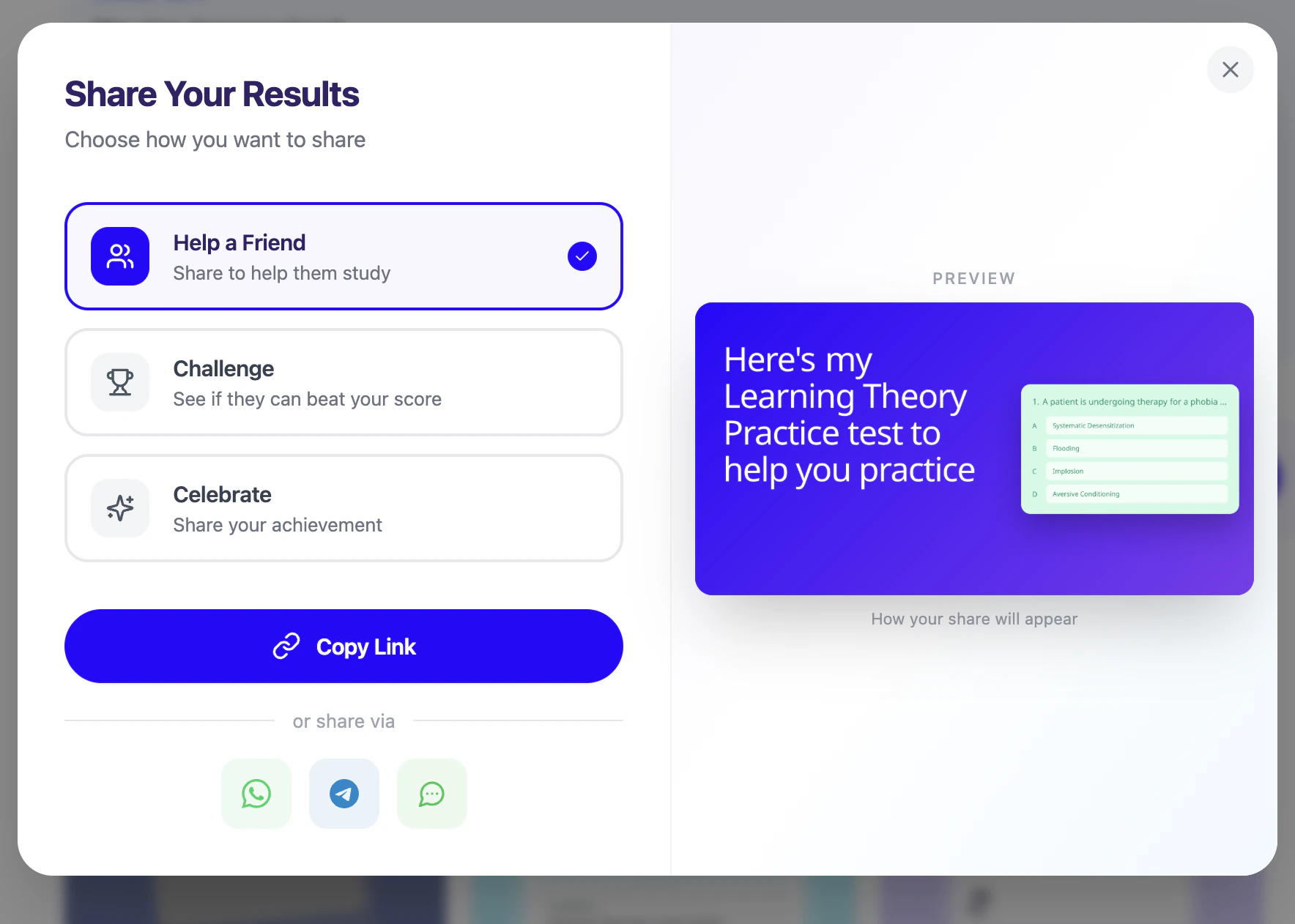
* Select **Help a Friend** to share your practice test **without** your result information.
2. Next, choose how you would like to share:
* Select **Help a Friend** to share your practice test **without** your result information.
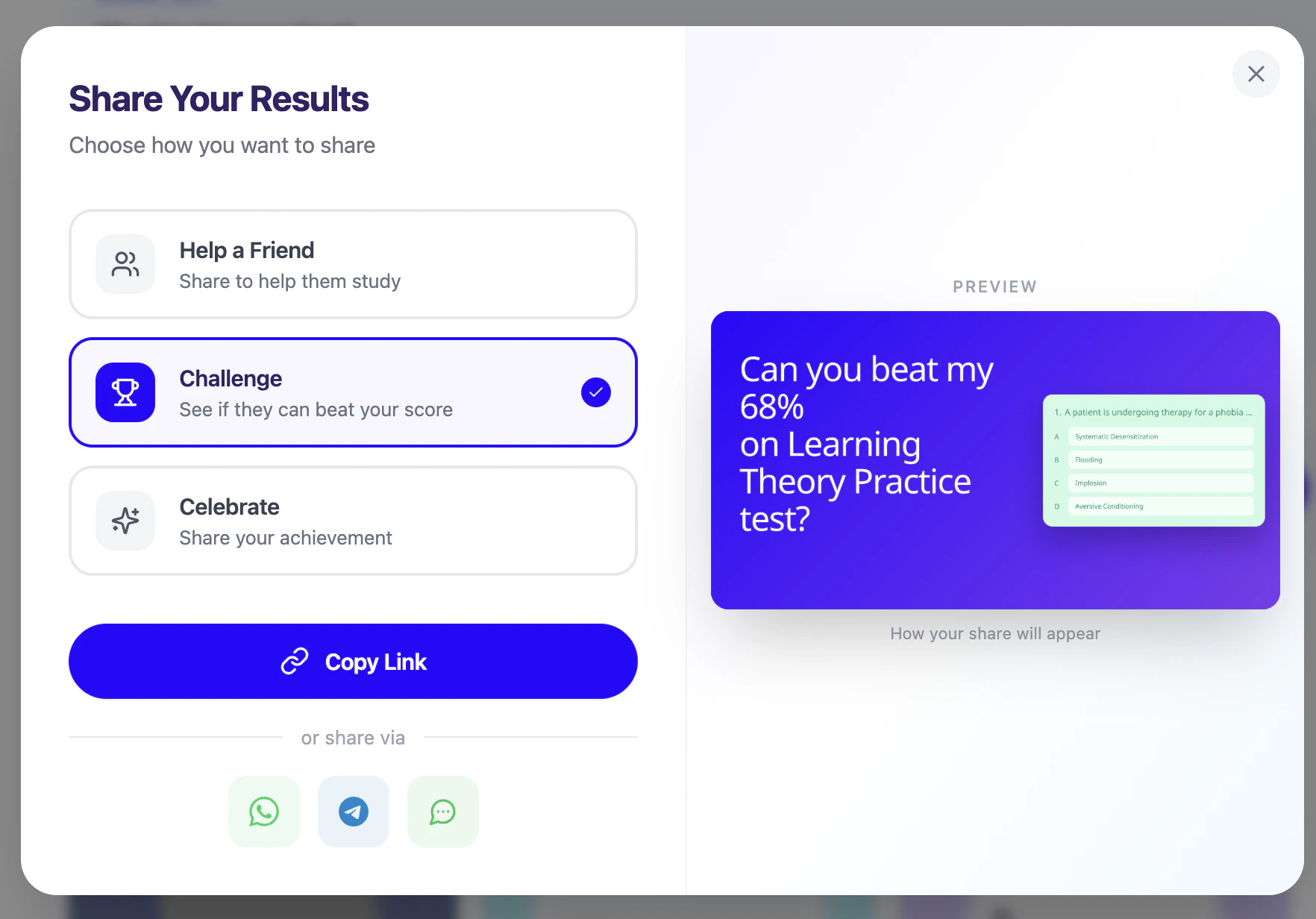
 * Select **Challenge** to share your test **with** your score and see if a friend can beat it.
 * Select **Celebrate** to share your test result and highlight your achievement.
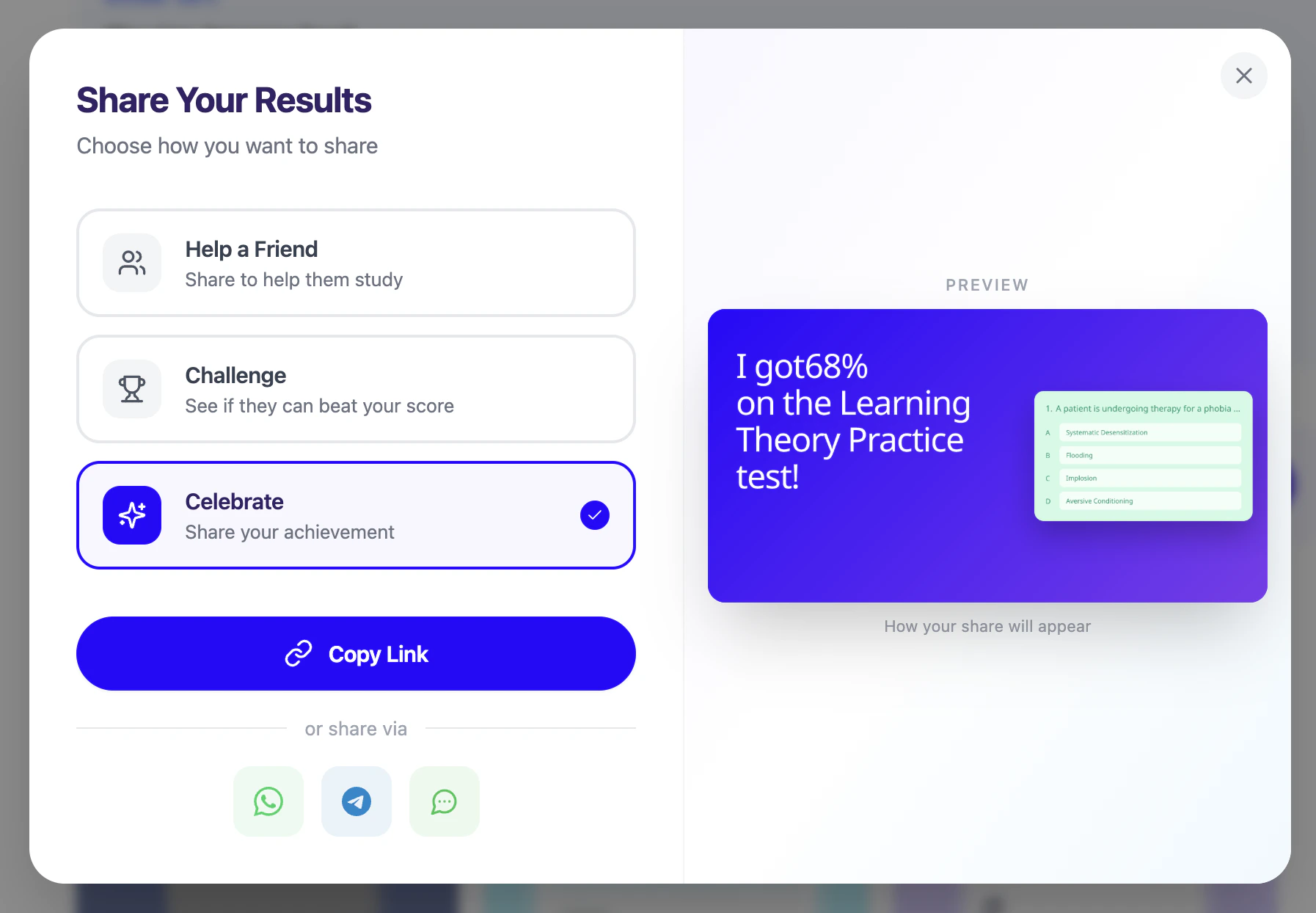 3. Finally, select **Copy Link** or share directly through supported apps:
 1. Select the **WhatsApp** icon to share via WhatsApp.
2. Select the **Telegram** icon to share via Telegram.
3. Select the **Text** icon to share through your preferred messaging app.
### Delete Your Test
1. First navigate to the **Test feature page**. From the left-hand side of your dashboard, click **Practice**, then select **Test**.
1. Select the **WhatsApp** icon to share via WhatsApp.
2. Select the **Telegram** icon to share via Telegram.
3. Select the **Text** icon to share through your preferred messaging app.
### Delete Your Test
1. First navigate to the **Test feature page**. From the left-hand side of your dashboard, click **Practice**, then select **Test**.
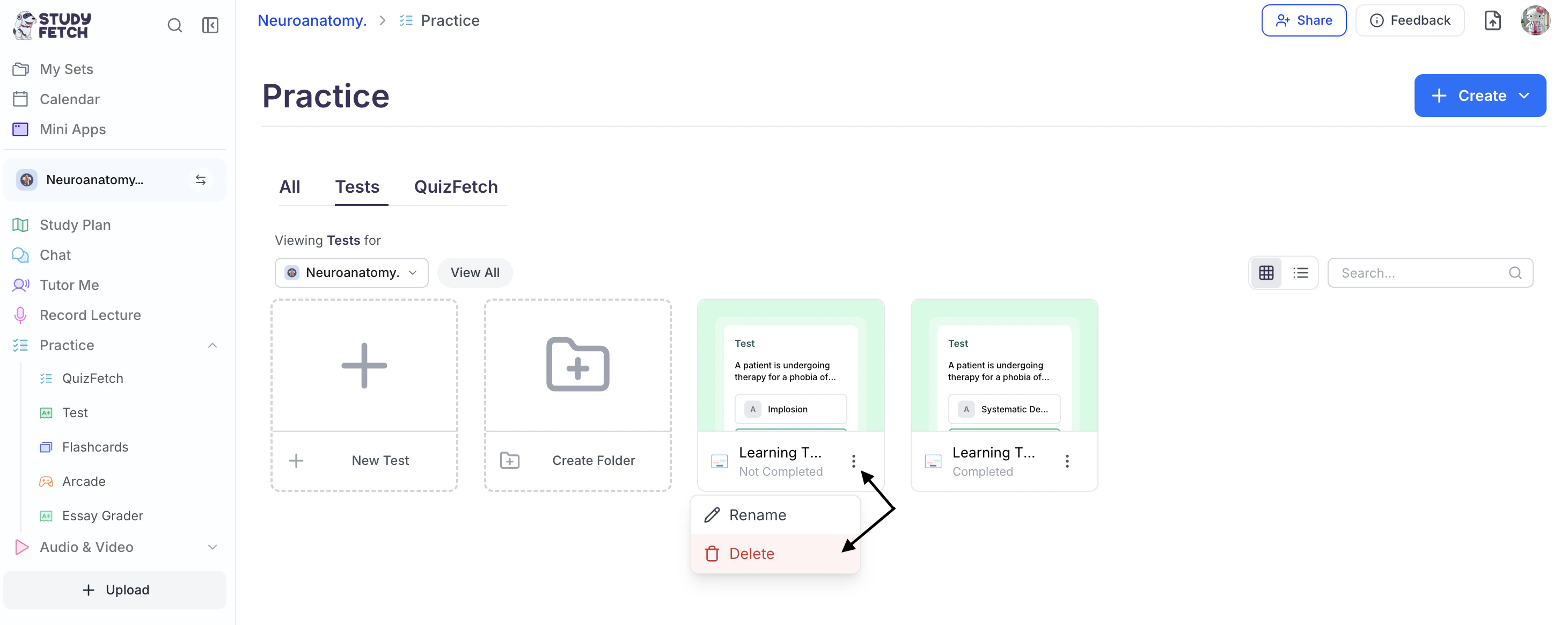 2. Select the **⋮** button to the right of the desired test name and choose **Delete**.
3. If you are sure you want to delete this test, select **OK**.
2. Select the **⋮** button to the right of the desired test name and choose **Delete**.
3. If you are sure you want to delete this test, select **OK**.
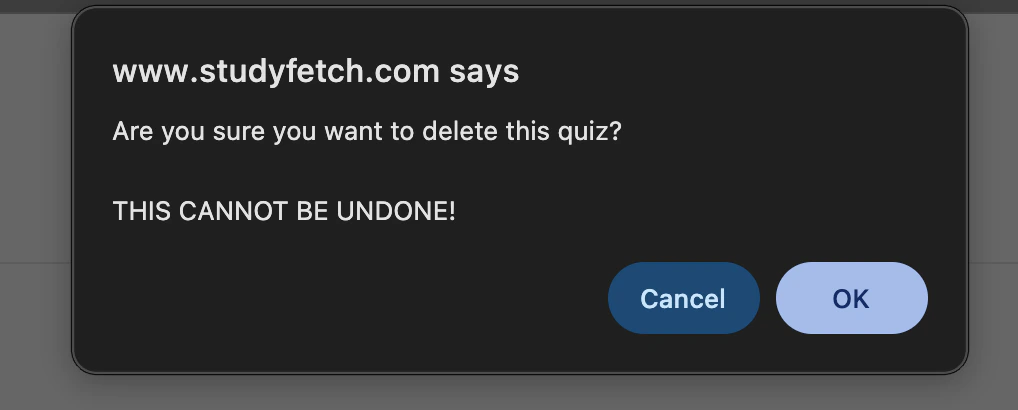 Be cautious as this cannot be undone!
## Test Features and Benefits
* **Customizable Question Types**: Choose from multiple choice, free response, fill-in-the-blank, and more
* **Targeted Testing**: Focus on specific topics or broader subject areas
* **Immediate Feedback**: Get instant grading and explanations for each question
* **AI-Powered Review**: Ask Spark.E to explain concepts you didn't understand
* **Exam Preparation**: Practice with formats similar to standardized tests
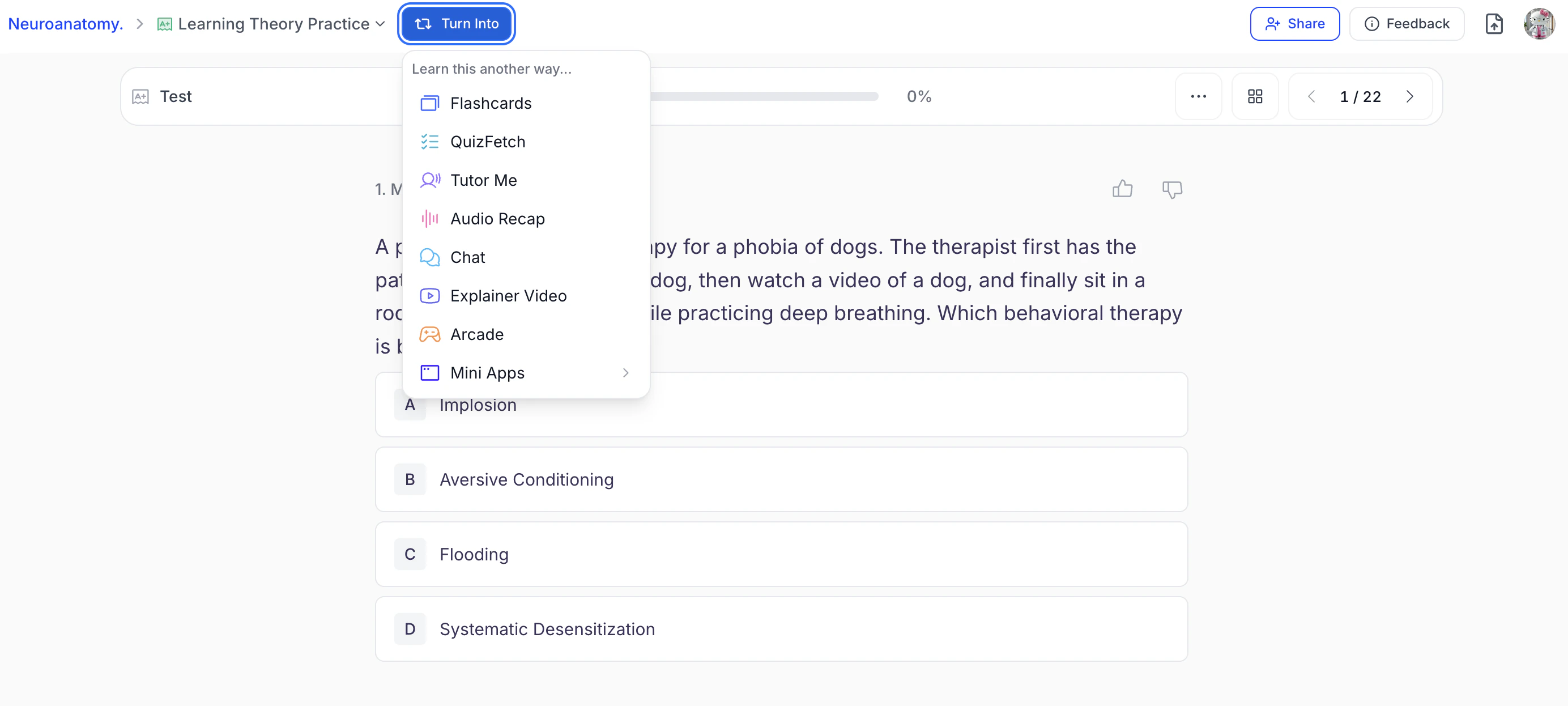
* **Integration with Other Tools**: Your tests can be used to generate flashcards, quizzes, and other study materials. You can create new study resources directly from your test by selecting **Turn Into** at the top of the Test Results page
Be cautious as this cannot be undone!
## Test Features and Benefits
* **Customizable Question Types**: Choose from multiple choice, free response, fill-in-the-blank, and more
* **Targeted Testing**: Focus on specific topics or broader subject areas
* **Immediate Feedback**: Get instant grading and explanations for each question
* **AI-Powered Review**: Ask Spark.E to explain concepts you didn't understand
* **Exam Preparation**: Practice with formats similar to standardized tests
* **Integration with Other Tools**: Your tests can be used to generate flashcards, quizzes, and other study materials. You can create new study resources directly from your test by selecting **Turn Into** at the top of the Test Results page
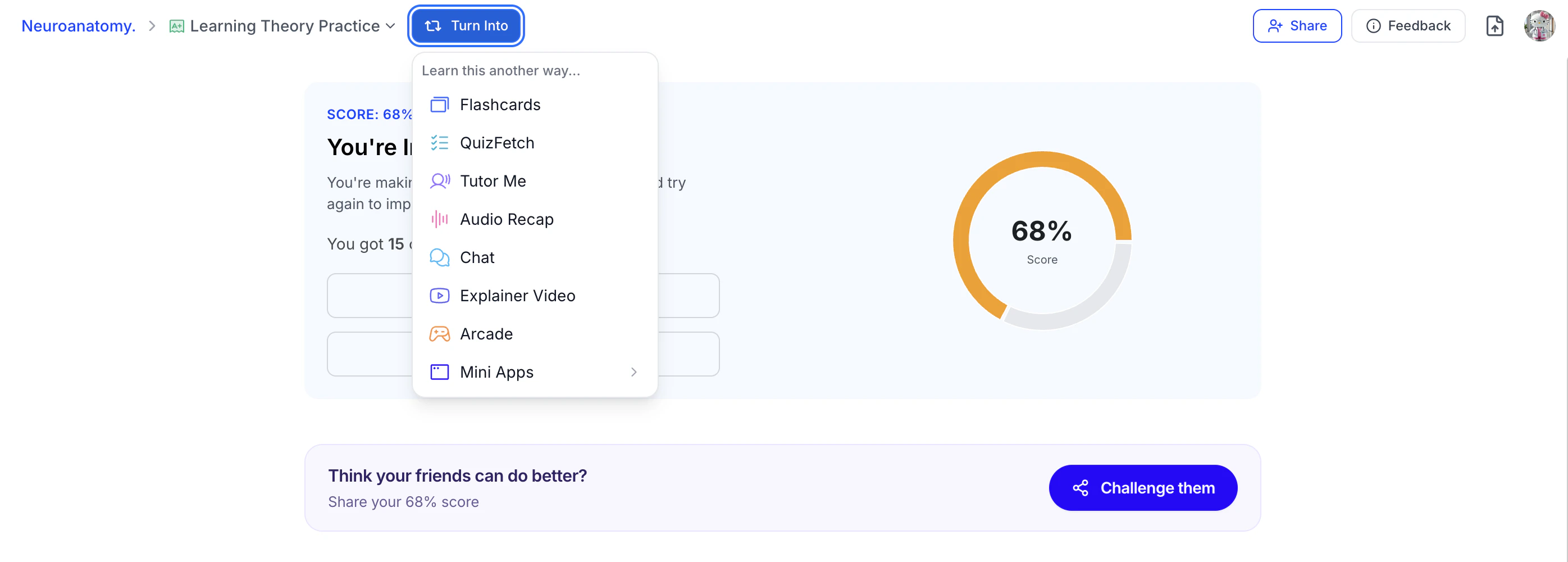 or from the top toolbar while taking a test, then choosing your desired study tool.
 You can also generate study materials from within each feature’s respective section.
## Related Features
After using the Test feature, you may want to:
* Try [QuizFetch](/tutorial-doc-format/quizfetch) for a more game-like testing experience
* Create [Flashcards](/tutorial-doc-format/flashcards) to memorize concepts you struggled with
* Generate [Notes](/tutorial-doc-format/notes) for topics that need further review
You can also generate study materials from within each feature’s respective section.
## Related Features
After using the Test feature, you may want to:
* Try [QuizFetch](/tutorial-doc-format/quizfetch) for a more game-like testing experience
* Create [Flashcards](/tutorial-doc-format/flashcards) to memorize concepts you struggled with
* Generate [Notes](/tutorial-doc-format/notes) for topics that need further review